Extracting data from an SAP source system into SAP BW consists of triggering an InfoPackage from BW. In the background, this process involves a sequence of IDoc exchanges between BW and the source system. Clearly understanding the process behind this IDoc exchange can help you in many scenarios, the most important being recovering a failed data upload.
Key Concept
An IDoc (intermediate document) is a standard data structure for electronic data interchange (EDI). IDocs are used for the data interchange between SAP systems as well as between an SAP system and an external system. IDocs serve as the vehicle for data transfer in SAP’s Application Link Enabling (ALE) system. The contents, structure, sender, receiver, and current status of the IDoc are defined in the IDoc header.
Data acquisition from an SAP source system is a very common scenario in SAP BW. This process involves extracting the data using either standard business content-provided extractors or custom-built extractors.
Failure of data to load usually leads to loss of productive time in re-triggering the extraction. For the scenario that we cover in this article, a data load failure leads to restarting the mirror initialization process. Therefore, this article begins by explaining the process of communication between BW and the source system through IDocs and then applying this knowledge to recover a failed data load without having to restart the mirror initialization process.
Data extraction from an SAP R/3 source system to BW begins when BW sends a request in the form of a request IDoc. The source system then extracts the data and sends it to the BW system. During this activity of data transfer, the two systems exchange additional information from time to time in the form of info IDocs. These info IDocs also transfer the information about the extracted data, such as data source details, data package number, and number of records. Therefore, you should acquire a detailed understanding of the IDoc exchange process to help you more easily deal with problems such as failed requests.
Before we get into the details of how the process works and its various aspects, let’s take a look at how IDocs play a fundamental role in the communication process between BW and R/3 during the data extraction. This article covers the fundamentals of data extraction from R/3 to BW (versions 3.x as well as SAP NetWeaver 2004s).
Communication Between BW and R/3 During Extraction
When BW executes an InfoPackage for data extraction, the system sends a request IDoc (RSRQST) to the Application Link Enabler (ALE) inbox of the source system. This IDoc (Figure 1) contains information such as the request ID (REQUEST), request date (REQDATE), request time (REQTIME), Info-Source (ISOURCE), and update mode (UPDMODE). The source system acknowledges the receipt of this IDoc by sending an info IDoc (RSINFO) back to the BW system. The status is 0 if it is OK or 5 for a failure.
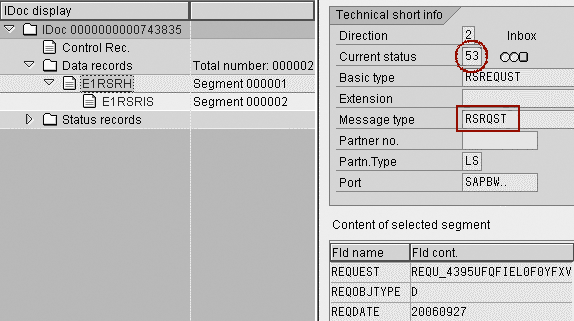
Figure 1
Request IDoc in source system
Once the source system receives the request IDoc successfully, it processes it according to the information in the request. This request starts the extraction process in the source system (typically a batch job with a naming convention that begins with BI_REQ).
The request IDoc status now becomes 53 (application document posted). This status means the system cannot process the IDoc further.
The source system confirms the start of the extraction job by the source system to BW by sending another info IDoc (RSINFO) with status = 1 (Figure 2).
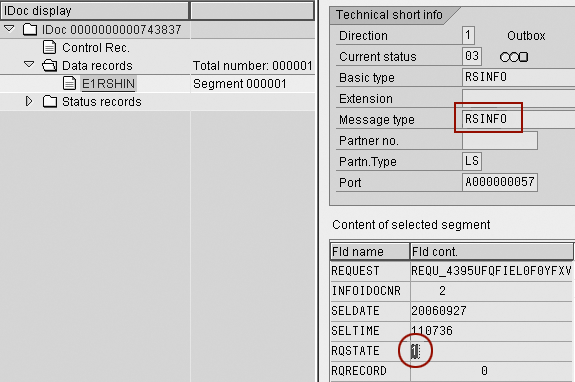
Figure 2
Start of extraction job
Transactional Remote Function Calls (tRFCs) extract and transfer the data to BW in data packages. Another info IDoc (RSINFO) with status = 2 sends information to BW about the data package number and number of records transferred (Figure 3).
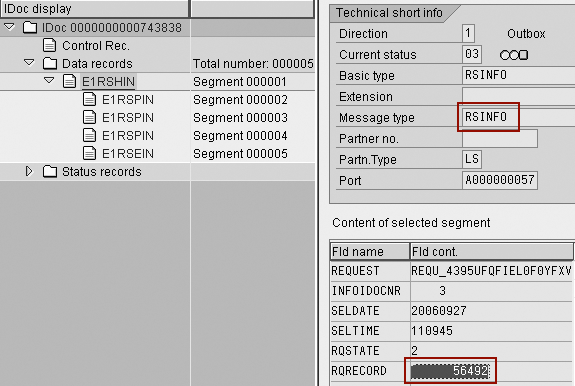
Figure 3
Number of records transferred
At the conclusion of the data extraction process (i.e., when all the data records are extracted and transferred to BW), an info IDoc (RSINFO) with status = 9 is sent to BW, which confirms the extraction process.
Note
If no data is found in the source system for extraction, an info IDoc (RSINFO) communicates this to the BW system with status = 8.
Now that you understand the communication process, let’s see how you can use this knowledge to recover a failed initialization request from a mirror system.
Use a Mirror System for Delta Initialization
Before we explain how to recover a failed initialization request, let’s explore how to use a mirror system for delta initialization. Delta initialization of many data sources is always a challenging task in any BW implementation. This challenge exists in terms of the downtime required for the productive system and the high workload on the productive system. SAP has a solution to minimize the downtime using a mirror system.
This solution entails performing a mirror copy of the productive system and then releasing the productive system for use. When you use this method, the BW initialization upload takes place from the mirror system rather than the productive system. Thus, this solution involves replicating the production system data into a standby system, which loads the initial data to BW. Complete the following steps to create a mirror system:
Step 1. Submit the InfoPackage in BW with the debugging user ID (set in RSADMIN). This step sends the first request IDoc (RSRQST) to the R/3 system, which has a status of 64, and hence remains unprocessed. Now the entire initialization upload is waiting on this IDoc to be processed.
Step 2. Enable the delta flag manually in the R/3 system. Use function module (RSC1_ZDD_DELTA_ENABLE), which sets the flag for the data sources. After you set this flag in the R/3 system, then you can capture the delta against this flag.
Step 3. Perform a mirror copy of the productive system. The productive system and the mirror system are now in sync.
Step 4. Release the productive system to the users. Whatever changes users make in the system are now captured against the delta flag, which you manually set. From this point, once the system is released to users, the initialization process is irreversible. This means that any mistake made in the mirror system makes it quite difficult to recover the failure. The only solution to mistakes in the mirror system is to restart the mirror initialization process over again from step 1 (i.e., execute the InfoPackage with the debugging user ID).
Step 5. Load the setup tables in the mirror system. Remember, the initial request IDoc is also copied to the mirror system with status 64.
Step 6. Manually process the request IDoc with status 64 using transaction BD87 (once the setup table jobs are complete). This step starts the extraction job (BI_REQ) in the mirror system, and BW starts receiving the data from the mirror system. Once the IDoc with status 64 is processed, it is updated with status 53.
Step 7. Transfer the monitor information to the productive system. Perform this step after the data from the setup tables in the mirror system has been transferred successfully to the Persistent Staging Area (PSA) in BW. You can use the function module (RSC1_ZDD_REPLAY_SET) for the specific request number to accomplish this step.
Note
Ensure there is an RFC connection defined in the productive system that points to itself before the mirror split. This connection is required for step 7, where an RFC transfers the monitor information from the mirror system to the productive system. This information transfer does not occur if the myself RFC connection (RFC connection pointing to itself) is not defined.
Now the initial upload is complete in BW and the delta is being collected against the delta flag for further extraction.
Figure 4 summarizes the mirror initialization process.
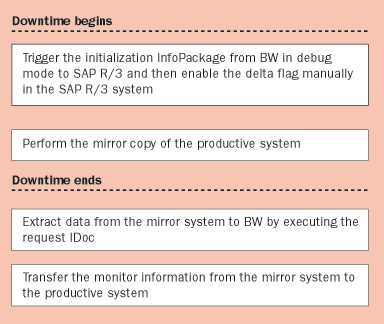
Figure 4
Steps for delta initialization with the mirror system
The mirror system takes the load off the productive system. The setup table load jobs are long- running jobs that are run on the mirror system instead of the productive system. Also, the productive system remains down if the setup table load job is running in the system. Running these jobs on the mirror system instead minimizes the productive system downtime.
The setup tables (e.g., Logistics [LO] data sources) are loaded in the mirror system. Then the mirror system starts the initialization load when you execute the IDoc. Although the data is being extracted from the mirror system, the communication from BW to the productive system still exists.
What Happens if the Extraction Job Fails?
Once the mirror copy is created, the productive system is released to users. Therefore, delta is collected against the delta flag for the data source. Now you complete the pre-initialization upload steps in the mirror system.
For example, if it is an LO data source, you load the setup tables for the application component, which could take hours to complete. Once the setup tables are loaded, the request IDoc in status 64 is executed manually to trigger the initialization upload job to BW. This triggers a job (BIREQ_) in the mirror system that extracts the data from the source to BW. If this job fails due to some system-related issue (e.g., unavailability of processes in the mirror system, a table space or a file system problem, memory-related issues, a communication problem between the mirror system and the BW system, or an IDoc number range overflow issue), the extraction stops in the mirror system. The BW system still awaits data from the source (Figure 5).
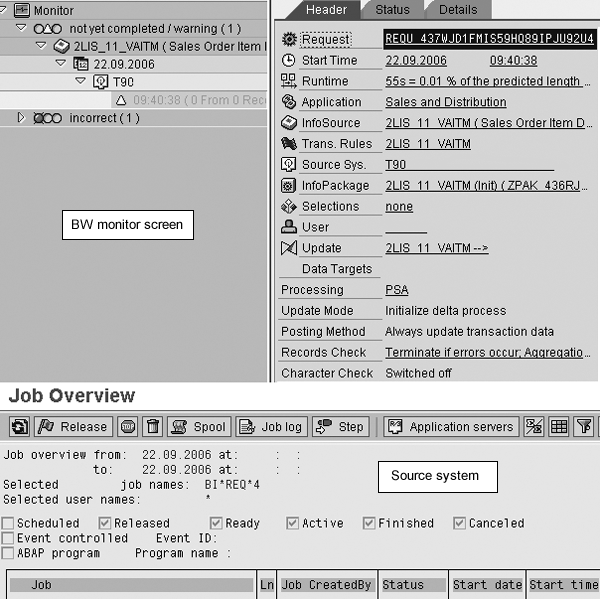
Figure 5
The upload request in BW is waiting for information from the source (mirror) system, while the extraction job in mirror system has failed
The IDoc that triggered the extraction job is in processed status now (status 53) and you cannot execute it again. Failure of the job at this point is very critical. If you try to trigger another InfoPackage to load the data, it would go to the productive system, not to the mirror system. The productive system has already been released to users. Therefore, another mirror copy is not possible.
Note
The type of data load failure explained in the problem statement can also occur in any other upload in the productive system. The solution explained below can be applied there as well; however, another InfoPackage from BW can easily re-schedule the data load. In the case of initialization from the mirror system where another InfoPackage is triggered from BW, the request IDoc goes to the productive system because of the system communication setup. Therefore, you must repeat the entire process of delta enabling, mirror copy, and loading the setup tables. In other words, you must restart the initialization process.
The next section explains how to recover the data load from this situation and load the data successfully to BW from the mirror system without triggering an additional InfoPackage.
Recover from a Failed Request
The idea behind this procedure comes from the way IDoc communication occurs between BW and the source system during the data load.
Whenever an InfoPackage is triggered in BW, it creates a request ID for the upload. The data for this request ID is transferred to the SAP source system through an IDoc of type RSREQUST. This generates another IDoc in the source system that receives the information from BW (Figure 6). Once the system processes this IDoc, the extraction job is triggered in the online transactional processing (OLTP) system. This job generates further IDocs as a part of data extraction. The instructions below explain how to recover a data load using this knowledge.
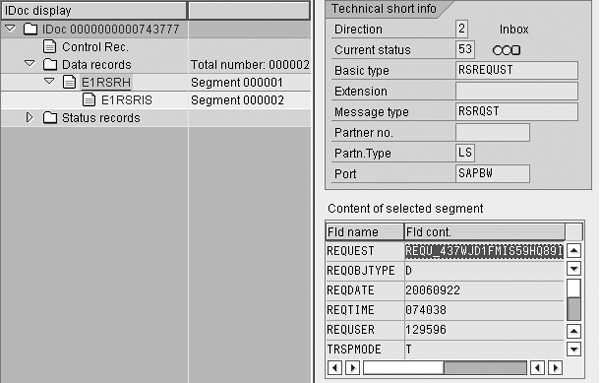
Figure 6
Request IDoc in OLTP
First, get the request IDoc number (OLTP) that was processed in the mirror system to start the upload. You can also obtain this number from BW Monitor>Details>Transfer (Figure 7).
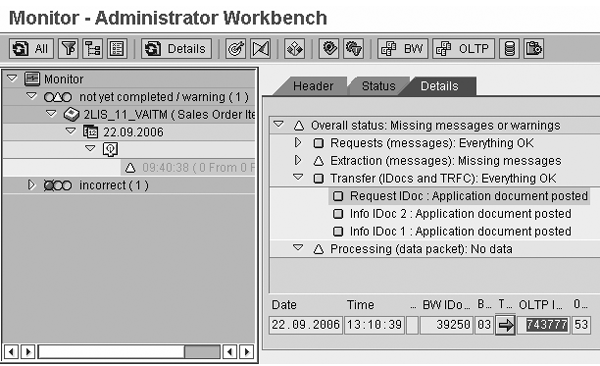
Figure 7
Get request IDoc number
In the mirror system, execute transaction WE19. This transaction is used as a test tool for IDoc processing. Select Existing IDoc as the template for the test (Figure 8). Enter the request IDoc number and click on the execute  icon.
icon.
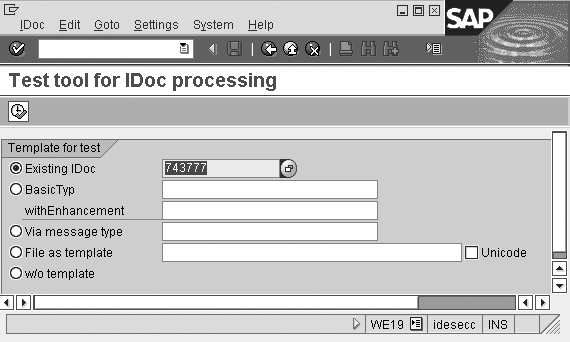
Figure 8
Transaction code WE19
The next screen shows the template, which contains all the information from the request IDoc (including the time stamp). Double-click on the information text for EDIDC, as shown in Figure 9.
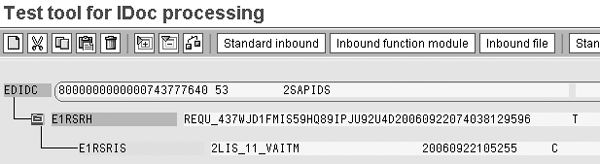
Figure 9
Information text in IDoc
A pop-up window displays the information on control record fields. Choose the All Fields button as shown in Figure 10.
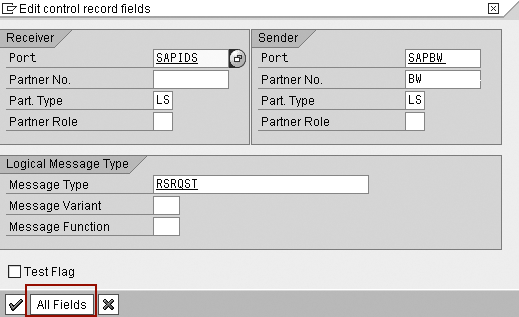
Figure 10
Choose All Fields
You can see all the fields from the IDoc in the next pop-up window. Change the IDoc status field value from 53 to 64 as shown in Figure 11. This status change puts the IDoc on hold until further processing.
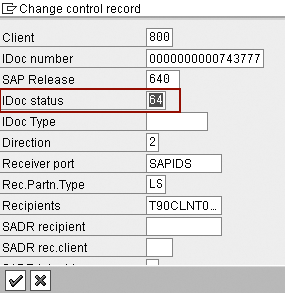
Figure 11
Change status to 64
Click on the enter (green check mark) icon. Now the template is ready for processing.
Click on Start Inbound to trigger the processing as shown in Figure 12. Another pop-up window shows the test IDoc control information (Figure 13). Click on the enter (green check mark) icon. The system creates and processes another IDoc with the information from the template, as shown in Figure 14.
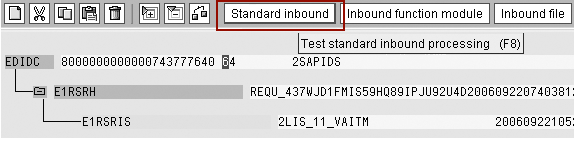
Figure 12
Trigger the processing
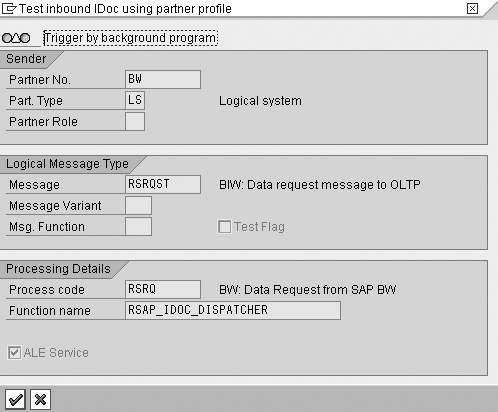
Figure 13
Test IDoc control information
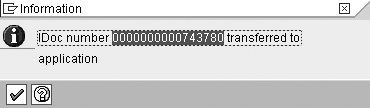
Figure 14
IDoc processed
This test IDoc, which is processed with the information copied exactly from the original request IDoc, triggers another job for the request ID in the OLTP system. Therefore, the extraction to BW restarts, as shown in Figure 15.
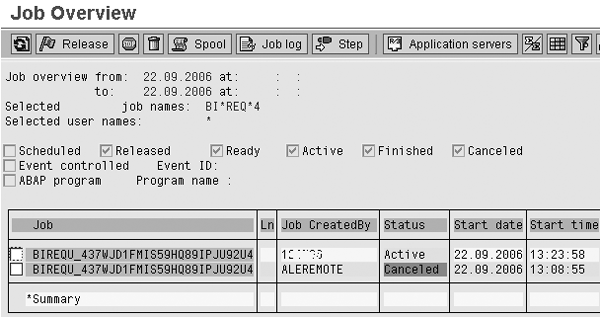
Figure 15
Extraction job re-triggered
This job carries out the remaining data transfer process as a normal extraction job. Refer to the job log in Figure 16. The data is extracted successfully to BW (Figure 17).
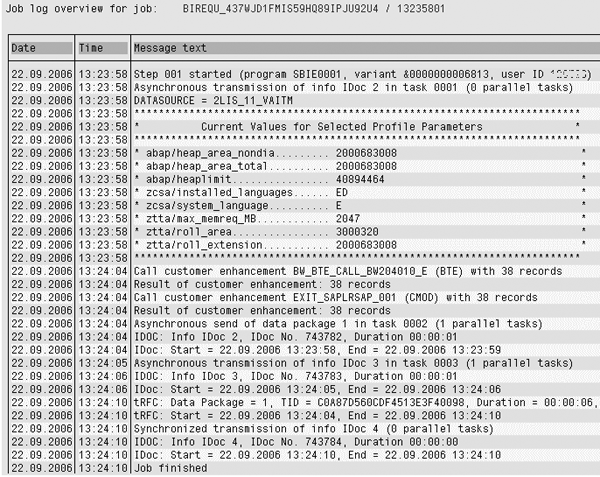
Figure 16
Job log from transaction SM37
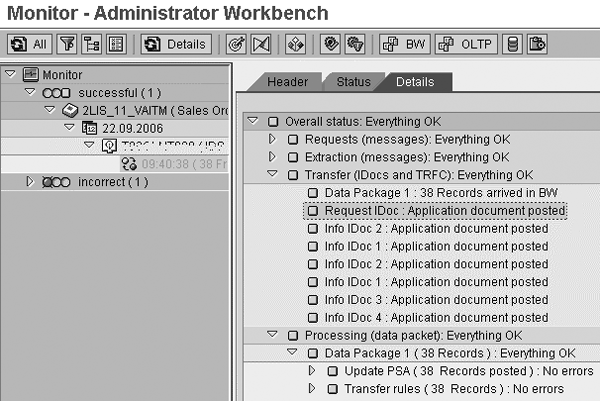
Figure 17
BW Monitor screen
In our example, the extraction job in OLTP failed without transferring a single record to BW (PSA table is not created). If the extraction job has already started transferring data to BW in PSA and then fails (i.e., 10 data packages are transferred correctly and the job in OLTP fails while the transfer for data package 11 is in progress), the solution we discuss works. When the manually triggered extraction job starts, it starts transferring the data to BW from the data package again. In BW, these records overwrite the data in the PSA table that was transferred earlier by the failed request.
Note
For more information about extraction, transformation, and loading (ETL) processes, attend SAP class BW350 -- SAP BW Extraction (for BW 3.x) or BW350 -- SAP BI Data Acquisition (for SAP NetWeaver 2004s). For further details, visit
www.sap.com/useducation.
Amol Palekar
Amol Palekar has worked on BI implementations for various Fortune 500 companies. He is currently principal consultant at TekLink International, Inc., and focuses on institutionalizing the global delivery model and processes for application development, maintenance, and support engagements. He is also a trainer, author, and regular speaker on the subject of BI. He is recognized for his popular and best-selling books: A Practical Guide to SAP NetWeaver BW (SAP PRESS) and Supply Chain Analytics with SAP BW (Tata McGraw-Hill).
You may contact the author at amolpp@yahoo.com.
If you have comments about this article or publication, or would like to submit an article idea, please contact the editor.

Shreekant W. Shiralkar
Shreekant W. Shiralkar is a senior management professional with experience on leading and managing business functions as well as technology consulting. He has authored best selling books and published many white papers on technology. He also holds patents for innovations. Presently he is global head of the SAP Analytics Centre of Excellence at Tata Consultancy.
You may contact the author at s-shiralkar@yahoo.com.
If you have comments about this article or publication, or would like to submit an article idea, please contact the editor.