Learn how to enhance Application Link Enabling (ALE) filtering of HR master data distributed to other systems with your own custom filters. With just a few steps, you can send the desired HR master data without the need to filter unnecessary data using middleware such as SAP Process Integration or SAP Business Connector.
Key Concept
Application Link Enabling (ALE) is a technology providing asynchronous data interchange of SAP systems with other SAP or non-SAP systems using the Intermediate Document (IDoc) interface. Using ALE distribution models in SAP allows you to filter out all unnecessary objects from HR master data that is distributed to other systems.
As an HR expert, you’ve probably been in many situations in which you would like to share only necessary data and avoid sending all data records from one system to another. Most master data objects, such as employees in SAP ERP HCM, vendors in SAP Materials Management (MM), and customers in SAP Sales and Distribution (SD), already have a set of predefined filters that can be used. However, not every predefined filter can match your needs perfectly. Even the standard Application Link Enabling (ALE) filters added to an ALE distribution model cannot meet every user’s need for some fields and not others.
Fortunately, there is a way you can filter out HR master data objects on the basis of virtually any SAP table field for any employee quite easily using a standard Business Add-In (BAdI) with relatively little coding. I’ll show you how to create your own custom ALE filters and how to set up a complete HR master data ALE distribution.
I start by creating a standard HR master data distribution model so that I can send employee Intermediate Documents (IDocs). Next, I implement a BAdI enhancement that filters out the unnecessary data. Finally, I update the distribution model with the new filter.
Step 1. Create an HR Master Data Distribution Model
To send HR master data to another system, such as SAP Financial Accounting (FI) or SAP Customer Relationship Management (CRM), you must first create an ALE distribution model. An ALE distribution model is a place where you can specify the sender and receiver of master data objects and the message type that is relevant for distribution. A message type defines the type of data to be sent. For example, it would be HRMD_ABA for employees, MATMAS for materials, or DEBMAS for customers.
First, you can create an ALE distribution model in transaction BD64. Then go to edit mode by clicking on the EDIT button and select the Create Model View button. After you specify a name, start date, and end date, the system generates the ALE distribution model (Figure 1).
Tip!
Make sure the start and end dates are correct, with the former in the past and the latter in the future. If you specify these dates incorrectly, the distribution model does not work and data is not distributed.
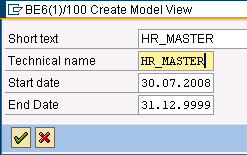
Figure 1
Create distribution model view
Next, add a new message type to your ALE distribution model by clicking on the Add Message Type button. The message type for sending employee master data is HRMD_ABA (Figure 2). You must specify a sender logical system and a receiver logical system. A logical system is an object used for representing different systems within an SAP system. The sender should be the SAP system in which you create the HR data. The receiver should be another SAP system, such as SAP FI, SAP CRM, or in many cases, a middleware system such as SAP Process Integration (formerly Exchange Infrastructure). The naming convention for logical systems is usually CLNT, where is the system ID of the SAP system and is the SAP client number.

Figure 2
Create a message type
After adding a message type, you can generate a partner profile for HR master data distribution. Use transaction BD64 by following menu path Environment > Generate Partner Profiles and executing the selection shown in Figure 3 by pressing F8 (execute). I won’t cover all the necessary steps to send data to another system, such as RFC destination creation or ALE port creation, because it is outside the scope of this article.

Figure 3
Generate a partner profile
Note
A partner profile is an IDoc-related object that contains parameters that define the electronic data interchange with another partner.
If a report shows successful entries in all of the green lines after its generation, you can now try exporting employee data from the HR module using transaction PFAL (Figure 4). A few criteria that you need to provide include:

- Plan version — select or type an active plan version, which is usually 01
- Object type — because you want to send only employee data, you need to choose the value P for Person data
- Object ID — if you don’t put anything here, the system distributes all the employees’ master data information that exists in the system. If you put employee numbers here, the system only sends that specific information and the rest does not distribute.
- Message Type — enter the message type responsible for HR master data distribution, which is HRMD_ABA in my example
If you execute this transaction as it appears in Figure 4 and leave the Object ID field empty, then the system distributes all of the employees’ master data information that exists in the system because you didn’t specify any filters in the ALE distribution model. You can check the generated IDocs using transaction WE02 or WE05.
Message type HRMD_ABA has a set of predefined ALE filters:
- Infotype
- Object type
- Type of related object
- Subtype
If you have some additional conditions under which the employee’s data distributes, you need to implement three steps:
- Code the BAdI in which you can populate the filter’s value
- Create a custom ALE filter object
- Assign a custom filter object to a message type
Implementing the BAdI
The HR module has one BAdI (HRALE000UTBOUND_IDOC) that was designed for a custom filter implementation. In my example, I’m filtering on the basis of an employee’s company code. First, I need to get the company code from the employee’s record and assign it to the filter’s variable. Once you start the BAdI implementation with transaction SE19, specify the BAdI name HRALE000UTBOUND_IDOC inside the Classic BAdI parameter (Figure 5). Click on the Create Impl. button and enter the implementation name, which needs to begin with a standard SAP custom object (i.e., with a Z or Y) in the Implementation Name field.

Figure 5
Create a BAdI implementation
HRALE000UTBOUND_IDOC BAdI provides a few methods (standard places where you can put your own code), but the one that you’re interested in is FILTER_VALUES_SET. It allows you to assign any kind of value to two filter variables (FILTER1 and FILTER2) which you use later for data filtering in the distribution model. Figure 6 shows a piece of sample code that assigns company code’s value to the FILTER2 variable.
method IF_EX_HRALE00OUTBOUND_IDOC~FILTER_VALUES_SET. DATA lt_pa0001 TYPE TABLE OF pa0001. DATA ls_pa0001 TYPE pa0001. * filter only for employees if otype = 'P '. SELECT * FROM pa0001 INTO CORRESPONDING FIELDS OF TABLE lt_pa0001 WHERE pernr = objid AND endda >= sy-datum. loop at lt_pa0001 into ls_pa0001. IF sy-subrc = 0. filter2 = ls_pa0001-bukrs. „put the company code into filter2 field ELSE. CLEAR filter2. ENDIF. endloop. endif. endmethod.
|
| Figure 6 |
Code to assign the company code’s values to FILTER2 |
After you put the code inside your method FILTER_VALUES_SET, you need to activate the code by clicking on the activate icon from the menu. Remember to activate the BAdI implementation in the same way.
Step 2. Create an ALE Custom Filter
To create a new custom filter, select a filter value from the list of available company codes inside the ALE distribution model. You can do it directly from transaction BD95. Enter any name you like, but make sure the Table Name is pa0001 (the main HR table in which you have the company code field you programmed as your filter) and the Field name is Z_BUKRS (company code), as shown in Figure 7. Remember to save the object.

Figure 7
Create ALE filter objects
Step 3. Assign the ALE Filter Object to a Message Type
Finally, assign your new filter to the employee’s message type. This operation is performed by running transaction BD59 (Allocation object type -> IDoc type). First, you need to determine the Work Area by entering HRMD_ABA in the Message Type field (Figure 8).
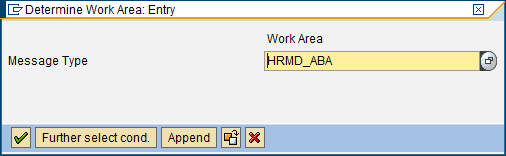
Figure 8
Determine the Work Area
Next enter the ALE object type, which is the filter that was created in Figure 7 (Z_BUKRS), in the ALE Object Type column and select IDoc segment E1PLOGI and field FILTER2 (Figure 9).
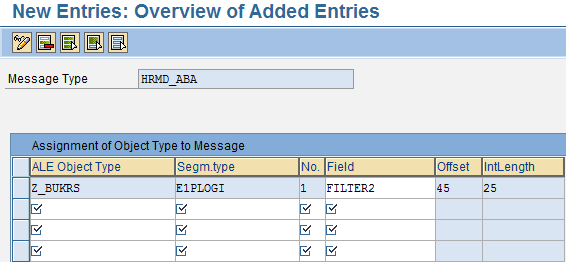
Figure 9
Assign ALE filters to message type
After you save the new entry, you are ready to test the new filters. When you open ALE distribution model transaction BD64 and go into edit mode, select message type HRMD_ABA. Double- click on the filter field to bring up a new pop-up window that allows you to specify filter conditions. If you create a new filter group using the Create New Filter Group button, you should now see that the Company Code is among the available filters (Figure 10).
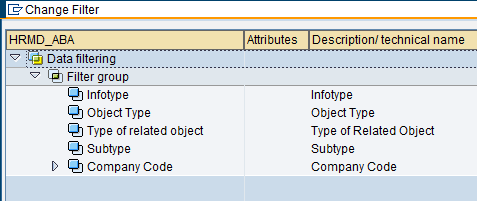
Figure 10
New filter conditions in transaction BD64
Now if you run transaction PFAL - once again without specifying any employee numbers in the Object ID field (as shown in Figure 4) - the system only generates IDocs for the information that matches the company code filter criteria set inside the distribution model.
As you can see, only three easy steps are necessary to implement a custom filter in SAP HR master data distribution. First you need to implement a BAdI enhancement in which you write your filtering code. Then you need to inform the system that a new filter will be used in the distribution model. Finally, you need to add this new filter to the distribution model to make it work. The code presented can be changed quite easily and almost every employee field can be used as a filter in a similar manner to the one presented with a company code field in this article.
Michal Krawczyk
Michal Krawczyk is an SAP consultant for BCC Poland. He works with SAP XI/PI, ALE/EDI, CRM middleware, and other SAP interface-related technologies. He was presented the Top Contributor award in the XI/PI area on SDN in 2005, 2006, and 2007, and the SAP Mentor award in 2007. He has published more than 60 articles about SAP XI and MDM on SDN and has written a book about PI published by SAP PRESS. He is also an SAP Professional Journal author.
You may contact the author at sap.integration@gmail.com.
If you have comments about this article or publication, or would like to submit an article idea, please contact the editor.





 Premium