Manager
Learn how proper use of the Business Process Repository and Business Blueprint can help set your organization on the course for a successful implementation and establish a foundation for effective support. Explore how to set your project scope and create relationships between scope items and objects to support traceability and transparency in change management.
Key Concept
The Business Blueprint is where you can begin to align every aspect of your solution to your business processes. Here, you can align all of your documentation, technical components, end-user job roles, transactions, and even requirements to your business processes. This helps you with traceability, change impact assessment, and lower resolution times in support.
During your project’s Business Blueprint phase, everyone involved is busy identifying the processes that are in scope by furiously pinpointing who owns the processes, who the subject matter experts are, who can make decisions, and which technologies are used by or influence these processes. As a matter of necessity, the answers to all these questions must be documented and collected to form the business process design.
I’ll explore the value of taking a big-picture approach to establishing the Business Blueprint and show how SAP Solution Manager is key to establishing the business process-aligned, holistic design that modern SAP solutions need to produce maximum value and sustainability. As you’ve probably experienced or can imagine, this represents an enormous amount of information that comes in various forms. The information falls into the three basic categories: people, processes, and technology. It is within these categories that Business Blueprint functionality can begin to add value.
Note
The features and capabilities in this article are for SAP Solution Manager 7.0 support package (SP) 13 and higher.
Business Process Decomposition and the Process Catalog
The first step for using the Business Blueprint in SAP Solution Manager is to build your project’s Business Process Hierarchy (BPH). Before you do this, it is important to understand a few key terms that you can find in “Key Terms to Know Before Building Your BPH.”
Next I'll present a short tour of SAP Solution Manager project scoping activities to show you how these pieces come together.
The Business Blueprint
Transaction SOLAR01 launches the SAP Solution Manager Business Blueprint tool. If you want to gain real benefits from SAP Solution Manager during your project and experience ongoing support and maintenance, this is where you should begin.
The goal is to gather all the documentation, configuration objects, training materials, end-user roles, custom development, and SAP transactions that you will use to build and deploy your solution in one place. The advantage of SAP Solution Manager is that it has visibility across your entire landscape, so it’s a logical choice for the central location for all the moving parts that make up a solution. Having a good approach to organizing this central location is vital to seeing the value of SAP Solution Manager.
You can start by thinking in process-aligned terms (hence the processes and terms described in the sidebar). Aligning all your information around the processes that use it helps you have better visibility for everything that is affected by your business processes as you build and deploy your solution. This also provides easier access to critical information for your support teams.
Now let’s take a closer look at the BPH and the Business Blueprint capabilities. SAP Solution Manager helps you organize your content into three broad categories: organizational units, master data, and business processes.
Organizational Units
Organizational units contain the information about the SAP organizational structures that drive the software. Be careful not to confuse the SAP organizational structures with your company’s organizational structure. I am discussing the structures that organize data and control the software, not whether one employee reports to another.
SAP organizational structures can include company codes, plants, sales areas, and credit control areas. These can be stored at two places in your BPH in transaction SOLAR01: at the project level and at the scenario level.
Organizational units stored at the project level are those that tend to be used across multiple business scenarios, such as company codes and currencies. Some organizational units are more scenario-specific (such as sales offices used in the OTC scenario) and can be stored at the scenario level of the BPH.
Figure 1 shows a sample of organizational units stored at the project level. Note the logical component assignments in the second column of the Structure tab.
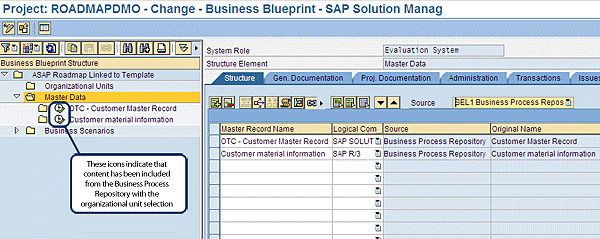
Figure 1
Organizational units stored at the project level as retrieved from the Business Process Repository
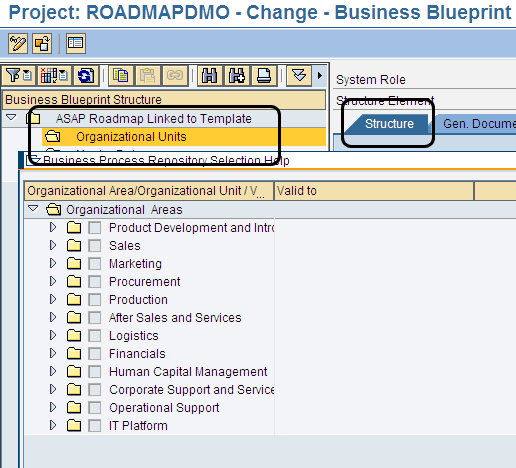
You might ask how these got here. In Figure 2, you can see that prompting (pressing F4) from the Structure tab while at the Organizational Units level of the BPH allows you to access the Business Process Repository in the Organizational Units section.
Master Data
Like organizational units, master data can be stored at the project and scenario levels of your project. Similar principles apply when you are deciding where to put them. Master data that crosses multiple scenarios can be stored at the project level, whereas master data that influences only a single scenario can be stored at the scenario level.
The difference with master data is that you must consider how your organization is going to implement and use the data. For most projects, customer, vendor, and material master are the “big three” of master data that tend to cross scenarios. Organizational units have more influence on the functionality of SAP software than the master data, so it is more a factor of how you use the data as to whether it crosses scenarios.
Select the Master Data folder from the Business Blueprint structure, prompt for the Business Process Repository in the Structure tab (again by pressing F4 or clicking the drop-down icon in the Logical Com column), and select the master data elements you wish to add to your structure from the Business Process Repository pop-up screen that appears (Figure 3). The master data you choose should be based on a combination of your SAP software scope and your project scope.
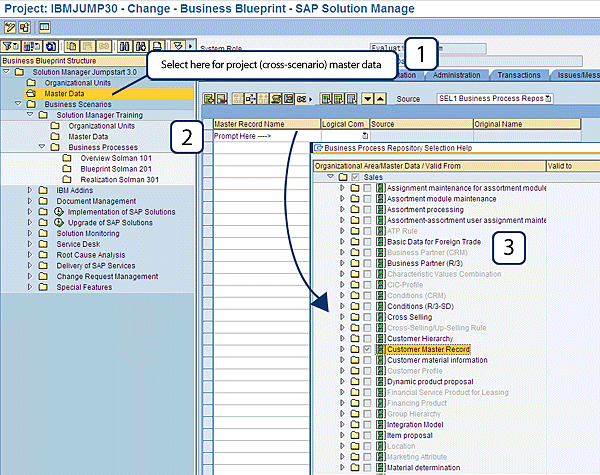
Figure 3
Select master data elements
Business Processes
Keep in mind that the goal for adding your business processes to the BPH during the Business Blueprint phase is to capture all the business processes that will be used or affected by the solution you are implementing. I’m often asked, “What processes should be included?” My answer is simple: If someone does it, it should be represented on the BPH. That includes not only processes associated with the three main types of master data (customers, vendors, and materials), but also processes that affect employees (e.g., HR processes in SAP ERP Human Capital Management [SAP ERP HCM]); program and project governance (e.g., Project Management Office); IT services and infrastructure; audit and compliance; organizational change management; and governance, risk and compliance.
For example, project teams often overlook processes associated with Change Request Management (ChaRM), disaster recovery, system downtime planning and maintenance, and other processes that don’t generate revenue but are essential to running the business. If you’re managing your service-building activities in your to-be solution, these processes should be represented in the BPH because it is all inclusive.
Another question that I’m often asked concerns manual activities, or those business processes or steps that are not performed in the system. My advice for those is to include them in the BPH only if the output of those activities affects the input of a system-related process that is in your solution. For example, say that your system will be printing checks and this will be followed by the manual processes of sorting and mailing. If no manual processes are needed to update the system after the mailing, you could leave the manual processes off the BPH. Alternatively, if you run a report that is manually reviewed and used to make reconciling entries in the system, then this manual step should be represented because it will be a critical step in an integration test and may be necessary for support to resolve an issue with the end-to-end process after go-live.
Of course, you should also include any non-SAP processes that are associated with interfaces between SAP and non-SAP systems, but what about processes that are performed outside of SAP without an interface? I recommend you apply the same rules that I explained for manual processes. If the activity in the non-SAP system affects the input of the next business process step (in the scope of your project), you should include it in your BPH. This ensures you have the right catalog of processes identified for building end-to-end integrations tests, training, and support processes later in the project.
Now let’s take a quick look at the business processes in a sample project’s BPH. In Figure 4, you can see an example of the decomposition of the scenario, the process, and the process step for the OTC processes in the standard Order Management scenario.
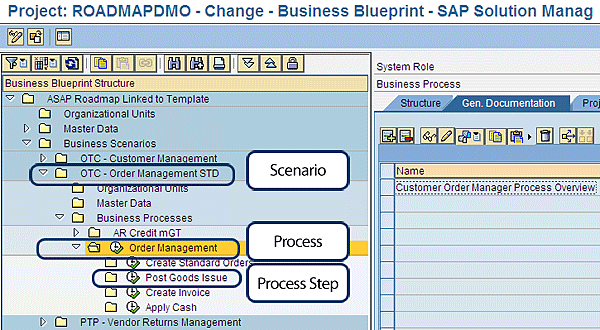
Figure 4
Scenario, process, and process step for the OTC process
In this example, you can see how the decomposition is a logical breakdown of the business process from its highest conceptual level at the scenario to a specific action at the step.
To build this part of the process hierarchy, follow the same steps as with organizational units and master data. In the Structure tab, open the Business Process Repository and select the appropriate items at the scenario, process, and step level. Note that you can rename any item you bring in from the Business Process Repository to whatever makes sense for your business.
The Next Steps
Why are we doing all this? It might seem like a lot of effort to simply get a structured list of your business processes, but this is only the foundation. The real value comes in when we add everything else that makes up the solution.
You might have noticed a series of tabs on the right side of the Business Blueprint screen (transaction SOLAR01), which I’ve highlighted in Figure 5. These tabs are where you store all the information that makes up the solution. This enables the support teams to quickly access what they need to troubleshoot and resolve issues in the productive system.
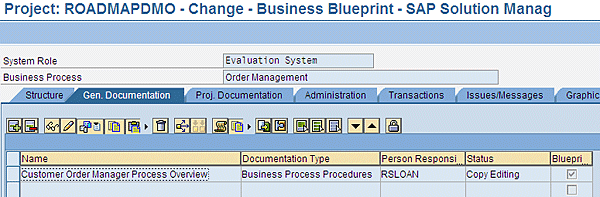
Figure 5
Tabs in transaction SOLAR01
Here is some basic information about what’s performed in each tab:
- Structure – BPH structure maintenance is done in this tab
- Gen. Documentation – This is where you store your solution documentation. The general documentation tab is available for maintenance on a template project type only, and it is used to document a global template for rollout across your enterprise. On an implementation project, only the general documentation tab is read, and it inherits the documentation that was created on the parent template project (from which implementation projects are created). Note that this tab is also where the Business Process Repository documentation is automatically populated if this content was selected during BPH maintenance.
- Proj. Documentation – This tab is available for both template and implementation projects. However, this tab is rarely used in template projects for documentation that will not be inherited by future implementation projects. For implementation projects, this tab is used to edit documentation copied from the General Documentation tab. Remember, on an implementation project only the General Documentation tab and the documents stored there are inherited from the template project from which the implementation project was created.
- Administration – This tab contains the attributes of the structure nodes of the BPH. In this tab, you can assign team members to control who has access to the structure node, determine the keywords for reporting and filtering, and perform basic planning and statusing activities.
- Transactions – This tab is available for all levels of the BPH (scenario, process, and step). Here, you can store the transactions used to execute the business processes. Even though you can store transactions at all three levels of the BPH, it typically doesn’t make sense to store them at the scenario level. If you intend to perform Business Process Monitoring, keep in mind that only the transactions at the step level can be put into the monitors. Therefore, it is usually a best practice to put your transactions at the step level. However, if the same transaction is used for all the steps and you don’t intend to use Business Process Monitoring, storing transactions at the process level can simplify the maintenance of the BPH. Transactions are also available for organizational units and master data.
- Issues/Messages – This tab is used in conjunction with the Service Desk to track problems that arise during implementation that require SAP’s assistance for resolution. Even though these problems will be fixed by go-live, keeping a record of the problems you faced during the design and build stages provides insight for future projects and support. For more on Issue Management and Service Desk, see “Use Issue Management to Keep Your SAP Projects Moving Forward.”
- Graphic – This is a graphical display of the BPH structure (Figure 6). It includes the elements of the structure as well as additional information about the business partners and logical components. Logical components are loosely defined as representing an SAP product, but their complete definition is beyond the scope of this article. This tab is the one that most often misleads people into thinking that the Business Blueprint is a place to carry out business process modeling. Although the graphic can be augmented through manual editing, it is still a catalog of the business processes, partners, and components — not a true process flow.
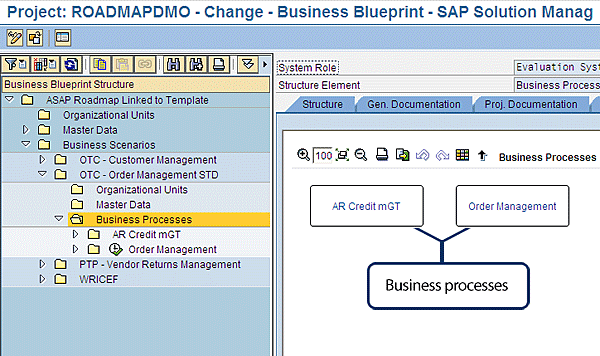
Figure 6
Graphic tab at the scenario level
Double-click the business process block, such as Order Management in Figure 6, to open the Graphic tab at the process level (Figure 7).
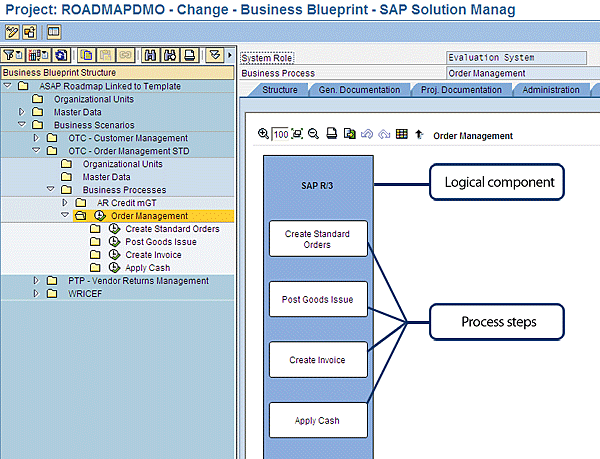
Figure 7
Graphic tab at the process level for Order Management
- End User Roles – This tab is used to identify job roles. This helps you align business processes to the jobs that perform those processes.
That wraps it up for the BPH and the tabs in which you can store your Business Blueprint content. As your project moves forward into the configuration phase (also known as the realization or build phase), additional tabs come into play. It is beyond the scope of this article to go into them in detail, but I’ll give you a brief review of them.
Transaction SOLAR02 launches the configuration phase in SAP Solution Manager. This transaction activates four additional tabs for storing elements that relate to building your solution:
- Configuration – allows you to assign specific configuration elements from the IMG to your business processes
- Development – allows you to associate custom development to your business processes
- Test Cases – stores the test cases (e.g., eCATTs, manual test documents) aligned with your business process for later use in the Test Workbench
- Training Materials – here you store the work instructions, procedure manuals, and other training materials aligned to the business processes. This is used in conjunction with the assignment of job roles in the End User Roles tab to build Learning Maps.
This short tour of the Business Blueprint has shown you the value SAP Solution Manager brings by providing a one-stop shop for all of the elements associated with designing and building modern business solutions. Having all your documentation, configuration, transactions, end-user roles, and so on aligned to your business processes in one place provides you with a level of transparency and control unavailable to SAP projects in the past. In addition, having access to all this information in a single, business process-aligned location makes support teams’ responsibilities much easier.
When you’re ready to make a change to your SAP systems, you now have information at your fingertips to help you perform a more thorough impact assessment, and you also have greater visibility of regression and training implications. Take advantage of these capabilities and you’ll reap the benefits.
D. Russell Sloan
D. Russell Sloan is a specialist in project and program governance for IBM. He focuses on the use of SAP Solution Manager for global rollout projects for IBM’s largest customers, having worked with SAP software since 1996. Russell has degrees in accounting and information systems and has been a team and project leader for SAP projects for more than 14 years. He has been developing and deploying software systems for over 30 years.
You may contact the author at solmanruss@gmail.com.
If you have comments about this article or publication, or would like to submit an article idea, please contact the editor.


 Premium