BI
SAP Professional Journal
Implementing SAP NetWeaver BW on HANA typically requires a substantial hardware investment. One way to mitigate this expense is to offload some of the data into near-line storage (NLS). In this article, discover why and how to set up NLS. Also learn the functionality of NLS, its setup, and the process for moving data to Sybase IQ.
Key Concept
Near-line storage (NLS) with Sybase IQ may be used to help archive data from the SAP Netweaver BW system. NLS offloads the data from the primary database onto a secondary database, Sybase IQ. Queries can still use the data in NLS but with typically slower performance than the primary database. This allows data to be removed from the primary database, saving on hardware and maintenance costs.
As companies begin to become more mature and add more SAP products, they typically require a higher volume of SAP NetWeaver BW for their increased reporting data requirements. Before the introduction of SAP HANA, keeping a large volume of data in SAP NetWeaver BW mainly required an additional investment in disk space and, typically, was quite manageable. However, with the advent of SAP HANA, which requires a significant amount of memory for storage, keeping large amounts of data in SAP HANA becomes much more costly. The cost for this storage increases even more when the price for storing rarely used data is factored into the equation. SAP NetWeaver BW has had access to near-line storage (NLS) solutions for many years. However, recently, with the purchase of Sybase, SAP has developed a more robust native solution for NLS archiving in Sybase IQ to allow some offloading of the data from SAP HANA memory.
Note
Different NLS and third-party solutions have existed for years for off-line storage of data. For this article, I focus only on SAP’s native solution that was introduced in version 7.3 Support Package 09 (SP09) and is available in version 7.4 and forward. Thus, when using the term NLS in this article I am referring solely to the Sybase IQ solution and not to any other NLS solution. NLS using Sybase IQ can be used with any of the SAP NetWeaver BW compatible databases. However, in this article I concentrate on using NLS with Sybase IQ on HANA because this is the most popular configuration.
Data can be described as ranging from hot to cold. Hot data refers to the data that is dynamic and available for immediate access. Cold data refers to data that has no changes and can have slower access. Any NLS solution refers to the process of moving data from hot to cold by physically moving the data out of SAP HANA to another database—in this case to Sybase IQ. The data is then deleted from the HANA source, thus freeing up that hardware. During query time, based on the data requested, the system can automatically choose the data in NLS, HANA, or both.
The downside is that the query access to the data that is stored in Sybase IQ is slower than access to the data that is stored natively in HANA. Thus, a query that would report on HANA data exclusively would run faster than the same query using data from NLS exclusively. This is because HANA data is resident in memory and NLS is in-disk storage.
This is not to say that queries in Sybase IQ NLS are slow. The performance is slower compared to HANA; however, in our testing when we compared query performance from HANA, Sybase IQ NLS, and the same query on an Oracle database, we found that HANA was indeed the fastest, followed by Sybase IQ, then Oracle. Thus, a report running exclusively on NLS actually ran faster than the same query running on Oracle.
This can be an important factor because many companies that have not yet implemented HANA as their database solution start the early discovery phase or proposal for the project by performing an initial sizing exercise to determine the number of HANA nodes that are required based on the current volume in their existing database. In HANA, a node is a scalable hardware architecture. The system typically has one master node and multiple slave nodes. These nodes allow the system to grow by adding more hardware for storage and data management. Each node can be quite costly, often costing over $100,000 USD per node. Companies can reduce the number of costly HANA nodes if they immediately implement NLS and move some of the cold data to NLS, thus reducing their hardware investment, but not sacrificing significant reporting performance.
This is because even those reports that are not in HANA, but are only in NLS can run faster than their existing database. Thus, users do not see a significant degradation of performance from what they are accustomed to experiencing with NLS queries compared to their non-HANA database, and actually achieve a significant improvement once the system uses HANA exclusively. While we found this to be the case in our environment, other environments may vary. That said, based on our research from other NLS tests, these performance results are typical.
The reason for enhanced performance in Sybase IQ lies in the database structure: It is optimized for large volume queries. The data in Sybase IQ does not require special indexes, aggregates, or caches to provide this performance. The data is compressed and optimized directly in Sybase IQ. SAP estimates that Sybase IQ typically compresses data about 90 percent compared with the same data in SAP NetWeaver BW. Thus, the storage needed in Sybase IQ is compressed as compared to the source.
Implementation of BW NLS using Sybase IQ can indeed reduce the footprint of BW and thus save on implementation and hardware costs. However, there are several things to remember when implementing this solution.
Potential Disadvantages
A potential disadvantage to NLS is that this data is indeed designed to be cold data. This means that the data is complete and unchanging. Thus, if a change is required to the data, it must first be reloaded back into the HANA source, updated, and then archived again. For example, you have archived a Data Store Object (DSO) of sales order information from two years ago. After the archive, there is a change in the SAP ERP Central Component (ECC) source to one of those old orders. By design, the system does not allow updates to be made to the NLS order data. The load to the BW DSO fails because that order has already been archived. The only way to update that order in BW is to bring the order archive back into HANA, update the erroneous loaded order record, and archive the order data again.
Clearly, it is impractical to follow this process on a nightly batch. It is therefore recommended that NLS be implemented only on those DSOs or InfoCubes that have static, unchanging data. It works well for data such as invoices, G/L postings, and Profitability Analysis (CO-PA) data, that, once updated, remains static and unchanging. It is more challenging for data such as sales orders, purchase orders, and accounts receivable where, if old records are updated, it could cause conflicts in the load with the already archived data.
SAP has announced that it plans to add the capability to update this archived NLS data directly in Sybase IQ in a future release. Once this feature is implemented, the usefulness of the NLS feature will be improved significantly because more data can be archived without the risk of making changes to older records, thereby causing errors in batch loads. Archived data in Sybase IQ would act much like any other data in SAP NetWeaver BW.
Beginning the Archive Process
To start the archiving process, right-click the InfoCube or DSO that you plan to archive. This opens the context menu shown in Figure 1. Note that a new option—the Create Data Archiving Process option—has been added to the list of choices; choose this option, which opens the screen shown in Figure 2. The Data Archiving Process (DAP) allows you to establish the criteria for your archiving. Before any NLS functions can take place, DAP must first be set up in each InfoProvider that uses NLS archiving.
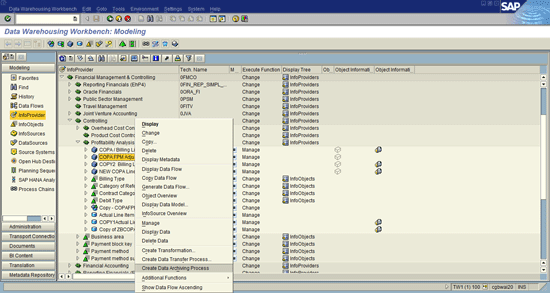
Figure 1
Begin the DAP
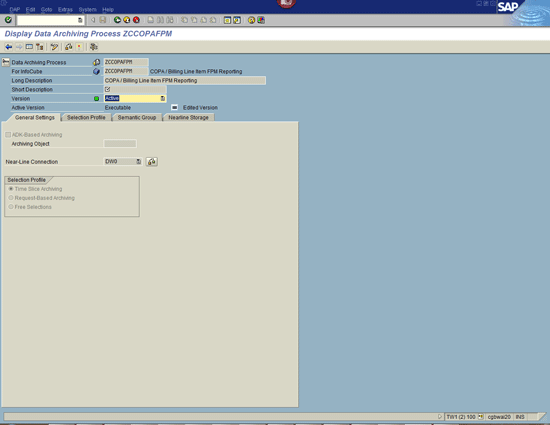
Figure 2
Configure the DAP
Note
If there are no time dimensions in the InfoProvider, you cannot set up a DAP and, therefore, you cannot use the NLS functionality.
InfoProvider
The next step is to configure the DAP (Figure 2). First, make sure the ADK-Based Archiving check box is not selected (ADK—Archive Development Kit—is the previous archiving functionality). This check box is selected by default. Next, choose the Near-Line Connection that was set up by the Basis team during the installation of Sybase IQ (DW0 in my example).
Next, go to the DAP Selection Profile tab where you can specify the primary time characteristic that is used to create the archiving (Figure 3). This is found in the Characteristic for Time Slice field. Typically this would be 0CALYEAR, 0CALMONTH, 0FISCPER, 0FISCYEAR, or 0CALQUARTER. This time dimension represents the time slices that are used by the NLS for archiving. For example, if you choose 0CALYEAR, you are only able to archive entire years in one slice—you would not be able to archive a subset of the year. This can be critical if you need to bring the archive back into HANA. There is no functionality to allow for bringing back partial archives into HANA. Thus, the entire dataset must be moved.
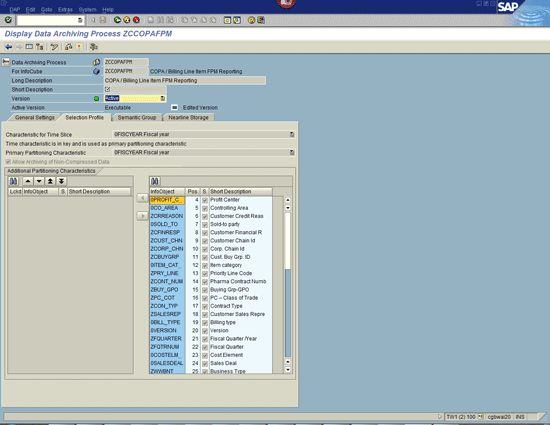
Figure 3
Set the selection profile in the DAP
Tip!
To allow for easier loads back into HANA, if needed, choose small time characteristics. This usually means choosing 0CALMONTH or 0FISCPER.
The Selection Profile tab is also what you can choose if you want to allow archiving of non-compressed data in the InfoCube. This is vital to set if the data in the InfoCube has never been compressed or if, in the future, you expect to have non-compressed data for NLS. In this screen, you are also able to create additional characteristics to use for the archive selection. This allows you to make the archive more specific to one plant or sales organization.
There are two other tabs you can use: Semantic Group and Nearline Storage.
- Semantic Group – Allows you to group together additional characteristics for logical groupings in archiving. This is not typically used.
- Nearline Storage – Allows you to set a maximum size of a partition. This would only be used in a resource-constrained environment.
You can now generate the DAP and you are ready to start archiving data.
Archiving Data Using NLS
In order to begin archiving data, go into the InfoCube or DSO and choose the Archiving tab (Figure 4).
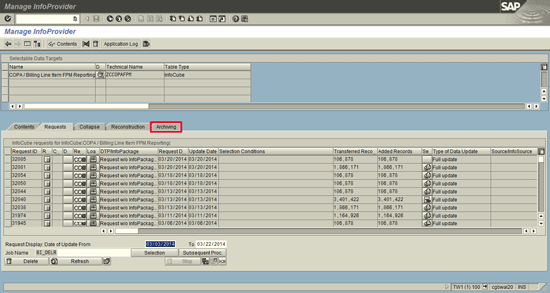
Figure 4
Start creating a new archiving request
Once in this tab, you can set up a new archiving request. An archiving request asks the system to gather a time slice of data from HANA, save this time slice of data in Sybase IQ, and delete the data from HANA. The system does not delete the data from HANA unless it has successfully moved and verified the data in Sybase IQ.
In the Archiving tab, click the Create Archiving Request button at the bottom of the screen, and Figure 5 opens. This is where you specify which time slices to use for the specific archiving request. You can choose to archive data older than XXX days, weeks, or months, or you can specify an absolute value. In my example, I chose to archive the data for 2010. You can start the archiving process either in Dialog or Background. Typically, Background is used because often when archiving a large dataset the request times out if the archiving is done in Dialog. In this screen there is another tab: Further Restrictions. This is used in conjunction with the parameters that were chosen during the DAP process. For example, if there are specific plants or sales organizations that should be archived separately, they may be chosen in this tab.
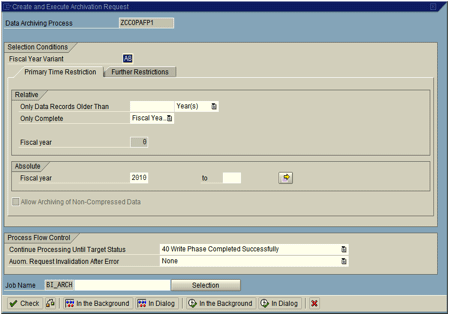
Figure 5
Enter your data archiving request selections
The system allows queries to be run during the time that the data archiving process is being run. However, the system does lock the data for update during the deletion phase. Therefore, you should refrain from loading data to the InfoProvider while the archiving process is being run.
During the running of the data archive process the system displays four traffic light icons to show the status of the request (Figure 6). The traffic lights are used to indicate the statuses of the following:
- Copy status – Shows the status of the selection of the data from the HANA BW system. Was the data successfully gathered from BW?
- Verification status – Shows verification of the selected data from HANA BW. Did the system pull the proper data?
- Deletion status – Did the system successfully delete the data from HANA BW? (This would only be set after the data was successfully loaded and verified in Sybase IQ.)
- Overall status (the Status column) – Indicates if all the processes worked properly. This is green if the data was successfully copied, verified, loaded to Sybase IQ, verified in Sybase IQ, and deleted from SAP BW HANA.
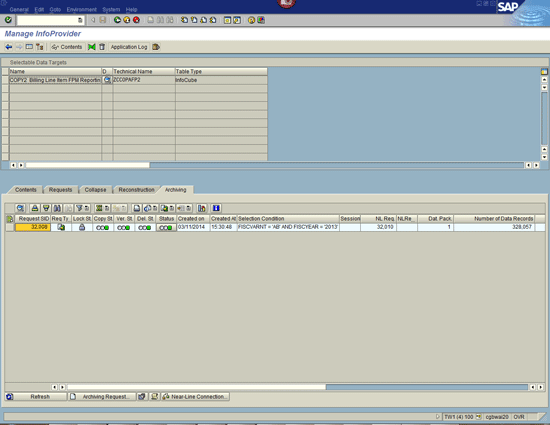
Figure 6
Traffic lights show the statuses of the archiving request
If successful, the request also shows the number of records in the archive and the size in Kbytes.
You can also tell which requests have data that has been archived in the Requests tab of the InfoProvider (Figure 7). Here, there is an icon (circled in red) that shows if the data has been archived partially or completely. This is useful to know if all the data is in BW or Sybase IQ.

Figure 7
Option for showing if data has been archived
Note
If you decide to dump the data of an InfoProvider that has been archived, and you choose the delete option from BW, this simply deletes the data from BW. You must also go into the Archiving tab to delete any archived data from Sybase IQ.
Use in Queries
In order to use the NLS data in queries, this feature must first be turned on. By default the system will not read from the NLS. You can reach the InfoProvider Properties screen by going into the InfoProvider and choosing Extras > InfoProvider Properties (Figure 8). Here (in the Query/Cache tab) you can set the option to allow the system to read from NLS. If using a MultiProvider to access data, you must also set this option in the MultiProvider properties in order to use NLS during query processing. Therefore, a query that reads from a MultiProvider must actually have this indicator set in multiple places—it must be set in the underlying InfoProviders and in the MultiProvider itself.
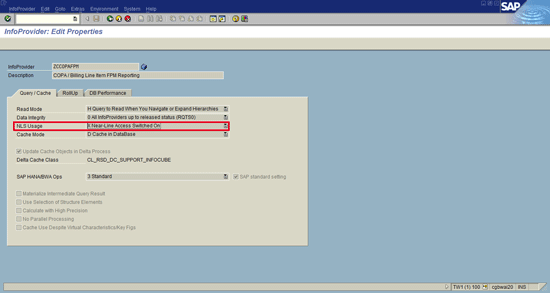
Figure 8
Turn on the NLS in the InfoProvider properties
You also have the option to turn the NLS on or off in individual queries. The default from the InfoProvider or MultiProvider is shown in the query screen in the Query Designer, but it also may be set to read or not read NLS, or to use the default from the InfoProvider (Figure 9).

Figure 9
Query option to set access to NLS
Once the NLS is activated and the data has been archived, the system automatically chooses either the NLS, HANA BW, or both in order to render the requested dataset in the query.






 Premium