Reporting on cross-company sales is sometimes confusing in BW because of the way company codes are assigned. It can be difficult to see from which division sales are being received. BW has a feature called "return tables" that can get you around this problem, and the author explains how.
A global company often trades goods among its independent legal
entities. Tracking these cross-company sales within a global SAP
Business Information Warehouse (BW) system can be challenging, as
each entity is typically represented by a different SAP R/3 company
code. Tracking these sales at the ordering site is not a problem,
but it's a different story for the delivering site, because
no Sales and Distribution (SD) documents are in the corresponding
company code.
I will show you how to solve this problem with the help of a BW
functionality called “return tables.” The example that
I present uses only SD sales documents. Result tables are a means
to increase the granularity of your reports by returning several
data sets derived from one data set passed from BW's communication
structure. You will learn how return tables work and a strategy
for putting them to use.
In my example, you have an international company called “Dragon
Computers” that sells computers. It operates from three countries:
the United States, Germany, and Singapore. The headquarters, including
production facilities, are located in the U.S. The other two sites
are sales offices serving only European and Asian markets, respectively.
Neither are capable of manufacturing or putting something in stock.
The global ERP system is SAP R/3 using the SD, Materials Management
(MM), Production Planning (PP), Financials (FI), and Controlling
(CO) modules.
Each site is represented by its own company code, and all company
codes are united in one client. When a customer in the U.S. orders
a new computer, the order is processed completely in the U.S. If
a German customer orders a new computer at the German sales office,
however, the customer order is converted into an R/3 sales order
in the German company code. As Germany does not have any production
facilities, the computer must be fabricated at the U.S. plant. This
is determined by the field delivery plant indicated on the SD sales
order. As all sites are running in an integrated system, this order
is automatically forwarded to the production facilities. Headquarters
ships directly to the German customer. The sales office invoices
the customer. Finally, the U.S. invoices the sales office, which
then invoices the customer. Figure 1 outlines both
the normal and cross-company sales processes.
Dragon Computers uses BW for sales reporting. Global and local
management are keenly interested in the value of all order items
entered into the system in one day. They want to look at this key
figure from a global and a local perspective and compare the differences
between them. The global view includes all third-party sales; which
internal site entered the order is not relevant for this report.
In contrast, the local view shows orders from one site, including
both third-party and internal sales. For Germany and Singapore,
it is easy to determine the local view. These are all orders entered
by one of these sites.
The U.S. situation is more difficult, as the U.S. processes both
third-party and internal sales. Management wants to see both types
of sales in the local U.S. report. The incoming orders from the
sales offices should be listed under the customer number of the
site. The value is supposed to be the internal price, which is half
of the price of the corresponding third-party sale. Figure
2 shows the details.
The problem now is that no sales document indicating an internal
sale exists in the U.S. company code. So, you have to build a link
between the U.S. site and the local sales orders posted by Germany
and Singapore. The main issue is how to handle internal sales without
having a sales document in the desired company code. The answer
is simple: Copy the SD sales document.1
You can easily identify internal sales with the help of two characteristics:
company code and delivery plant. In this scenario, you face an internal
sale only if the delivery plant is not assigned to the company code
in R/3. Once you have identified such an order, create a new data
set by replacing the company code of the sales office with the U.S.
company code; copying the order, item, and material numbers; replacing
the customer number with the sales office's number of the
customer that entered the order; and changing the value of the order
to the internal selling price.
The best place to copy the SD sales data is within BW's update
rules. They provide a standard mechanism for creating additional
data sets — return tables. If you have several R/3 instances
connected to your BW system, creating a new data set in BW makes
only one implementation necessary.

Figure 1
The sales process for U.S. sales results in the U.S. facility directly invoicing the customer. For sales originating in Germany, (1) the customer places an order at the German office, (2) the German office relays the order to the U.S. plant, (3) the U.S. plant ships the computer to the German customer, (4) the German office invoices the customer for U.S. $4,000, and (5) the U.S. plant invoices the German office for U.S. $2,000.

Figure 2
Global and local reports
Return Tables
Update rules specify how data from a data target or an InfoSource
is transferred to another data target, and you must define one each
time you provide a BW data target with data. They describe how data
is transformed on their way from the Persistent Storage Area (PSA),
Operational Data Store (ODS), or InfoCube areas of BW to another
data target. At least one update rule has to be defined for each
data target. Update rules consist of various components like a start
routine and rules for each field of the data target. Thus, fields
can be filled by using various options like copying the field from
the InfoSource or using constants and user-defined routines. The
latter options may return a single value or a return table. Return
tables allow you to split one data set yielded by BW's communication
structure into an arbitrary number of data sets, which are then
stored in the data target.
The start routine is a special type of user exit that allows you
to access a complete data package and define and initialize global
variables for the current update rule. Update rules also contain
steps that specify which characteristics and key figures of the
target InfoCube or ODS are filled and how this is done. You define
one step for each update rule that fills each field. There are two
categories of steps: one for key fields, and one for all other fields.
You have several options for pushing data in these fields, but
the only one relevant for this article is a routine. It allows you
to create customized rules for data transfer. Like start routines,
routines are a type of user exit. The difference between a start
routine and a routine is that only the data set currently processed
(and not the complete package) is accessible. Further on, no global
variables can be defined. Routines have various input parameters
and normally return one result value unless you do not use result
tables.
The exact procedure to implement return tables depends on the type
of data target. Here's why: Once a data package is forwarded
to a data target, it has to run through an update rule. Within this
update rule, the start routine is processed first if one exists.
If not, the update rule skips to the next step. Then, the key fields
of the data target are calculated for each data set in the package.
The key figures consist of all characteristics available in the
InfoCube. In contrast, the key figure of an ODS object may be a
subset of characteristics. The base for this data is the communication
structure. Once the key fields are successfully filled, BW determines
the remaining characteristics and key figures, including the corresponding
units of measurement. As a result, you receive one or more data
sets that at a later stage are saved to the data target related
to the update rule. Figure 3 summarizes the complete process.
In BW, return tables are available only for the fields that are
not part of the key figures of the data target. For InfoCubes, therefore,
non-key fields are key figures and units of measure only; for ODS
objects, they can also be applied to selected characteristics.

Figure 3
Workflow in update rules
Implementing the Solution
Each of Dragon Computers's three sites has a unique company
code and plant. Figure 4 lists the company codes
and the customer and material numbers relevant to this example.
As these are incoming orders, you want to transfer all order items
from R/3 to BW and store them in an ODS object. You might be thinking
that an ODS object is not the right place to put data for reporting.
In most cases, you are right. To illustrate the use of return tables
and how they handle the data, however, an ODS is the right data
target, because you can easily store data at the item level in it.
Remember, too, that an ODS object can easily be forwarded to any
InfoCube. Figure 5 shows the data model that you
might use.

Figure 4
Relevant key figures and values

Figure 5
Data model and data flow
Step 1. Customize the DataSource
You first need to acquire the right data. You know that the sales
orders come from SD in R/3. BW has a standard DataSource, 2LIS_11_VAITM,
that enables to transfer order items from SD. You will need to customize
this DataSource so that its fields match the ones you are using.
You do this through the Logistics Extraction Cockpit. Access it
from BW using transaction code LBWE, or menu path Basis
Components>Business Information Warehouse>Settings for Application
Specific DataSources>Logistics> Managing Extract Structures>Logistics: Extract Structure Customizing Cockpit. In the
SD Sales BW section, locate DataSource 2LIS_11_VAITM.
Click on Maintenance under the Structure
column to the right of this entry and select the fields you want
to extract. Figure 6 shows the list of fields you
need for your example. After the selection is complete, click on
the OK button.

Figure 6
Fields to be extracted
Step 2. Replicate the DataSource
First, look in the Source Systems folder of BW's
Administrator Workbench (transaction code RSA1) to see if your R/3
system is listed. If it is not, you can create a connection by choosing
the Create option from the context menu. Having
a sound connection, highlight the entry for your source system and
choose Replicate DataSources from the context menu.
Expect to wait awhile for this process to complete.
Step 3. Create an InfoSource and Map the DataSource to
It
Since you are using a standard Data-Source, you can create the
InfoSource from BW's Business Content. Go to the Business
Content listings and make sure that Grouping is
set to Necessary Objects Only, and the Collection
Mode is set to Start Manual Collection
(Figure 7).
Click on InfoSource Transaction Data, and select
InfoSource 2LIS_11_ VAITM. Then run the collection
and click on the install icon to activate all necessary objects.
Now switch to the Modeling folder of the Administrator
Workbench. In the InfoSources section, find the
InfoSource just created. Right-click on Sales Order Item
Data and choose Assign DataSource from
the context menu.
Enter the name of your R/3 system in the pop-up dialog box. The
system then automatically generates a proposed mapping between the
DataSource and the InfoSource. As you are using standard fields,
this proposal should match your needs. Save and activate the mapping.

Figure 7
On BW's Business Content screen, (1) set Collection Mode to Start Manual Collection, (2) set Grouping to Necessary Objects Only, (3) select InfoSource 2LIS_11_VAITM, and (4) click on Install.
Step 4. Create the ODS
Open the Modeling folder and double-click on the
Data Targets subfolder. Right-click in the InfoArea
where you want to deposit the new ODS, and choose Create
ODS Object. BW will prompt you for a name. Your new ODS
will have the technical name ZO_SD and be called Incoming
Orders.
Now you have to determine the key fields of the ODS; Company
code, Order number, and Item number will
do.
You also must add the remaining characteristics and the key figures.
Their units will be drawn automatically. The corresponding unit
of a key figure is set in the InfoObject. It is easier to choose
the InfoSource 2LIS_11_ VAITM as a template, because it offers you
the necessary fields. In the left part of Figure 8,
you can see the selected template. To enable report creation based
on this ODS, select the BEx Reporting option in
the Settings section. For convenience, select Set
quality status to ‘OK' automatically in the
Settings section. Save and activate your new object.
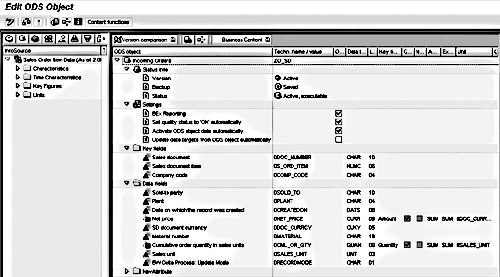
Figure 8
The complete definition of ODS ZO_SD, Incoming Orders
Step 5. Implement the Update Rules
You create your return table in this step. First, you must create
the update rule itself. Right-click on the ZO_SD ODS
and select The complete definition of ODS ZO_SD‚ Incoming
OrdersCreate Update Rule from the context menu. The system
now asks you to enter a DataSource from which the update rule will
take its data. Enter the name of the previously created InfoSource,
2LIS_11_VAITM. Click on the next-screen icon in the upper
left of the screen. BW now proposes a mapping for the InfoSource
2LIS_11_VAITM fields to ODS object ZO_SD.
The skeleton of the new update rule is ready. You now have to implement
the return table functionality for each step, as shown in Figure
9. The system now runs the ABAP Editor and creates a template
that will be the basis for your implementation.
The routine template has several parameters. For using return tables,
two are of importance: ICUBE_VALUES and COMM_STRUCTURE.
The latter reflects the communication structure and holds the values
from the communication structure, whereas ICUBE_VALUES
reflects the structure of the data target. In the case of InfoCubes,
dimensions are resolved and replaced by its characteristics. ICUBE_VALUES
has the complete key for the data set to be created. Depending on
the structure of the data target and the calculations taking place
in the corresponding update rules, both structures may differ —
for instance, when an InfoCube or ODS contains characteristics or
key figures is derived from several characteristics or key figures.
In the case of a one-to-one mapping between the communication structure
and data target, both structures are equal.
The return table itself is written to the variable RESULT_TABLE
and has the same type of structure as the input parameter ICUBE_VALUES,
because the contents of the RESULT_TABLE sets will be added
to the data target. RESULT_TABLE can be found in the TABLES
section of the routine header (Figure 10). Remember
that a return table may hold an arbitrary number of data sets after
it has run through the routine, and therefore the TABLES
part is the only place to put it.
You now have to implement the body of the routine. Figure
11 shows sample coding for the characteristic Sold-to
party. It first copies the key values of the original data
set, and then copies the Sold-to party characteristic,
which is the field currently being processed, and adds the data
set to the return table. At this point, you must decide whether
to add another data set to the return table. You do so when the
current sale invokes an internal sale. This type of sale can be
identified with the help of the company code and the delivery plant.
If the plant is not assigned to the company code, you have to create
a new data set.
The sample coding makes use of a user-defined help table called
ZCOMPPLANT that consists of two key fields, COMP_CODE
and PLANT. This table holds all plants and their assigned company
code. In the sample code, this is a one-to-one correspondence. This
enables you to select the corresponding plant for the actual company
code and compare it to the plant value passed on by the communication
structure. If the values are not equal, you have to add a second
set to the return table that represents the internal sale. These
sales always carry company code 0710, because they are
processed only by the U.S. site.
This is why I assigned company code 0710 to the TARGET
structure. This assignment also creates a new set of key values.
Later, this enables BW to add a new data set to ODS ZO_SD.
As you are processing an internal sale, the Sold to Party
has to be changed. You have to use the internal customer numbers
of your sales offices. You make just two assignments in this routine
to obtain the second set, which is added to the return table as
well.
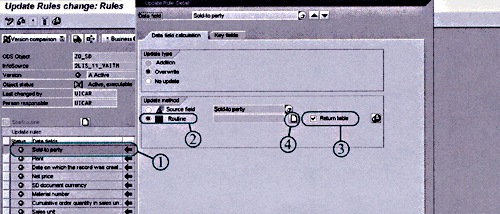
Figure 9
To create an update routine template with return tables, (1) highlight and double-click on the first step under Update rules (Sold-to party, in this case), (2) select Routine and (3) Return table options, and (4) click on the create/modify icon.
FORM compute_characteristics
TABLES   MONITOR STRUCTURE RSMONITOR "user defined monitoring
        RESULT_TABLE STRUCTURE /BIC/AZO_SD00
USING   COMM_STRUCTURE LIKE /BIC/CS2LIS_11_VAITM
	RECORD_NO LIKE SY-TABIX
	RECORD_ALL LIKE SY-TABIX
	SOURCE_SYSTEM LIKE RSUPDSIMULH-LOGSYS
	ICUBE_VALUES LIKE /BIC/AZO_SD00
CHANGING RETURNCODE LIKE SY-SUBRC
	ABORT LIKE SY-SUBRC. "set ABORT <> 0 to cancel update
|
| Figure 10 |
The routine header |
FORM compute_characteristics
	TABLES   MONITOR STRUCTURE RSMONITOR "user defined monitoring
		RESULT_TABLE STRUCTURE /BIC/AZO_SD00
	USING    COMM_STRUCTURE LIKE /BIC/CS2LIS_11_VAITM
		RECORD_NO LIKE SY-TABIX
		RECORD_ALL LIKE SY-TABIX
		SOURCE_SYSTEM LIKE RSUPDSIMULH-LOGSYS
		ICUBE_VALUES LIKE /BIC/AZO_SD00
	CHANGING RETURNCODE LIKE SY-SUBRC
		ABORT LIKE SY-SUBRC. "set ABORT <> 0 to cancel update
*
*$*$ begin of routine - insert your code only below this line *-*
* fill the internal table "MONITOR", to make monitor entries
	DATA TARGET like /BIC/AZO_SD00.
	DATA PLANT  like COMM_STRUCTURE-plant.
* copy original data set and append to return table
	TARGET = ICUBE_VALUES.
	TARGET-SOLD_TO = COMM_STRUCTURE-SOLD_TO.
	APPEND TARGET TO RESULT_TABLE.

* check if modified replicate is necessary.
 select single plant from zcompplant
		into plant
		where comp_code = COMM_STRUCTURE-comp_code.

if sy-subrc = 0.
if COMM_STRUCTURE-plant <> plant.
*  Modify dataset
	target-comp_code = '0710'.
	if COMM_STRUCTURE-comp_code = '0720'.
	 target-sold_to = '1004'.
	else.
	 target-sold_to = '1005'.
	endif.

	  append target to RESULT_TABLE.
 	 endif.
	endif.

* if the returncode is not equal zero, the result will not be
updated RETURNCODE = 0.
* if abort is not equal zero, the update process will be canceled
ABORT = 0.

*$*$ end of routine - insert your code only before this line  *-*
*
ENDFORM.
|
| Figure 11 |
Sample coding for Sold-to Party |
Step 6. Populate the ODS
The DataSource now has to be activated in the source system via
the Logistics Cockpit, which you used for customizing the DataSource.
I've assumed that you will do a full update, but this approach
also works for delta updates. To upload data, you have to create
an appropriate InfoPackage for the InfoSource. You can find the
corresponding function Create InfoPackage in the
context menu of the source system assigned to the InfoSource. The
subsequent details will be dependent on your system.
Step 7. Evaluate the Results
Figures 12 and 13 show two excerpts
from the ZO_SD ODS. The first is the sample data
sets, which are the basis of the example. This is how the ODS would
look with a simple one-to-one update rule not using a result table.
It shows 10 data sets. Orders 100000 through 100003 are U.S. sales.
Orders 100004 and 100005 come from Germany, and the Singapore sales
office contributes order 100006 to the data pool. The last three
orders invoke an internal sale because they are sales office orders.
So, all the data sets that belong to these orders are replicated
when you use return tables. In this case, you should have 14 data
sets in the ODS, as Figure 13 shows.
The 14 data sets now are sufficient to create a local sales report
for the U.S., including internal sales. Figure 14
shows a simple ODS query doing this job.
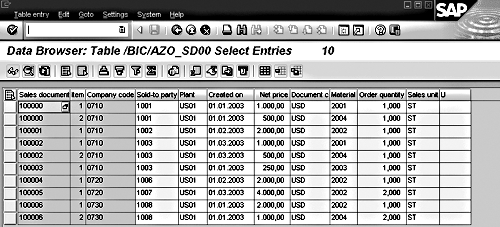
Figure 12
ODS ZO_SD without return tables
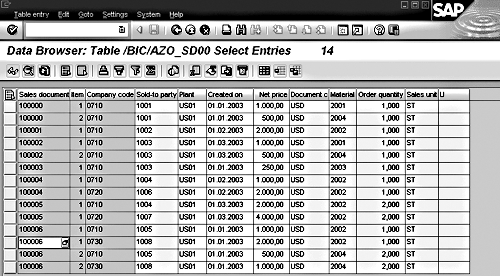
Figure 13
ODS ZO_SD with return table processing
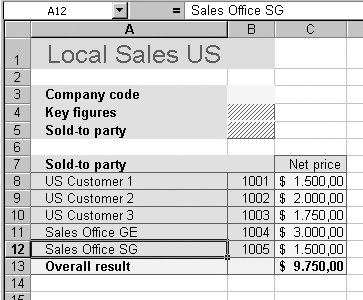
Figure 14
Local U.S. report produced using BW result tables
You could add characteristics
to the InfoCube or ODS structure to store the new value. The disadvantage
is that for each characteristic or key figure that has to be changed,
a new field with more or less the same meaning has to be added. In
this simple scenario, this applies only to the customer number and
the value of the order. In real life, reporting is usually a lot more
complex, and this method will blow up your data model. Furthermore,
if the number of third-party sales is significantly higher than the
number of internal sales, the added fields will be empty for most
of the orders.
Mark R. Caroli
Mark R. Caroli is a BW consultant for BASF IT Services, located in Ludwigshafen, Germany. He has over five years of experience in the field of data warehousing, with a focus on SAP BW since 2000. In prior positions, he implemented global data warehouses and built up knowledge in the R/3 modules SD and CO-PA. Mark graduated from the University of Bonn with a major in informatics.
If you have comments about this article or publication, or would like to submit an article idea, please contact the editor.





 Premium