Warehouse Activity Monitor (WAM) can report problems with Warehouse Management (WM) objects, and it also allows you to do follow-up functions to help you fix them. Learn how to use WAM most effectively in your WM implementation with these tips.
Key Concept
Warehouse Activity Monitor (WAM) can serve as a reporting mechanism for all functions within the warehouse and also can help identify issues related to incomplete documents ahead of time. This saves a lot of time and money when doing reconciliations for Warehouse Management (WM) stocks and also by maintaining the status of WM objects accurately in your SAP system. In addition, WAM helps reduce user errors immediately after a WM implementation by monitoring key objects and preventing a build-up of incomplete transactions. WAM was added to WM Release 4.0 and is used in most WM implementations beginning with this version.
WAM is a tool that, if used effectively
in an SAP WM environment, helps prevent
incomplete transactions that could result
in costly WM stock reconciliations. It
allows users to monitor critical WM objects
for incompletion or lack of activity
and to do follow-up actions to complete
the documents. The objects that WAM monitors
are:
• Unconfirmed TOs
• Open TRs
• Open posting change notices
• Critical deliveries
• Negative stocks
• Interim storage stock, without
movement
Access this tool via transaction LL01.
Before you can use it, however, you need
to complete the configuration in the
IMG via menu path Logistics Execution>Warehouse
Management>Planning and Monitoring>Warehouse
Activity Monitor. Once I’ve
given you the configuration instructions,
I’ll provide some tips to make
this tool more effective.
Configuration
Working from this path in the IMG,
users can maintain all of the WAM configuration
details. The options under WAM in the
IMG are:
- Activate WAM objects: Here,
users can activate the objects needed
by the warehouse. Though it varies
by business need, most WM implementations
activate the following objects, shown
here with their respective identifiers:
• Unconfirmed TOs - 01
• Open TRs - 02
• Open posting change notices - 03
• Critical deliveries - 04
You use the object identifiers in the configuration
to activate these objects, as shown in column MO… (which
is a truncation of MOb [Whse
Monitor Object]) in Figure 1.
To activate objects, users select the new entries
option in this configuration and add the object
identifier, warehouse number, and the layout for
the object, as shown in Figure 2.
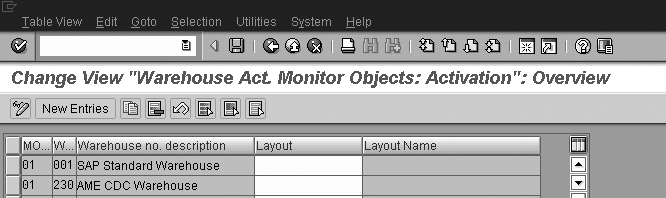
Figure 1
Activate unconfirmed TOs by warehouse
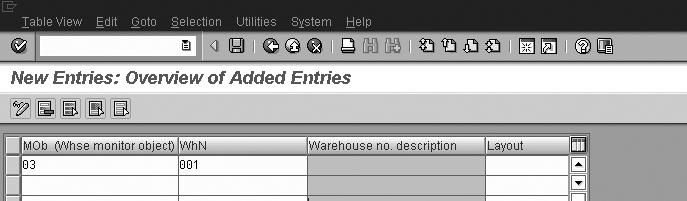
Figure 2
Activate object 03 (posting change notice) for warehouse 001
- Define critical parameters: Allows
the users to maintain the parameters
to monitor. For example, you need to
maintain all movement types that users
would like to monitor for unconfirmed
TOs in this configuration, along with
the critical duration. The critical
duration determines when a particular
object is considered critical, so its
definition is important to the effectiveness
of WAM. Typically the duration is set
for eight hours, to correspond with
a shift of work. This ensures that
any unconfirmed TO document older than
eight hours is reported in WAM. Some
companies choose 24 hours to ensure
that the document is completed by the
same set of users (the same shift)
when they return the next day and can
obtain the required information. You
can maintain different durations for
different parameters. For example,
you could set up the system to monitor
movement type 999 (bin
to bin) every 24 hours and movement
type 101 (goods receipt)
every four to eight hours.
- Set up report variants: I’ll
discuss details of this configuration
in the “Set Up Reports Variants” section.
- Define jobs for selecting
critical variants: You must
set up jobs based on the objects
used in the warehouse. The business
users must determine the frequency
of the jobs according to the importance
of the objects for warehouse operations.
WAM does not update the status of
the documents automatically when
users use the transaction LL01,
but it refreshes the data whenever
the user selects the object and opts
to Determine data again from
the Edit menu (Figure
3).
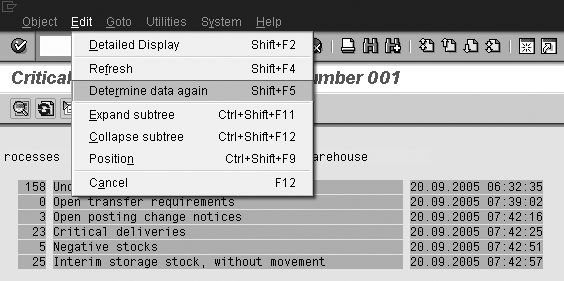
Figure 3
Refresh objects to update WAM in transaction LL01
Although you have the option to get
real-time data via Determine
data again, selecting this option
and running WAM frequently consumes a
lot of system resources. You should run
batch jobs to get updated data regularly
and prevent multiple users from trying
to determine data frequently in WAM,
which causes system slowdowns.
Now, let’s go back to the setup
of report variants I promised in point
3 of the configuration details. Setting
up the variants properly and intelligently
enables users to get the full benefit
of WAM.
Set Up Report Variants
You must set up WAM variants in alignment
with your organizational structure and
business process to improve your monitoring
effectiveness. Set up the variant for
the object overview program in the configuration
using the menu path Warehouse
Activity Monitor>Activate Warehouse
Activity Monitor Objects> Report Variants>Define
Variants for “Object Overview” Program.
The Object Overview Program is
called when the user executes transaction LL01 (warehouse
activity monitor). The input parameters
for this program are the Warehouse
number and the Variant for
the program (Figure 4).
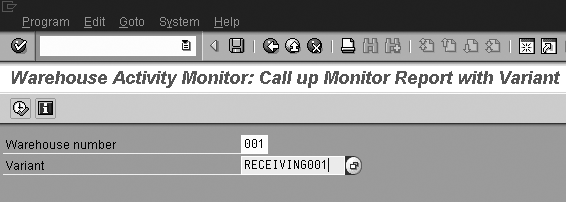
Figure 4
Add the warehouse number and the variant name
WAM defaults the warehouse number specified
in the user parameters in the object
overview program. You can also default
the variant for the object overview program
for every user based on the user parameters.
To set the user parameters use menu path System>User
Profile>Own Data>Parameters.
Set up the parameters on the resulting
screen as follows: LGN with
the value of the warehouse number and LVA with
the value of the variant for the object
overview program relevant to the business
processes of the user. Since the system
allows each user to set the variants
to default, you need to create the variants
for the program to meet the needs of
every user or make them the same for
a group of users.
To provide meaningful data to the users,
the object overview needs to include
all objects relevant to the users’ or
user groups’ business process.
For example, the user who performs receiving
in a warehouse should see only objects
and movement type data relevant to the
receiving process.
The following example shows a variant
for the receiving process. When setting
up the variant in the example, I selected
only the necessary documents for receiving,
such as Unconfirmed transfer
orders and Open transfer
requirements. The user selects
the movement types relevant to the receiving
area, for example 101 to 110,
as shown in Figure 5.
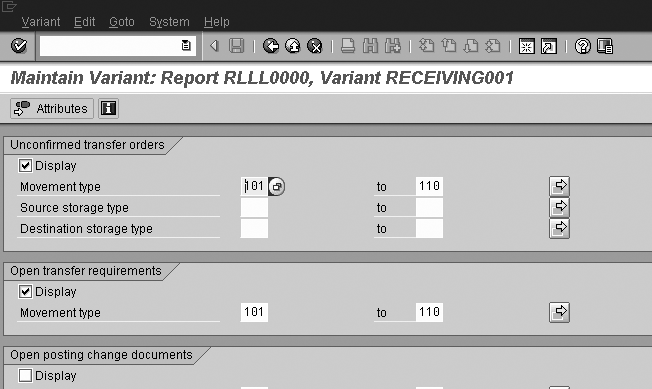
Figure 5
Set up the receiving variant for the object overview program
The header specifies the report name
as well as the variant name (RECEIVING001).
This ensures that when the user selects
this variant, the system displays only
receiving-relevant data (Figure
6).

Figure 6
Output of the object overview program for variant Receiving001
Once you set up the object overview
program variant for a particular business
process, users can set up their own variants
in the output of WAM for that process.
For example, the output of the object
overview program for the Receiving001 variant
is shown in Figure 7.
Once the configuration is set up, the
users can execute WAM for the objects
relevant to them by setting up this variant
in the user parameters. Now I’ll
discuss the output of WAM and provide
some tips to make the output effective.

Figure 7
Output of the object overview program for the object Unconfirmed Transfer Orders for the Receiving001 variant click here to view a larger version of this image
Warehouse Activity Monitor Output
Once the user executes transaction LL01 with
relevant variants, the system displays
the WAM output with all the relevant
objects. The data displayed is relevant
for the last time the data was run. Data
is updated if a user chooses to Determine
data again or if a batch job
runs to update the object data on a specific
schedule. Figure 7 shows the WAM output
for the object Unconfirmed Transfer
Orders using the variant Receiving001 for
the object overview program.
Within this output users can set up
filters on certain fields to ensure the
system shows data relevant to them. For
example, they could set up a filter to
show unconfirmed TOs, specifically the
TOs created at a particular time and
by a particular user.
Typically, the filter criteria for
the time are the shift timings of the
warehouse. In the example shown in Figure
8, the timing is 8 am to 5 pm.
To change this, use the filter option
and filter the time range and the user
name.
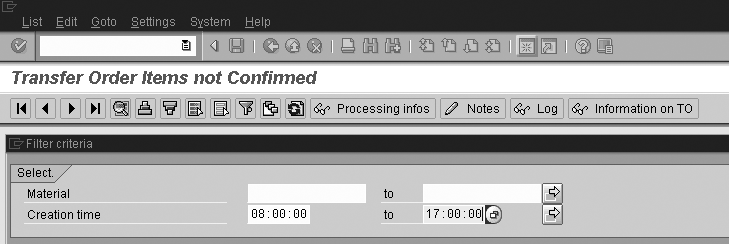
Figure 8
Use the filter option in variants to maintain timing filter criteria click here to view a larger version of this image
After setting up the filter, the user
can save the variant of the output as
a user-specific variant via menu path Settings>Layout>Save.
After the user saves the variant, you
can default the variant for that user
by selecting the DS – Default
Setting option in the Settings>Layout>Administration… settings
in the WAM menu as shown in Figure
9.
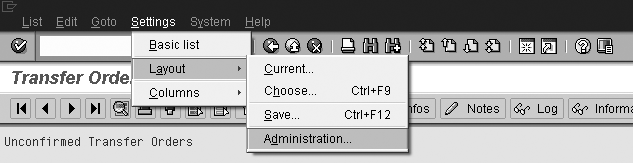
Figure 9
Change the default setting in Settings>Layout>Administration…
I’m using the example of the receiving
process to explain the variant setup
for the object overview program and the
WAM output. However, in a typical SAP
WM implementation, WAM could monitor
several processes.
For it to be effective, you must set
up WAM with variants based on all the
business processes used and the organizational
structure associated with your warehouse.
A typical organization uses WM processes
such as:
• Receiving
• Putaway
• Picking
• Shipping
• Transportation
• Inventory control
• Physical inventory and cycle
counting
• Quality control
Note
No functionality is currently in place to prioritize WAM objects for processing.
I will expand on the receiving process
used in the example earlier to explain
the different levels at which you can
maintain variants and what objects are
covered by each variant. Figure
10 shows the organizational
structure for the receiving process and
the relevant variant setup.
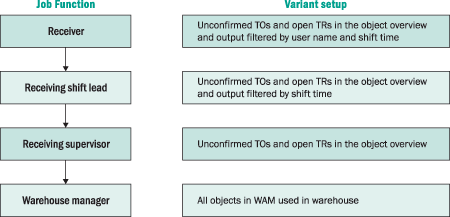
Figure 10
Job functions and variant needs for receiving
Depending on the data needed for each
level, set up the variants in WAM as
shown in Figure 8. Once you have set
up all the necessary variants for the
organizational levels, monitoring objects
is much easier at all levels of the organization.
For example, a receiver gets a report
of all the open TOs filtered by his or
her user name and the shift time. A receiving
shift lead gets a report of all the receivers
filtered by the shift time only. By getting
data that is relevant for each user based
on the variants, WAM helps users in their
day-to-day activities and also helps
them to control their processes efficiently.
Batch Job Setup for WAM
As mentioned earlier, running WAM too
often slows down your system, so you
need to set up a batch job to run at
regular intervals to update WAM. Set
up batch jobs for selection programs
for every object in WAM configuration
via menu path Warehouse Management>Planning
and Monitoring>Warehouse Activity
Monitor>Define Jobs for Selecting
Critical objects. Depending on
users’ needs, you can set up a
batch job for all objects to run together
or you can run batch jobs for some critical
objects more often.
Researching TOs and TRs
Quite often in SAP WM environments,
users are expected to search for missing
material or they are expected to find
out why a TO or a TR is open. The following
are the options available for the Unconfirmed
transfer order object (Figure
11):
- Confirm a TO in background/foreground: Users
can complete their transaction from
the WAM itself, avoiding opening multiple
screens and using multiple transactions.
- Confirm all TOs at once: Within
this object, the user can select many
TOs and confirm all of them together.
- Physical count: If
for some reason the user needs to do
a physical count of the material available
in a bin, WAM allows users to select
the bins and block them until further
action.
- To reprint: If
the user needs to reprint a TO, WAM
allows that from the object output
screen.
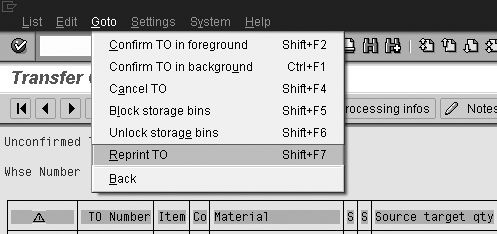
Figure 11
Additional options for object Unconfirmed transfer orders
Maintaining Processing Information
One of the most important functionalities
available in WAM is the capability to
maintain notes or processing information
for different objects. Figure
12 shows how you can maintain
notes on an unconfirmed TO. Select the
line item and select Processing
notes from the menu bar to retrieve
and maintain the action history detail.

Figure 12
Maintain Processing notes for an unconfirmed TO
Processing notes allow
users to communicate with other users
looking into the same TO regarding the
status and read and record actions taken
regarding that document. The system highlights
the line item with traffic lights to
indicate any processing notes maintained
for that item.
Block/Unblock bins allow
users to block and unblock bins that
are used in a TO so that another user
cannot process the TO. Blocking bins
and the processing notes maintained in
the WAM provide enough information for
other users in the warehouse.
TR status deliv complete allows
users to change the status of the Open TRs
to Complete. This removes
the TRs from the WAM and is a better
option than deleting the TRs, as it retains
the TRs in the system but considers them
closed documents instead of letting them
linger in Open status.
Srivathsan Narayanan
Srivathsan Narayanan is a principal consultant with the SAP group in Dreamweavers LLC, specializing in logistics execution and RFID integration and is based in San Jose, CA. With more than 10 years of experience in information systems, he has successfully implemented and managed several projects in the SAP MM, SD, and WM modules. He holds a BS degree in engineering and is the author of the SAP PRESS book Optimizing Reverse Logistics in SAP ERP (www.sap-press.com/products/Optimizing-Reverse-Logistics-with-SAP-ERP.html).
You may contact the author at vathsan@dwllc.net.
If you have comments about this article or publication, or would like to submit an article idea, please contact the editor.