SAP ERP HCM users frequently write SAP queries to highlight problem datasets, gaps, or inconsistencies. Adding traffic light icons to these queries makes them much more visual and effective.
Key Concept
Calculated (or local) fields in SAP query allow you to greatly extend the functionality of SAP query. Within a query you can create your own fields based on other fields extracted from the database according to your own requirements. Calculated fields are derived using formulas based on string functions, numerical calculations (e.g., addition, multiplication, or percentages), or logical rules (e.g., if, or, and, or else). Custom fields most commonly are text or numerical fields, but they can also be displayed as graphical symbols or icons.
Consider a scenario in which the payroll team wants to run a query to check that every new employee has been set up with a valid payment method record on infotype 0009 (bank details). The company policy is to pay all employees by direct bank transfer (known in the UK as BACS transfer and in the US as direct deposit). The only exception is for new employees who are having bank accounts set up, in which case it is acceptable to pay by check only until a bank account is set up. No other payment methods (e.g., cash or international bank transfers) are allowed. By running this query, the payroll team can prevent missed payments to those employees for whom no payment method has been input and proactively follow up on employees who have been set up with temporary check payments.
To meet this requirement a simple SAP query based on payment method is set up with a traffic light icon in the final column (Figure 1). The descriptions of the traffic light icons are as follows:
- Green: The employee is set up correctly with a valid electronic bank transfer payment method record.
- Yellow: The employee is set up with a temporary check payment method that needs to be followed up and replaced by a permanent direct bank transfer record.
- Red: The employee is missing a valid bank record.
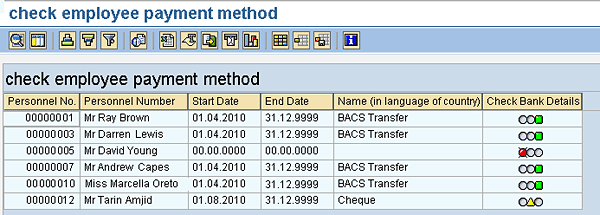
Figure 1
Employee payment method query with traffic light icon
Note
This article assumes that the reader is already familiar with the basic concepts and use of SAP query, InfoSets, and user groups, and that these have already been implemented on your system. Additionally it is assumed that all the relevant infotypes and fields that are required for this query are already available in the InfoSet. Details of how to set up and modify InfoSets are not given here. For information about adding custom infotypes to InfoSets, see the article, “
Ask the HR Expert: How to Add Custom Infotypes to Your Queries for HR/Payroll Reporting,”
by Danielle Larocca Signorile.
To set up a query with traffic light icons follow these steps:
Step 1. Navigate to the SAP query using transaction code SQ01 and from there to the normal InfoSet and user group that is used on your system for creating HCM queries. (Note: You may need to change the query area by following menu path Environment > Query Areas and then changing from Global Area to Standard Area. The exact steps vary depending on your system version, and how your authorizations and user parameters have been set up; it's not possible to cover every variation here.)
Step 2. Enter the name of a new SAP query (e.g., CHK_PAY_METHOD) and click the Create button (Figure 2).

Figure 2
Create a new query
Step 3. Confirm the name of the InfoSet you are using. In this case, it is a custom InfoSet called HR_AND_PY, and it contains all the relevant fields from the bank details infotype 0009 (Figure 3).
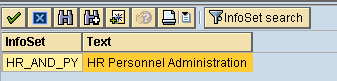
Figure 3
Confirm the InfoSet name
Step 4. Name the query and add some brief notes to describe its function (Figure 4).
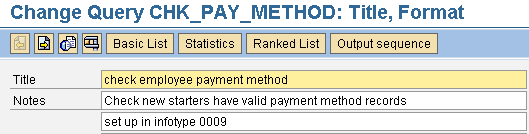
Figure 4
Query name and description
Step 5. Use the forward arrow icon on the toolbar (shown in Figure 4) to move to the Select Field Group screen. Check the Key Fields and Bank Details check boxes (Figure 5).
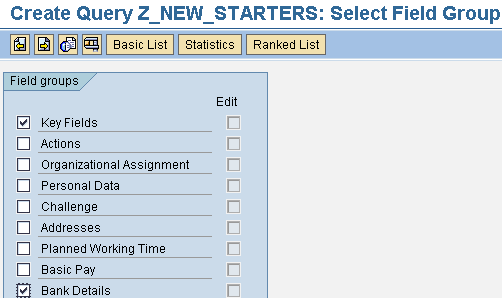
Figure 5
Select the field groups for the query
Step 6. Use the forward arrow icon on the toolbar (shown in Figure 5) to move to the Fields screen (Figure 6). The Key Fields chosen here are Personnel number and employee name (Text:Personnel number); the Bank Details fields are End Date, Start Date, and the payment method (Text:Payment method). To select these fields, check the check boxes beside them (Figure 6). Note that you may have to scroll down a screen by clicking the down arrow.
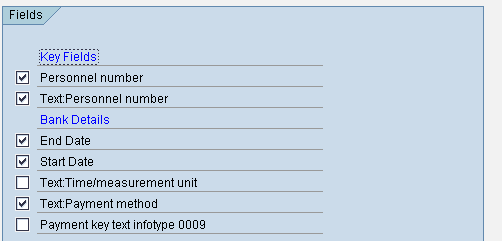
Figure 6
Select the fields from each field group for the query
Step 7. The traffic light icons are based on the details in the payment method field. Because you are going to reference this field, you need to give it a short name. To turn on short names, follow menu path Edit > Short names > Switch on/off (Figure 7).
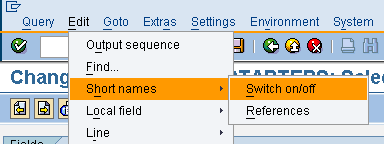
Figure 7
Switch on the short names function
Step 8. A column appears to the right in which you can enter a short name (e.g., PAY_METHOD) for each field (Figure 8).

Figure 8
Give the field a short name
Step 9. Create a new local field to display the traffic light icon (Figure 9). Follow menu path Edit > Local field > Create.
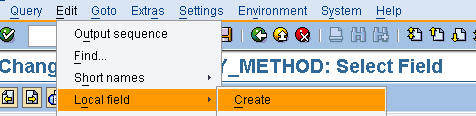
Figure 9
Create a new local field
Step 10. Give this field a short name, description, and heading. Make sure that the Icon radio button is selected, and that the Field group corresponds to the same field group in which you set up your reference field in step 8 — in this case, Bank Details (Figure 10). Click the Complex calculation button.

Figure 10
Define the attributes of a local field to display as an icon
Step 11. Enter the conditions that must be met and the corresponding output for each case (Figure 11). For example:
- If the pay method is by electronic bank transfer payment, then show a green traffic light icon.
- If the pay method is by check, then show a yellow traffic light icon.
- If any other payment method has been input or no pay method has been input, show a red traffic light icon.
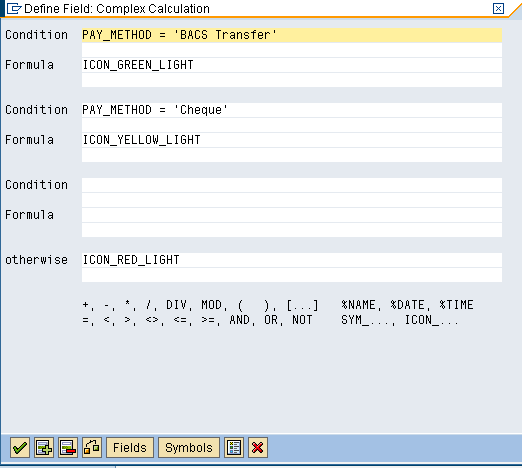
Figure 11
Define the conditions for displaying the icons
Note
I have only scratched the surface of the available functionality. You can have multiple fields in the condition or use different and more complex operations. You can display a wide range of icons and symbols. You can find more information by clicking the Fields and Symbols buttons shown in Figure 11 and then pressing F1 to access the help text.
Step 12. Click the validate code icon  to confirm that the conditions and formulas you have input are acceptable to the query.
Step 13. Click the green checkmark to enter these changes and return to the query.
Step 14. The Fields screen appears again (as in Figure 6). Make sure that the payment method (Text:Payment method) and Check Bank Details check boxes are selected (Figure 12).

Figure 12
Add the local icon field to the output display list
Step 15. Check the Basic list with box check box and add all the fields selected into line 1 (Figure 13). Put the fields in the order you want by adding the number to the Sequence column. Make sure that the local field that displays the traffic light icons that you created in steps 11 and 12 is included.

Figure 13
Determine the output sequence for all the fields in the query
Step 16. Save the query by clicking the save icon in the toolbar; then go back to the selection screen by clicking the green back arrow icon twice (shown in the toolbar in Figure 9).
Step 17. Enter your selection criteria and execute the query as normal. You should now see the traffic light icons as shown in Figure 1. If the query displays a large number of results and you want to concentrate only on problem records, you also can sort and filter on the traffic light icons by taking the following steps.
Step 18. Select the traffic light column in the query by clicking it; it is highlighted as shown in Figure 14.

Figure 14
Selecting the traffic light column
Step 19. Click the filter icon, highlighted in Figure 15. Then select the color of the traffic lights required and press Enter or click the green checkmark button to filter the output (Figure 16).

Figure 15
Filter button in the SAP list viewer
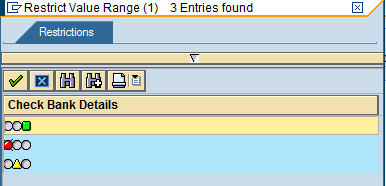
Figure 16
Sort options for the traffic light column
Step 20. Alternatively, you can use the sort icons (highlighted in Figure 17) to sort the query either in ascending order (green, yellow, red) or descending order (red, yellow, green).

Figure 17
Sort button in the SAP list viewer
Owen McGivney
Owen McGivney is a senior consultant at iProCon Ltd., part of the iProCon group, based in London, England. He has worked on implementing SAP HR and payroll systems since 1998. Owen has delivered UK, Irish, and multi-national payroll solutions for a wide range of private- and public-sector clients. He has a special interest in combining ABAP programming with configuration to create innovative and effective solutions.
You may contact the author at o.mcgivney@iprocon.com.
If you have comments about this article or publication, or would like to submit an article idea, please contact the editor.