The BEx user exit allows you to perform many valuable tasks and functions in Excel, which can be a great platform for displaying your SAP data when used to its full potential. The author provides 22 ways that the BEx user exit can optimize your Excel reports, with downloadable documents available to help you further.
Did you know that every time you run an SAP BW report in Microsoft Excel that you are accessing an almost unknown SAP user exit? The BEx user exit has many functions associated with it that allow you to enhance or automate your reports. For example, did you ever think about having users see the actual data in their reports whenever they open a BW report without prior refresh of that particular query? Perhaps you have wanted to modify data in your reports in an automated way — for example, highlighting sections or using text-wrap functions for the first result row.
The BEx user exit provides you with obscure functions to accomplish these tasks and more. In fact, I have identified 22 functions that are not well known but quite useful. These functions, listed in Table 1, are part of the BEx API. They are not BW function modules, and are not accessible via transaction SE37. The functions discussed here are available only from the SAP BW GUI front-end installation and will only work in combination with Excel. You can download a complete overview and examples for using them by clicking this link. I will show you how you might use these functions by walking you through one example. They work equally well with BW 2.x or BW 3.x.
| 1. |
Function SAPBEXinitConnection(Optional newConnectionObj As Object) As Boolean |
Set up a connection to the BW server. |
| 2. |
Function SAPBEXgetConnection(Optional what As Integer) As Variant |
Get the existing connection object if already connected to BW server by help of BEx. |
| 3. |
Sub SAPBEXattachGIS(Optional refreshOnly As Boolean) |
Attach GIS map (same as clicking on the BEx toolbar button). |
| 4. |
Sub SAPBEXpauseOn() |
Issue more than one API command (such as two individual filter values) without immediate refresh. |
| 5. |
Sub SAPBEXpauseOff() |
All commands called after SAPBEXpauseOn are executed. |
| 6. |
Function SAPBEXsetVariables(varValues As Range) As Integer |
Set variable values for user to provide pop-up filter selections (filter dialogs are disabled if properly filled). |
| 7. |
Function SAPBEXrefresh(allQueries As Boolean, Optional atCell As Range) As Integer |
Refresh either all queries in workbook allQueries=FALSE or selected queries by identifying the query range. |
| 8. |
Function SAPBEXsetDrillState(newState As Integer, Optional atCell As Range) As Integer |
Set DrillState via coding to vertical (newState=1), horizontal (newState=2), or no DrillState (newState=0). |
| 9. |
Function SAPBEXgetDrillState(currentState As Integer, Optional atCell As Range) As Integer |
Find out what DrillState is defined for a specific object. |
| 10. |
Function SAPBEXsetFilterValue(intValue As String, Optional hierValue As String, Optional atCell As Range) As Integer |
Set a filter value for a specific characterictic (e.g., 0CUSTOMER = 1002) to filter either on simple or hierarchy values. |
| 11. |
Function SAPBEXgetFilterValue_IntValue() As String: SAPBEXgetFilterValue_IntValue = g_SAPBEXgetFilterValue_IntValue: End Function |
Set a filter value for a specific characterictic (e.g., 0CUSTOMER = 1002) to filter either on simple or hierarchy values. |
| 12. |
Function SAPBEXgetFilterValue(intValue As String, hierValue As String, Optional atCell As Range) As Integer |
Get a filter value for a specific characterictic (e.g., 0CUSTOMER) to use later on either simple or hierarchy nodes. |
| 13. |
Function SAPBEXcopyFilterValue(fromCell As Range, Optional atCell As Range) As Integer |
Copy a filter value for a specific characteristic. |
| 14. |
Function SAPBEXfireCommand(fCode As String, Optional atCell As Range) As Integer |
Issue commands such as remote-control context menu or toolbar (values can be found via a trace file). |
| 15. |
Function SAPBEXcheckContext(fCode As String, Optional atCell As Range) As Integer |
Check if an OLAP command such as SAPBEXfireCommand can be used on that particular cell. |
| 16. |
Function SAPBEXshowTextElements(Optional selectGroup As String, Optional atCell As Range) As Integer |
Display text elements (filters, global values) via the toolbar. |
| 17. |
Function SAPBEXshowTextElements(Optional selectGroup As String, Optional atCell As Range) As Integer |
Report: Report Interface; jump to a specified workbook or view. |
| 18. |
Function SAPBEXgetResultRangeByID(ByVal queryID As String, Optional ByVal charName As String) As Range |
Find out where data from query is being displayed — for example, if you want to add data to last column. |
| 19. |
Function SAPBEXsaveWorkbook(Optional wbName As String) As Integer |
Save your workbook after refresh (no name needed) or save as new file. |
| 20. |
Function SAPBEXreadWorkbook(wbID As String) As String |
Open your workbook via Workbook ID (GUID). |
| 21. |
Function SAPBEXgetWorkbookID(wbName As String) As String |
Find workbook ID by opening the workbook using a "human-friendly" name. Return value is GUID. |
| 22. |
Function SAPBEXembedQuery(genUID As String, Optional atActiveCell As Boolean) As String |
Like the toolbar function; embed a new query (not workbook) to your active workbook. |
|
| Table 1 |
BEx API provides 22 functions to automate and enhance your reports |
|
Using the BEx user exit requires basic skills for programming Visual BASIC for Applications (VBA), which is delivered with Excel. Another option is to use the Excel macro recorder. After refreshing the query, start the Excel macro recorder, change your report to the desired display, and stop the recorder. You can insert the resulting code saved in the macro recorder directly into the BEx user exit, where it will be executed after each refresh. By using that exit, You can change the format or display of data. As described in the next example, you can also control your BW reports remotely.
By using the functions listed in Table 1, I will show you how to interact with your reports. The functionality is the same using the context menu, but through the BEx user exit, you can predefine the behavior of your queries. For example, instead of filtering for a specific year using the navigation and filter area, you could create a button for the actual and previous year. By clicking on this button, the query filters just this setting. In the case of management reporting workbooks, this is a great option to provide simple navigation for your users.
Now I will show you the syntax for calling these SAP functions.
Consider the following simple task (just a warm-up). You want to format the first row of your result area with a defined height and with text-wrap to provide a better view. This format should be dynamic, meaning if you insert rows above, the system should keep the format in the proper row (row 9) as Figure 1 shows.

Figure 1
Note the formatting change in row 9 of the after image
Do you think this is a tough job? No, just display the Excel Visual Basic toolbar by selecting View> Toolbars> Visual Basic from the Excel menu. Select the editor icon, which is circled on the toolbar below.
When you insert BW queries into Excel workbooks, the system automatically inserts the BW Visual Basic Application (VBA) exit. You can find this exit, which is provided by the SAP module SAPBEX, in the VBA editor. The VBA code in Figure 2 is responsible for the dynamic format shown in Figure 1. You enter your code after the line:
Sub SAPBEXonRefresh(queryID As String, resultArea As Range)
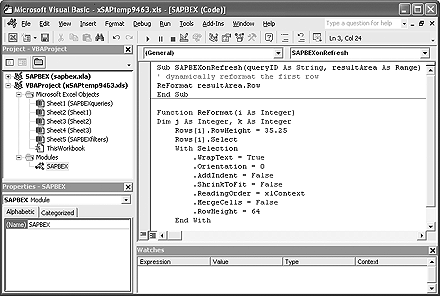
Figure 2
The code in the box on the right is responsible for the dynamic format shown in Figure 1
SAP-BW provides the following information inside this exit; you may use it to add other functionality.
First queryID: This queryID can be found when you open your workbook. Right- click and select the Information tab under Properties. Then choose QueryID (local). You can use this ID (SAPBEXq0001) to run functions only on specific queries inside your workbook.
Second resultArea: This Excel range object can be used for purposes such as calculating the last row or first row using VBA functionality. In my example (Figure 3), I used the resultArea.Row function to find out what the first row of my resultArea (data area) is in that report. The user exit signals function MyFunction_ReFormat, which sets the row height and text properties.
|
Sub SAPBEXonRefresh(queryID As String, resultArea As Range)
If queryID= "SAPBEXq0001" then
' dynamically reformat the first row
MyFunction_ReFormat resultArea.Row
End If
End Sub
Function MyFunction_ReFormat(i As Integer)
Dim j As Integer, k As Integer
Rows(i).Select
With Selection
.WrapText = True
.Orientation = 0
.AddIndent = False
.ShrinkToFit = False
.ReadingOrder = xlContext
.MergeCells = False
.RowHeight = 64
End With
End Function
| Figure 3 |
The resultArea.Row function determines the first row of the resultArea, and MyFunction_ReFormat sets row height and
text properties |
|
As I said, this is just a warm-up example for utilizing the user exit. In this user exit, you can integrate all your macros (the macro recorder of Microsoft Excel can do a lot of work for you) or your VBA coding.
Call Syntax
Now let me explain the syntax for calling the SAP functions with the help of one selected BEx API function, SAPBEXcopyFilterValue. Table 1 shows all of the other functions. I will also provide the VBA code for the automatic silent log-on to your BW server. With this function, you can log on to your BW server without user interaction (you must provide a user ID and password in the function) and use Excel to automatically load a desired workbook (SAPBEXreadWorkbook), refresh your workbook (SAPBEXrefresh) and store it back onto the BW server with actual data (SAPBEXsaveWorkbook). This functionality allows all of your users to see the actual data in reports without a prior refresh.
Imagine a workbook containing two different queries that both use 0CUSTOMER and 0MATERIAL as characteristics. I call the first Query-A (providing key figures for the actual month) and the second Query-B (providing historical data such as an actual year/previous year comparison). Wouldn’t it be great to synchronize any filter selection on Query-A with Query- B? A couple of my clients are using this functionality in SAP-BW Management Cockpit queries.
How can you achieve this using an SAP user exit and API functions? All you have to do is enter the VBA exit as described previously and enter the code shown in Figure 4. It is important to reference the SAPBEX.xla (the Excel add-on file functionality for SAP BEx).
Sub SAPBEXonRefresh(queryID As String, resultArea As Range)
' This is our sending Query-A
If queryID= "SAPBEXq0001" then
' Send FilterValue for 0Material from Query-A to Query-B
If Run("SAPBEX.xla! SAPBEXcopyFilterValue",
Sheets("Query_A").Range("D6"), _
Sheets("Query_B").Range("D9")) = 0 Then
Else
MsgBox "Function failed"
End If
End If
End Sub
| Figure 4 |
VBA code to synchronize filter selection between two queries
|
|
Because you use the queryID, the function is called only when selecting filter values for material in Query-A. Whatever your navigational steps in Query-B might be, they do not affect Query-A.
It is easy to use the user exit to either format your query or call SAP functionality to improve your navigation or report functionality. Remember, the full functionality of this user exit is described in downloadable documents at this link.
Joerg Boeke
Joerg Boeke is an SAP NetWeaver BW solution architect and senior consultant working with BIAnalyst GmbH & Co.KG, with 19 years experience in SAP NetWeaver BW, having worked on it since SAP BW 1.2A. He offers significant expertise in the SAP NetWeaver BW reporting area, including design, data integration, data visualization, performance optimization, and the cleanup of existing SAP NetWeaver BW systems. He is the author of SAP BW 7.x Reporting - Visualize your data.
You may contact the author at Joerg.boeke@bianalyst.de.
If you have comments about this article or publication, or would like to submit an article idea, please contact the editor.




 Premium