During the business blueprint phase, variations in business processes are identified. How these variations affect end-to-end test scenarios is information that is often lost between the design phase and integration testing. Using transaction variants is a way to get a jump start on end-to-end integration test design.
Key Concept
Transaction variants are one way to identify process variations that should be used when constructing integration test scenarios for end-to-end process testing. They can identify when the same transactions need to be run in different ways to meet the requirements of variations in business processes. Activating and using the transaction variants feature during the business blueprint phase can help test planning and execution. Transaction variants also enable the association of variation-specific documents, such as work instructions or test execution directions.
To capture these detailed variations, Solution Manager provides a feature that allows project teams to create and map these variations to the Business Process Hierarchy (BPH) as transaction variants. Transaction variants are a special object type that can be captured on the Transaction tab in SOLAR01 to allow project team members to document where variations of transactions occur within the business process. Because SAP projects are often large and can run for extended periods of time between the business blueprint phase and the testing phase, it is important that these variations be captured in a way that they can be easily identified throughout the life cycle of the project.
Before I begin, it is important to note that during the blueprint phase, Solution Manager uses the terms transaction variant and executable variant interchangeably. For example, in the activation of this feature in configuration, the Business Add-In (BAdI) name is TRANVAR, which is short for transaction variant. However, in SOLAR01/02 when creating or assigning a variant, the screens are labeled executable variants. For the scope of this article, the two terms are referring to the same technical construct.
Note
Prerequisites: You need a system with Solution Manager 7.0 Support
Package 1 or higher and running and the authority to perform
configuration to activate BAdIs in Solution Manager.
In the remainder of this article, I focus on how properly capturing business variations through transaction variants can help institutionalize the knowledge around business process variations as well as how this information can assist in the planning of end-to-end test scenarios.
Note
There are numerous other ways transaction variants can be used to aid in
the overall solution design and documentation, but they are beyond the
scope of this article.
Preparation
Before you can use the transaction variant features, you must activate them in customizing. Execute transaction code SPRO to open the Solution Manager IMG in which the BAdI is activated to enable the transaction variant functionality. Follow Customizing menu path SAP Solution Manager > Capabilities (Optional) > Implementation/Upgrade > Tab Extension > Add Object Types Other Tabs to open the BAdI Implementations pop-up window (Figure 1).
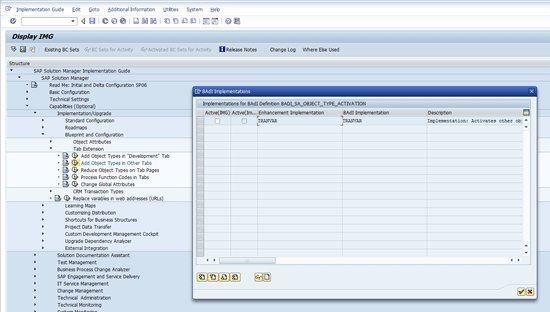
Figure 1
Customizing path to activate the transaction variants BAdI
Check the box in the first column (Active(IMG)) on the row for Enhancement Implementation TRANVAR to activate the transaction variants features.
Using Transaction Variants During Blueprinting
After you activate the transaction variants, the project team can begin using them to describe variations in business processes in the blueprint phase and beyond. After you execute transaction code SOLAR01 (Business Blueprint), the Transactions tab has a new item in the Object Type drop-down selection. You use this new type, executable variant, to create and assign transaction variants to process steps.
First, the process team assigns a transaction to a business process step. Then, using the executable variant icon  , the team creates the transaction (or executable) variant associated with the business transaction. The executable variant icon launches a pop-up in which you can either assign or create the variant. Figure 2 shows transaction code VA01 (Create Sales Order) is assigned to the business process step Create Sales Order in the Order Management business process.
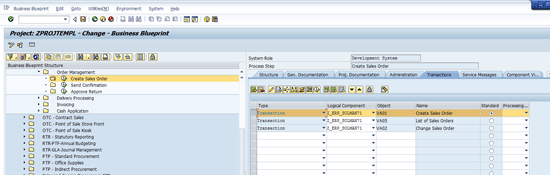
Figure 2
Transaction assigned to the business process step
To create a variant of this transaction to indicate that the transaction is used in different ways for different variations of the Order Management business process, the project team member selects the VA01 transaction line (Figure 2) and clicks the executable variant icon.
This action opens the Select Executable Variant dialog pop-up screen (Figure 3). If the desired transaction variant already exists, the team member can click the Assigned check box and press Enter. If not, the team member clicks the Create button to create a new executable (or transaction) variant.
Note
Creating an executable (or transaction) variant creates a relationship
between the selected transaction code and the variant on the selected
BPH node. If you wish to remove the assignment of the transaction from
the BPH node, you must first remove all the associated variants on that
node. If the same transaction is assigned to another BPH node that does
not have a variant assigned, the transaction on the alternate node can
be removed without regard to variant assignments on other BPH nodes.
Figure 3 shows the Select Executable Variant dialog pop-up screen with an existing variant already created for the transaction.

Figure 3
The Select Executable Variant pop-up screen with an existing variant for transaction code VA01
If the variant displayed is relevant for the business variation being captured, simply select the Assigned check box and press Enter to assign the variant to the BPH node for the transaction. If not, use the Create button to create a new variant associated with the selected transaction (VA01 in this example) to go to Figure 4, which shows the Create Executable Variant pop-up screen. To create a new executable (or transaction) variant for the selected transaction code, enter a name in the Variant ID field, type a description in the Variant Name field, and press Enter.

Figure 4
Create an executable variant for the selected transaction
Solution Manager assumes that the created variant is to be assigned to the transaction selected and adds it to the Transactions tab just below the selected transaction on the Change Blueprint screen. Figure 5 shows the new transaction variant assigned to the business process.
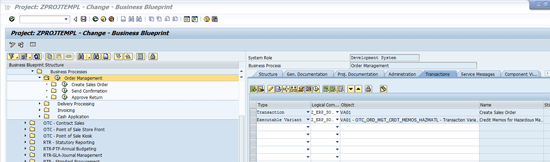
Figure 5
The new transaction variant assigned to the business process
After assigning the transaction variant to the business process (or step), you can associate this variant with specific documentation that relates to the variant. For example, your project might have special work instructions, design considerations documentation, or specific testing instructions that pertain only to the variation of the process or step. These documents can be linked to the variant using the attributes icon  .
.
To complete this step, select the variant and click the attributes icon to open the Attributes Maintenance window (Figure 6). In this screen you can link documents specific to the transaction variant. If the documents already exist in Solution Manager, they can be searched for and linked. If not, you can create new documents from the Attributes Maintenance window.
Figure 6 shows the Attributes Maintenance window with the Links tab selected. From there, you can link existing Solution Manager documents or new documents to the transaction variants.
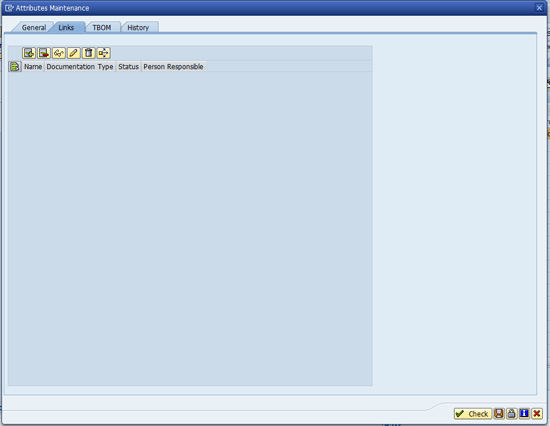
Figure 6
The Attributes Maintenance window with the Links tab
Note
As of SP06, Solution Manager does not support assigning customer
attributes to executable variants. However, customer attributes can be
assigned to the associated transactions. Creating and assigning customer
attributes to transactions can also assist in grouping transactions
together for end-to-end testing. This may assist you in associating the
proper variants during test planning. For more information on how to
create and use customer attributes, see my article “
Leveraging Customer Attributes to Manage Work.”
Follow this same process throughout your blueprint design to create and associate executable variants to all business transactions that need to be executed differently to meet varying business process needs.
Note
Establishing and following good naming conventions for executable
variants facilitates searching for and grouping variants. Consider
identifying the end-to-end scenarios you want to test during integration
testing and give each one an identifying short name, such as OTC_RO_001
for Order to Cash (OTC) Return Order Processing (RO) test scenario1
(001). Appending or prepending this short name to the name of the
executable variant helps you sort and group when you get to the
reporting and analysis activities of your blueprint design.
After you assign all the transaction variants, run the project analysis reports to begin identifying which transaction variants to sequence together for end-to-end testing. The reports can be run two different ways. First, using the Environment menu in SOLAR01(02), run the Assignments report for Transactions under Project Analysis. The menu path to access the Project Analysis reports is Environment > Project Analysis > Assignments > Transactions. This menu path opens the Transactions Assignments reports, which allow you to select and list all the contents of the Transactions tab for the project, including the executable variants (Figure 7).
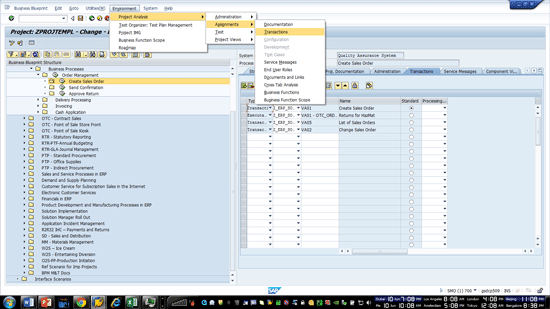
Figure 7
Project Analysis assignments report access from SOLAR01(02)
The second way to run this report is by executing transaction code SOLAR_EVAL. The Trasactions Assignments report in SOLAR_EVAL can be accessed from either the Blueprint or Configuration sections of the SOLAR_EVAL Reporting Hierarchy. For the Blueprint hierarchy section, navigate the hierarchy path Analysis > Business Blueprint > Assignments > Transactions. For the Configuration hierarchy section, navigate the hierarchy path Analysis > Configuration > Assignments > Transactions. Figure 8 shows how to access the report from the Blueprint section of the SOLAR_EVAL reports hierarchy.

Figure 8
Transaction assignments reports in transaction SOLAR_EVAL
When the Selection screen appears, enter TRANVAR in the Type field in the Object Attributes section of the screen. You can also select Executable Variant from the prompt in the field. Figure 9 shows the selection screen populated with the TRANVAR for the object type.

Figure 9
The selection screen to assign transactions reports for executable variants
Executing the report by clicking the execute icon reveals a list of the transaction variants assigned to the selected project. By default, the report displays the information in a hierarchy format that matches the hierarchy of the project BPH structure. Click the tabular view icon  to see the report in an Excel-like list view. Both views are exportable to Excel for further processing. Figure 10 shows the default hierarchy view, and Figure 11 shows the Excel list view.

Figure 10
Transaction assignments report in default hierarchy view

If you sort and filter on the name, you can group the transaction variants that should be executed together as part of an end-to-end test scenario (assuming good naming conventions are used).
Note
If you are using Solution Manager for test planning and management, you can navigate directly from the report output shown in Figure 10
to the relevant locations on the BPH structure by double-clicking the
line in the report. Then you can create or assign your test artifacts in
the Test Cases tab so that they are available in the Solution Manager
Test Workbench aligned to the proper business process hierarchy nodes.
This step helps you build tests and test plans for later test execution.
Test planning, management, and execution are beyond the scope of this
article.
As always, experiment with these techniques in a sandbox project or a sandbox Solution Manager system before implementing them for your project team. Also, be sure to work with the project leadership to establish, document, and communicate naming standards to be used with these techniques.
D. Russell Sloan
D. Russell Sloan is a specialist in project and program governance for IBM. He focuses on the use of SAP Solution Manager for global rollout projects for IBM’s largest customers, having worked with SAP software since 1996. Russell has degrees in accounting and information systems and has been a team and project leader for SAP projects for more than 14 years. He has been developing and deploying software systems for over 30 years.
You may contact the author at solmanruss@gmail.com.
If you have comments about this article or publication, or would like to submit an article idea, please contact the editor.





 Premium