Learn how to integrate liquidity forecasting with real estate cash flow.
Key Concept
With enhancement package 2, SAP has streamlined the liquidity forecasting tool by incorporating cash flows generating from real estate contract conditions. This brings more visibility and accuracy to liquidity forecast under Cash Management enabling businesses to make accurate investment decisions.
SAP Cash Management in SAP Financial Supply Chain Management has two components: cash position and liquidity forecasting. The cash position provides a short-term view to monitor liquidity in bank accounts. Liquidity forecasting allows you to evaluate information such as the expected amount receivable or amount payable for certain customers, vendors, or subledgers in the mid- or long-term.
A real estate contract is an agreement between the tenant and landlord for leasing facilities. A real estate contract has cash flows that the tenant has agreed to pay to the landlord. Until SAP ERP Central Component (SAP ECC) 6.0, up to enhancement package 1, the liquidity forecasting tool did not reflect the real estate cash flows. The real estate cash flows mainly arise through letting out (i.e., renting to customers) of facilities. The cash flow is mostly periodic in nature (i.e., monthly, quarterly, or yearly). It may be either cash inflow (i.e., from customers through letting out) or cash outflow (i.e., through letting in of the facilities). The contractual conditions are recorded through a real estate contract in the SAP system.
With enhancement package 2, SAP has integrated real estate cash flows with liquidity forecasting. Before, if a company carried out any business along with real estate business, there was no visibility of real estate cash flows in liquidity reporting. Now that there is, you can achieve more accurate reporting that includes real estate information. This is especially important if your real estate business generates significant cash flow. Accurate liquidity reporting enables the business to determine a surplus or deficit in cash balances at the period end, thus allowing you to make better investment decisions. I’ll show you the step-by-step directions for enabling integration between the liquidity forecasting tool and the real estate contract cash flows along with a test case.
I’m also assuming that you’ve implemented liquidity forecasting in Cash Management and Flexible Real Estate Management (RE-FX). The article applies to SAP ECC 6.0 systems with enhancement package 2 and higher. I will first show you the steps to follow for integration and then demonstrate the results with a test case.
Steps for Integration
Step 1. Activate the subapplication for RE-FX. Follow IMG menu path Flexible Real Estate Management (RE-FX) > Basic Settings > Activate sub function. Click the New Entries button and choose TRCM (cash management and forecast) in the Appl. (application) column. Activate the integration between Cash Management and liquidity forecasting by checking the Actv. (active) check box (Figure 1).

Figure 1
Activate cash management for RE-FX
Figure 2 shows the additional customizing steps that are available with the enhancement package 2 under the IMG menu path Flexible Real Estate Management (RE-FX) > Accounting. You should follow the steps in Figure 2 in order.

Figure 2
Additional customizing settings available with enhancement package 2
Step 2. Activate cash management and forecasting for RE-FX in the appropriate company code. Click the Activate Cash Management and Forecast for RE-FX in Company Code node in Figure 2 and the screen in Figure 3 appears. You should activate cash management for all company codes for which RE-FX is implemented by selecting the Activate CM check box. Here I have checked for company code 1100 (1000 was already checked).

Figure 3
Activate cash management for the company codes
Step 3. Activate cash management for flow types. A flow type in RE-FX represents the nature of cash flow. In simple terms, a flow type in RE-FX indicates cash flow from income types such as rent or lease, but also one-time income such as a registration charge. From Figure 2, click the Activate Cash Management for Flow Types node. Only check the Relevant to CM check box for flow types that are relevant for cash flow. In Figure 4, only Z001, Z002, and Z003 are relevant for cash flow. Z041, Z042, and Z043 are flow types to transfer revenue from a real estate contract to a rental object in RE-FX, so they are not checked as relevant for Cash Management. Also, flow types such as rent lost due to non-occupancy of a rental object, which are created in rental objects, should not be checked as relevant to cash flow because they do not reflect actual cash flows.

Figure 4
Activate cash management for flow types in RE-FX
Step 4. Assign planning levels to the contract type. A planning level in Cash Management represents from where the cash flow arises — examples include outgoing checks, outgoing bank transfers, check receipts, FI postings, purchase orders, orders, and confirmed or unconfirmed payment advices. I have assigned the contract type Z001 to planning level RC and the rest of the material is automatically populated. I have chosen RC because in the standard SAP system planning level RC is already defined for lease rent from the real estate business. If you have more contract types and desire to distinguish them in the liquidity reporting, you can create another planning level similar to RC and assign it to the respective contract types. For example, for an industrial lease contract type, you can create another planning level such as RI.

Figure 5
Assignment of a real estate contract type to a Cash Management planning level
Step 5. Assign the planning group to the business partner. The planning group indicates the customer or vendor who created the cash flow. I have assigned planning group Z1 to customer 3000009, which I will use for creating a real estate contract in the next steps (Figure 6).

Figure 6
Assign the planning group to a customer
If you need a new planning group, you can create one. For example, I have created a new planning group ZRC and assigned it to planning level RC in Figure 7, which I reached from the Define Planning Groups node in Figure 2.

Figure 7
Assign planning group ZRC to planning level RC
Step 6. Maintain the cash management structure. Assign the planning groups Z1 and ZRC defined in step 5 to the cash management grouping structure by following IMG menu path Financial Supply Chain Management > Cash and Liquidity Management > Cash Management > Structuring > Groupings > Maintain Structure (Figure 8). The cash management grouping structure is a required input parameter for the reporting of the liquidity forecast.

Figure 8
Assignment planning group ZRC to the cash management grouping structure
With these six steps, the required configuration is complete. Now let’s test the settings with an example.
Testing
Create a real estate contract with conditions and execute the liquidity forecast report. Follow Easy Access menu path Accounting > Financial Supply Chain Management > Cash and Liquidity Management > Cash Management > Information System > Reports for Cash Management > Liquidity Analyses > Liquidity Forecast or alternatively you can use transaction FF7B to access the report directly (Figure 9).

Figure 9
Liquidity forecast showing the details of planning group ZRC
Drill down to get the details of amount 4730 in Figure 9 (July 10) to display the details of RE-FX documents (Figure 10). For example, you can see the real estate contract numbers 100004, 100005, 100006, and 100007, and that the business partner (i.e., the vendor or customer) is 3000009.
Figure 9 suggests that QAR 4730 is receivable from the real estate business. With this cash flow, the closing balance at the end of July is a deficit of 89928 (because it is a negative balance), so the company should plan to acquire funds to make up the deficit. In SAP systems before enhancement package 2, you cannot see the value in the report, meaning that the liquidity forecast report shows a wrong balance.

Figure 10
Details of RE-FX documents on drill down
You can cross-check the details in Figure 10 by accessing the real estate contract 100004 and simulating the cash flow. Figure 11 displays the simulated cash flows for real estate contract 100004 (i.e., a monthly cash flow of 1560) to support the above calculation in Figures 9 and 10.
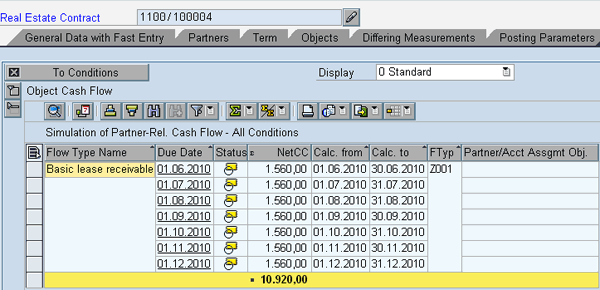
Figure 11
Simulated cash flow in real estate contract 100004
Note
The above example exhibits the details of cash inflow from customer contracts. Cash outflow through vendor contracts can also be shown with similar settings.
Note
The real estate contract must be set to Active to reflect its cash flow in the liquidity forecasting.
If you have already implemented RE-FX and if you now activate integration with Cash Management, you need to recreate the existing real estate records in Cash Management. In that case, you need to use the IMG activity Prepare Production Startup and Data Setup under the menu path Financial Supply Chain Management > Cash and Liquidity Management > Cash Management > Tools. You need to check the Copy Real Estate Data check box and execute the data setup (Figure 12).
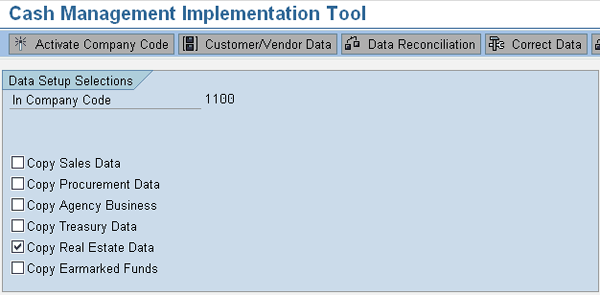
Figure 12
Data setup to copy existing real estate data to Cash Management
Sravani Swetha Kaja
Sravani Kaja has been a principal consultant (SAP) at a multinational corporation for the past six years. Sravani has expertise in SAP ERP Financials with a focus on real estate business processes. With a post-graduate degree in business management, finance, and accountancy, Sravani has worked on several SAP implementations, rollouts, and support projects.
You may contact the author at kaja1983@gmail.com.
If you have comments about this article or publication, or would like to submit an article idea, please contact the editor.


 Premium