Learn how to implement SAP transfer pricing and parallel valuation in goods receipt and an accounts payable Logistics Invoice Verification (LIV) process.
Key Concept
Parallel valuation in an SAP system helps an organization with multiple legal entities or company codes to prepare for consolidation. Multinational companies can use transfer prices in their cross-company transactions through this parallel valuation method to make them tax compliant. At the same time they can use prices that do not take into account any intercompany markups or profits for their group consolidated reporting. Therefore, parallel valuation helps companies fulfill these two main business objectives. The basic concept of parallel valuation involves using two costs for each good or material in an SAP system and then carrying these costs through all logistics or supply chain transactions.
Organizations may have several variations of an intercompany accounts payable process based on whether both the parties are in an SAP system. If just the receiving side is in an SAP system, often the unavailability of an electronic data interchange (EDI) process can pose an issue for this company code if it uses the parallel valuation solution. The issue is that in a purchase order-based accounts payable invoicing process (transaction code MIRO), parallel valuation does not work. Therefore, if your business case is similar to the one I describe (i.e., only the receiving side company code is in the SAP system owing to a staggered SAP system transition), you need to choose an enhancement.
I show you the best enhancement to use. I demonstrate using one Business Add-In (BADI_MRM_TRANSFER_PRICE) how the parallel valuation postings can be activated in transaction code (MIRO) for Logistics Invoice Verification (LIV).
SAP Note 366968 advises that you post accounts payable invoices using an IDoc (intermediary document). An IDoc is usually used when electronic data interchange (EDI) is the method used to posting these invoices. In my business case this is not an option due to lack of availability of EDI infrastructure. However, if you use the BAdI available in SAP Note 1695310) that introduces this enhancement to the standard SAP transaction code MIRO, you can enable the parallel valuation in accounts payable invoices without having to use the IDoc/EDI method. Therefore, you can manage the intercompany transactions in two valuations (legal and group). I describe SAP Note 1253076 (which has some sample code) that you can use to enable parallel valuation transaction MIRO for both normal invoices and planned delivery cost invoices.
Any intercompany transactions need to be posted with two valuations (one with transfer prices and the other with the source company code cost. which is also called as group cost). Therefore, the objective is that the intercompany profit needs to be clearly identified during each inventory-related transaction as I describe later on in this article. If you do not use SAP parallel valuation, this determination of intercompany profit in each logistics transaction can be complicated to design. I describe four functionalities that are available with the parallel valuation solution described in this article:
- How to activate the parallel valuation (legal and group valuation views) in a business scenario in which only the receiving side company code is in an SAP system and has no electronic accounts payable invoice posting process enabled.
- How the exchange rates are handled in the case of legal and group valuation views.
- Accounting posting during the goods receipt and accounts payable invoice posting with two valuation views (legal and group).
- Group valuation accounting postings in the case of purchase order having delivery pricing conditions such as freight
Here is a list of prerequisites to implement the parallel valuation and transfer pricing process:
- SAP parallel valuation (legal and group) using Managerial Accounting (CO) currency and valuation profile
- Cost component structure with a separate cost component for the intercompany profit (see further details later)
- Two separate costing variants to capture two types of costs (legal and group) for each material in the plant
- Material ledger to capture the two currencies or valuations as mentioned above, but actual costing functionality of material ledger is optional for this solution
- A BAdI enhancement to activate parallel valuation in MIRO in case EDI-AP (through an IDoc) invoicing is not available
- Master data such as intercompany vendor master data with trading partner
- Several SAP Notes if not already implemented
Configuration Steps
The following configuration elements are necessary to set up parallel valuation in the inbound side:
- Configure a cost component structure
- Configure a currency and valuation profile
- Activate valuation areas for material ledger
- Assign currency types to material ledger types
- Assign material ledger types to valuation areas
- Define currencies of the leading ledger
- Assign a currency and valuation profile to the controlling area
- Define a valuation clearing account
- Configure controlling area version for parallel valuation
- Activate the currency and valuation profile
- Configure the costing variant for legal costs
- Configure the group costing variant
- Configure the Foreign Exchange Rate Type for Product Costing
- Treatment of exchange rate postings in Logistics Invoice Verification
1. Configure Cost Component Structure
Cost component structure is a basic configuration for product cost planning. For parallel valuation, you need to create a separate cost component in your cost component structure to capture the intercompany profit at the material cost estimate level. This cost component setup is helpful to determine the intercompany profit (also known as delta profit) between company codes.
Sometimes organizations implement an SAP application in phases, so not all the parts of the organization start using an SAP application at the same time. When both source and receiving company codes are not in an SAP system, the delta cost component is not captured. This does not cause any issues with the parallel valuation posting. The most important requirement is to have the two costs maintained in the material masters. In my business case I have configured the delta profit cost component, but the system does not calculate it during costing as both sides are not in the SAP system.
To configure the cost component structure follow customizing menu path Controlling > Product Cost Controlling > Product Cost Planning > Basic Settings for Material Costing > Define Cost Component Structure. Select the cost component structure (Y2 in my case) and double-click Cost Components with Attributes. Configure a cost component as shown in Figure 1 to capture the intercompany profit while creating the two standard costs (legal and group). These two costs are created through costing variants. The most important configuration is to check the indicator for Company Code under the Delta Profit for Group Costing section (Figure 1).
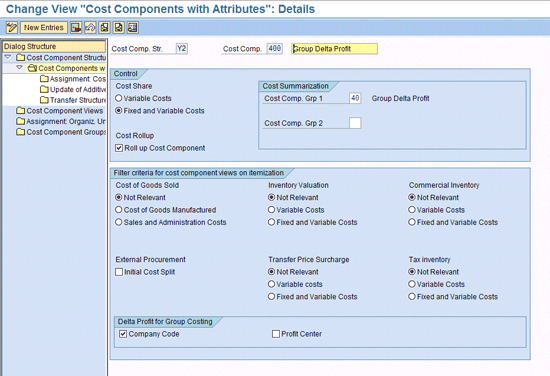
Figure 1
Cost component structure for intercompany profit
This cost component is automatically calculated if both the supply and receiver sides are in the SAP system. It appears under the cost component breakdown for the group cost. I do not show this calculation as in my business case the supply side company code is not in the SAP system, as has been described earlier. However, this does not pose any issue for completing our scenario.
2. Configure a Currency and Valuation Profile
Under this configuration step, you configure the two valuations views that are used during all goods movement transactions. Later, I show you how to assign this profile to the CO area and activate this profile. Once this profile is activated and you start postings in the controlling area in a production client, the system does not allow changes to this currency and valuation profile. Thus, you may need to incorporate other currency and valuation profiles such as COGM valuation or valuation view 5 to use the parallel cost of goods manufactured business scenario that is a legal requirement for some countries. The details about this profile are beyond the scope of this article. However, for parallel valuation transactions described in this article, you do not need this valuation view 5 at all. So if you do not have any business requirement, you can complete the currency and valuation profile as shown and carry on with the subsequent steps described in this article.
To configure currency and valuation files, follow customizing menu path Controlling > General Controlling > Multiple Valuation Approaches/Transfer Pricing > Basic Settings > Maintain Currency and Valuation Profile (Figure 2). The Details screen shows that the value 1000 is configured for the currency and valuation profile (Curr/Val. Prof). If you select this value and double-click the Details folder, the two currencies settings or views are displayed for your currency and valuation profile 1000.

Figure 2
The currency and valuation profile
3. Activate Valuation Areas for Material Ledger
Inventory transactions in standard SAP can only be captured with the legal currency or values of the company code. The keyword valuation is very particular here. One of the functions of the material ledger is to capture the inventory movements with multiple currency or valuation. Without the material ledger inventory movements are still posted with legal currency or valuation correctly, but other valuation cannot be captured correctly.
Although this legal value can be translated with two other currencies based on the company code or leading ledger currency setting (details shown later in “Define Currencies of Leading Ledger”), historical values or another valuation such as group valuation (that is historical cost in the currency of the group without any mark up) cannot be captured without the use of the material ledger. The material ledger has two functions. Historical valuation is one. This is the only setting that is required for activating parallel valuation in an SAP system. The other function of the material ledger is actual or average costing. This function is optional for this solution. I demonstrate the basic material ledger multiple currency or valuation function only. The activation of actual costing does not change any postings that I describe.
In my example, I assume that the valuation area is a plant. To configure the plants or valuation areas in which the material ledger is activated, follow customizing menu path Controlling > Product Cost Controlling > Actual Costing/Material Ledger > Activate Valuation Areas for Material Ledger. A rule of thumb for setting up the material ledger is to activate the material ledger in all plants or valuation areas under a company code.
In Figure 3 I show that the material ledger has been activated in plant codes (valuation areas) 1000 through 1010 with the price determination 2. This is the only requirement for setting up parallel valuation. However, you need to check the business case for the users if they need actual costing at the same time you set up parallel valuation. If this is case, then the price determination becomes 3. A price determination of 3 activates the actual costing and parallel valuation. The discussion of parallel valuation with actual costing is beyond the scope of this article.
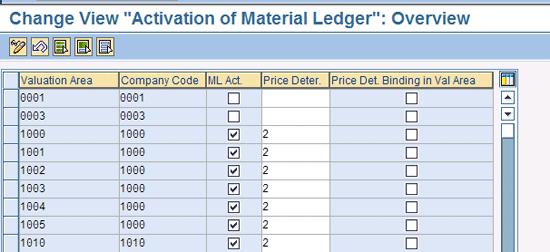
Figure 3
Activate the material ledger at the plants
4. Assign Currency Types to Material Ledger Types
To configure currency types for the material ledger type, follow customizing menu path Controlling > Product Cost Controlling > Actual Costing/Material Ledger > Assign Currency Types to Material Ledger Type. In Figure 4 there are two material ledger types shown.

Figure 4
Assign currency types to the material ledger type
However, the Material Ledger type 0001 is used in this case, as shown in Figure 5. This material ledger type 0001 is configured to use all the currencies from FI and CO currency valuation profiles. In my example, the currency valuation profile has two valuations as shown in Figure 2.

Figure 5
Assign material ledger type to the valuation areas or plants
5. Assign Material Ledger Types to Valuation Areas
Figure 56. Define Currencies of the Leading Ledger
This step defines the currencies at the company code level. The basic requirement for this configuration step is to use the group valuation 1 for the second local currency.
To configure the currencies at the company code level, follow customizing menu path Financial Accounting (New) > Financial Accounting Global Settings (New) > Ledgers > Ledger > Define Currencies of Leading Ledger. In my test company code, only the first and second local currencies are activated (Figure 6). The first currency is the company code currency in legal valuation. The second local currency is the group currency with group valuation.
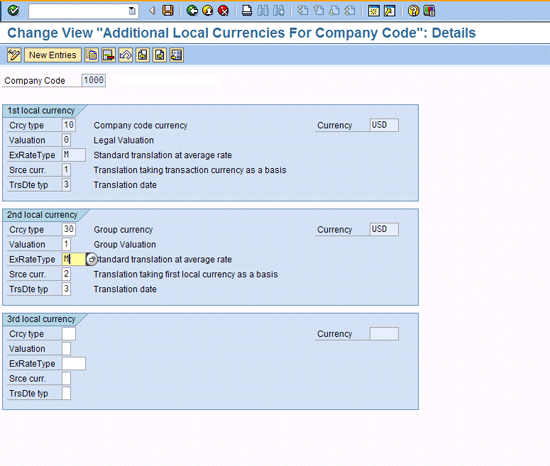
Figure 6
Local currencies at the company code level
7. Assign a Currency and Valuation Profile to the Controlling Area
The currency and valuation profile that has been configured in Figure 2 needs to be assigned to the CO area. Also to make the controlling area use this valuation profile, in addition to making an assignment you also have to activate the profile. To assign the currency and valuation profile to the controlling area, follow customizing menu path Controlling > General Controlling > Multiple Valuation Approaches/Transfer Pricing > Basic Settings > Assign Currency and Valuation profile (Figure 7). In Figure 7 you assign the currency and valuation profile 1000 to the controlling area1000 and save the entry.

Figure 7
Assign the currency and valuation profile to the controlling area
8. Define a Valuation Clearing Account
This valuation clearing account is used to capture the intercompany markup values in logistics transactions. From the inbound supply chain side at the time of invoice receipt, the system uses this account to capture the intercompany profit in inventory or markup. This account helps in the intercompany profit elimination that is a requirement for corporate group consolidation.
To configure a profit and loss (P&L) account for both the debit and credit sides at the receiving company code, follow customizing menu path Controlling > General Controlling > Multiple Valuation Approaches/Transfer Pricing > Level of Detail > Define Valuation Clearing Account. The trading partner (Tr.Prt) column has been left blank so that this setting applies across all trading partners or affiliate company codes (Figure 8). You do not need to create a cost element for this account. This account captures the trading partner and profit center. The latter is based on the settings you use in profit center accounting in the SAP General Ledger or in classic profit center accounting.
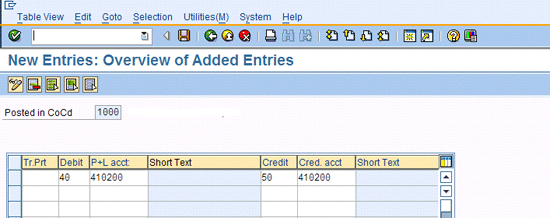
Figure 8
Assign an intercompany markup account to the receiving company code
9. Configure Controlling Area Version for Parallel Valuation
The parallel valuation posting in the CO or management accounting document uses a separate version. You need to configure this version to record the group valuation postings in CO.
To configure the new version that is used in CO for posting of the parallel valuation or group valuation, follow customizing menu path Controlling > General Controlling > Organization > Maintain Versions. Click the New Entries button in Figure 9 to configure the new version (version 11 in my case) and select the Actual, WIP/RA (work in process/results analysis), and Variance check boxes. Figure 9 shows the actual check box only, and if you scroll to the right in Figure 9, you can get to the WIP/RA and Variance check boxes. Double-click the left side panel screen Dialog Structure to extend this version 11 to the CO area 11 (Figure 9). As shown in Figure 9 plan values are not applicable to parallel valuation, so you don’t select the Plan check box, but you do select the Actual check box as mentioned earlier. The valuation view has been selected as group valuation. Later I discuss the check box for actual posting help during the intercompany transactions. The WIP/RA and variance check boxes are used in the case of an intercompany production order posting. (This process is not covered in this article.)

Figure 9
Create a controlling version for parallel valuation
10. Activate the Currency and Valuation Profile
To execute the activation step for the currency and valuation profile, follow customizing menu path Controlling > General Controlling > Multiple Valuation Approaches/Transfer Pricing > Activation > Multiple Valuation Approaches: Check/Execute Activation to call up the screen shown in Figure 10. In the screen that appears select the Activate in controlling area radio button and click the execute icon. Once the currency and valuation profile is active, the system does not allow any additional changes to be made.
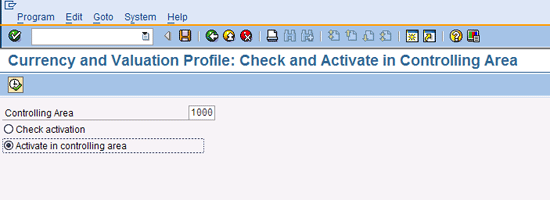
Figure 10
Activate the currency and valuation profile in the CO area
11. Configure the Costing Variant for Legal Costs
The parallel valuation calculation is solely based on the two costs for each intercompany material (a material that is transferred between two subsidiaries or affiliates). I show you how to configure two costing variants to create two types of costs (legal and group). The legal cost pertains to cost that is used in the financial reporting (inventory balance sheets and cost of goods sold reporting) for a company code. This legal cost for intercompany purchases usually is based on transfer prices. The transfer prices are the prices that are similar to prices a nonrelated vendor and customer charge each other.
To configure the costing variant follow customizing menu path Controlling > Product Cost Controlling > Product Cost Planning > Material Cost Estimate with Quantity Structure > Define Costing Variant. Click the Costing Type button (Figure 11).
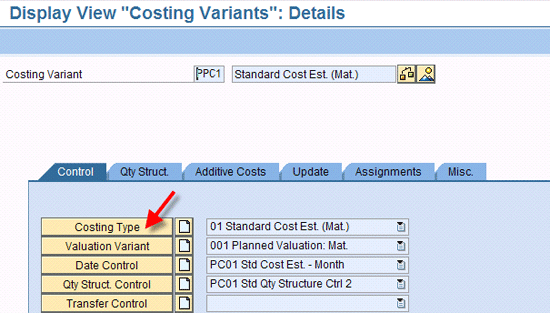
Figure 11
The costing variant for the legal costing variant
Figure 12 shows the costing type for legal valuation. The cost that you create using this costing variant is stored in the material ledger as the legal costs. The costing type is a component in the costing variant that distinguishes a legal cost from a group cost. Therefore, you need two costing types for standard prices — legal and group.
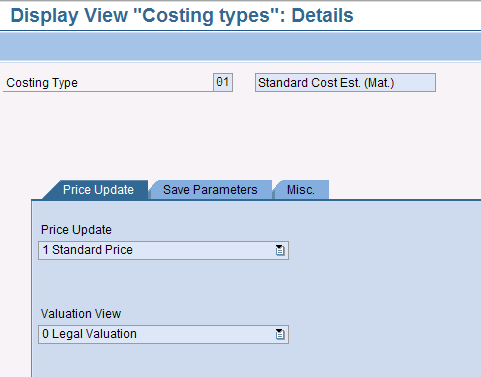
Figure 12
The costing type for the legal costing variant
Now click the Valuation Variant button in Figure 11. The next screen that appears (Figure 13) shows the valuation variant strategies for creating the cost for a material. The purchase information record is one strategy to use to develop the legal cost. The transfer prices are maintained in the purchase information records. In my example, I include Planned Price 1 as a strategy in cases where purchasing information records are not used by the business. As a best practice it is advisable to use the purchase information records to store the transfer prices for intercompany transactions.
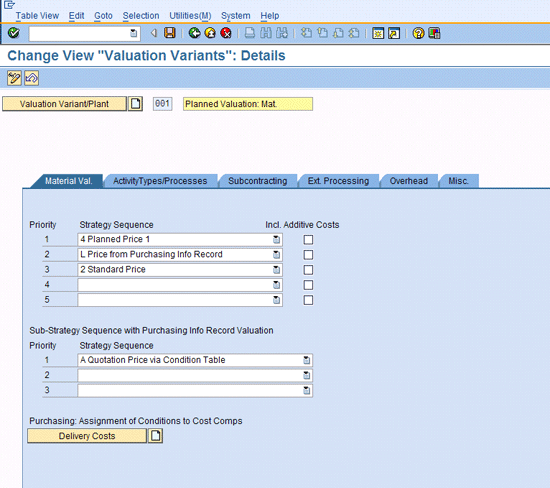
Figure 13
The valuation variant for the legal costing variant
12. Configure the Group Costing Variant
You configure the group costing variant to handle product costing in two distinct business scenarios:
- When both company codes or plants are in the SAP system, a special procurement key in the material master and transfer control in the group costing variant helps the system to read the group cost from the supplying plant and use it in the receiving company code (or plant). This process makes both the source and receiving company codes group cost the same. It is permitted by accounting rules to add additive costs in the receiving company code if some additional charges have been added in the purchase information record to create the legal cost (in addition to transfer prices).
- When only the receiving company code is in the SAP system, automatic determination of group cost through the special procurement key and transfer control in the costing variant does not work. Hence, usually one of the plan prices (such as Plan Price 2 in my scenario that is shown in my discussion of a valuation strategy) is used to load the source group cost (manufacturing cost) in the currency of the receiving company code. The exchange rate used to translate this cost is the budget rate (exchange rate type P). I describe this exchange rate type P later.
As the valuation variant for group cost demonstrates, business users can manually update the group cost using one of the available plan prices fields (Plan Price 2 in our case) in the material master (costing 2 view).
To configure the costing variant (BIO1) for group valuation, follow the customizing menu path Controlling > Product Cost Controlling > Product Cost Planning > Material Cost Estimate with Quantity Structure > Define Costing Variant. Click the Costing Type button in Figure 14.
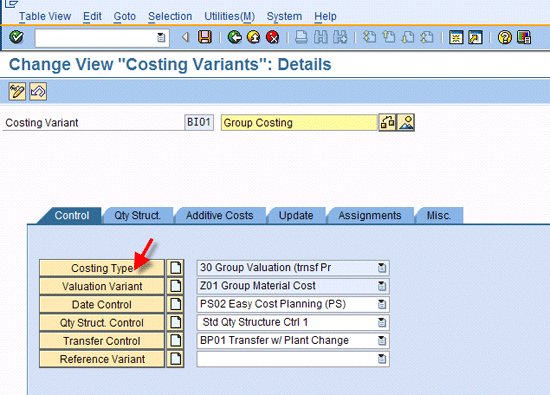
Figure 14
The costing variant for group cost
Note that the cost estimate created using this costing variant updates the group valuation. Complete your configuration as shown in Figure 15.

Figure 15
The costing type for group costing variant
Click the Valuation Variant button in Figure 14. The screen that appears (Figure 16) shows that the strategies for material are configured. Select the Incl. Additive Costs check box so that any additional costs that are included in legal costs (which are transfer prices) also are included in the group cost. Later, I show you how to create the additive cost estimates for group costing. The additive costs are needed if there are some additional costs, apart from the transfer price stored in the purchase information records, that are used for legal cost. These additional costs are entered into the purchasing information records as separate conditions.
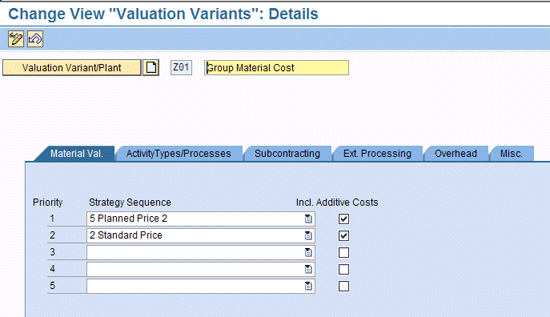
Figure 16
The valuation variant for group costing variant
Click the Transfer Control button in Figure 14. The transfer control key is in the costing variant that is used to look up the cost in a supplying plant and transfer it over to the receiving plant. However, in my business case, the supplying plant is not in the SAP system. Therefore, this transfer control key is not used. This transfer control setting is only configured in the costing variant for group cost. Transfer control for a single plant is not configured as from the group cost perspective there is no reference cost in the same plant or receiving plant to use. The cross-plant setting is configured to read the group cost BIO1 in the source plant (in the subsidiary company code). The rule of thumb is that each material has a legal cost and a group cost. For example, consider a scenario in which a material is manufactured in one plant in a company code and is transferred to another company code. In the receiving company code, using a special procurement key, the system searches the existing group cost in the source company code. This transfer control helps to achieve this logic.
As shown in Figure 17, you need two costing variants to set up the parallel valuation. I do not describe any other settings for costing variants that are part of it because organizations need to come up with the strategy to develop and maintain the two costs. As per the IRS Section 482 and OECD (Organization of Economic Co-operation and Development) directives, any intercompany transaction should take place using transfer prices or arm’s length prices. The basic requirement of the transfer price is that, for any transfer of goods, an affiliate charges to another affiliate a price similar to the price it charges to a third-party customer or vendor. These prices are also called arm’s length prices to demonstrate the fairness between two parties involved in the sale to set up the sales or purchase prices.
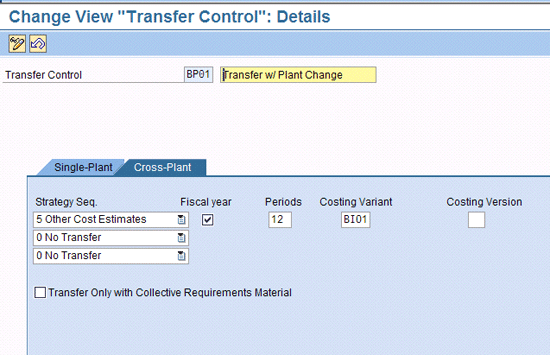
Figure 17
The transfer control in the group costing variant
Therefore, in an organization, the tax department usually drives the development of the transfer prices between the legal company codes part of the group. For a receiving company code, the transfer price is the legal cost. It may include some other charges as part of the legal cost, such as inbound freight estimates or any other handling charges. The group cost for this receiving company code is the cost that the sender or supplying affiliate incurs. Group cost is the source cost without any inherent markup or profit. It is usually the manufacturing cost if the source or supplier company code manufactures the goods.
Each material in a plant needs the legal and group costs. The legal and group valuation affects legal company codes. Usually within one company code if there are multiple plants the transfer prices are not used. The transfer prices are only maintained between two legal company codes.
A general rule the determination of two costs is as follows: If a material originates from a company code or plant A that manufactures it, the legal cost is the sum of the bill of material and routing that carries the different production operation and activities cost such as labor costs. The group cost for the material is then the same as the legal cost as this plant is the originator. However, if this company code or plant transfers this material to another affiliate company code or plant B, then the legal cost on the receiving side plant (B) is the transfer price determined by the tax department. The group cost is the group cost of the supplier company code or plant A (which is same as the source manufacturing cost in company code or plant B).
To summarize the costing concepts:
- In the source or supplying company code or plant, the legal cost equals the bill of material plus the routing in case of manufacturing material or from planned prices or purchase information records for purchased materials. The group cost is the same as the legal cost.
- In the receiving company code or plant, the legal cost is based on transfer prices stored in the purchase info record or any manual overwrite using the plan prices. The group cost is the same as the source plant using special procurement key or manually uploaded into one of the plan prices fields in the material master.
- Any additional value-added costs (e.g., delivery estimates) are added to both legal and group costs.
13. Configure the Foreign Exchange Rate Type for Product Costing
The product cost is developed using an exchange rate that is the average rate, taking into consideration the past year’s trend. In the standard SAP system, exchange rate types help to differentiate between the exchange rate that is used in product costing and any inventory transactions. The inventory transactions usually use daily or monthly average exchange rates, whereas product costing uses a fixed exchange rate (fixed within one fiscal year). The exchange rate type P, available in a standard SAP system, is used for product costing, which is an annual average rate (sometimes called a budget rate). However, for other inventory transactions that I discuss, exchange rate type M (also called daily rate or average rate) is used. Under each exchange rate type, you have to maintain the currencies and the conversion rates.
To configure the budget foreign exchange (foreign exchange is abbreviated to foreign exchange and used interchangeably in this article) rate type P that is used in controlling, such as in product cost planning, follow customizing menu path Controlling > General Controlling > Organization > Maintain Versions (Figure 18). Enter the exchange rate type P in the field Exchange Rate Type as shown in Figure 18. This configuration is year dependent.
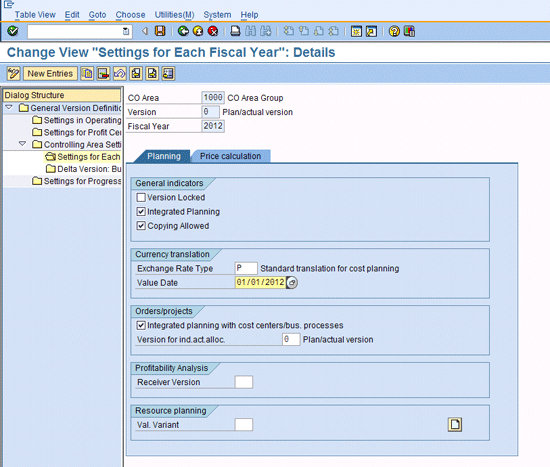
Figure 18
Assign the exchange rate type P to the controlling area
14. Treatment of Exchange Rates Postings in Logistics Invoice Verification
As described in the last section, the product cost uses an annual average exchange rate (budget rate) to develop the standard cost, whereas the inventory transactions use a daily average or monthly average rate. There can be some valuation difference owing to these exchange rate differences when a company procures a material or product from another affiliate company code situated in a different country. Because the receiving company code has a standard cost that is fixed for the whole year and uses transfer prices (established between the supplying company code and receiving), exchange rate type P and goods receipt and invoice posting use exchange rate type M or average rates. However, US Generally Accepted Accounting Principles (GAAP) specify that these exchange rates need to be identified clearly during the inbound procurement process. SAP has a standard process to address this requirement. In this process this difference is calculated at the accounts payable invoice posting. To configure how this exchange rate variance is calculated and posted during inbound logistics transactions, follow customizing menu path Materials Management > Logistics Invoice Verification > Incoming Invoice > Activation > Configure How Exchange Rate Differences are Treated.
In standard SAP configuration without this configuration setup (Figure 19) the exchange rate type M (daily or monthly average exchange rate) is used in the logistics invoice verification process. Therefore, the exchange rate variance between M and P exchange rates is not calculated in the accounts payable invoice posting. Instead, just the exchange rate difference between various daily or monthly M exchange rate types is calculated (depending on how late the accounts payable is posted after the goods receipt). Also, the foreign exchange rate variance is calculated in goods receipt if there is a fixed exchange rate on the purchase order header and a difference between this fixed exchange rate and current M rate. If there is no fixed exchange rate that is maintained on the purchase order header, then the exchange rate variance is calculated only at the time of invoice verification and posting. The value is the differential of the exchange rates between goods receipt and invoice verification date.
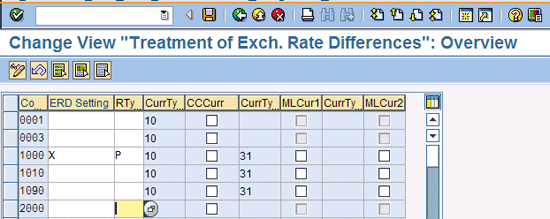
Figure 19
Calculate the exchange rate difference between M and P exchange rate types
From a multinational organization perspective, this logic may not work as the inventory is valued using a budget or plan rate P. So business and statutory reports post the exchange rate variance between the P rate and the M rate at the time of invoice posting. The configuration under Figure 19 achieves this requirement. With this setting, the exchange rate difference between the P and M rate at the time of goods receipt is posted to the purchase price variance account. However, during invoice verification posting, the system recalculates the exchange rate difference between P and M based on the invoice posting date, and reverses the purchase price variance that was posted at the goods receipt. It posts the balances to the exchange gain or loss account. Also, this posting is not applicable to group valuation. So in group valuation no exchange rate difference should be posted.
High Level Process Flow
In this section I explain a business process flow using a common business scenario in which the material being transferred between the two company codes in a group uses the transfer price as well as one delivery cost condition.
Figure 20 shows the scenario in which only the receiving company code is live in the SAP system. I explain here the inbound supply chain side of intercompany process to limit the scope of this article. This scenario happens to be the most complex one to implement in the case of an SAP parallel valuation implementation. I describe this scenario using an intercompany transfer that is shown using a material that has a transfer price of $100 and a source cost (source group cost) of $60. The basic fundamental is that the goods receipt is posted with two valuation views. Each valuation is posted with its own cost that is stored in the material ledger. The accounts payable invoice determines the intercompany markup or profit in inventory, which needs to be identified in a separate account (this account is configured in Figure 8). In the intercompany account invoice, the payable General Ledger account value is the same for the legal and group valuation views. The Good Received/Invoice Received (GR/IR) valuation follows the goods receipt posting, and it has two values based on two costs (i.e., one for the legal and another one for group cost). As you can see in Figure 20, the intercompany markup (profit) account value in the group view is calculated as $40 — the difference between the transfer price ($100) and the source cost ($60).
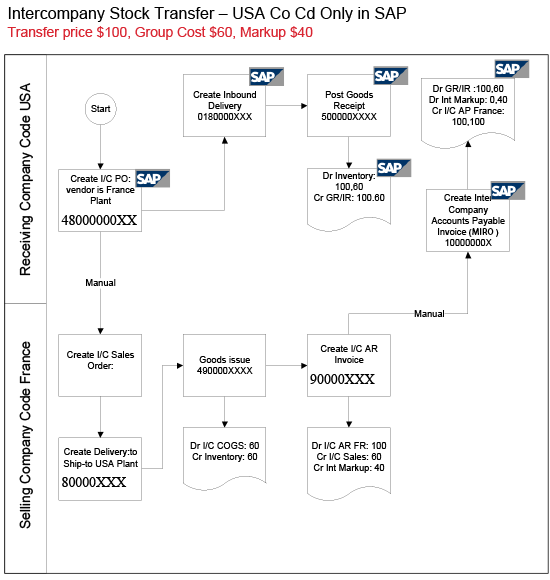
Figure 20
Process flow for receiving company code live with parallel valuation
User Exit in Logistics Invoice Verification
The invoice verification for an accounts payable invoice expects an EDI IDoc-driven posting to make the parallel valuation work. In the logistics invoice verification transaction MIRO, the parallel valuation usually does not work. SAP Note 366968 briefly describes this issue. However, if your setup does not make it feasible to implement the EDI-driven AP invoice interface, I show you how you can activate the parallel valuation for manual invoice entry in MIRO. You need to implement the SAP Notes 1695310 and 1235076 , both of which provide a BAdI (BADI_MRM_TRANSFER_PRICE) that can enable this functionality in the logistic invoice verification transaction. The SAP Note 1235076 provides some sample code. This program code helps you to activate the parallel valuation in the accounts payable invoice posting scenarios. However, some tweaking is needed to suit my business case.
You need to make two changes in this code. These changes help to make the postings in my example work. (To better understand these changes, read the SAP Note 1253076 and check the program code attached there.)
First, under the structure KALNR, the vendor number is not needed for a regular intercompany scenario and the scenario that I describe. Therefore, this field in the program code should be cleared out.
Second, you need to assign the variable ex_tp_dmbtr with the value of (fa_salk3 * f_menge / f_lbkum) code. SALK3 is the field in the material ledger that carries the group cost. This assignment is only used when the i_DRSEG internal table contains a KVSL1 field with some values (i.e., not blank). KVSL1 is the field for condition types that are populated only for the goods invoice. The idea is to use the group valuation only for the goods invoice and let the delivery-related invoice be posted without using this BAdI code. These few changes need to be made to make my business case work. However, you may need to incorporate some additional changes based on your business requirement and configuration setup.
Concept Demonstration
In this section I analyze the parallel valuation concepts using some inbound logistics transactions. Before going through these steps for transactions, you need to complete some master data setup.
Show the Foreign Exchange Rates
To understand the postings shown later you need to check the foreign exchange rate available in the system. Use transaction code S_BCE_68000174 to call up the screens shown in Figures 21 and 22 that display the foreign exchange rates. Figure 21 shows the budget rate or plan rate (type P) that is used for product costing as 1 EUR = 1.2364 USD (valid from 01/01/2012).
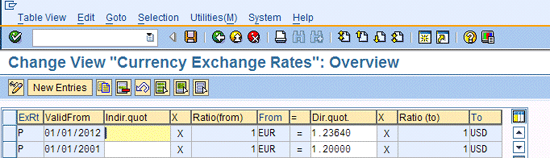
Figure 21
Foreign exchange rate table shows the P rate type
Figure 22 shows the M type rate that is used in the logistics transactions as 1 EUR = 1.2264USD (valid from 06/01/2012).
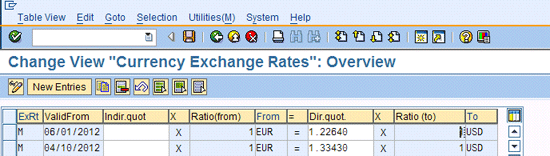
Figure 22
Foreign exchange rate table shows the M rate type
Display the Intercompany Vendor Master
Use transaction code XK03 and enter the vendor number and company code. Select the control data indicator in the initial screen (not shown here) and press Enter to call up the screen shown in Figure 23. Check if the user has entered the correct trading partner in the trading partner field. Much of the intercompany posting group valuation logic in the accounts payable invoice is driven by having the trading partner on the vendor master. This is mandatory for parallel valuation.
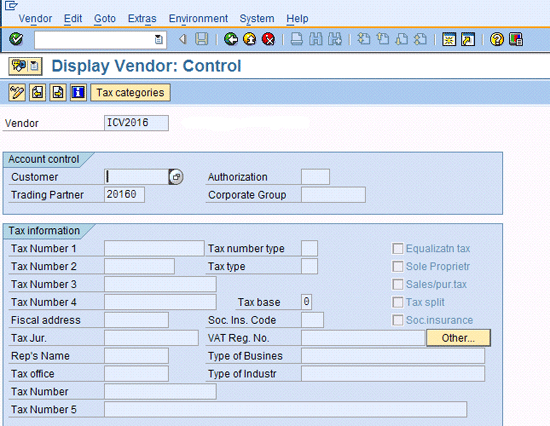
Figure 23
Display intercompany vendor with the trading partner in the control data
Create the Purchase Information Record
Use transaction code ME11 and enter the intercompany vendor, material, plant, and purchasing organization. Press Enter and click the Conditions button. Figure 24 shows that the condition type ZPBI is carrying the transfer price of 1,000 euros per 1,000 each and the freight is 10 percent (i.e., 100 euros per 1,000 each).

Figure 24
Check the purchase information record condition with transfer price
Display Standard Cost in Legal View
The parallel valuation posting depends mainly on developing two standard costs in the legal and group valuation views. The legal valuation needs a standard cost that is used to report the financial statement of an individual company code part of a group. The group cost is used in preparation of the financial statement for consolidated group. The legal cost uses the transfer prices and can have some additional costs such as inbound freight. The group cost needs to use the manufacturing cost from an overall group company perspective. Therefore, my scenario is based on the cost that the supplying plant (company code) incurs. Also, you need to add the inbound freight as an additive cost to create the group cost.
Use transaction code CK13N and enter the material, plant, costing variant, costing version, and current date (Figure 25). Press Enter.

Figure 25
Display a cost estimate
Figure 26 shows the legal cost that includes an additional freight cost. This cost estimate is created using the costing variant PPC1 (shown in Figure 13). As described earlier, this costing variant has a strategy in the valuation variant to read the purchase information record and this record has two conditions (i.e., for transfer prices and a delivery cost for freight). As you can see the purchase information records have been converted using the foreign exchange rate type P (the P foreign exchange rate for EUR/USD conversion is 1.2364 [Figure 21], so the values from Figure 24 have been converted using this foreign exchange rate). The total cost in USD is 1,360.04 (1000 EUR * 1.2364 + $100 EUR * 1.2364) per 1,000 each.
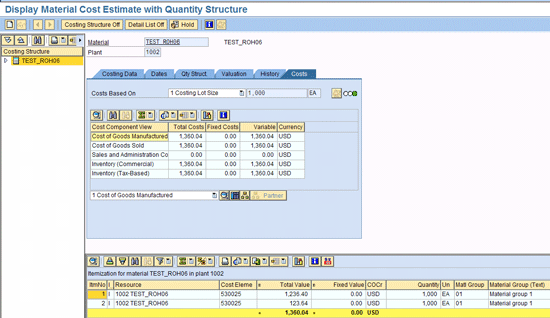
Figure 26
Cost estimate for legal valuation
Display the Special Procurement Key in the Material Master
Use transaction code MM02. Enter the material and plant and select the costing 1 view. Press Enter. In the next screen (Figure 27), the field carries the special procurement key that points toward the source plant in the supplying company code. You do not need to use this field if the supplying code is not in the SAP system owing to a staggered go-live. If this is the case, an alternative strategy from the valuation variant is used to create the group cost. You may need to get the source cost from the supplying plant and update the plan price 2 in costing 2 views (this view is not shown here) using this same transaction code.

Figure 27
Display the special procurement key in the material master
Create an Additive Cost Estimate for Group Cost
An additive cost is an ad hoc cost estimate that is used when the cost is not available from other sources such as purchase information records or plan prices from material masters. In my case, the group cost is missing the freight estimate that is being added to the legal cost through the purchase information records. From a valuation perspective any additional cost that is added to the transfer prices separately (in my case, through a condition type stored in the purchase information record; see Figure 24) also needs to be added to the group cost.
Use transaction code CK74N. Enter a material number, plant, and the costing variant for group cost. Press Enter. In the next screen enter the item category (the C column in Figure 28) as V, quantity 1.000. (In the Item column, 1 means that the additive cost value is applicable for the costing lot size). Enter the correct cost component to enter the freight estimate as shown in Figure 27. Click the save icon.

Figure 28
Create an additive cost for group cost estimate
Display Standard Cost in Group View
Use transaction code CK13N. Enter the material, plant, costing variant, version, and current date. Press Enter. This cost is based on the costing variant BIO1 that specifies the group cost.
This costing variant BIO1 has a valuation variant that is going to read the plan price 2 for the source plant cost ($776.36) and the additive cost as $123.64 (Figure 28) that represents the freight component in the group cost. The total group cost estimate comes up as $900 per 1,000 each (Figure 29). The plan price 2 is a field on the costing 2 view on the material master. This field can be populated manually for a material and plant, using transaction code MM02. A mass upload for this field can also be developed using ABAP program code. This field is handy in case the supplying side is not available in the SAP system.

Figure 29
Display the cost estimate for group cost
Accounting in Goods Receipt
I now demonstrate parallel valuation concepts using inbound business transactions that involve a purchase order for an intercompany vendor in a foreign currency. This purchase order also has a delivery cost condition. The receiving company code is a US company code with functional currency or local currency as US dollars. The transaction currency is euros. The group currency is US dollars.
Use transaction code ME23N. Enter the purchase order and press Enter. The intercompany purchase order is displayed in the next screen (Figure 30). The purchase order currency is euros. Click the Purchase Order History tab to check all the transactions that have been posted for this purchase order item. This is the best place to check all related transaction (accounting) documents for a purchase order item.
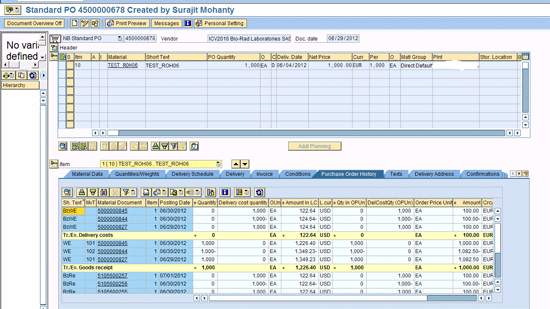
Figure 30
Display the Purchase Order History tab to access all related documents
Double-click the goods receipt document number 5000000845 under the section Tr/Ev. Goods receipt as shown in Figure 30 (under the Purchase Order History tab). In the next screen (which is not shown here) click the FI documents button to call up the screen shown in Figure 31. The accounting document (which is also called FI document) is displayed in document currency (EUR). The transfer price is 1000 EUR shown in the GR/IR line item valuation (GL account 220010). The freight is 100 EUR. The standard cost has been valuated as $1008.97 EUR. The standard cost has been translated from the USD value of 1360.04 (Figure 26) using the foreign exchange rate type P (=1360.04/1.2364) shown in Figure 21. There is a purchase price variance in the document currency as there is a foreign exchange rate difference between the standard cost and good receipt. This is a case in which the functional currency of the company code (USD) is different from the transaction currency (EUR).
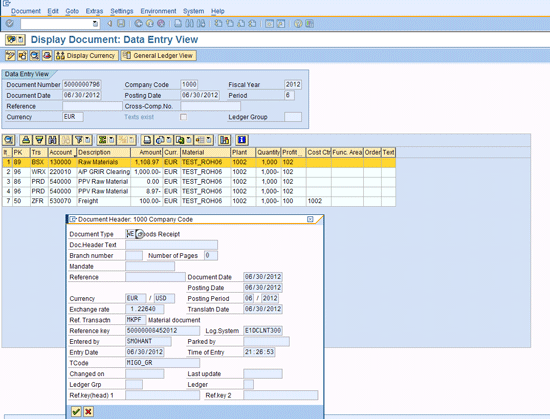
Figure 31
Display the goods receipt document in document currency
Click the Display Currency button in Figure 31 and select the Local Currency radio button in a pop-up screen that is not shown here. Press Enter to call up the screen shown in Figure 32.
In Figure 32 the values are shown in local currency (USD), which is also the legal valuation view. The inventory value is picked up from material ledger standard cost (1,360.04). The GR/IR account (220010) is translated using the M rate (1.2264) from the 1000 euros. As you can see the exchange rate gain or loss is calculated (1000 EUR *(1.2364 – 1.2264) = $11.00), but it is posted to the purchase price account rather than the foreign exchange gain or loss account. During invoice entry you see that this information is moved from the purchase price variance account and is posted to the exchange rate gain or loss account for the invoice value. The freight portion (100 EUR * 1.2264) has been accrued with a separate account (GL account 530070).
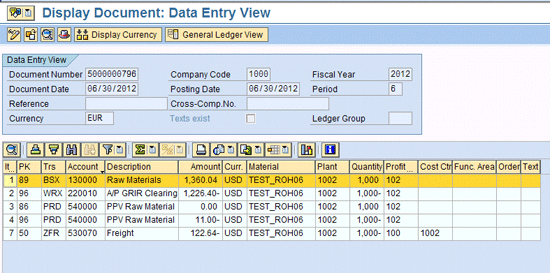
Figure 32
Display the goods receipt document in local currency
Click the Display Currency button (Figure 32) and select the Group Currency/Group Valuation radio button in a pop-up screen that is not shown here. Press Enter to call up the screen shown in Figure 33.

Figure 33
Display the goods receipt document in group currency or group valuation
The group view shows the values pertaining to the group valuation only. These values are not available in the purchase order, and the system does not use any amounts from the purchase order. Rather, the system relies on the group cost values stored in material ledger tables. The GR/IR is posted with the group cost (e.g., $900) as calculated and posted in Figure 33. The inventory is also valued with the group cost. The freight is accrued as shown using GL account 530070.
However, the entire offset for this freight amount (account 530070) is posted to the purchase price variance account (540000). This is a unique way the system handles the group valuation. You can see later on, when the freight invoice is entered into the system, that this purchase price variance is reversed and the freight account is balanced. Also, no foreign exchange gain or loss is posted at the goods receipt into group valuation. SAP Note 1235076 fixes any issues that are in the system and explains this function from a technical perspective.
Invoice Verification
MRM_TRANSFER_PRICE1253076Goods Invoice
Click the goods invoice (there is a separate invoice for delivery charges in my business case) in Figure 30 (document number 5105600257) and click the Follow-on documents button in the next screen that is not shown here to call up the screen shown in Figure 34.
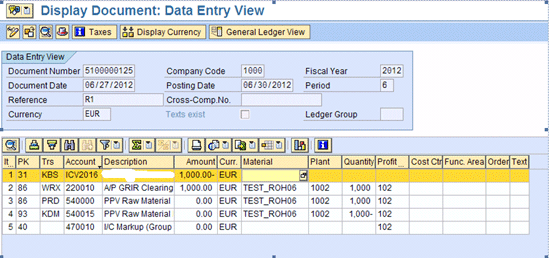
Figure 34
The display goods invoice in document currency
Figure 34 shows the goods invoice in document currency euros. This scenario is shown with the intercompany goods invoice being received at the transfer price (and the transfer price has not changed). Therefore, no variance exists between the purchase order, goods receipt, and goods invoice verification. The other accounts are blank as shown in Figure 34 in this document currency view (accounts such as 540000, 540015, and 470010).
Click the Display Currency button in Figure 34 and select the Local Currency radio button in a pop-up screen that is not shown here to call up the screen shown in Figure 35.

Figure 35
Displays the goods invoice in local currency
As shown in Figure 35, the vendor line (account ICV2016) and GR/IR (account 220010) are both posted using the exchange rate type M (1.2264). The foreign currency gain and loss are calculated (based on the setting shown in Figure 19) and the purchase price variance is corrected for this portion (as explained during the goods receipt accounting). The foreign exchange gain or loss is equal to 1000 EUR * (1.2364 – 1.2264) = $10. The intercompany markup account is blank as this only used in the group currency view.
Click the Display Currency button in Figure 35 and select the Group Currency/Group Valuation radio button in a pop-up screen that is not shown here to call up the screen shown in Figure 36.
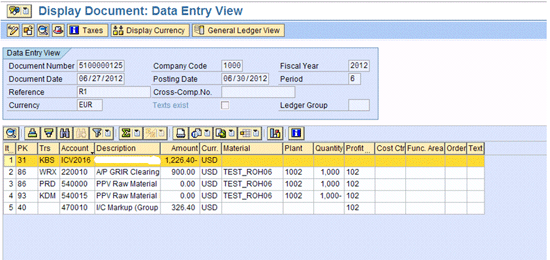
Figure 36
Display the goods invoice in group currency/valuation
As shown in Figure 36, the GR/IR account (220010) is cleared using the group value $900. This is the same value posted during the goods receipt posting. The account payable or vendor account balance is calculated from the document currency (1000 EUR * 1.2264 [M Rate]). This is logic for accounts payable account posting. Therefore, the account payable account balance is the same in both legal and group views. The remaining balancing value is the intercompany markup account balance ($326.40). This balance can be later used during group consolidation to eliminate the profit from inventory, if needed, based on the system that is used for consolidation. The consolidation details are not part of this article.
As shown in Figure 36, no exchange rate gain or loss is posted in the group valuation view. This is as per the group valuation concept. If you notice this foreign exchange gain/loss in your system, you can check to see if SAP Note 1253076 has been applied. Without this SAP Note you may see some exchange rate gain/loss that is not correct from the consolidation requirement standpoint.
Planned Delivery Cost Invoice
Click the invoice document under the section invoice del. Costs log. Inv. in Figure 30 (This document is hidden in the screen shown in Figure 30, but you can access it by scrolling down the list of documents). Click the Follow on Documents button that is not shown to call up the screen shown in Figure 37. This planned delivery cost invoice is shown with an amount of 100 euros, so no variance is shown. Any variance available is posted to the purchase price variance account in this view.

Figure 37
Display the planned delivery cost invoice in document currency
Click the Display Currency button in Figure 37 and select the Local Currency radio button in a pop-up screen that is not shown here to call up the screen shown in Figure 38.

Figure 38
Display the planned delivery cost invoice in local currency
The local currency or legal view is shown in Figure 38. The payable line has been posted with exchange rate type M using the document currency value of 100 euros. The Freight account (account 530070) is cleared using the same amount. The other two accounts are not used in this view.
Click the Display Currency button in Figure 38 and select the Group Currency/Group Valuation radio button in a pop-up screen that is not shown here to call up the screen shown in Figure 39.
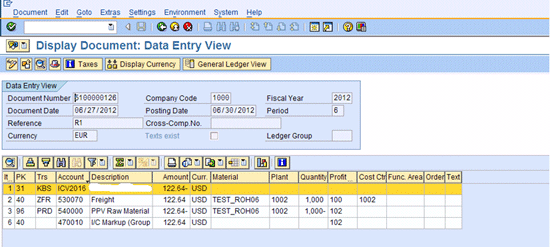
Figure 39
Display the planned delivery cost invoice in group valuation
In Figure 39 the group view and valuation are shown. The accounts payable line (ICV2016) for freight has been calculated using the exchangerate type M from the document currency amount (100 euros * 1.2264). The freight accrual amount (account 530070) is the same amount (reverse sign) as the amount that is posted during the goods receipt (Figure 33). The purchase price variance amount (account 540000) is the reverse value to correct the goods receipt posting (Figure 33). The balancing figure is posted to the intercompany markup account (account 470010).
As you have seen during the goods receipt and invoice receipts, the group valuation view follows a separate logic to keep the inventory balances without the markup or any other price variances. Any variance (such exchange rate variances and intercompany profit) is posted to the separate intercompany markup or profit account that is configured as part of the parallel valuation setup. This function helps when you are preparing the consolidation entries in any consolidation system that a business uses. The following summarizes the amounts posted in various accounts that are used in my test business case for group valuation:
Net results in group valuation view: Accounts payables account = $1226.40 + $122.64 = $1349.04; inventory account in group valuation = $900; intercompany markup account = $326.40 + $122.64 = $449.04.
Surajit Mohanty
Surajit Mohanty is an independent consultant with more than 14 years of SAP Financials consulting experience. In the past he has worked with various consulting firms such as IBM, Deloitte, and BearingPoint. He has vast experience in SAP CO (Controlling/Management Accounting) and FI areas spanning across nine end-to-end implementations. He has delivered solutions to a broad range of clients with various roles in the areas of product costing, material ledger average costing, transfer pricing, profitability analysis, revenue recognition, accounts receivable and payable, sales and use taxation, SAP General Ledger, and integration of the SAP General Ledger with materials management, production execution, and sales and distribution areas. He lives in Schaumburg, IL, with his wife and son.
You may contact the author at surajit.mohanty@hotmail.com.
If you have comments about this article or publication, or would like to submit an article idea, please contact the editor.