Learn how to enable email notifications in the SAP Financial Closing Cockpit for various scenarios, including release of a task list to have an integrated approach in period-end closing. If this approach is not implemented, then persistent communication gaps may occur during period-end closing, resulting in delays, confusion, and redundancy in task processing.
Key Concept
The SAP Financial Closing Cockpit is a standard SAP tool to monitor and control the entire period-end closing cycle.
Note
This email notification feature is available from the SAP Financial Closing Cockpit Add-On (version 1.0 and higher). This SAP Financial Closing Cockpit Add-On can also be installed on SAP ERP Central Component (ECC) 6.0 (Enhancement Pack 4.0 and higher), so keep in mind your SAP landscape before going ahead with the solutions mentioned in the article.
First, I explain the basic configurations you need to do to activate the email notifications and then I move on to a specific scenario setup and example notification.
Settings to Activate the Email Notifications
To activate email notifications, execute transaction code S_FC8_75000016 or follow menu path SPRO > Cross-Application Components > Financial Closing cockpit Add-On > Notification > Define Notification Configurations. This action opens the screen shown in Figure 1. Double-click the Notification Configuration folder and then click the New Entries button.

Figure 1
Create an email configuration ID
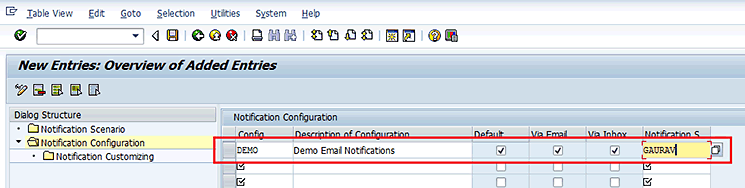
Figure 2
Define email configuration ID parameters
If you want to activate the email notifications for already existing templates, then execute transaction code FCLOCOC or follow menu path SAP Easy Access Menu > Cross-Application Components > Financial Closing cockpit Add-On > FCLOCOC - Financial Closing cockpit – Customizing. In the screen shown in Figure 3, select the template for which you want to activate the email notification and then double-click it. You can also select the template and then choose Open from the drop-down list of options under Template/Task List.
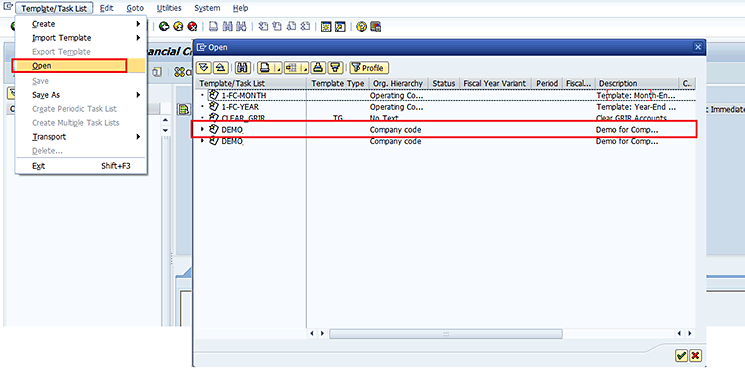
Figure 3
Select a template to assign email notification configuration
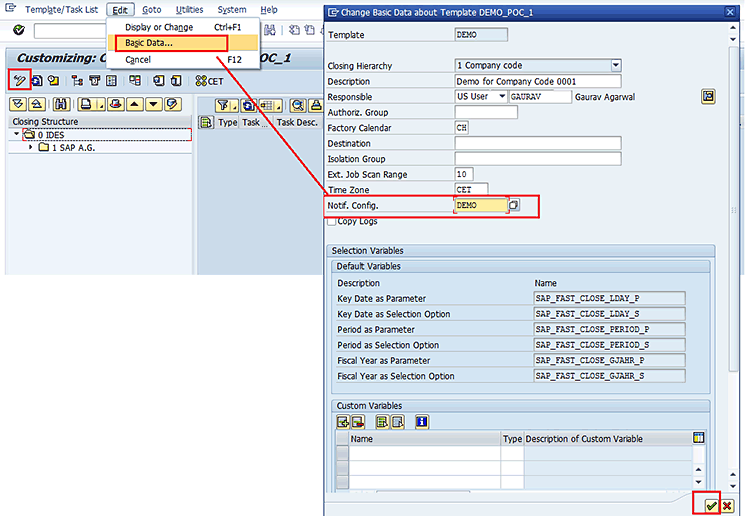
Figure 4
Assign email notification configuration to the template
| Scenario |
Description
|
Use |
1.
|
Task list released
|
When a task list is released, an email can be sent to the responsible agents and the processors of the tasks in the list to inform them that they have been assigned tasks.
|
2.
|
Task scheduled
|
When a task is scheduled, an email can be sent to the responsible agents and the processors of the task to inform them of the scheduled start time and end time of the tasks.
|
3.
|
Prerequisite tasks completed
|
When the prerequisite tasks for a successive task are completed, an email can be sent to the responsible agents and the processors of the successive tasks to inform them that they can process their tasks.
|
4.
|
Task overdue
|
When a task is not yet completed by its planned end time, an email can be sent to the responsible agents and the processors of the tasks to inform them that their tasks are overdue.
|
5.
|
Prerequisite task restarted
|
When a prerequisite task for a successive task is restarted, an email can be sent to the responsible agents and the processors of the successive tasks to inform them that they might need to restart their tasks.
|
6.
|
Task error or canceled
|
When a task has an error or is canceled during execution, an email can be sent to the responsible agents and the processors of the task to inform them that they need to fix the error.
|
7.
|
Schedulable local task completed |
When a schedulable local task is completed, an email can be sent to the responsible agents and the processors of the task to inform them that they need to check whether the task has been completed correctly. A task with the task type job or flow definition is a schedulable local task. |
8.
|
Schedulable remote task completed |
When a schedulable remote task is completed, an email can be sent to the responsible agents and the processors of the tasks to inform them that they need to check whether the tasks have been completed correctly. A task with the task type SAP Central Process Scheduling by Redwood (SAP CPS) or remote job is a schedulable remote task. |
9.
|
Schedulable task exceeds planned duration |
When a schedulable task exceeds its planned duration in actual execution, an email can be sent to the responsible agents and the processors of the task to inform them that they need to check whether they need to take any action. A task with the following task type is a schedulable task: Job, Flow Definition, SAP CPS, Remote Job |
10.
|
Planned end time of task approaching |
When the planned end time of a task is approaching, an email can be sent to the responsible agents and the processors of the task to inform them that they need to complete the tasks. By default, the system sends email notifications for this scenario 24 hours before the planned end time of a task at an interval of eight hours. |
Table 1
Standard SAP email notification events
SAP also provides two more custom events for email notifications. These notifications are listed in Table 2.
Scenario
|
Description |
Use |
E1
|
Custom scenario: Manually set error
|
When you manually set the status of a task to Completed with Errors, an email can be sent to the responsible agents and the processors of the task to inform them that they need to fix the errors. This scenario is an example custom scenario.
|
E2
|
Custom scenario: Task canceled
|
When a task is canceled during execution, an email can be sent to the responsible agents and the processors of the task to inform them that they need to fix the error. This scenario is an example custom scenario.
|
Table 2
SAP email notification events as an example for custom scenarios
Activate the Standard SAP Scenario Task List Released
To activate the Task List Released scenario for email notifications, execute transaction code S_FC8_75000016 or follow menu path SPRO > Cross-Application Components > Financial Closing cockpit Add-On > Notification > Define Notification Configurations. This action opens the screen shown in Figure 5. Double-click the Notification Configuration folder, select the configuration that you created earlier (e.g., DEMO), and then click the Notification Customizing folder.

Figure 5
Select an email configuration ID
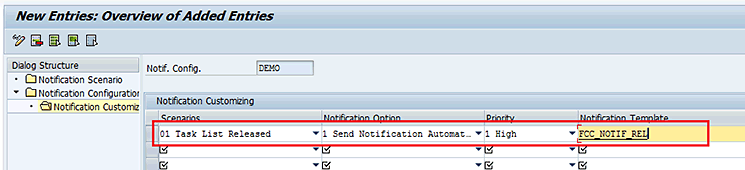
Figure 6
Configure a Task List Released scenario for email notification
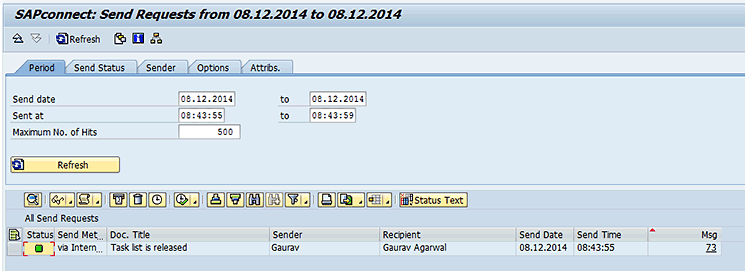
Figure 7
Display email triggering inside the SAP system
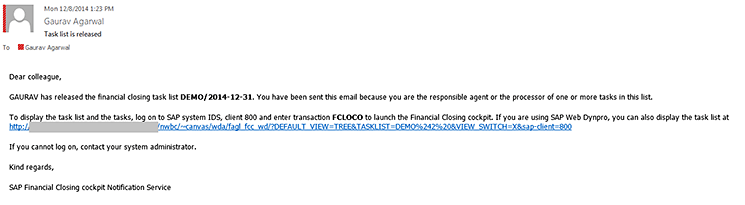
Figure 8
Email triggered for the Task List Released scenario
Activate Other Standard SAP Scenarios
You can also activate the other scenarios in the same way as explained for the scenario Task List Released. However, the difference is the email notification template that is provided by SAP. Table 3 lists various standard SAP email notification templates for corresponding scenarios to link as shown in Figure 6.
Scenario
|
Description |
Email notification template
|
01
|
Task List Released
|
FCC_NOTIF_REL
|
02
|
Task Scheduled
|
FCC_NOTIF_SCH
|
03
|
Prerequisite Tasks Completed
|
FCC_NOTIF_COM
|
04
|
Task Overdue
|
FCC_NOTIF_DUE
|
05
|
Prerequisite Task Restarted
|
FCC_NOTIF_RESTR
|
06
|
Task Error or Canceled
|
FCC_NOTIF_ERR
|
| 07 |
Schedulable Local Task Completed |
FCC_NOTIF_COMCHK |
| 08 |
Schedulable Remote Task Completed |
FCC_NOTIF_COMCHK |
| 09 |
Schedulable Task Exceeds Planned Duration |
FCC_NOTIF_EXCEED |
| 10 |
Planned End Time of Task Approaching |
FCC_NOTIF_REMINDER |
| E1 |
Custom Scenario: Manually Set Error |
FCC_NOTIF_SET_ERR |
| E2 |
Custom Scenario: Task Canceled |
FCC_NOTIF_CANCEL |
Table 3
Standard email templates available for various standard scenarios in the SAP system
Adopt Standard SAP Email Notification Templates
SAP has provided various templates for many standard SAP scenarios for email notification as shown in Table 3. However, an organization might need to change the format of the email to make it more business relevant (e.g., defaulting the contact matrix in the email for a user in a specified scenario).
To adopt the template, execute transaction code S_FC8_75000017 or follow menu path SPRO > Cross-Application Components > Financial Closing cockpit Add-On > Notification > Edit Email Notification Templates. In the screen that appears (Figure 9), put your cursor on the Document Class field and press the F4 key. Select Dialog Text from the options in the Document Class field. Enter the standard SAP template name (e.g., FCC_NOTIF_REL) in the Dialog Text field and click the copy icon.
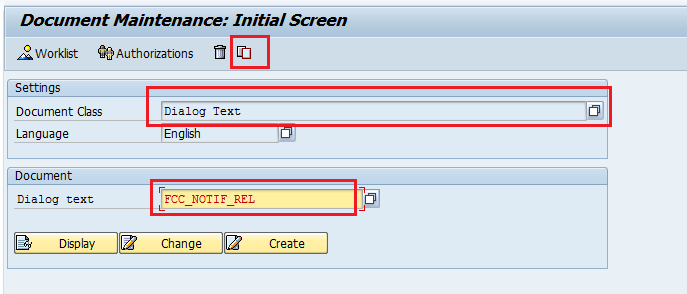
Figure 9
Copy a standard email template
Note
Do not change the standard SAP-delivered templates, as those might be overwritten when there is any upgrade in the system. Instead, you copy the template to the custom template and then make modifications in the custom template.
In the Dialog text field in the To section of the refreshed screen, enter a name for the copied template that starts with a customer namespace (i.e., X, Y, or Z). In my example, the name is ZFCC_NOTIF_REL (Figure 10). Click the copy icon.
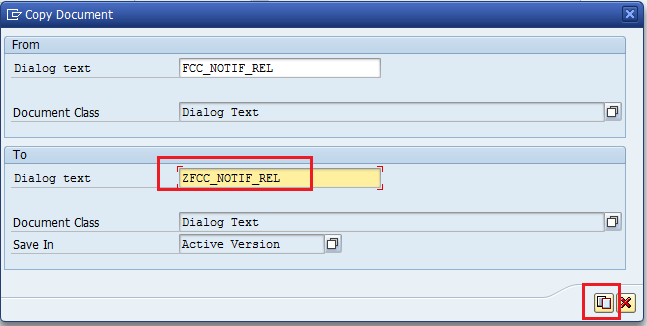
Figure 10
Define a new custom email template
This action brings you back to the screen shown in Figure 9. Enter the name of the newly created custom email template in the Dialog text field and click the Change button as shown in Figure 11.
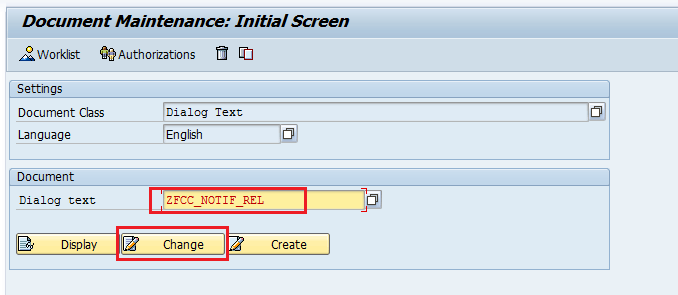
Figure 11
Enter the name of the newly created custom email template
In the next screen (Figure 12), make any changes in the template that you need to make, click the save icon, and then click the activate icon.
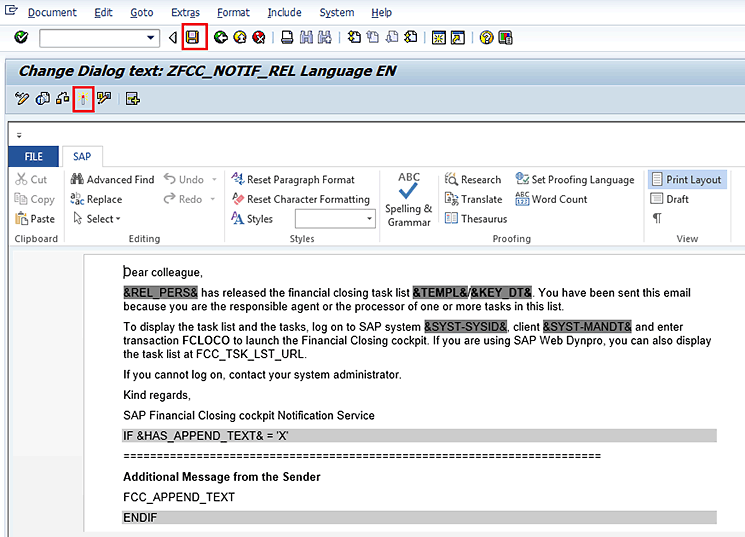
Figure 12
Change the newly created custom email template
After you create the new custom email notification template, it is also important to link it to the related scenario as explained earlier in Figure 6. Therefore, in my example, the modified setting looks like the example in Figure 13.
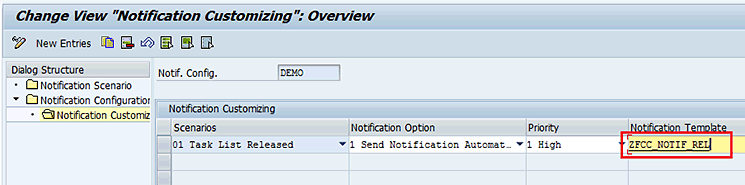
Figure 13
Configure the Task List Released scenario for a custom email notification template
Further Enhancements for Email Notifications
You can also enhance the standard setup for email notifications for which SAP provides enhancement spots. These enhancements are listed in Table 4.
BAdI
name
|
BAdI interface name
|
BAdI method name |
Functionality |
FCC_BADI_NOTIFICATION
|
IF_FCC_NOTIFICATION
|
GET_EXTRA_USERS_4_NOTIFICATION
|
Set additional users for notifications
|
|
|
GET_FREQUENCY_4_REMINDER_SCEN
|
Set Start Time and Frequency for Reminder Notifications |
FCC_BADI_NOTIFICATION_SCENARIO
|
IF_FCC_NOTIFICATION_SCENARIO
|
GET_NOTI_SCENARIOS_BY_ACTION
|
Set notifications triggered by user action |
| |
|
GET_NOTI_SCENARIOS_BACKGROUND |
Set notifications triggered by background scan |
| |
|
CLEAR_NOTI_SENTLOG_FLAGS |
Clear flags in FCC_NOT_SENTLOG for sent notifications |
Table 4
Various BAdIs available to enhancing FCC email notification functionality
Note
How to implement a BAdI can be learned from step 7 in my article “
Use Depreciation Below Zero Net Book Value for Better Product Costing.” The logic can be defined as needed for the functionalities mentioned in
Table 4. For example, if you want a different email subject than the standard Task list that is released for scenario 01 Task List Released, then you can implement the method GET_EMAIL_SUBJECT and can define the logic as shown in
Figure 14 to show the template name also in the email subject.
    METHOD if_fcc_notification~ get_email_subject.
        CKECK iv_scenario_type EQ ‘01’ .
        CONCATENATE is_item-profile iv_old_subject INTO ev_subject.
    ENDMETHOD.
Figure 14
Logic for the GET_EMAIL_SUBJECT method for BAdI FCC_BADI_NOTIFICATION
Gaurav Agarwal
Gaurav Aggarwal is SAP S/4HANA lead consultant at Infosys Limited. He has more than 14 years of experience, including 11 years in SAP Finance. He has expertise in both SAP FI and Controlling (CO) with integration to other modules in manufacturing and process industries. He is a chartered accountant and SAP Certified Financial Consultant. He holds a bachelor’s degree in commerce and is a techno-functional expert with thorough knowledge of the necessary ABAP for functional experts. He is a veteran in G/L, AR, AP, banking, FA, Travel Management, and closing cockpit and has handled greenfield implementation, upgrades and conversions, rollouts, and support projects.
You may contact the author at gka2707@gmail.com.
If you have comments about this article or publication, or would like to submit an article idea, please contact the editor.