Export control processes can bog exporters down with endless amounts of documentation. Automating these processes improves efficiencies, saving companies both time and money. SAP’s Global Trade Services (GTS) helps automate export controls.
Key Concept
The Compliance Management component of the SAP Global Trade Services (GTS) system allows global firms to move away from the costly practice of maintaining export control processes manually. It provides an automated system that accommodates the data and trade processes related to exports and can double as a centralized repository for export information.
Typically, an "export" is defined as a product that is transferred — physically or electronically — to a foreign nation. It includes hardware, software, and
technical data as well as items resulting from technology, training, and servicing. Exporting and re-exporting products is prohibited when the exporter knows or suspects the goods are going to an embargoed destination or to denied
parties (customer, vendor, or partner) or persons.
When administering export controls,
governments attempt to balance two
conflicting goals. They restrict exports and re-exports of commercial items that may be detrimental to the country's interests, while encouraging and facilitating international trade. To balance these
goals, governments establish complex
regulations. Companies put procedures in place to manage the export processes, but it is difficult to cope with all the rules and regulatory changes manually.
SAP's Global Trade Services (GTS) helps to automate the process and acts as a centralized repository of data and trade processes related to exports.
I recently wrote about how GTS provides support for a firm's import and export business. (See "Automate Global Import/ Export Processes Across Your Enterprise with SAP GTS." Now, I will walk you through some of the business processes associated with export controls, and show you how the GTS system can automate these processes.
Export Control Features
While the electronic document submission feature employed by some exporters is part of GTS Customs Management, the GTS export control functionality resides primarily in the system's Compliance Management component. It offers the key capabilities export controllers look for such as denied party list (DPL) or sanctioned party list (SPL) screening, export legal control and license determination, product classification, electronic document submission, embargo checking, along with compliance reporting.
The transaction data that invokes the appropriate GTS services can originate in an ERP system as well as other SAP or non-SAP systems. Transaction data includes sales or purchase order records
or delivery fulfillment. The master data used by GTS can be related to a customer or a vendor, and it evaluates DPLs via SPL screening services.
The GTS Compliance Management: Legal Control – Export cockpit (Figure 1) provides access to the
functionality for export control. Under the Monitoring tab, you can examine transactions or documents regardless of whether they originate in an SAP or non-SAP system feeder system. You can examine assigned as well as blocked documents and those that are technically incomplete. I'll talk about some of these different export document views later.
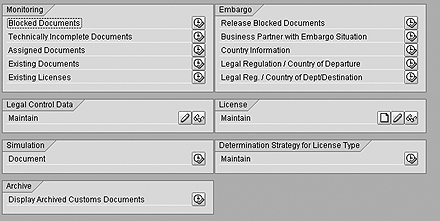
Figure 1
The GTS Compliance Management: Legal Control – Export screen
Embargoed Countries
The Embargo tab on the GTS Compliance Management: Legal Control – Export screen lets users view information specific to embargoed countries. Using tab options such as Release Blocked Documents allows transactions blocked because of an embargo to be reviewed and released, while the Business Partner with Embargo Situation options provide the functionality to review business partners with embargo situations. You can also maintain embargoed country information in the tab and maintain embargoes for exporting that are different from importing.
Countries on an embargo list are maintained via the Country Information option in the Embargo tab. This option is used for both export and import controls and processes. Figure 2 shows a typical embargo entry. Note that all countries exported to and imported from are listed under the Entries tab. Countries under embargo are checked off in the Time Series section.
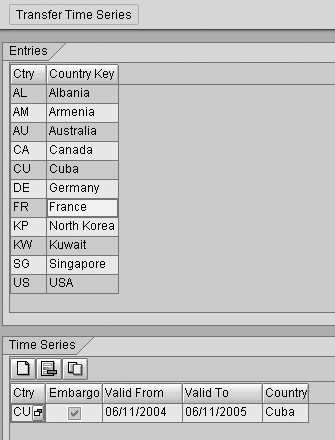
Figure 2
Embargo country information
The Embargo tab in Figure 1 also lets you define embargo situations relevant to individual export or import legs. The Legal Regulation/Country of Departure option (Figure 3) covers exports and Legal Reg./Country of Dept/Destination is used for imports. This allows you to handle more complex embargo situations (e.g., a company with operations in two different countries is restricted from exporting to a specific destination by one country while the other country has no such restrictions).
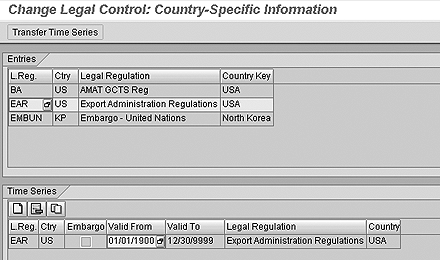
Figure 3
Embargo by Legal Regulation/Country of Departure
Product Classification
Products are classified according to
governmental guidelines and regulations and are assigned an Export Control Classification Number (ECCN). This classification determines the controls applied to goods being shipped and provides details regarding specific ECCNs. In addition, country charts detail specific controls based on the destination country and the license requirements for a product.
Product classifications for export are maintained as GTS master data within the GTS Compliance Management: Classification/Master Data interface via the Export List Numbers screen, which is accessed through the Export Control Definitions tab. Classifications are assigned to products in the Export View for Customs Product Master screen.
Once a product is classified, the next step is to review the country chart to determine if it is a controlled item or if any controlled-technologies rules apply. A technology to be exported, for example, may require a license or encryption item may need export authorization.
License Type Definitions
Export controls can be defined using license type definitions during configuration via transaction SPRO. License types include CIV – Civil End User License, ELA – Encryption License Arrangement, ENC – Encryption, GBS – Shipments to Group B Countries, IVL – Individual Validated License, NLR – No License Required, TSR – Tech/Software Under Restriction, and TSU – Tech/Software Unrestricting. They are assigned to legal regulations configured for each service, export, and embargo and conform to the rules published by the governments of the exporting countries.
Let's look at a couple of license type assignments and see how they are set up in the GTS system. The CIV license type settings are specific to an ECCN and country of destination, so the appropriate objects are selected that comply with CIV requirements. When you create licenses in the system against the CIV license types, the values are assigned at the transaction level and checked for validation. For an ELA license type, you can choose to restrict by business partner in addition to ECCN and destination country. IVL license types are based on values such as dollars and quantities so you can select the update options for value and quantity in the license type definition in configuration.
You can also select a product number or classification, customer, partner, function, country of departure, or value/quantity and define it as a check object for your license type definition. This configuration sets the point of time within the transaction in which the export control check is performed.
License Determination
Once the configurations are maintained for export control and the license types are defined, the GTS cockpit allows you to build a license determination strategy table.
Figure 4 shows an example of a set of license type determination rules and offers a view of legal regulations for a departure country, destination country, ECCN, country group, ECCN grouping, and license type. The license type determination table is built via the Determination Strategy for License Type tab in the GTS Compliance Management: Legal Control – Export screen in Figure 1 and based on the license determination procedure. License type determination tables are built using values from the Valid From, Valid To, and Number fields in the Time Series tab in Figure 4. These values are combined via icons in the tab such as change entries, apply selection, etc., with selection criteria maintained in the Legal Regulation fields in the Criteria tab like destination country and ECCN.
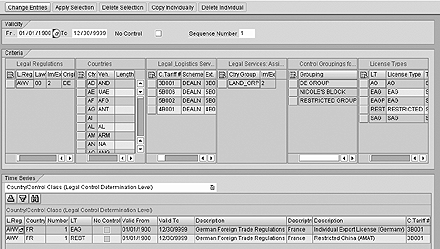
Figure 4
License type determination table
The system can be configured with a license determination strategy that best meets your company's requirements. The Criteria tab in Figure 4 allows you to establish a license determination strategy by designating specific legal regulations, destination countries, license types, and more. Note that the No Control option under the Validity tab allows you to set parameters at the license determination strategy level or at product classification level for ECCNs without controls.
In addition, you can define multiple license types in sequence. You can
designate IVL to be the first search sequence, for example, and make ELA the second sequence. TSR could be the third, etc. Use the Time Series tab to assign a date for every line item or search sequence with a license type.
License Maintenance
Once the license type's determination strategy is defined, licenses can be created and maintained via the License tab. You can define and assign text to license types while creating a license, which is then available for reporting, declaration, or printing in trade documents.
Various stages of license maintenance are tracked in the Status section of the screen for an Individual Validated License (Figure 5). It indicates when a license is created, the date the license application is submitted to authorities, and when the license is put into active use and when it has expired. Each Status entry also has a date stamp and user ID.
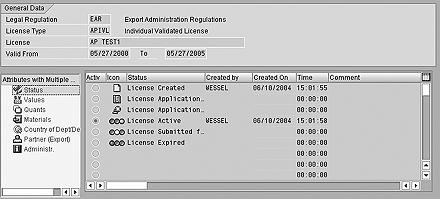
Figure 5
License maintenance information is available in GTS
Those attributes selected when establishing license type definitions for updates are also available for license maintenance. For the IVL example, the attributes include values with currency specified for depreciation, quantity (Quants) based on the configuration of the item's quantity, and business partner (Partner (Export)). If an object must be checked, attributes such as net weight or gross weight and unit of measure for quantity depreciation are available along with country of destination and document number. All of the objects have multiple value options for update in the license.
The system either automatically assigns a license to a document or it can be assigned manually. To make the assignment manually, use the maintain icon in the Legal Control Data tab in the GTS Compliance Management: Legal Control – Export cockpit. You must enter the document data, reference number from the feeder system, logical system representing the feeder system, and object type based on the nature of the transaction — sales order, delivery, invoice, purchase order, etc.
The Legal Control: Change Control Data screen lists all the item numbers and usable licenses available for manual assignment. When you click on the enter and save icon within a usable license, a pop-up General License Data window appears with information concerning legal regulations, license type and number, product data related to a classification number scheme, ECCN, and grouping. It also provides assignment types with different change indicators, such as system, manual, and changed by system so you can determine if a manually assigned license may be changed automatically by the system and vice versa.
Monitoring Functionality
You can list individual customs documents and view logs with the details of the various checks each item goes through. You can see details such as which logical system a document came from, what the reference document number is (sales order number or delivery number, etc.), who created/changed the document, and more. With the appropriate configuration for mail services, reports can be sent as an email message to a predefined distribution list or user group.
When you select a technically incomplete document and click on the log, it displays details about the missing information (Figure 6). Documents missing master data or configurations are captured as part of the technically incomplete customs report. Reports also can be run to review documents for export transactions (sales order, delivery, etc.) blocked due to embargo, SPL screening, missing classifications, a missing license determination, or a missing license (Figure 7).
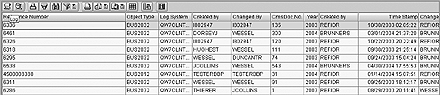
Figure 6
List of technically incomplete customs documents
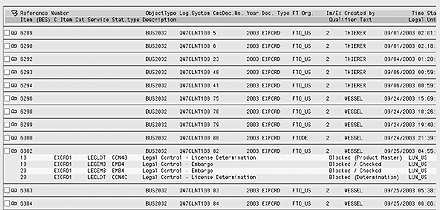
Figure 7
Blocked document report
The blocked document report is one of the most often used reports and is run by the export group to review all the blocked export transactions. Documents can be blocked for embargo, SPL screening, missing classification, missing license determination, and missing license. A document is revalidated against the current export data/status using the Legal Control – New Check option in the blocked report. The option allows you to directly access the Legal Control: Change Control Data screen in Figure 6.
Using the Blocked Documents option on the Monitoring tab in the GTS Compliance Management: Legal Control – Export cockpit, you can view the manual and system-assigned license documents listed in the assigned documents report. It displays the license type and license number under which the
documents are assigned.
Documents that are blocked by an embargo are reviewed and released using the Release Blocked Documents option on the Embargo tab. They can be manually released or reassigned for a new check by either selecting the document and clicking on the green flag (undo embargo block) icon or by pressing Ctrl+Shift+F12.
Rajen Iyer
Rajen Iyer is the cofounder and CTO at Krypt, Inc. Rajen has written several in-depth, best practice articles, white papers, patents, and best-selling books on SAP Logistics and SAP Global Trade Services, including Effective SAP SD and Implementing SAP BusinessObjects Global Trade Services. He is also an invited speaker at industry conferences.
You may contact the author at Rajen@kryptinc.com.
If you have comments about this article or publication, or would like to submit an article idea, please contact the editor.