Alerts in the planning and forecast process let you quickly identify exceptions and trends, and SAP APO allows you to create custom alerts through the Macro Builder in Demand Planning. The author expands on the SAP documentation by sharing his experience in creating DP alerts with Macro Builder.
In a previous article on APO Demand Planning (DP) alerts, I discussed the structure of the APO DP tool and the importance of alerts in the planning and forecasting process. In short, alerts let you quickly identify trends and errors in the data you use to create your demand forecasts.
Different types of alerts — dynamic, statistical, or database — are activated and controlled through macros. In addition, macros are used in arithmetical, mathematical, and statistical calculations to refine and complete the forecast with greater confidence in its accuracy.
SAP’s APO DP Macro Builder has a library of advanced statistical forecasting and macro techniques for modeling new macros. These APO tools enable you to define macros that can be used to build more accurate forecasts. Whether you use collaborative forecasting techniques, demand projections or demand history, or filter data by any number of causal factors, Macro Builder helps you arrive at a more accurate final demand plan. Macro Builder enables you to create macros to test and validate the accuracy of the forecast model.
Macros are also used to combine multiple forecast projections into a single demand plan, enabling you to adopt a consensus-based approach to reconcile the plans of different departments. Once the forecast has been finalized, you are able to maximize DP’s integration with APO Supply Network Planning (SNP) to support efficient sales and operating procedures and to identify areas of concern in the supply chain.
Using Macro Builder requires knowledge of statistical and mathematical models, and the SAP documentation on these models is limited. What follows is a description of the end-to-end process for creating DP alerts using Macro Builder. I will also identify and explain a few useful and popular macros for illustrative urposes. Experienced users will find valuable insights into macro design.
DP Macros Overview
Alerts in DP are activated through macros that can be executed automatically or manually on command, depending on the macro’s purpose. SAP provides a number of standard macros from the APO library for determining statistical error conditions. These macros update the planner, either through the Alert Monitor or directly in interactive forecasting dialogs, to focus attention on the exception. A macro statement in an alert can be used to automatically forward messages to planners, customers, or interested users, notifying them of error conditions, inconsistencies in trends, or changing demand patterns not readily visible in the forecast. An alert status can be color-coded according to the degree of variation from expected values. You may use any number of colors assigned to identify the error.
Macros make the calculations to identify the error or the divergent trend. As mentioned above, the functionality in a macro can be used to change cell, row, or column colors; control the input of data into a cell, row, or column; or create a new cell, row, or column. Within the macro you may incorporate standard mathematical or statistical formulas in your calculations.
APO macros are similar to the macros commonly used in a Microsoft Excel spreadsheet. The primary difference is that macros in the SAP APO demand plan can use real-time data that can be updated interactively from an R/3 application, allowing direct interaction with the optimizers in APO.
Macros are assigned to a data view of the planning book. Consequently, any number of user-defined criteria can be incorporated into the user-defined forecast and can then be adapted for different circumstances. Once a macro has been established with common criteria, it can be replicated in any number of forecasts. In DP, macros control and execute the forecast in either user-defined interactive forecasts, batch processed forecasts, or standard statistical forecasting procedures. Most of the statistical forecasting macros found in the univariant, multiple linear regression (MLR), or combined forecasting methods are preset and use standard functionality, which should not be modified.
Macro Builder Structure
The Macro Builder consists of the following screen areas (Figure 1):
- Macro Elements in a tree format.
- A Depot with inactive macros.
- A demand Planning table.
- A Macros tree with the macro tools. To see the attributes of any item in the tree, double-click on the item.
- Macros that have been activated and assigned to Events.
- A Clipboard.

Figure 1
The APO Macro Builder main screen
The Planning table is central to this entire process. It identifies the formatted planning book and data view, and I assume that you understand these components. (I explained them in detail in my previous article.) I will focus this discussion on the Elements, Depot, Macros (development area), and Events components.
Elements
Elements: These are macro building blocks (Figure 2). The following is a list of available elements defined in a tree structure. Use macro elements in combination with macro tools and drag-and-drop techniques to define new macros or change existing macros.
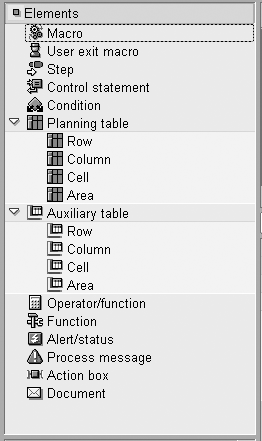
Figure 2
Elements are the macro building blocks
Macro: Within the element Macro you describe the macro and set the period to be analyzed within the macro. A macro can be executed in interactive planning or as part of mass processing.
User exit macro: A unique macro that you can implement through a functional enhancement. (Use functional enhancement APODM005 and the transaction CMOD to create and activate the enhancement.)
Step: A macro step consists of one or more macro calculations or macro activities. You can define a number of iterations for each step. Note that the sequence of the macro calculations in a step is not significant in that the results of another calculation cannot be used in the same iteration.
Control statement: Used in combination with a condition statement to control macro steps and calculations.
Condition: Used for the definition of a logical condition that, together with a control statement, is used in macro steps and calculations.
Planning table: This element has several subitems:
- Row, Column, or Cell: You can assign the results of a calculation to a row of the table. A row can also be used as an argument in a calculation. Each row or column is made up of multiple cells, and it is the cell values that are accessed in the calculation.
- Area: This represents several adjacent cells in a table.
Operations: Arithmetic, statistical, and mathematical calculation tools. It is necessary to separate each row with an operation.
Operator/function: A function is defined for a rectangular section of the table. The section borders either are fixed or move with each iteration. Examples of a statistical function are:
AVG (X1;….Xn) returns the mean average of X1 through Xn.
MPE ( X1 ; ... ; Xn ; Y1 ; ... ; Yn) returns the mean percentage error (MPE) for the values X1, 1 through Xn, Yn.
MAPE ( X1 ; ... ; Xn ; Y1 ; ... ; Yn ) returns the mean absolute percentage error (MAPE) for the values X1, Y1 through Xn, Yn.
MAD ( X1 ; ... ; Xn ) returns the mean absolute deviation (MAD) of the values X1 through Xn.
Similarly, you may calculate statistical values for MPE, standard deviation (STDEV), MSE (mean square error), trend (TREND), variance (VAR), and so on.
Examples of general functions are:
CELL_BG( X ) sets the background color of a cell to black if X=0, blue if X=1, and so on. The argument can be applied to a cell, a row, or a column of the planning table.
ROW_BG( X ) sets the background color of a cell to black if X=0, blue if X=1, and so on.
COLUMN_BG( X ) sets the background color of a cell to black if X=0, blue if X=1, and so on. Foreground (FG) functions are set in a similar fashion.
CELL_INPUT( X ) sets the input status of a cell. If X=1, the status of the cell is set to ready-for-input. If X=0, the status of the cell is set to read-only. Row and column functions are likewise set.
COVER_CALC returns the days’ supply of a product taking the current stock, the total demand for successive periods, and the number of working days in these periods into consideration.
Alert/status: Allows you to send an alert to the Alert Monitor or, in interactive forecasting, view the alert in a dialog box within the forecast. A status alert displays the status after the execution of the macro. A message alert displays the current status after the execution of a macro.
Process message: Where you define the message text and have the system issue the message in response to the alert situation. In interactive forecasting, informational messages appear in a dialog box, while warning, success, and error messages appear at the bottom of the screen.
Action box: Allows you to trigger an action that contains a function. If you do not want to assign the macro results to a specific element of the planning table, use an action box.
Documents: Used to tell the system to send an email.
Events
After a macro is activated, an interactive macro may be executed manually from within the interactive planning desktop. It can also be executed automatically if it’s assigned to one of the following four types:
Default event macros are executed when the planner opens the forecast and specifies a selection ID. Then, when the plan is regenerated or saved, it causes the macro to be automatically executed. For example, Figure 3 shows two macros assigned to a default event. One macro changes cell values to red if the values in the row Preliminary Forecast are less than zero. A second macro, Threshold from alert profile, uses an advanced macro function Alert_profile_threshold to warn (via a cell color change) if the value in a cell in the row Consensus Forecast exceeds values specified in the alert profile.
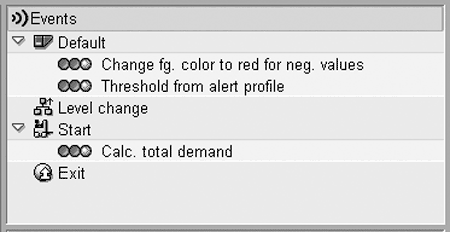
Figure 3
The four event types
Level change macros are executed when the planner drills up or down in interactive forecasting.
Start macros are executed when the planner opens the forecast and specifies the selection ID. In Figure 3, the macro Calc. total demand is run whenever the forecast is opened either within the interactive desktop or in a batch processing task.
Exit macros are executed when the planner saves the plan. The planning desktop is closed automatically.
Macro Development Area
A macro can be comprised of up to four levels. In Figure 4:
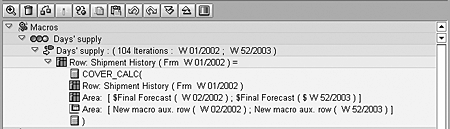
Figure 4
The macro development area has four levels
- Level 1 is the macro Days’ Supply with no direct execution of it.
- Level 2 is a step. Here, Days’ Supply uses a freely definable period of 104 iterations from week 1 in 2002 (W 01/2002) to week 52 in 2003 (W 52/2003).
- Level 3 is a result. The attributes of the result row define the calculations for Shipment History starting at period 1 (W 01/2002) and defined for the entire period in level 2.
- Level 4 is an argument. The function Cover_Calc returns the days’ supply of a product taking the current stock, the total demand for successive periods, and the number of working days in these periods into consideration, and stores these values in an auxiliary table.
Note: A macro must contain at least one step level. A step contains the calculation or series of calculations, and it is also an iterative loop repeated over a number of periods.
At the result level, you identify the macro object to which the result of a calculation or operation is written. The result can be stored as a key figure in the planning book or as an element in the auxiliary table that you use to store an intermediate result temporarily. At this level you can also enter control structures, action boxes, documents, procedural messages, or alerts.
At the argument level, enter the calculations or operations. Similarly, conditions are defined at the argument level if the control structure is entered at the result level.
Depot
Macros in the depot are either red, yellow, or green (Figure 5). Green indicates that the macro has no syntax or logic errors and that the macro has been compiled and is activated. Yellow indicates that the macro has been checked and does not have errors but is not activated. Red indicates that the macro is incomplete.To check a macro, move the macro from the depot area and then click on the Check button in the development area. Generate macros by clicking on the Generate button.
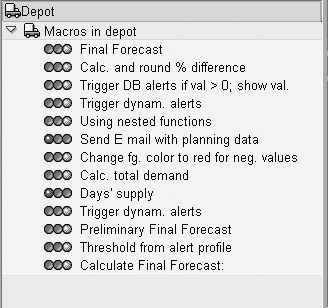
Figure 5
Color codes depict macro status in the Depot
15 Steps to Create a Macro
Now let’s create a macro. The example I am using here alerts you when any cell value in the row Final Forecast is greater than the cell value in the same period of the row named Target Days’ Supply. The intention is to identify those periods (cells) where the forecast is greater than the Target Days’ Supply (planned production) for the same period. Macros can have any number of steps and in this example the macro Final Forecast>Target Days’ Supply requires 15 steps. There is no rule as to the number of steps needed to build a macro.
Tip! Import a standard APO macro from the SAP macro library and modify it to fit your requirements. Drag and drop the selected elements and move them into the development area to build the macro.
Tip! The rule with the Depot is to store all macros that you are not currently editing in it, even if the macro has been activated. This has significant performance advantages, enabling you to complete editing and testing macros quicker than if you stored them all in the deployment area.
Step 1: Go to Macro Builder in APO via menu path Demand Planning> Environment>Macro Builder (or use transaction ADVM from APO).
Step 2: Select the planning book and data view (Figure 6 below).

Figure 6
Select a planning book and data view in Macro Builder
Step 3: Select the Macro element from Macro Builder Elements and drag and drop it into the Macros development area. Name it DAlertFinal Forecast>Target Days’ Supply, short for “dynamic alert when final forecast greater than target days’ supply” (step 1 in Figure 7).
Step 4: Select the Step element and drag and drop it into the Macros development area. Name it and set the number of periods. A macro step consists of one or more macro calculations or macro activities. You can define up to four iterations of calculations or activities within the macro. Name this one Step 1 for all periods and set the number of periods to 52 iterations from period W 01/2003 to period W 52/2003 (step 2 in Figure 7).
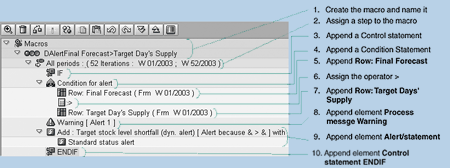
Figure 7
Building the alert macro Final Forecast>Target Days' Supply
Consider these additional details: If you have already assigned elements to a macro, you can no longer change a macro to a collective macro. When defining this step, it is also necessary to define the time period to which the step applies. You must specify one of the following options when creating the Step element. It is used to define the number of periods for which macro results are calculated in a macro step:
- Future planning horizon
- Past planning horizon
- Entire planning horizon
- Freely definable periods — from period to period
- Date dependent — from date to date
As described above, assigning a step to the macro enables you to enter time buckets or columns. This means that the position of the column in the table remains constant, but the dates may move. The processing area in the step element is used to define the period used in calculations. Date dependent is where the time buckets containing the specified dates are selected. The dates remain constant and the time buckets may change. You can specify whether the date has to be at the start of a time bucket, whether it only has to be in a time bucket, or whether the columns at the start and end are adjusted automatically.
Step 5: Next drop the element Control statement into the development area and append it to Step 1 for all periods. A Control statement is used with a condition to control macro steps and calculations. Set the Control statement and condition to IF (step 3 in Figure 7). Use F4 to identify other control statements that can be selected from the field Copy fr (Else, Elseif, Endif, Case, Endcase, When), as shown in Figure 8.
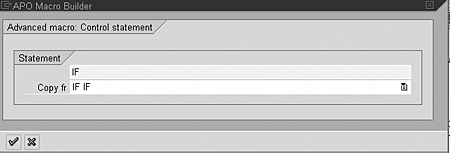
Figure 8
Control statement options (F4)
The options for inserting the element into the step are as follows:
- Insert (above the step)
- Append (to the step)
- Create (in the next level)
Step 6: Follow this by appending a Condition statement to the Control statement (step 4 in Figure 7). A condition statement is used as the argument.
A condition statement is always assigned to a control statement like IF. In this example, the condition statement is used to compare two rows: Final Forecast and Target Days’ Supply.
Step 7: Append element Row from the planning table. Double-click on the Row and rename it to Row: Final Forecast (step 5 in Figure 7). Set the period to be analyzed — this should be consistent with Step 1 for all periods and will default to the values set in Step 1.
Step 8: Drop in element Operation/ function and set the operator to > (greater-than) as step 6 in Figure 7 shows. This is used to compare the cell value in the previous Row: Final Forecast to the cell value in the subsequent Row: Target Days’ Supply. Use F4 in the operator field Copy fr to select an operator ( =, +, -, *, >, <, > = , etc.) or function.
Step 9: Append another element Row from the Planning table. Double-click on the Row and rename it Row: Target Days’ Supply (step 7 in Figure 7).
Step 10: Append element Process message and set the message type to Warning (step 8 in Figure 7). This is a message that appears in the dialog box in an interactive forecast.
Step 11: Append element Alert/status. Change its description to Alert because & > & (value in row 1 is greater than row 2). If row 1 is greater than row 2, then issue a dynamic alert in demand and supply planning (step 9 in Figure 7). Set the alert type to 102 Target stock level shortfall (dyn. alert). Set the priority to Warning.
Step 12: Drop in an element Control statement. As in most program development, a control statement like IF is closed with another control statement ENDIF. Setting the Control statement to ENDIF (step 10 in Figure 7) indicates the end of the iterative argument (if the cell value in row 1 Final Forecast is greater than the cell value row 2 Target Day’s Supply, then process an alert message). Programatically, each cell value is examined and evaluated for this condition.
Step 13: Select the macro Final Forecast>Target Day’s Supply and click on the check icon to test the macro. This tests the macro for syntax and logic errors. If the check is successful, the macro icon changes from red to yellow.
Step 14: If the check is successful, activate the macro by clicking on Generate macro. Once successfully generated, the macro icon changes to green, indicating that it is activated and can be assigned to an event.
Step 15: Decide whether the macro will be executed manually or assigned to an event, as shown in Figure 9. This macro will execute directly within the interactive planning desktop whenever the forecast is opened.
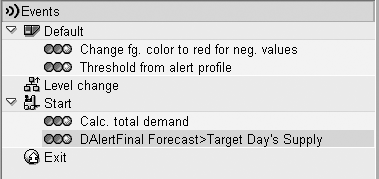
Figure 9
Macro assigned to an event
Now that you know the basics of creating a macro and its objects with Macro Builder, you can experiment with designing your own macro for use with your demand plan. Following these steps and experimenting with macros from the SAP APO library will ease the task of creating your first few macros.
David Ducray
David Ducray has a bachelor of commerce degree, majoring in economics and business administration. He is also CPIM- and SAPcertified. As the manufacturing information technology director for a high-tech electronics manufacturing organization, David was responsible for re-engineering forecast-to-stock, replenishment-to-procurement, and order-to-cash strategies, as well as implementing these systems. He has spent the past two and a half years consulting for a leading consumer products organization in the fields of order-to-cash and forecast-to-stock and implementing SAP R/3 in these fields in 19 countries. Prior to this engagement, David spent more than three years consulting for a leading electronic components and systems.
You may contact the author at david.ducray@esccg.com.
If you have comments about this article or publication, or would like to submit an article idea, please contact the editor.



 Premium