Learn how to use the new Web Dynpro interface to navigate the Business Process Repository more quickly and retrieve relevant content for your project in a more interactive way. Explore the new filtering and sorting capabilities that allow you to navigate the voluminous library of SAP content very quickly using the new interface in SP05.
Key Concept
For quite some time the Business Process Repository (BPR) has been SAP’s way of delivering best practice content to your Solution Manager system. With Solution Manager 7.1 SP05, there’s a whole new way to retrieve the BPR’s valuable content for your project blueprint scoping. One of the more notable in the implementation space is the revamped Business Process Hierarchy interface. Now you can use the power of Web Dynpro and your browser to search for and retrieve content much more easily, and you can narrow the search in a more intuitive way.
In the past, you used the Business Process Repository (BPR) pop-up navigator in SAP GUI to copy content from the BPR into your projects during the blueprint scoping activity. While this has worked well for a long time, as the BPR content has continued to grow, the hierarchical nature of the search has become more arduous.
In SP05 for Solution Manager 7.1, SAP has released a browser-based search tool that allows you take better control of how you cruise through the ocean of content that is the BPR.
Join me in the exploration of some of the features of this new browser-based navigation and retrieval capability. I’ll show you the value of this new feature and ease your concerns about the transition.
I’ll explore this new feature in two sections. First, I’ll show you a tour of the business process search capabilities and how to select from the results of the search. Then I’ll show you how to retrieve organizational units and master data from the BPR. For the sake of brevity, I’ll cover the anatomy and structure of the search screen only in the first section.
Note
I’m assuming for this article that SP05 has been applied to your Solution Manager 7.1 system and the BPR Query Service is activated. Use transaction SICF and follow menu path host > sap > bc > webdynpro > sap > bpr_query_ui_async to activate the service.
Retrieve Business Processes
To access the new features of the SP05 BPR navigation, execute transaction SOLAR01 for the blueprint as usual. Navigate to the location on the BPH structure where you wish to add content from the BPR. Note that the Source drop-down has a new value: SEL7 Extended Search in Business Process Repository, which is now the default (Figure 1).

Figure 1
New default Source value for extended search
Prompt for new content by clicking the prompt icon (Figure 2).
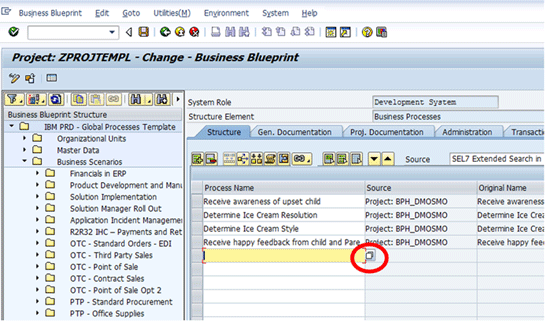
Figure 2
Launch the BPR search feature in the browser
A browser window opens, showing the Search BPR Objects main screen (Figure 3).
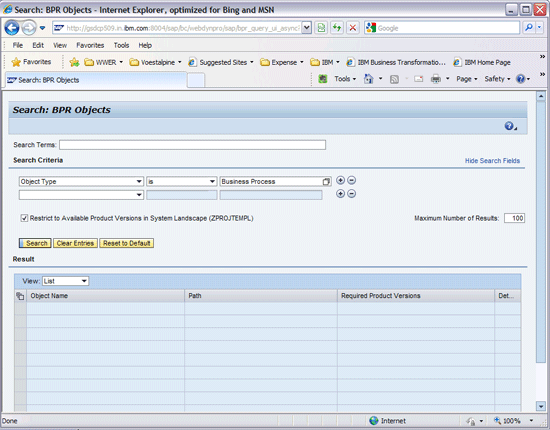
Figure 3
Browser view of the extended BPR search
In SAP GUI, a pop-up box is displayed, indicating that the search is in another window and that you need to confirm your selections when you are ready to copy the content from the BPR to your project (Figure 4).
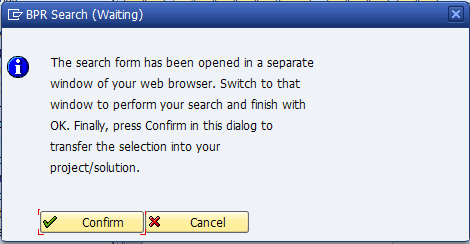
Figure 4
Information pop-up to indicate SAP GUI is waiting for you to finish your selections in the browser before copying the content from the BPR to your project
As you look over the browser screen for the Search: BPR Objects utility, you can see that it is divided into two basic areas: a header area for entering selection criteria for the search and a results area where the select content is displayed.
The header portion of the screen allows you to enter selection criteria for narrowing the search as well as set limits on how many results are returned.
In Figure 5, the following header elements are shown:
1) Search Terms: This field allows you to enter words that you expect to find in the object name. For example, entering the word Orders in this field returns processes such as Billing Subscription Orders or Entering Shipping Orders.
2) Search Criteria: This section defaults with two entry areas. The first one is populated based on where in the BPH context you launched the search. In this example, I am at the Business Process level, so the first field is populated with Object Type, the second with is, and the third with Business Process. By using the plus and minus icons you can add and remove additional search criteria.
3) Maximum Number of Results: This field controls how many results are returned to the bottom part of the screen when you execute the search. The default is 100 and, for performance reasons, I recommend that you don’t go above this value.
4) Restrict to Available Product Versions in System Landscape: This is a helpful feature if your project has already been set up with the SAP products that are in scope. It limits the scope of the search of the BPR to the SAP products and versions that you’ve identified. This speeds up the search. However, if you find that you’re having trouble locating the processes you are interested in, switching off this option is a good first place to start when expanding your search.
5) Search, Clear Entries, Reset to Default: These buttons are action buttons for the search utility. Search launches the search engine and populates the results section at the bottom of the screen. Clear Entries wipes clean all the search options. (It leaves the Number of Results and Restrict to Available Product Versions in System Landscape options unchanged.) Reset to Default clears your selection option entries and restores the defaults supplied when the search was first opened.
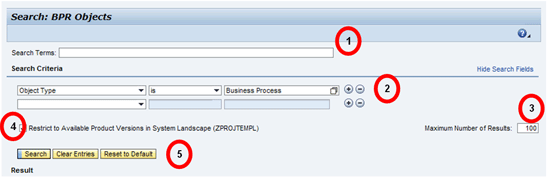
Figure 5
Header section of the Search: BPR Objects utility
Now that you’ve entered your search criteria, click the Search button to retrieve the content list from the BPR. Figure 6 shows the results from the selections shown in Figure 5.
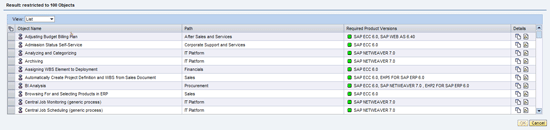
Figure 6
Results from the search of the BPR
Let’s take a closer look at how the Results section of the screen works.
The View drop-down has two options. By default it is set to List and yields the results shown in Figure 6. Switching it to Hierarchy mode allows you to see the results grouped by Solutions and Organizational Areas (Figure 7).
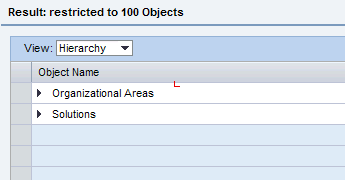
Figure 7
Results displayed in Hierarchy mode
Figure 8 shows how you can navigate the Organizational Areas view to find the process content around functional areas, such as sales or finance.
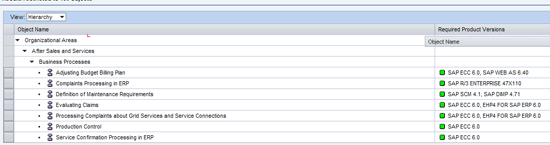
Figure 8
Navigating the BPR content by Organizational Area
Figure 9 shows how you can navigate the Solutions view to find the process content by SAP solution.
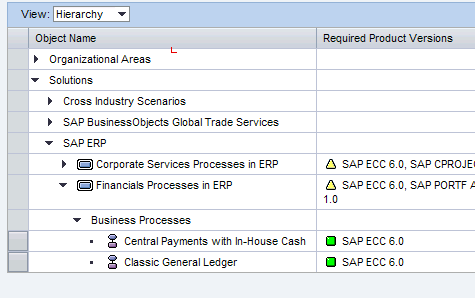
Figure 9
Solutions view of BPR content
These different navigation techniques come in handy when narrowing your search. Sometimes you want to see everything related to an area, such as sales, regardless of what SAP solution is used to deliver the functionality. Other times, it may be advantageous to stay within the bounds of an SAP solution that has already been purchased.
In List mode, you can sort the results by clicking the header of the column you wish to use as the sorting criteria for the list.
The Details column on the far right of the results view provides two icons: the show documents and show graphic icons. Clicking these displays the SAP Help information about the process (Figure 10). The show documents icon displays the SAP Help for the process (Figure 11). The show graphic icon displays the SAP Process Flow for the process (Figure 12).
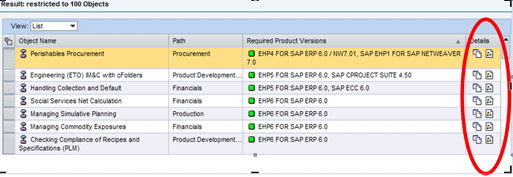
Figure 10
Details column showing the show documents and show graphic icons
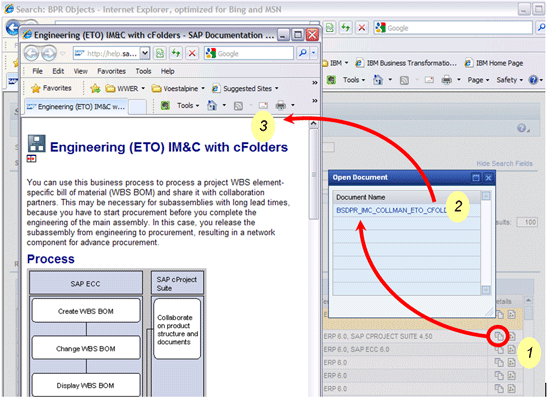
Figure 11
Show documents for the process
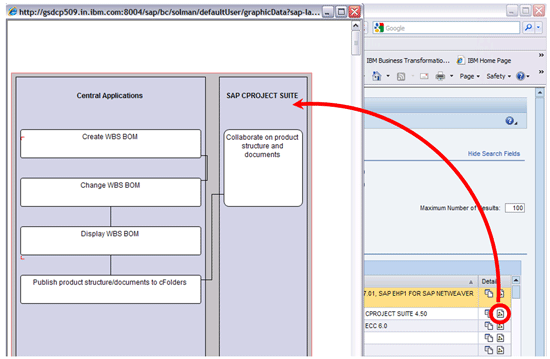
Figure 12
Show the process flow graphic for the process
Now that you’ve found the content you wish to include in your project, select the lines from the list you wish to return to transaction SOLAR01.
Tip!
As with other programs, you can press Ctrl and Shift to select multiple or all lines, respectively.
Finally, click the OK button at the bottom of the screen to confirm your selection. This closes the browser and returns the content to a buffer for the SAP GUI to import into your project. Back in SAP GUI, click the Confirm button to copy the content from the BPR into your project (Figures 13 and 14).
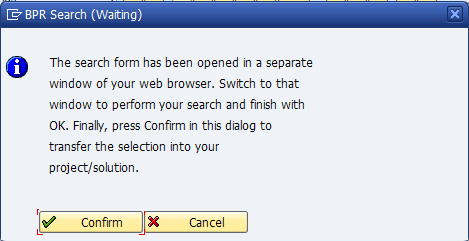
Figure 13
Confirm the copy of the content from the BPR to your project
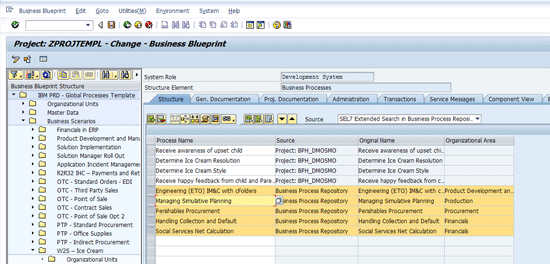
Figure 14
Content copied into project (new content highlighted for illustration)
Retrieve Organizational Units and Master Data from the BPR
Now that you’ve learned how to retrieve the business scope into your project, it’s time to add the SAP organizational units and master data that you need to deliver the solution. As with the business process retrieval described above, the organizational units and master data are added on the Structure tab in transaction SOLAR01.
Navigate to the Organizational Units section of the BPH, click the Structure tab and launch the BPR browser by clicking the prompt icon. Figure 15 shows the BPR search window when launched from the Organizational Units window. Note that the first row of the Selection Criteria is defaulted to Object Type is Organizational Unit.
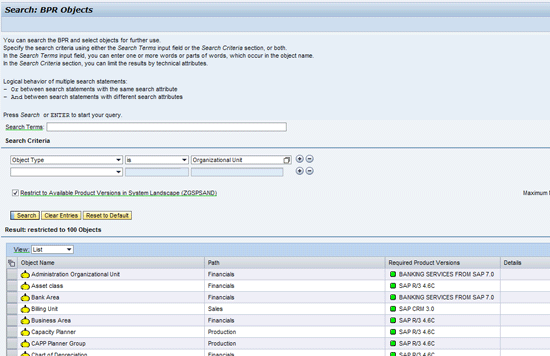
Figure 15
BPR search for organizational units
The Path column is the grouping of the organizational units into the functional areas. Clicking the column headers allows you to sort the results list by the column selected. As with the business processes, you can view the results as a list (as shown in Figure 15) or hierarchically (as shown in Figure 16).
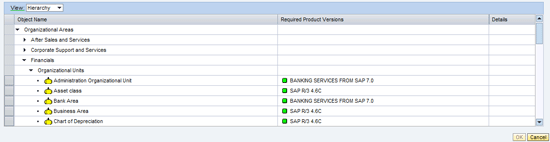
Figure 16
Hierarchical view of the organizational units expanded for the organizational area for Financials
As with the business process area, you can select multiple items and groups of items from the results list. Figure 17 shows a multiple selection of two organizational areas in the Web Dynpro, and Figure 18 shows how the selections are copied back to the project.
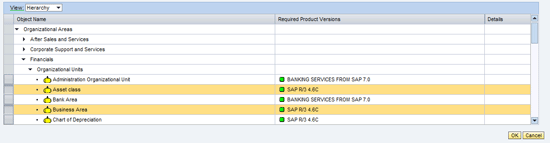
Figure 17
Multiple selection of organizational units

Figure 18
Multiple selection from the BPR retrieved back to the BPH for the project
Next, navigate to the Master Data section of the BPH and click the Structure tab. Clicking the prompt icon launches the Web Dynpro BPR browser in the Master Data selection area (Figure 19). Note that the Object Type is set to Master Record.
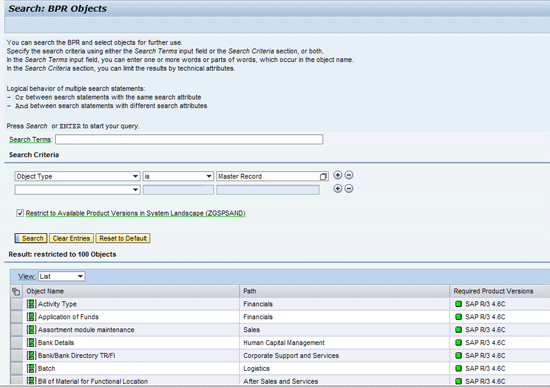
Figure 19
Web Dynpro view of the BPR for master data
As with organizational units, the Path column groups the list by functional area. Also, as with organizational units and business processes you can view the results as a list (as in Figure 19) or in a hierarchical view (as shown in Figure 20).
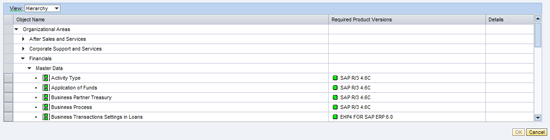
Figure 20
Master Data view of the BPR shown in hierarchically with the functional area for Financials expanded
Again, multiple selection and group selection is supported for retrieving content into your project.
Figure 21 shows multiple master data tables selected in the browser and Figure 22 shows the data retrieved back into the project in Solution Manager.
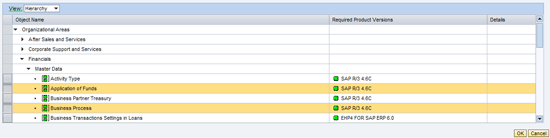
Figure 21
Multiple master data items selected for retrieval
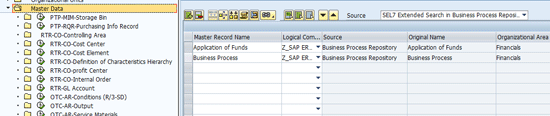
Figure 22
Master data items retrieved into BPH of the project in Solution Manager
This completes the tour of the new browser-based BPR search capability of Solution Manager 7.1 SP05. If you would prefer to stick with the tried and true SAP GUI, hierarchical navigation of the BPR content, it’s still available. Simply change the value in the Source field of the Structure tab to Business Process Repository and the search works as it did before SP05 (Figure 23).
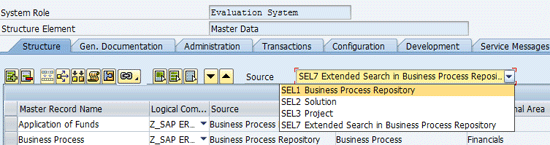
Figure 23
Set the Source field to SEL1 Business Process Repository to open the BPR in the SAP GUI mode
D. Russell Sloan
D. Russell Sloan is a specialist in project and program governance for IBM. He focuses on the use of SAP Solution Manager for global rollout projects for IBM’s largest customers, having worked with SAP software since 1996. Russell has degrees in accounting and information systems and has been a team and project leader for SAP projects for more than 14 years. He has been developing and deploying software systems for over 30 years.
You may contact the author at solmanruss@gmail.com.
If you have comments about this article or publication, or would like to submit an article idea, please contact the editor.






 Premium