Learn how to visualize, build, design, and develop complex data flows with SAP NetWeaver BW 7.30’s graphical, template-based data flow modeling tool. Using the tool, architects can work with data flows more easily than before.
Key Concept
SAP NetWeaver BW 7.30 includes a template-based data flow modeling tool that allows you to model the architecture of complex data flows visually. The tool lets you view modeled data flows as templates or views. It also enables you to develop a high-level view of the data flow. Once the data flow is designed, you define the metadata of the objects and activate all involved objects in parallel. This tool provides a clean and user-friendly UI to design complex data flows.
Data flows in SAP NetWeaver BW can be complex, and if you have to design one, developing and tracking all objects and source-target combinations can be daunting. Many projects use Microsoft Excel to keep track of objects, but this method doesn’t give you a sense of how the data flow is designed in the system.
To help architects design data flows more efficiently, SAP provides a graphical, template-based data flow modeling tool in SAP NetWeaver BW 7.30 that allows you to design data flow shells and then activate all objects at once in batch. You can design part of a data flow, save it, and continue working on it the next day. You also get a big picture of how your data flow looks using this tool.
Design a Data Flow with the Modeling Tool
The data flow modeling tool is embedded in the administrator workbench under the Modeling tab. To access this tool, click the Data Flows tab under Modeling. To start the modeling tool, right-click the InfoArea and click Create Data Flow (Figure 1). Alternatively, you can use transaction RSDF.

Figure 1
Start the data flow modeling tool by creating a data flow
In the pop-up screen that appears, enter the technical name and description of the data flow you want to create (Figure 2). Click the green check mark.
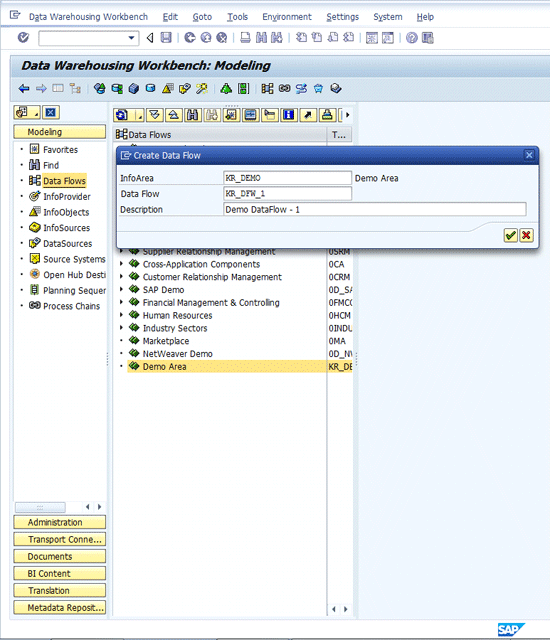
Figure 2
Enter information about the data flow
The next screen is the initial UI of the modeling tool (Figure 3).
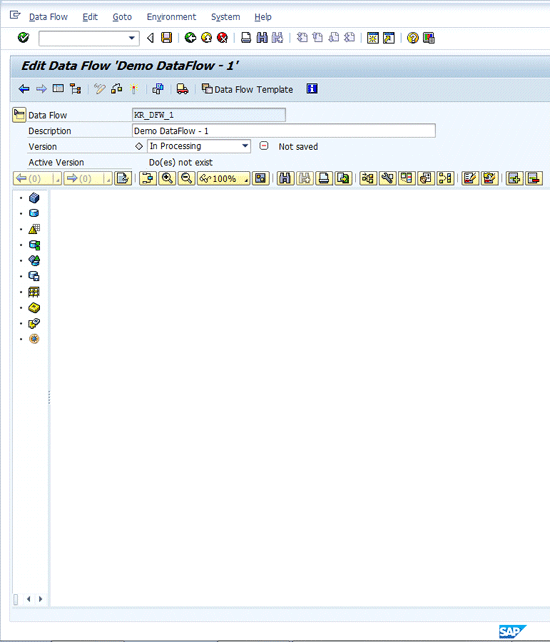
Figure 3
The UI of the modeling tool
The left pane of this screen lists icons that represent objects available for inclusion in the data flow. These include the following:
- InfoCube
- DataStore object (DSO)
- InfoObject
- InfoSet
- MultiProvider
- InfoSource
- DataSource
- Open hub destination
You can also choose to include two InfoProviders that are new to SAP NetWeaver BW 7.30:
- Semantically Partitioned Objects, which reduce setup and maintenance costs by offering a template-oriented process to generate a new InfoProvider type
- Hybrid Providers, which are MultiProviders that allow data reporting in a real-time scenario
This list of objects above forms a data flow. Once you add the objects, you can connect them using transformations and create data transfer processes (DTPs) for data loads. For this example, I build a flow that loads data to sales InfoCube 0sd_c03.
First, choose an object from the left pane and add it to the data flow. In my example, I choose a DataSource. You can add objects by selecting the object and then dragging and dropping it to the main pane.
You define the object by right-clicking the object and selecting one of the options in the context menu (Figure 4).
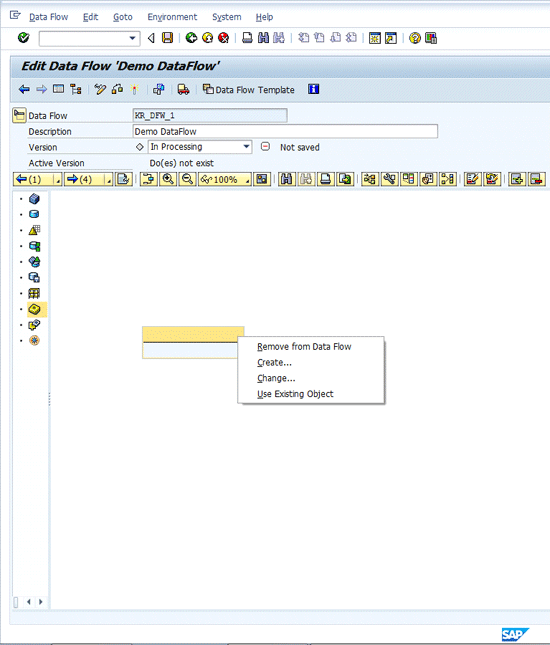
Figure 4
Select an option to define the object
You can choose to create an object, use an existing object, or remove the object from the data flow. If you have already defined the metadata of the object, you can choose to change it. For this example, I use Billing Doc Header DataSource 2LIS_13_VDHDR as a source in the template (Figure 5).
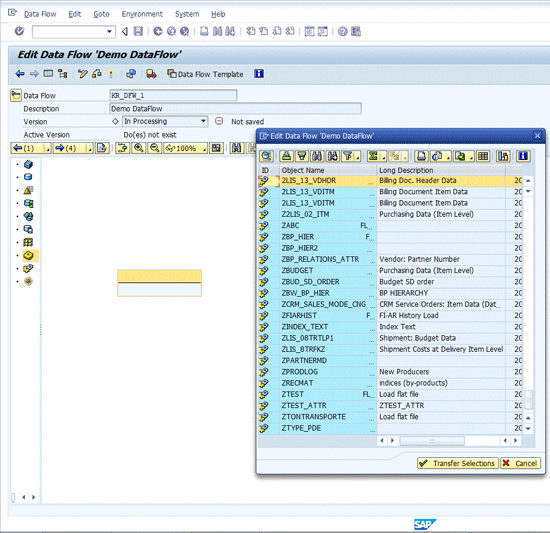
Figure 5
Select DataSource 2LIS_13_VDHDR
Select the DataSource and click on the Transfer Selections button. Once you choose the DataSource, the related source system and InfoPackages are added to the UI.
Now add Sales Doc Header DataSource 2LIS_11_VAHDR to the data flow by following the same process you did with DataSource 2LIS_13_VDHDR.
Tip!
Once you add a new object to the pane, the layout of the object changes haphazardly. In such a case, you can rearrange the layout by clicking the optimize layout icon, which is highlighted in red in Figure 6. This functionality works similar to the refresh feature in the process chain design mode.
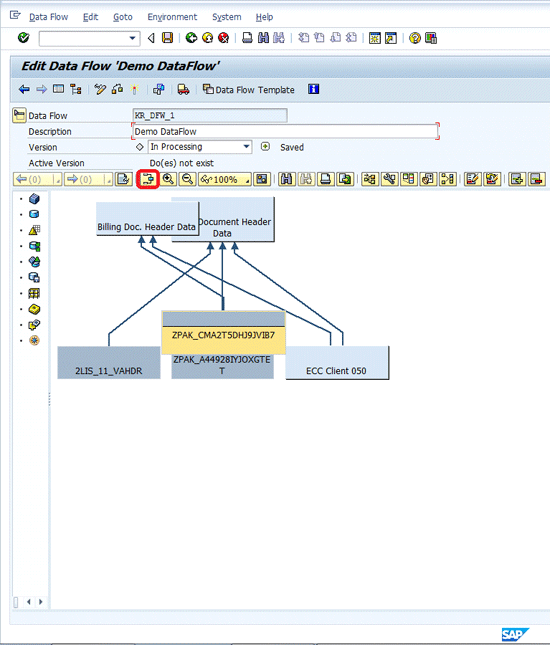
Figure 6
Rearrange the layout
Next, you add a DSO. This time, instead of using an existing DSO, you want to create a new one. To do this, drag and drop a DSO template onto the design area, open the context menu by right-clicking the object, and click Create. The regular DSO creation pop-up screen appears. You can either provide a template DSO or enter the metadata details manually, just as you do when creating a regular DSO.
In my example, I provide a template DSO, so you click the create icon or press F5. In the maintenance screen of the DSO, enter a technical name and description (Figure 7).
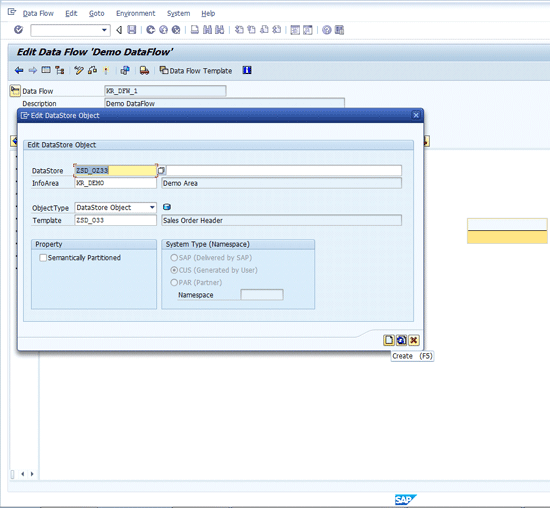
Figure 7
Provide a technical name and description for the DSO
Save the DSO, and return to the main screen by clicking the back icon or pressing F3. The metadata of the DSO I just created appears in the next screen (Figure 8). Although it is acceptable to activate the DSO at this point, the system activates this object on its own when you activate the data flow.

Figure 8
Metadata of a DSO
Tip!
In SAP NetWeaver BW 7.30, you can choose a template object of a type other than the object that is being created (Figure 9). For example, if you are creating a DSO, you can provide an InfoCube as a template and vice versa. For a DSO, if you provide an InfoCube as a template, all the characteristics are added to the key part, and key figures are added to the data part. If you provide a DSO as a template while creating an InfoCube, then all the characteristics are grouped under only one dimension, and all the key figures are grouped under the Key Figures node as usual. Being able to use a DSO while creating an InfoCube, and vice versa, makes data flow design less restricting and more user-friendly.
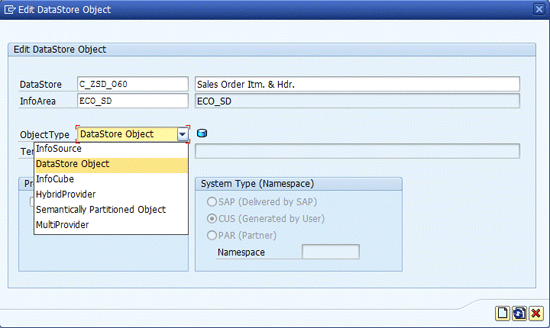
Figure 9
Types of template objects available
Next, you connect the Sales Doc Header DataSource to the custom DSO you created in the previous step. In my example, I have already created a DSO for the Billing Doc Header Document. After exiting the screen in Figure 9, you can create a transformation by selecting the source object and simply dragging a line from the source to the target (Figure 10).
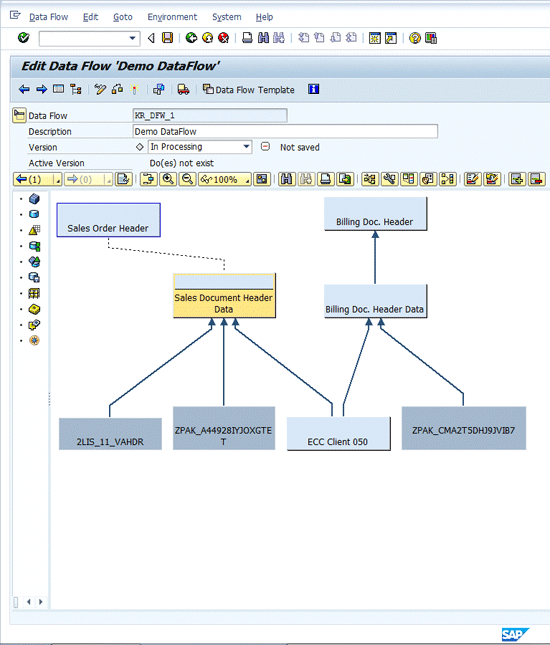
Figure 10
Connect the source and target
Once you complete this process, you see a connection between the source and target. At this point, no physical transformation is created, not even in the modified version. So, the DSO template you created in the preceding steps activates before the transformation.
You can already see an overall view of the data flow. This view helps you visualize the flow from source to target. You also avoid the hassle of activating multiple objects first and then creating a data flow out of them.
The next step is to add an InfoCube to the data flow to represent sales overview data. To complete this step, drag and drop the InfoCube template from the left pane to the design area (Figure 11).
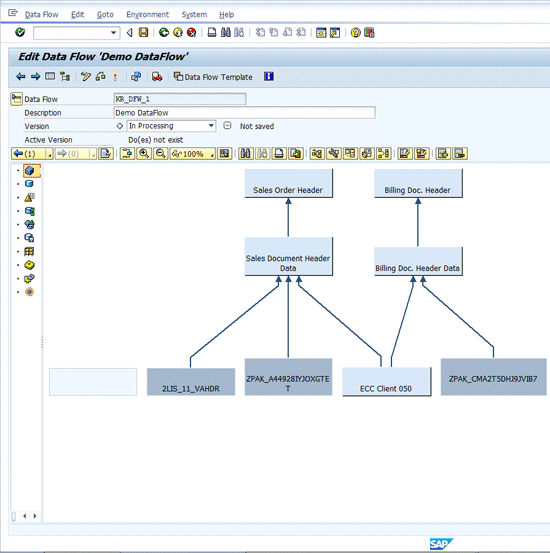
Figure 11
A newly added object without metadata defined
You can see that an empty object is added (the box in the screen without any text in it), which means there is no metadata present yet for this object.
In the previous steps, I always specified the metadata of the objects first and then created the transformation template. However, this process is not always required. You can create a transformation between the source and the target even though metadata for the source, target, or both is not yet maintained.
Now you are ready to create transformations from the DSO’s Sales Order Header and Billing Doc Header to the empty, yet-to-be-created Sales Overview InfoCube (Figure 12).
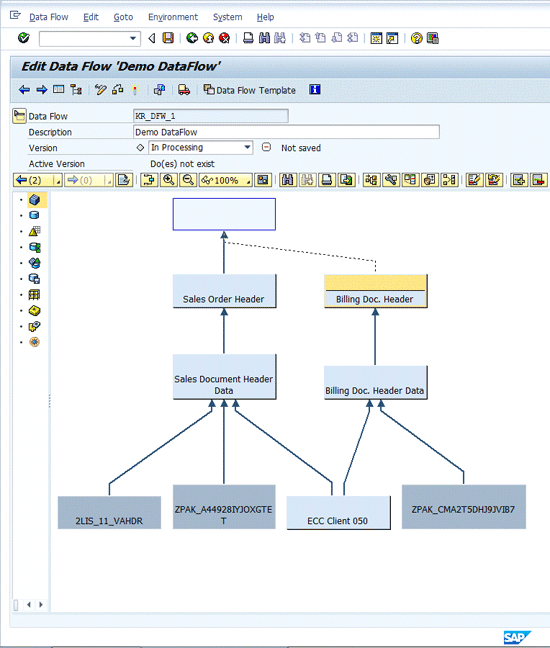
Figure 12
Transformations from the Sales Order Header and Billing Doc Header
Once you map the transformations, the next step is to create the DTP. Drag and drop a line from the source to the target where a line for transformation already exists. The system understands that the second line is for defining the DTP.
Complete Data Flow Option
An option called complete data flow lets you add related objects to the data flow that are not yet present in the data flow. This option enables you to add DTPs, transformations, and InfoPackages. What this means in my example is that you don’t need to manually create DTPs for each source-target combination. Instead, you can let the system do this via the complete data flow option. To use this option, click the complete data flow icon and choose options for DTP, InfoPackage, and transformations (Figure 13).
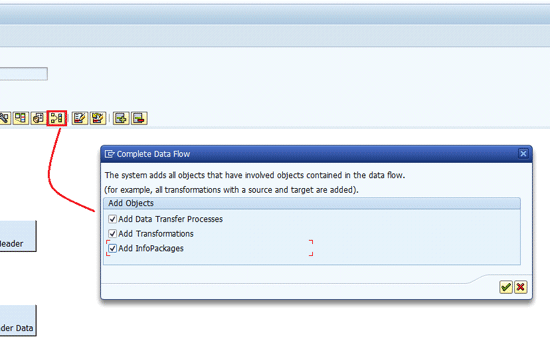
Figure 13
The complete data flow icon
Select the related objects you want to add and click the green check mark. You now see a separate connector between all source and target objects (Figure 14). This connector indicates the DTP has been added by the above process.

Figure 14
A completed data flow with related objects added
Next, define the metadata of the InfoCube by double-clicking the InfoCube template object. In the pop-up screen, create the InfoCube (Figure 15). Note that a template object is provided, which means metadata is defined automatically. Once you press Enter, you then activate the InfoCube (CTRL + F3) and exit to the previous screen (F3)
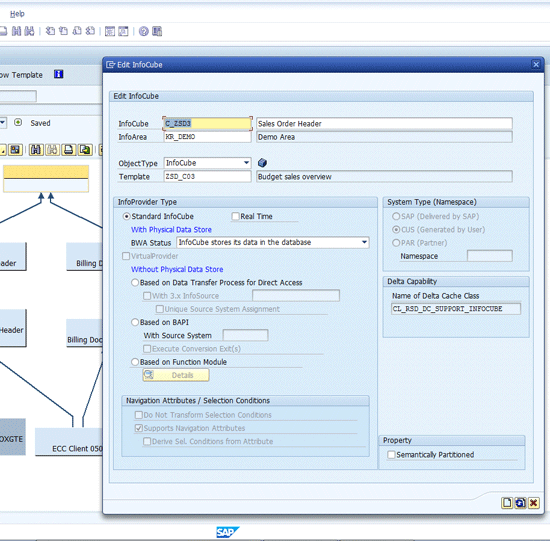
Figure 15
Define a technical name and a description for the InfoCube
Next, activate all the related objects in the data flow. Follow menu path Data Flow > Activate Data Flow Objects or press CTRL + SHIFT + F3. Three check boxes appear in the pop-up screen (Figure 16):
- Activate All Inactive Objects
- Activate All Objects Where A Version Not Equal to M Versn.
- Activate All Objects
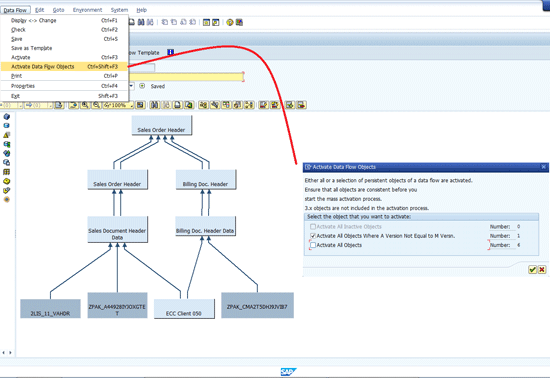
Figure 16
Activate dataflow objects
Select the second option and click the green check mark. You receive warnings specific to the objects being activated. Proceed based on the warning. If required, cancel the process, go back, and make changes. Otherwise, ignore the warnings and proceed with the activation (Figure 17). Most of you probably understand that SAP NetWeaver BW warnings are common and generally ignored.
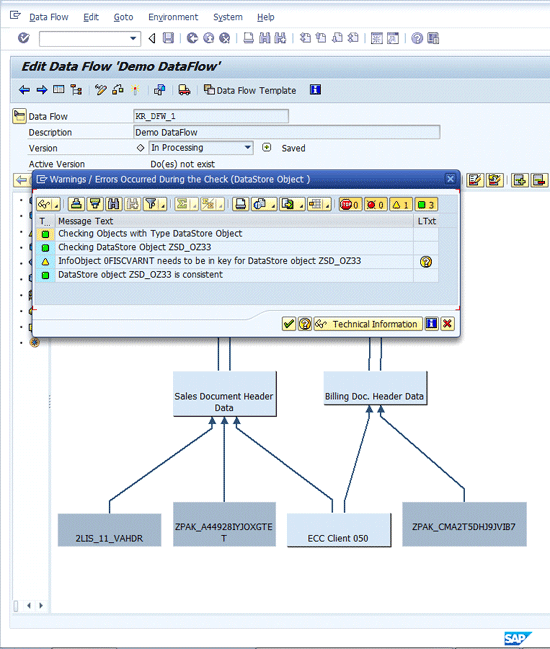
Figure 17
A warning pop-up, which you can ignore
After you successfully activate the objects, their logs are displayed (Figure 18).
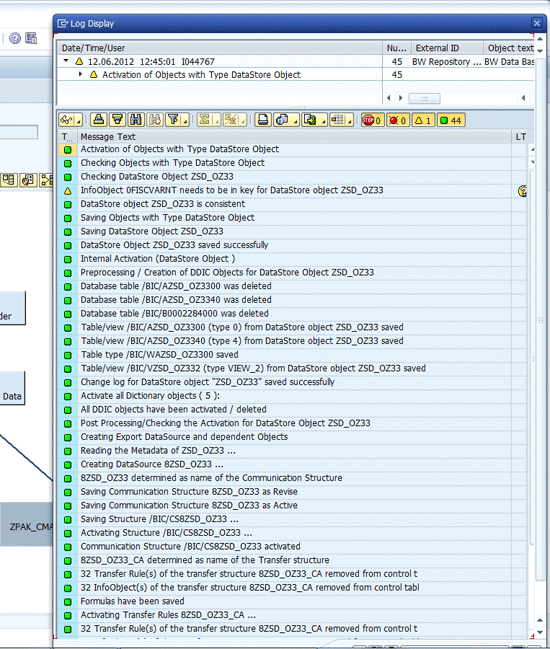
Figure 18
A display log for activated objects
Now all the basic objects (e.g., InfoCubes and DSOs) are activated. Next, you need to activate the transformations and DTPs. Double-click the transformation line. The Create Transformation pop-up screen appears with the source and target already specified (Figure 19). Click the green check mark.
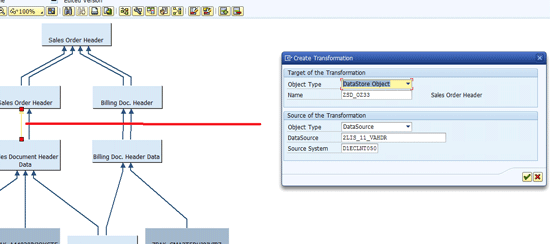
Figure 19
The Create Transformation pop-up screen
The system then takes you to the transformation maintenance screen in which you configure your transformation based on the requirement (such as routines or rules). Activate it and return to the main screen by pressing F3 or clicking the back icon.
The next step is to create a corresponding DTP. This process is similar to the transformation creation process. Once you are in the data flow creation screen, double-click the DTP line. The Create DTP pop-up screen appears with the source and target already specified (Figure 20). Click the green check mark, configure your data transfer process, and activate the DTP.
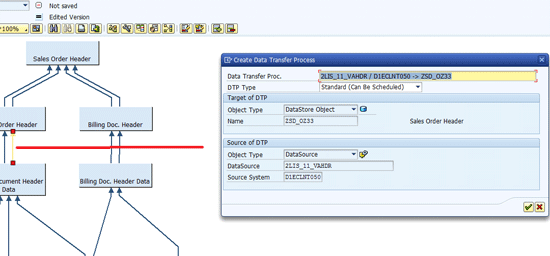
Figure 20
The Create DTP pop-up screen
After you successfully activate the DTP, return to the main screen by pressing F3 or clicking the back icon. You can see the objects that are part of the data flow by using transaction RSA1 (Figure 21).
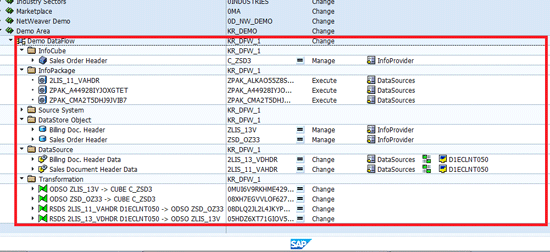
Figure 21
Data flow in transaction RSA1
Save the Data Flow as a Template
In the previous section, I showed you how to successfully create and activate a data flow and all the objects involved in it. One of the main advantages of creating such a data flow is that you can use it as a template. The modeling tool allows you to save the data flow as a template that can then be applied to other data flows.
This template is especially useful in the initial stages of development. In one of my implementations, I had guidelines for how data flows should be built. So I created an “empty” data flow with InfoProviders in various layers and provided it as a template. Technical professionals who have to develop their data flows just include the template in their data flows and make changes accordingly.
To save your data flow as a template, follow menu path Data Flow > Save as Template (Figure 22).
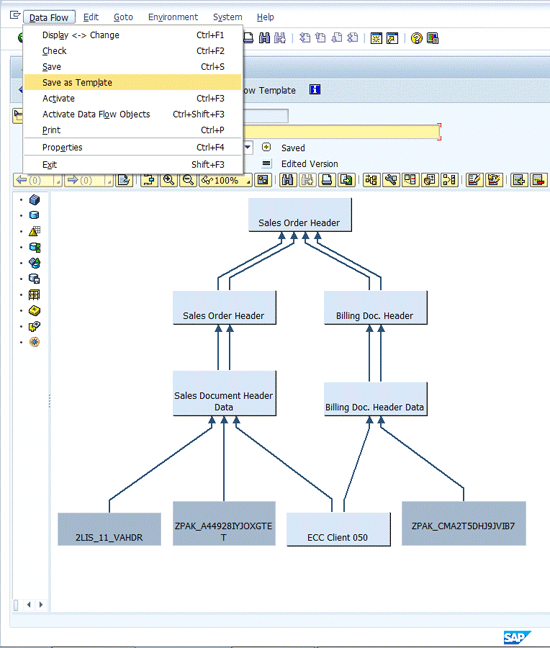
Figure 22
Create a data flow template
A pop-up screen appears in which you specify the technical name, description, and info area of the data flow template (Figure 23).
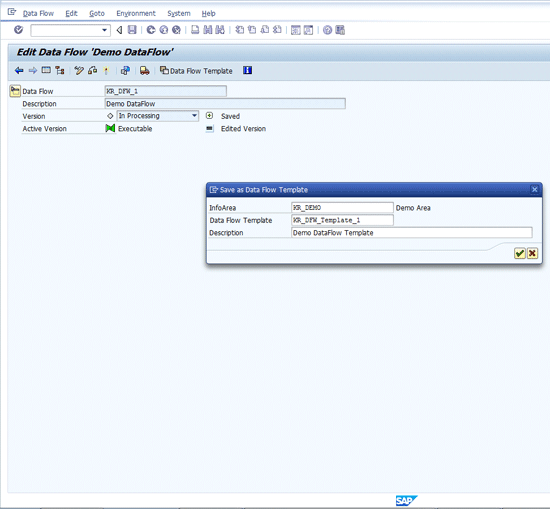
Figure 23
Data flow template pop-up
Once you provide these details, activate the data flow template by pressing the match light icon or CTRL + F3. You can then apply this template to other data flows.
Apply a Data Flow Template
The Apply Data Flow option lets you include and connect your data flow template into a new one. To see how to complete this process, go to transaction RSDF to create a new data flow (Figure 2) or open an existing one.
For this example, I have already added a few objects to my data flow and saved it. The next step is to click the Data Flow Template button (Figure 24).

Figure 24
Open the data flow template
The navigation pane on the left side of the Apply Data Flow Template pop-up screen includes three folders (Figure 25):
- SAP Data Flow Templates, which contains content data flow templates provided by SAP
- Data Flow Templates, which contains user-created or custom data flow templates
- Data Flows, which contains the data flows themselves (both content and custom)
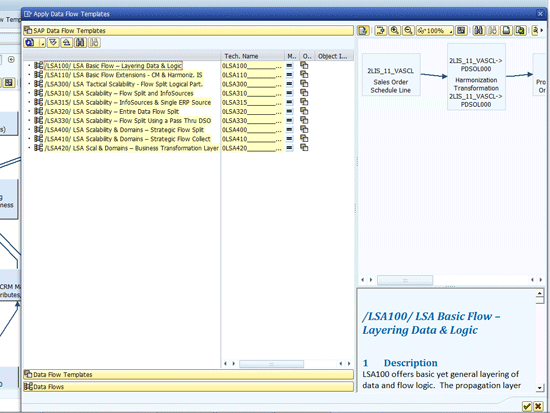
Figure 25
The Apply Data Flow Template pop-up screen showing folder options
Clicking a data flow or data flow template displays the graphical flow of the data flow or template, as well as a short description of the same. Data flow templates show the icon  in the Object Information (O..) column (Figure 26). Data flows without this icon are not templates.
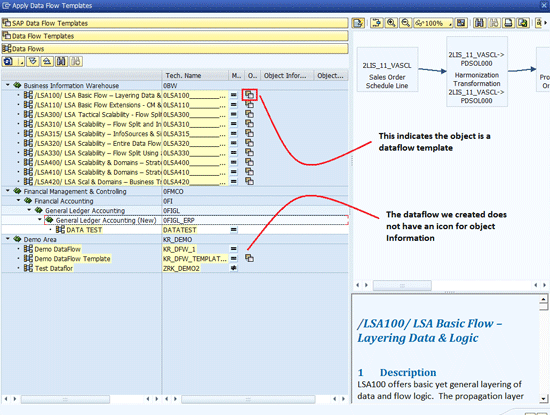
Figure 26
An example of a data flow template
For my example, select data flow template KR_DFW_1, which you created in the previous steps, and press enter on your keyboard (Figure 27).
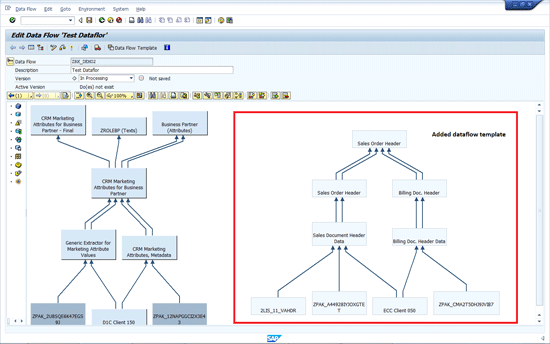
Figure 27
Add a data flow template
To complete the data flow, drag and drop a MultiProvider object to the design area. Now connect the Sales Order Header and Business Partner InfoObject to the MultiProvider, which is the empty box on top of the design area in Figure 28.
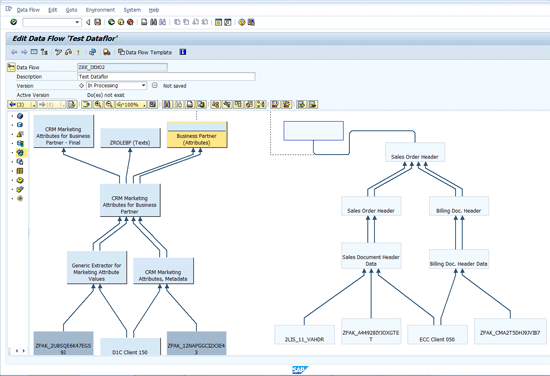
Figure 28
Add a MultiProvider to the design area
Double-click the MultiProvider, provide a technical name, and click create. The object selection pop-up screen appears. Note that the objects that are mapped to the MultiProvider are already selected. Provide metadata information and then activate the MultiProvider.
Quick Tips and Points
These other features of the template-based data flow modeling tool are useful:
- The tool provides you with edit options, which allow you to undo or redo the steps you perform in the design area (Figure 29). Note, the undo and redo options are available only until you save the data flow. Once you save the data flow, the history of changes is erased and you have to make changes manually.
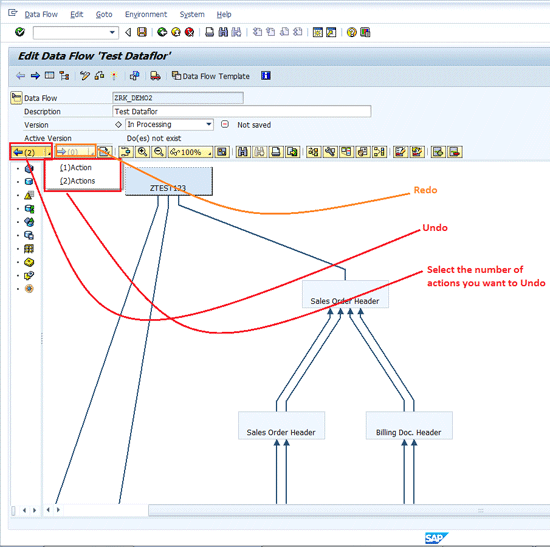
Figure 29
The redo and undo buttons help with design efforts
- Another option lets you choose to display the data flow either vertically or horizontally by clicking the display data flow horizontal or vertical icon
 (Figure 30). By default, the display is vertical. However, if your data flow exceeds the limit of your screen, you might have trouble visualizing the data flow. In this case, displaying your data flow vertically might help.
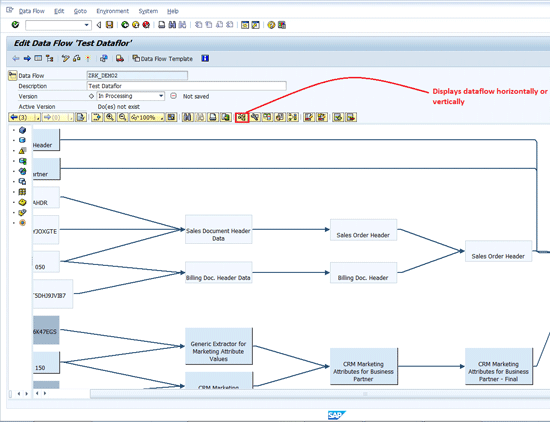
Figure 30
Change the horizontal or vertical view of the data flow
- You can transport your data flows. To complete this process, click the transport button
 in the menu bar. The data flow is collected in a transport request (Figure 31). You can collect the relevant objects based on requirements and include objects in a transport request. You can see the data flow added to the transport request under TLOGO DMOD, which is a unique technical identifier for data flows. The TLOGO for SAP content data flows is DDMO.

Figure 31
Data flow and related objects collected in a transport request
Figure 31 Data flow and related objects collected in a transport request
- The display data flow tool lets you create a data flow. This tool is useful because you can create a data flow just through the display of another one. Select an object and select Display Data Flow from the context menu options. Select Data Flow Upwards, Data Flow Downwards, or both. The data flow is collected and displayed. With SAP NetWeaver BW 7.30, a new save icon
 allows you to save the displayed data flow as a data flow of type DMOD (Figure 32). Once you select the save option, a pop-up screen appears in which you provide details required to create a data flow.
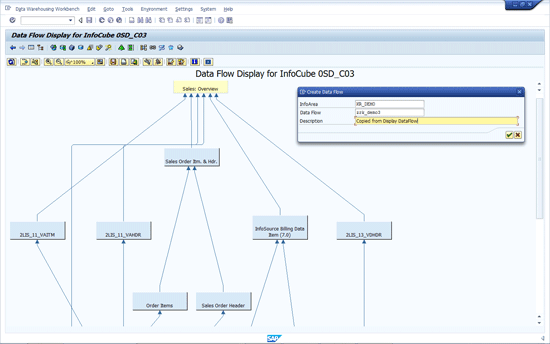
Figure 32
Save the data flow using the display data flow tool
Once you have provided the details, click the green check mark. A pop-up screen appears confirming that the data flow is saved. At this point, the data flow is not yet active. Now use transaction RSDF. You see the entire data flow is collected based on your selection option in the display data flow pop-up screen (Figure 33). Go to the change mode and activate.
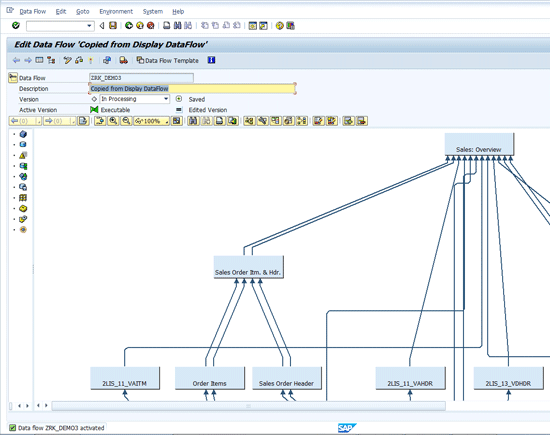
Figure 33
A copied data flow
Rakesh Kalyankar
Rakesh Kalyankar is an SAP NetWeaver BW- and HANA-certified lead and architect, working with SAP Global Delivery in Bangalore, India. He speaks regularly at events, such as SAP TechEd and BIIG. He is also an SAP trainer and writes frequently about SAP NetWeaver BW and SAP HANA topics. Prior to his starting his consulting work, he was part of the SAP NetWeaver BW research and development team at SAP Labs, and he has worked on the development life cycles of SAP NetWeaver BW releases, including versions 7.30 and 7.03.
If you have comments about this article or would like to submit an article idea, please contact the BI editor.
You may contact the author at rakesh.kalyankar@gmail.com.
If you have comments about this article or publication, or would like to submit an article idea, please contact the editor.



 Premium