Manager
Learn how self-diagnosis complements the scenarios configurable within SAP Solution Manager to monitor your entire SAP Solution Manager system, including system monitoring, Solution Manager Diagnostics, Root Cause Analysis, and business process and interface monitoring.
Key Concept
Self-diagnosis, a function that is available in SAP Solution Manager 7.0, ensures the stability and configuration of your SAP Solution Manager system. It enables you to verify the various indicators that assess the condition of your system.
SAP Solution Manager supports you in monitoring and alerting each SAP solution in your landscape. Several functions of SAP Solution Manager can help you accomplish this, including business process and interface monitoring, Solution Manager Diagnostics, Root Cause Analysis, and Computing Center Management System (CCMS)-based system monitoring. As other critical scenarios and extensions of SAP Solution Manager are configured and used — such as Service Desk, Change Request Management (ChaRM), job scheduling, and test management — the availability and performance of the SAP Solution Manager system itself reaches a mission-critical state, in which unplanned downtime or slow performance is unacceptable.
The fact that SAP Solution Manager plays such a vital role demands that it be able to monitor itself for stability and performance. Self-diagnosis is an easy-to-use function that verifies a broad range of indicators and allows you to assess the condition of your SAP Solution Manager system. Included among the many self-diagnosis indicators are roughly 100 Basis indicators that include descriptions of the alert type, handling procedures, context (e.g., solution-specific or cross-solution), and the metric used to rate the alert and threshold values (e.g., red, yellow, or green) as well as the groupings and rating strategy. Self-diagnosis can help your team keep SAP Solution Manager operating efficiently at all times. Just as SAP Solution Manager helps reduce the total cost of operations and optimize performance throughout your SAP environment, self-diagnosis can optimize performance within your SAP Solution Manager system.
Note
Self-diagnosis requires Support Package stack level 12 or higher. Prior to Support Package 12, SAP Solution Manager did not have the exact self-diagnosis feature that’s available now. In lower Support Package level systems the Solution Manager Diagnostics self-check provides similar diagnoses, but only for the Java components and the components required for Solution Manager Diagnostics to function in satellite systems.
Get Started with Self-Diagnosis
To view alert types, use transaction SOLUTION_MANAGER. A shortcut to the same transaction is transaction DSWP. From there, navigate to Settings > Self Diagnosis. The Settings page is divided into three tabs: Alert Types, Alert Types by Functionality, and Solution-Specific Alert Types by Solution. The Alert Types tab (Figure 1) shows the following details:
- A description of the alert type
- The procedure you can follow to change the status of critical or very critical alerts to uncritical
- The context of an alert, which is either solution-specific or cross-solution
- The metric that is used to rate the alert type and the threshold values used to calculate the status of an alert shown in the self-diagnosis results
- The three alert categories are depicted by traffic light colors, as follows: red is very critical, yellow is critical, and green is uncritical
- The semantic classification in alert groups (e.g., infrastructure) to specify the type of alert
- SAP Solution Manager functions with ratings that are affected by this alert type
- The rating strategy, which specifies how the rating of the alert type affects the rating of any higher-level functionalities
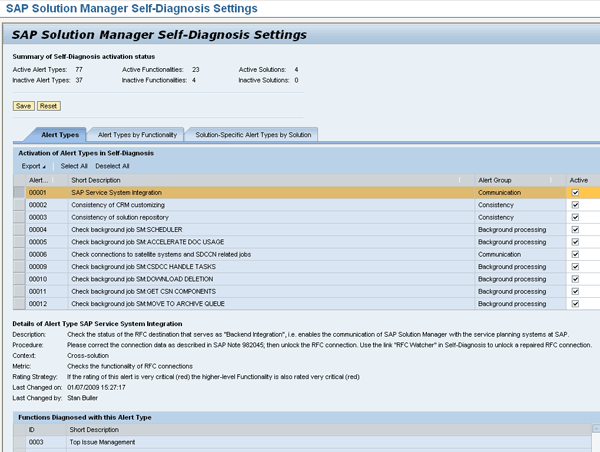
Figure 1
The Alert Types tab shows the activation status, details, and functions diagnosed by the type for each individual alert
The Alert Types by Functionality tab displays the functionality and activation status of each functionality group and explains the alert types that diagnose the functionality (Figure 2).
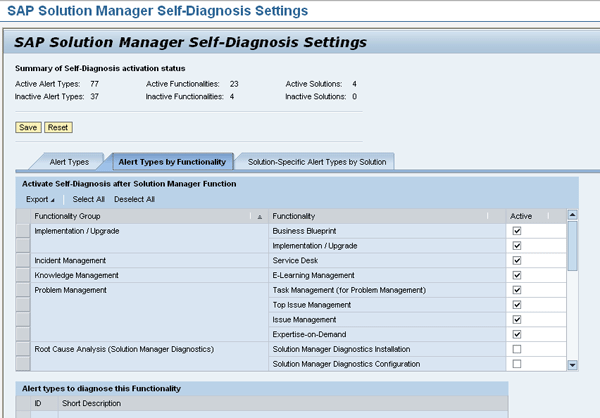
Figure 2
The Alert Types by Functionality tab
The Solution-Specific Alert Types by Solution tab shows which solutions are activated for self-diagnosis, as well as the alert types needed to diagnose particular solutions (Figure 3). Demo solutions that exist in your system landscape, such as WS Demo Solution shown in Figure 3, should be deactivated by unchecking the Active check box next to them. This applies to all three tabs, not just Solution-Specific Alert Types by Solution.
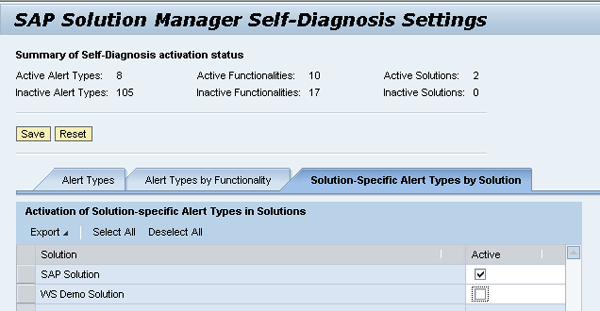
Figure 3
The Solution-Specific Alert Types by Solution tab
The key is to turn off any unnecessary alerts in these tabs. Extraneous alerts, such as those for demo and test solutions or for functions in SAP Solution Manager 7.0 that are not used by your organization, can consume time and system resources to process. By default, SAP ships all possible checks on all alert types for all functionalities and solutions. You can restrict functionalities by unchecking the Active check box on each of the three settings’ tabs.
You can also review the initial screen in the self-diagnosis settings to see an overview of the activation status of solutions, alert types, and functionalities. To do this, select Settings > Self Diagnosis while in transaction SOLUTION_MANAGER.
Launch a Self-Diagnosis
Self-diagnosis can be performed automatically on a daily basis or triggered ad hoc (also known as launching it in an interactive run). You can trigger self-diagnosis on all solutions (cross-solution self-diagnosis) or for a single individual solution (solution-specific self-diagnosis). Either way, the current processing status shows whether or not a self-diagnosis session is running. Click the Refresh button to check whether processing is complete during an interactive run.
To launch a cross-solution self-diagnosis, navigate to Solution Overview within transaction SOLUTION_MANAGER and click the Self Diagnosis button (Figure 4). This triggers self-diagnosis on all your solutions.

Figure 4
Launch a cross-solution self-diagnosis
To launch a solution-specific self-diagnosis, click the name of a specific solution from the ones that appear in transaction SOLUTION_MANAGER. Then click the Self-Diagnosis button as shown in Figure 5.
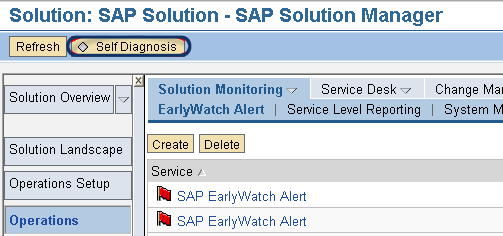
Figure 5
Launch a solution-specific self-diagnosis
This triggers self-diagnosis on that solution only and has solution-specific results (Figure 6). For both kinds of self-diagnosis, the summary of results from the last self-diagnosis is found in the top half of the results screen. This shows the number of uncritical, critical, and very critical alerts and functionalities. Below the summary, you can view the details of the self-diagnosis results, analyze them if required, and take corrective measures in accordance with the solution guides provided.
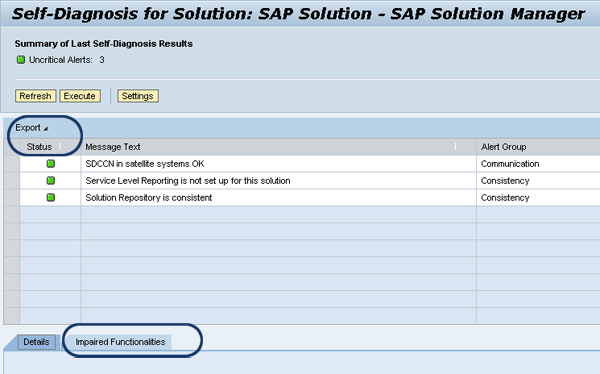
Figure 6
Results of a solution-specific self-diagnosis
For solution-specific runs, alerts are displayed on a simple table. You can click the Export drop-down menu to select the option that enables you to export results to a Microsoft Excel spreadsheet (Figure 6).
Tip!
An ad hoc solution-diagnosis on all solutions can take a long time, depending on the configuration settings for self-diagnosis and the number of solutions you have. Plan accordingly and perform a test session to gauge a typical duration of the process.
For cross-solution runs, results are arranged on four tab pages that reflect the structure of the application, as shown in Figure 7:
- Functionality Status
- Alert Status
- Solution Status
- Processing Information
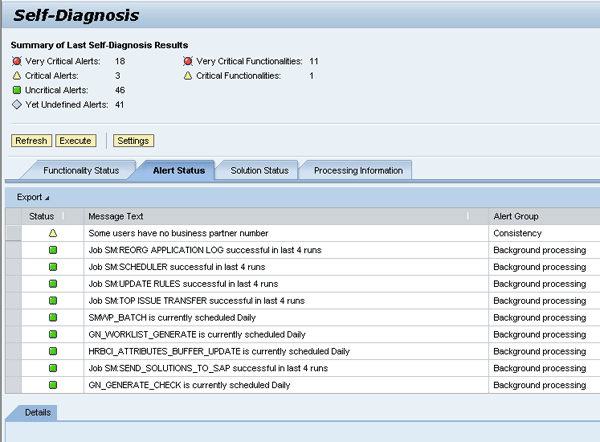
Figure 7
Sample results
As with solution-specific self-diagnosis runs, you can export these results to Excel. Details of the functionality status, if there are any, are located at the bottom of the screen that appears when you click the Functionality Status tab (Figure 8). You can see an overview of the status values of the underlying (critical) alerts. The Alert Status tab provides instructions to remove critical alerts. Click the Display link in the Alert Resolution column on the right to see how to remedy alerts with a critical status.
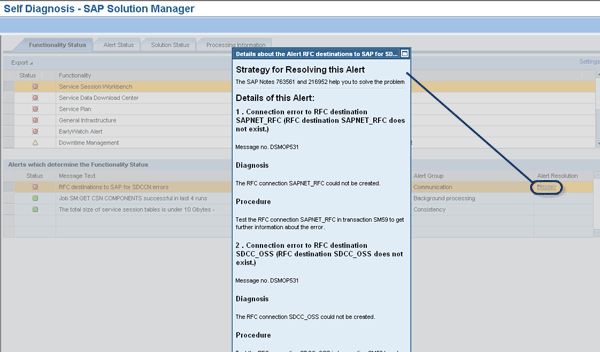
Figure 8
Strategy for resolving an alert
The Alert Status tab provides instructions to remove critical alerts. The impact they have on functionalities, if any, is shown on the Impaired Functionalities tab, shown at the bottom of Figure 6. The Solution Status tab contains a list of critical solutions and guides you to the self-diagnosis for each solution.
Alternate Navigation Methods to Solution-Specific Results
There are three methods of navigating through solution-specific sessions besides clicking the Self Diagnosis button within a given solution.
- By selecting an entry, if there are any, from the Impaired Solutions tab beneath the results table of a solution-specific run (Figure 6)
- In the results of a cross-solution run through the Alert Status tab
- In the results of a cross-solution run, by clicking an entry (if there are any) in the Impaired Solutions tab within the Solution Status tab
No matter which method you choose, you must process the critical alerts shown in the results list that appears using the Display link (Figure 8).
Note
The content of alerts available via self-diagnosis increases with higher Support Package stack levels. Therefore, it is useful to perform Support Package stack upgrades to take advantage of more robust alerting.
The self-diagnosis feature also leverages the SAP EarlyWatch Alert service for the SAP Solution Manager system. It reflects the main content of the current SAP EarlyWatch run, displaying its key indicators of system performance, system load distribution, database performance, and database administration.
Note
For more information on self-diagnosis, refer to SAP Note 1073382. This note contains a Microsoft PowerPoint presentation about self-diagnosis and a link to an SAP tutor demonstration.
Dan McKay
Dan McKay has been an SAP consultant for 11 years. During this time, he has held positions with SAIC, BearingPoint, McAfee, and SAP Americas. His clients have included retailers, manufacturers, media, and agencies of the US federal government. In the past five years, Dan’s career has focused on SAP Solution Manager configuration projects. He is currently leading the Run SAP practice as the SAP Practice Director with Alpha Sirius, Inc., a Run SAP partner company with a team of SAP-certified Solution Manager consultants. Dan received his bachelor’s degree from Penn State University’s College of Communications and holds numerous SAP Solution Manager certifications.
You may contact the author at dmckay@alphasirius.com.
If you have comments about this article or publication, or would like to submit an article idea, please contact the editor.


 Premium