A new feature in SAP NetWeaver 7.01 enables end users to alter existing queries, or to change key figures in a query.
Key Concept
Ad hoc formulas were implemented as part of SAP enhancement package 1. This feature allows the end user to create formulas and add them to Web queries. They can then save the formulas when the query is saved as a favorite. The formulas can be reused as if they existed in the original query.
Many SAP NetWeaver BW administrators lock or severely restrict the capabilities of changing queries by end users. This is to prevent the end user from altering the query in some way that would adversely affect the result set or overall performance. Often, end users would like the ability to alter or add their own key figures to the existing query. Without the ability to modify the query, this is not possible.
To address this need, SAP added a new feature called ad hoc formulas to the Web Analyzer. I will discuss how to enable this feature to create ad hoc formulas and embed them into a Web Analyzer query. To use ad hoc formulas, the system must be upgraded to SAP enhancement package 1 in SAP NetWeaver 7.0 (also known as SAP NetWeaver 7.01). This SAP enhancement package makes the new ad hoc formula function available in the Web template for the end user to use. Before upgrading to SAP enhancement package 1, you need to take care of some prerequisites, which are described in SAP Note 1248905.
Note
In some cases, ad hoc formulas are also available in Support Package 14 for SAP NetWeaver 7.0. However, you need to apply additional SAP Notes to fix some issues with the functionality. Therefore, if this function is needed, you should go to SAP NetWeaver 7.01.
Enable the Ad Hoc Formula Functionality
To start using ad hoc formulas, this feature must first be turned on in the active Web template — by default, this feature is turned off in the standard Web template. Thus, even if you have upgraded to SAP NetWeaver 7.01, users may not see the option to create ad hoc formulas when they right-click a query in the Web Analyzer.
To turn on the feature, you must first access the active Web template. The active (or default) Web template is the Web template that is used whenever queries are run in the Web Analyzer. To edit and turn on this feature, enter Web Application Designer (Web AD) and click the Edit button. Choose the Web template that is used in your Web analysis queries. Bring up the Web template into edit mode.
Note
If you are unsure of the query template that is being used, you can see the standard template in transaction RSCUSTV27. By default the system uses 0ANALYSIS_PATTERN for Web Analyzer ad hoc analysis.
While in the edit mode for your Web template, choose the CONTEXT_MENU_1 Web item. This Web item represents the options and the menu that appear when you right- click in a query when running Web Analyzer (Figure 1). In this menu, the feature is available to the end user. The CONTEXT_MENU_1 Web item includes an option to turn on the ad hoc formula functionality. You can find this in the lower-left corner in the Properties area. The option is labeled Local Formulas. You can turn on this option by changing it to the on status. Once this option is turned on from the context menu, when the user right-clicks on the report in Web Analyzer, the end user sees a new option called Formulas. End users can then use the option to add their own ad hoc formulas to the query they are running.
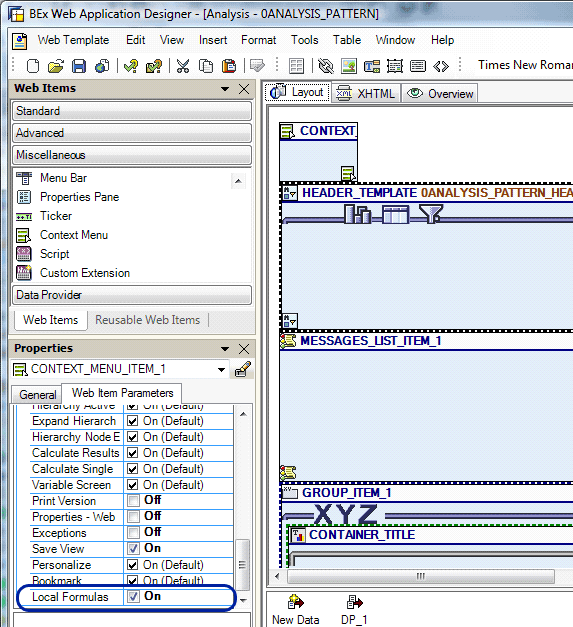
Figure 1
Options and menu in Web Analyzer
Using Ad Hoc Formulas
Now that the option is turned on in the active Web template, query runtime users are able to use the ad hoc formula builder to create their own formulas. These formulas are shown and work with the other key figures that are displayed in the report. In fact, once an ad hoc formula key figure is created, it acts like all the other key figures in the report. You can sort, hide, and move them just like the other key figures.
To create an ad hoc formula while running a query in Web Analyzer, right-click the query key figures and click the Calculations and Translations option. Click Formulas and choose New Formula. The system brings up a screen that end users can use to create the ad hoc formula (Figure 2). All key figure values must be chosen from the menu options shown on the screen. If you try to enter a formula or paste in a formula from another area or query, the system gives an error message and does not allow you to save the formula.
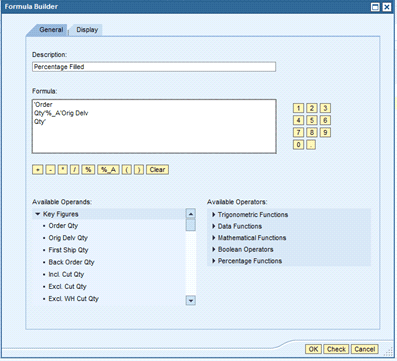
Figure 2
Screen to create an ad hoc formula
In this example, I am creating a new formula called Percentage Filled. This is the percentage of the order quantity associated with the original order quantity. I set up the formula by choosing the key figure value order quantity and using the %_A (percentage share) and the key figure original order quantity. I added a description in the Description field. This is what the end user sees as the description of the key figure when running the query.
The ad hoc Formula Builder allows you to use any key figure that exists in the query as an operand. This includes restricted and calculated key figure values. Ad hoc formulas can also have a scaling factor or a set number of decimal places. To set these, click the Display tab at the top of the Formula Builder screen (Figure 3).
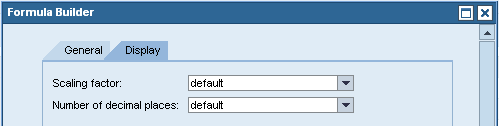
Figure 3
Click the Display tab
Here is a sample of the most popular functions that you can use in an ad hoc formula:
- Percentage functions: Percentage deviation, percentage share
- Data functions: No dimension, date, time, no error, no division by zero
- Trigonometric functions: Sine, cosine
- Mathematical functions: Power, logarithm, root, remainder, absolute value, maximum, minimum
- Boolean functions: AND, OR, XOR, NOT, LEAF
The system allows some Boolean operators in the ad hoc formulas. The functions AND, OR, XOR, and NOT are available for use. However, to perform useful decision making using the Boolean logic, the operands such as =, not =, <, and > need to be included in the functionality. These functions are not available in the ad hoc formulas. This severely limits the use of the ad hoc formulas and makes the Boolean operations very limited.
Note
The SAP documentation states that Boolean operators such as =, not =, <, and > are allowed and available in the ad hoc formulas. However, even though the documentation states this, they are not available. I asked SAP about this via an OSS message and they confirmed that there is no Boolean functionality with =, not =, <, and > is allowed in the ad hoc formulas. There was no indication if this is coming as a future enhancement.
For more help on Boolean operators and ad hoc formulas, see the “Defining Formulas Ad Hoc” section in SAP Help>
Because of the limitation of the Boolean functionality, you should only consider ad hoc formulas for performing mathematical functions on existing key figure values. They do have the advantage of acting like other key figures and can be saved as a favorite so the saved ad hoc formula can be used over and over again (Figure 4). The Percentage Filled key figure is shown in the query. This acts and looks like the other key figures in the query and can be sorted, totaled, scaled, or hidden just like any other key figure.
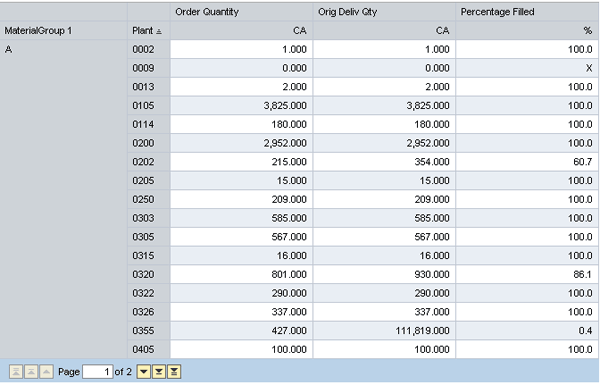
Figure 4
Save favorites and use them again
You can change or delete an ad hoc formula once you create it. To do so, simply go back into the Calculations and Translations option. Choose Formulas and your key figure. The option comes up to Edit or Remove (Figure 5).
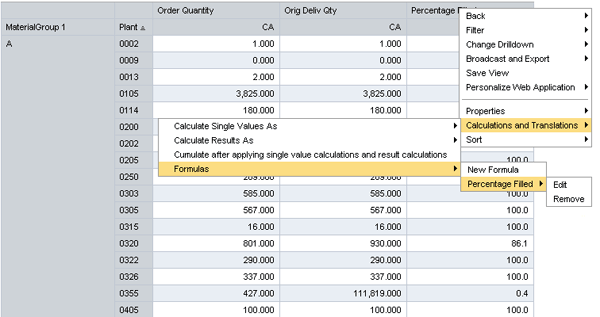
Figure 5
Editor and Remove options
You can also use one ad hoc formula in another ad hoc formula. For example, if you want to add two ad hoc formulas, the system allows this functionality. This can be useful if more complex calculations are needed. The calculations can be performed in steps and then combined together into one key figure value.