Manager
Ensure a successful SAP implementation, upgrade, or smooth-running operation: Learn about the available SAP Roadmaps, the options for accessing them, and the benefits of using them.
Key Concept
SAP Roadmaps provide you with proven, practical, comprehensive, repeatable, and rich implementation methodologies that enable speedy, focused implementations of SAP solutions. SAP Roadmaps cover the most important aspects and phases of an SAP solution’s implementation, enhancement, or upgrade following the Accelerated SAP (ASAP) principles.
When planning your SAP implementation, your upgrade project, or the maintenance of your production systems, there are proven and repeatable SAP methodologies—Roadmaps—that have been designed to reduce the overall risks of the project and enable projects to come in on budget and on schedule. They can also reduce overall implementation times while providing a framework of the tasks and activities you should follow.
These methodologies are available free of charge via the SAP Service Marketplace and through the RMMAIN transaction of your Solution Manager system. They come with a wealth of information you can use to make your projects successful and to run your SAP systems effectively. This article covers the available Roadmaps, explains the options for accessing them, and then details the benefits of accessing and using the Roadmaps in SAP Solution Manager.
Standard SAP Roadmaps contain a tremendous amount of useful information for planning or executing your SAP projects or upgrades. Users often wonder what Roadmaps are out there and which would be the most valuable to them. This section reviews the most commonly used, available Roadmaps.
ASAP Implementation Roadmap
The ASAP Implementation Roadmap (currently version 3.8) is the standard ASAP methodology many users rely on to run their projects. This methodology is the most familiar to SAP consultants and partners. It includes the standard five phases of the ASAP Roadmap (Project Preparation, Business Blueprint, Realization, Final Preparation, and Go Live and Support). This methodology is geared towards “brand new” SAP implementations (SAP has not been implemented previously) and is applicable to most SAP applications, including SAP ERP Central Component (SAP ECC), SAP Customer Relationship Management (SAP CRM), and SAP Supplier Relationship Management (SAP SRM). This is the methodology you use between the Project Preparation phase and the Go Live and Support phase of an SAP implementation.
GlobalASAP Template Roadmap
The GlobalASAP Template Roadmap (currently version 3.6) is very similar to the ASAP methodology described above but is geared towards global (or multi- site) SAP implementations. The GlobalASAP Template Roadmap is designed to support the implementation program by defining the global solution template for rollout to each local site. The GlobalASAP Template Roadmap covers all aspects of a multi-site deployment of SAP solutions. During a Global ASAP project, the project team describes global business requirements, then configures and deploys the template in the pilot location to prove the concept and stabilize the template before large-scale rollouts in other locations.
SAP Upgrade Roadmap
The SAP Upgrade Roadmap (currently version 3.2) is the standard methodology, including tasks and activities, to help users and partners upgrade their SAP solution successfully. The SAP Upgrade Roadmap includes planning for the upgrade of the project infrastructure and for the preparation of the new production landscape. The SAP Upgrade Roadmap also provides information about the SAP services available during the upgrade, such as a Quick Upgrade Analysis and technical upgrade planning.
Run SAP Roadmap
The newest Roadmap released by SAP is the Run SAP Roadmap. The Run SAP Roadmap focuses on application management, business process operations, and SAP NetWeaver administration. It provides users with information and guidance on how to implement your solution operations once you have gone live. This methodology is geared towards the efficient management of your production landscape, including end-user support concept, change management, application management, and business process operations.
Note
Other SAP Roadmaps available include New GL Implementation Roadmaps, Technical Quality Management Roadmaps, and an Enterprise Architecture Framework. I do not go into these Roadmaps in any detail for this article, but they function in much the same way as the Roadmaps above and are accessible in the same locations – the SAP Service Marketplace and the RMMAIN transaction in Solution Manager.
SAP Service Marketplace
HTML versions of all the SAP Roadmaps are available via the Roadmaps page of the SAP Service Marketplace (https://service.sap.com/roadmaps). Users can download and extract copies of the Roadmaps in .zip format. Once downloaded, the Roadmaps can then be stored on customer portals or on customer networks. If they do not have access to Solution Manager, they can still access the Roadmaps via the SAP Service Marketplace (Figure 1).
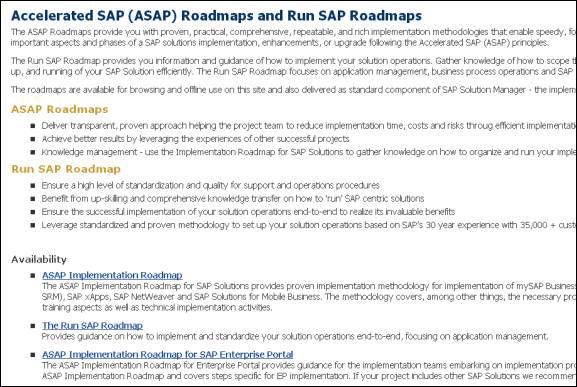
Figure 1
The SAP Service Marketplace lists all of the Roadmaps available for download
Transaction RMMAIN in Solution Manager
Solution Manager users have access to Roadmaps via transaction RMMAIN. Staying current on the latest Support Packages in Solution Manager gives you access to the latest Roadmaps. When setting up a Solution Manager project, users can assign a specific Roadmap to their project via transaction SOLAR_PROJECT_ADMIN, selecting the Scope tab, and then selecting the Roadmap Select sub-tab (Figure 2).
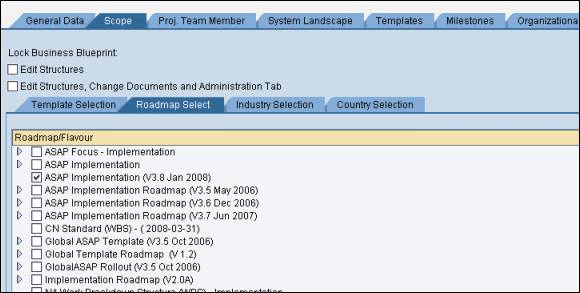
Figure 2
Select which type of Roadmap you should use with your Solution Manager project from the Roadmap Select tab in transaction SOLAR_PROJECT_ADMIN
Once you assign a Roadmap to your project, it can then be accessed via transaction RMMAIN. The Roadmap initial view provides a simplified overview of the project steps required in an SAP implementation or upgrade (Figure 3). This initial view also lists the typical milestones of a project and the relevant safeguarding services (such as Going-Live Check and Technical Integration Check) available from SAP. From the initial view, users can drill into the various phases of the Roadmap to get detailed descriptions of the tasks and activities assigned to the Roadmap. They can also create their own descriptions. This screen contains the detailed work breakdown structure on the left side and a standard description of the task on the right side. You will also notice the accelerator links on the bottom right pane.
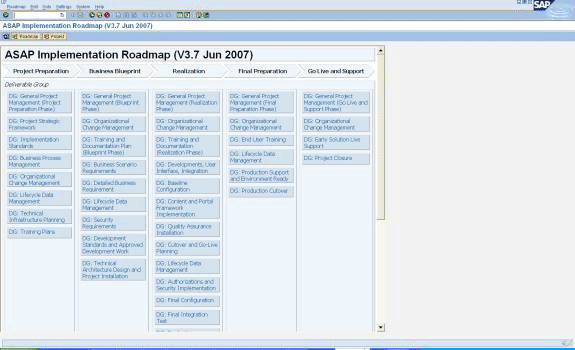
Figure 3
A Roadmap initial view in RMMAIN
Accessing Roadmaps from transaction RMMAIN has a few important benefits. Once you have determined which Roadmap to use, accessing it from transaction RMMAIN allows you to: use accelerators, download the project structure into Microsoft (MS) Project, store and edit variants of the Roadmap off- line, track issues or messages, run standard reports for the Roadmap, and create custom Roadmaps.
Accelerators – Accelerators are sample documents SAP provides for customers and partners to help them “accelerate” their implementation or their upgrade projects. These accelerators can include sample deliverables such as a project charter, meeting minutes templates, deliverable acceptance templates, and sample kickoff presentations. These accelerators can dramatically reduce the time spent to create deliverables for your projects. Accelerators are typically sample deliverables for the project that would be created. These include items such as testing strategy whitepaper and release notes. The accelerators are accessible via the bottom right frame of the Roadmap or via menu path Goto > Accelerator (Figure 4). Hundreds of these accelerators are available for your use and are helpful for every project. A user might choose not to use every accelerator, but they are available for evaluation.
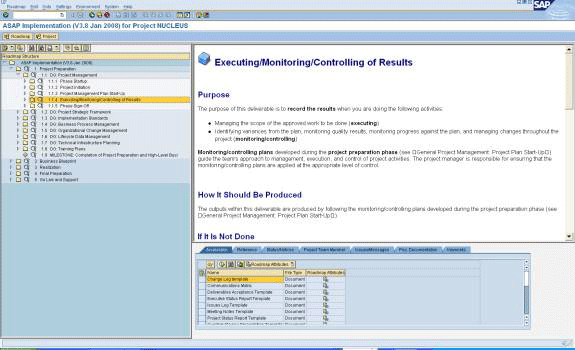
Figure 4
A Roadmap detail view in RMMAIN
Download Project Structure into MS Project – If you are putting together a project schedule in MS Project and want to use the Roadmaps as the starting point for your project schedule, you can download the Roadmaps via menu path Roadmap > Download > MS Project Version. This is helpful if you are planning to put together a detailed project schedule in MS Project. The project structure is then generated as an .mpx file and displayed in MS Project. If you open the file and save it in .mpp format, then you can edit it. This allows you to add specific dates and resources to tasks using the standard functionality of MS Project. There are several fields in this new file that automatically populate from the Roadmap, including Name of the Structure Element (Name), Outline level of the structure element (Outline Level), and Status (Text 2).
Offline Variants of the Roadmap – You can now create an offline version of the Roadmap documentation to download to your laptop and read at your leisure. This feature is helpful if you want to review the methodology while not connected to Solution Manager or if you have never been through an SAP implementation or upgrade. You can do this by following menu path Roadmap >Print >Structure with Documents. This feature is particularly helpful for users or partners who have never been through an implementation or an upgrade.
Tracking of Issues or Messages – With this feature, users have the ability to assign and track issues or messages to specific steps in the Roadmap. You can find this feature using the Issues/Messages tab of the Roadmap in transaction RMMAIN. Note: This functionality only exists if a specific Roadmap has been attached to a project. It is particularly helpful if you want to track issues against specific tasks such as assembling a training and documentation plan or fleshing out a project management plan. This allows you to track specific issues against tasks necessary to your project. If someone is not completing a task in a timely manner or if it is behind schedule for a specific reason, you can track an issue against the specific task. You do this by clicking on the task and then going to the Issues/Messages tab of the Roadmap. Click on the Create button and select Issue. Complete the required fields and select Save. Solution Manager automatically assigns an issue number that you can track later. You can create an Issue list from transaction RMMAIN by following menu path Environment > Analysis > Issues/Messages.
Standard Reports for the Roadmap – Recent functionality improvements to the RMMAIN transaction include the ability to run standard reports for the Roadmaps such as accelerator reports, issue reports, and status reports. These standard reports are very helpful if you actively use the standard delivered Roadmaps to manage your projects. You can access these by following menu path Environment > Analysis from the transaction RMMAIN in Solution Manager.
Creation of a Custom Roadmap – Users now have the ability to create custom Roadmaps as a copy of the standard delivered Roadmaps. They can create and maintain these Roadmaps using transactions RMDEF (to copy a Roadmap) and transaction RMAUTH (to edit a copied Roadmap). This functionality allows users to employ the standard Roadmaps and still make specific changes based on the needs of their projects.
Brad P. Saxon
Brad P. Saxon has been an SAP consultant since 1996 and has spent the past eight years with SAP America. In his current role, he serves as the Managing Principal for SAP Solution Manager in the South Region. Brad has achieved a “Trusted Advisor” status with more than 35 Solution Manager customers. He is also a frequent contributor to ASUG, SAPPHIRE, and several websites, including www.SolutionManagerexpert.com.
You may contact the author at editor@SolutionManagerexpert.com.
If you have comments about this article or publication, or would like to submit an article idea, please contact the editor.





 Premium