Learn how to correct wrong consignment postings in your SAP system and prevent further wrong postings from occurring.
Key Concept
Wrong consignment postings are caused by several different factors, such as a wrong consignment info record, price, tax code, initial upload, or a goods movement. These errors can affect the entire supply chain because of wrong Financials postings. Reversing wrong postings is a complex process that involves numerous departments.
The vendor consignment process is one of the most integrated processes in an SAP system. It requires special attention from various departments to avoid issues that can waste everyone's time and energy. Booking the process correctly in your system helps to prevent your company from making wrong consignment postings in the first place and saves time by eliminating the need to fix them.
You can understand how to reverse wrong consignment postings by analyzing the following types of issues:
-
Wrong payments
-
Duplicate payments
-
Wrong price, conditions, or tax code in the consignment info record
-
Rounding Errors and missing tax code determination
I have had a lot of experience implementing a solution to these issues in production environments for Materials Management (MM), Production Planning for Process Industries (PP/PI), and Accounts Payable (AP) modules in SAP ERP Central Component (SAP ECC) 6.0 systems. (The process also applies to previous versions of SAP ERP and SAP R/3). This guide is useful for anyone who works in SAP logistics modules or in blueprints for future logistics implementations.
Wrong Payments
Wrong payments occur when the treasurer's department posts payments based on incorrect invoices from the accounts payable department via transaction MRKO. This error occurs when there is incorrect data on invoices (such as price, condition, or tax code) in the consignment info record. It is essential that you correct this error immediately. If you don't, you could adversely affect vendor relations, and you could waste a considerable amount of time troubleshooting the problem. In this instance, the company would need to settle the same material documents again.
To solve the problem of wrong payments, the specific departments mentioned should follow these steps:
Step 1. Identify the inaccurate Financials (FI) documents and reverse the associated invoices. First, the AP department runs transaction MRKO in display mode using the Settled Withdrawals option, which is available on the report's selection screen by following menu path Logistics > Materials Management > Logistics Invoice Verification > Automatic Settlement > Consignment and Pipeline Settlement. Then, the AP department either uses transaction MR08 or follows menu path Logistics > Materials Management > Purchasing > Logistics Invoice Verification > Further Processing > MR8M – Cancel Invoice Document to cancel the invoice document for the identified FI document.
Step 2. Delete the wrong consumptions for consignment orders already posted and communicate the correction. Next, the production execution department either runs transaction CORS or follows menu path Logistics > Production – Process > Process Order > Process Order > Confirmation > Cancel to cancel the process order confirmation. In this case, the corresponding consignment movements (e.g., 262K to reverse the consumption for consignment orders) overturn the incorrect postings based on the list included in the transfer posting that the process order confirmation created. After the production execution department deletes the postings, it displays and checks the process order confirmation history via transaction CORT or by following menu path Logistics > Production – Process > Process Order > Process Order > Confirmation > Display and communicate to Finance postings. Figure 1 shows movement 262K, which reverses the consumption consignment orders.
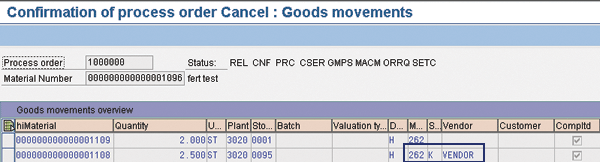
Figure 1
Delete the process order confirmation using transaction CORS
Note
In cases where you don't post goods issued via back-flushing from the process and confirmation, you can reverse the goods movement via transaction MIGO or MB1C using movement type 262 K.
Step 3. Update the consignment info record. After the wrong postings have been reversed using the old wrong data, the purchasing department can change the consignment info record data (i.e., price, conditions, or tax code) via transaction ME12 or by following menu path Logistics > Materials Management > Purchasing > Master Data > Info Record > Change.
Step 4. Confirm the production. Use the confirmation transaction you normally use. In this example, I used transaction CORK for process order confirmations. Enter the correct quantity and time. The confirmation uses the updated data from the consignment info record. Then, the production execution department runs transaction CORK or follows menu path Logistics > Production – Process > Process Order > Process Order > Confirmation > Enter for Order.
Step 5. Settle the consignment. The AP department runs transaction MRKO in posting mode to settle the consignment use. Then, AP generates the corresponding invoice for vendor payment via menu path Logistics > Materials Management > Logistics Invoice Verification > Automatic Settlement > Consignment and Pipeline Settlement.
This transaction collects all consignment postings done within a specific period of time via relevant consignment movements (e.g., 411K [transfer posting-consignment], 412K [transfer posting-consignment reversal], 261K [consumption for order from consignment], and 262K [consumption for order from consignment-reversal]).
It is important to note that in some countries (e.g., Germany), vendors can be paid via credit note. The AP department creates a credit note based on the consumption shown on the MRKO list. In Germany, you must be sure that the document generated shows the Value-Added Tax (VAT) amount and that the document must be agreed upon by both the company and the vendor. You also need a written agreement with the vendor to proceed. To enter a vendor credit memo, the AP department uses transaction F-41 or follows menu path Accounting > Financial Accounting > Vendors > Document Entry > Credit Memo.
The majority of countries requires a physical invoice from the supplier associated with the sale of goods. This complicates the idea of self-invoicing on a periodic basis. A possible solution is to have the vendor base its invoice on the company's self-invoice — in SAP terminology, Evaluated Receipt Settlement (ERS). In this case, as soon as you post the invoice via transaction MRKO, you must block it from payment. Then, communicate the settlement details (such as quantity, price, and SAP settlement document number to place on the invoice) to the vendor. As soon as you receive the agreed—upon invoice from the vendor, enter the vendor's invoice number (SAP reference number) in the SAP invoice header. At this stage, you can unlock the invoice and pay it during the next payment run.
Step 6. Vendor payment. Finally, the treasurer's department performs the payment via transaction F110 or by following menu path Accounting > Financial Accounting > Accounts Payable > Periodic processing > Payments. This transaction runs in a background job.
Note
In all the steps listed above, the costing department can check any potentially generated variances via transaction GR55.
Duplicate Payments
Typically, when you purchase a component, you post a goods receipt with movement type 101, which increases and evaluates the inventory. All the following accounts are credited or debited. At goods issue to production with movement type 261, the inventory and value decrease. In the case of consignment, the inventory and valuation separate. Goods receipt into consignment stock with movement type 101K increases the inventory, but not the value of the inventory, as the corresponding purchase order has line items with item categories K (consignment).
To have a financial impact, you should consume the consignment goods via specific movements (i.e., 261K or 411K). In that case, the system generates one FI and one CO document for each material document, as reported in Figure 2 and Figure 3, respectively.
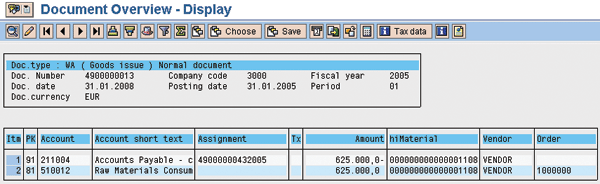
Figure 2
Display FI document generated by 261K posting using transaction FB03
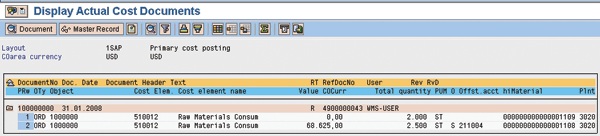
Figure 3
Display CO document generated by 261K posting using transaction KSB5
Multiple users must not perform consignment settlements simultaneously. Settlement does not block the material documents, so multiple users would actually create duplicate settlement documents. In this case, the AP department has already successfully posted the invoice related to consignment consumptions via transaction MRKO, and the treasurer's department has generated the payment. If the AP department then generates another invoice for the same amount, you have duplicate settlement documents.
A good way to avoid this error is to manage authorizations, but if you cannot do this, the specific departments mentioned should apply the following steps:
Step 1. Delete the duplicate payment in FI. First, the supervisor of the treasurer's department deletes the duplicate payment in FI by using transaction F-54 or by following menu path Accounting > Financial Accounting > Vendors > Down Payment > Clearing.
Step 2. Delete the duplicate invoice in FI and check the posting. Next, the AP supervisor deletes or reverses the duplicate invoice in the FI module by using transaction MR08. Alternatively, you can use transaction MR00 > Further Processing > Cancel from the main SAP screen or transaction FB08 (Accounting > Financial Accounting > Vendors > Document > Reverse > Individual Reversal) .
To post a transaction, you need a reason code. I also recommend that you specify any appropriate additional information in the text field. In this case, the invoice cancellation does not activate the settled material documents so you can include them in a settlement again. In fact, you cannot settle the same document again. Instead, you use movement 411K to book any more consignment consumptions. You have to do this manually because you need to generate an original posting and you cannot use the original documents any longer. The FI document is linked to a logistics document that contains a goods movement. Before reversing any postings, the SAP system automatically verifies that there are no cleared items and that the original transaction was within the original posting module. Then, the AP department checks the consistency of the postings done using transaction FBL1N or by following menu path Accounting > Financial Accounting > Vendors > Account > Display/Change Line Items.
The system automatically creates one invoice document per company code and a vendor for all selected items. A message then appears indicating that the documents were created. The items for which invoices were posted show up in a different color.
Choose Environment > Messages to see the document numbers that the system issued. Since withdrawn goods are not assigned to an invoice, the system cannot tell whether a withdrawal has been invoiced. When you select a goods withdrawal and post an invoice for it, the withdrawal still appears in the list the next time you run the settlement program. To avoid creating multiple invoices for withdrawals, I recommend running the settlement program on fixed dates and posting all withdrawals that have taken place since the last settlement run. If you limit your selection to the withdrawals posted after the last settlement run, the system only displays open items.
Wrong Price, Conditions, or Tax Code
Before you create an invoice in posting mode with transaction MRKO, the consignment info record may contain an inaccurate price, condition, or tax code. If it does, you need to correct that information in case the production department has already posted the consumption of supplier-owned inventory components, creating an inconsistency in the system.
To resolve this issue, the specific departments mentioned should follow these steps:
Step 1. Retrieve the postings to be corrected. To retrieve the incorrect postings, the purchasing department usually runs transaction MRKO in display mode, or it follows menu path Logistics > Materials Management > Logistics Invoice Verification > Automatic Settlement > Consignment and Pipeline Settlement. You need to correct the consignment info records to reflect the price agreed upon with the vendor.
Step 2. Increase the inventory level. Because the consignment stock has already been used, the warehouse department needs to use transaction MB1A with movement 552 (reversing the withdrawal for scrapping) to increase the inventory stock level by using artificial consignment stock or following menu path Logistics > Materials Management > Inventory Management > Goods Movement > Goods Issue. You could use transaction MIGO for SAP R/3 4.6 (and above) or follow menu path Logistics > Materials Management > Inventory Management > Goods Movement > Goods Movement (MIGO). This puts that stock in a temporary storage location using a temporary batch number.
Step 3. Transfer the ownership back to the vendor. At this stage, the production execution or warehouse department performs transaction MIGO movement with 412K, transaction MB1B with movement 412K, or follows menu path Logistics > Materials Management > Inventory Management > Goods Movement > Transfer Posting. This transfers the inventory consumed at the wrong price from company ownership back to the vendor's ownership at that wrong price (to correctly reverse the error).
You use transaction MB1B in this case so you don't need to remember which movements to apply because the system guides you. In the selection screen for this transaction, you can retrieve the appropriate movement type to reverse the incorrect consignment postings executed. In fact, following the menu path shown in Figure 4 allows the system to automatically launch movement 412K.
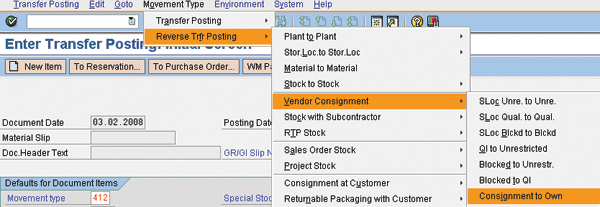
Figure 4
Reverse the consignment postings using transaction MB1B
If you use transaction MIGO to reverse the consignment postings, you should manually enter the correct movement (412K) from the movement type list on the right of Figure 5.

Figure 5
Reverse the consignment postings using transaction MIGO
Step 4. Update the consignment info record. Just as in step 3 of the “Wrong Payments” section, after reversing the incorrect data, the purchasing department changes the consignment info record's data via transaction ME12 or by following menu path Logistics > Materials Management > Purchasing > Master Data > Info Record > Change.
Step 5. Change the material's ownership. When the consignment info record has been updated (in the previous step), the production department or warehouse manually transfers the ownership of the consignment material from the vendor back to the company's own stock. You can do this via transaction MIGO or transaction MB1B with movement 411K. If the inventory is valued at the standard price, this action has no impact on the inventory value. Movement 411K also corrects the price variance based on the difference between the standard price and the correct consignment price.
Step 6. Remove and ensure the artificial stock. The receiving department is responsible for offsetting movement 552 with transaction MB1A or MIGO using the movement 551. Ensure that all the artificial stocks created are reversed using transaction MB51 or by following menu path Logistics > Materials Management > Inventory Management > Environment > List Displays > Material Documents (Figure 6).
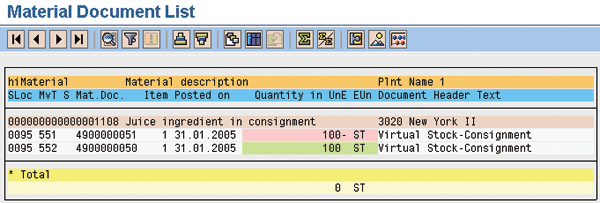
Figure 6
Display the reverse movements using transaction MB51
Step 7. Check the correctness of the consignment postings. The purchasing department runs the consignment report again to verify that the liability has been corrected and, if needed, shares the details with the vendor. This is done using transaction MRKO in display mode.
Step 8. Consignment settlement. The AP department runs transaction MRKO in posting mode to settle the consignment usage and then generate the corresponding invoice for vendor payment.
Step 9. Vendor payment. Finally, the vendors are paid as per your regular process. Usually, they are paid via transaction F110, which is scheduled as a background job using transaction F110S.
Rounding Errors
The official invoice that the supplier sent might not match the MRKO invoice because of rounding errors. For example, if SAP uses three decimals and the supplier uses two decimals, you might get a rounding error in the translation of one to the other. To post the invoice correctly in the system, the FI department can use transaction F-43 and post the difference manually to the appropriate SAP General Ledger account (i.e., either the Goods Receipt/Invoice Receipt [GR/IR] account or the Purchase Price Variance [PPV] account depending on the material in question).
Usually, for auditing purposes, you should post only one document per invoice received. Any supplier that invoices via consignment should receive a report detailing the material used and its price in advance. However, suppliers should issue the invoice on this basis for the exact figure due. I suggest that purchasing discuss this with the supplier and insist that it invoice at the price stated in the report regardless of any rounding differences in their system. (The rounding error is usually no more than around $0.03, so it should not be a big deal.)
Tax Code Undetermined During Posting Run
If the system cannot determine the tax code during the consignment settlement run, it issues the error message, “No tax information found.” This error means that the tax code is not maintained properly in the consignment purchasing info record. It also means that all the entries in table RKWA were created with no tax code. This is a serious issue that could result in illegal postings.
In addition, you should make sure that the purchasing department maintains the correct tax code in the consignment info record. To resolve this issue, make sure that the tax code field in the consignment info record is mandatory when you create or change the purchasing info record (transactions ME11 and ME12). Follow menu path Tools > Customizing > IMG > SPRO – Execute Project > SAP Reference IMG > SAP Customizing Implementation Guide > Materials Management > Purchasing > Purchasing Info Record > Define Screen Layout. Then, for transactions ME11 and ME12, choose the field selection group Conditions (Figure 7) and make the tax code mandatory.
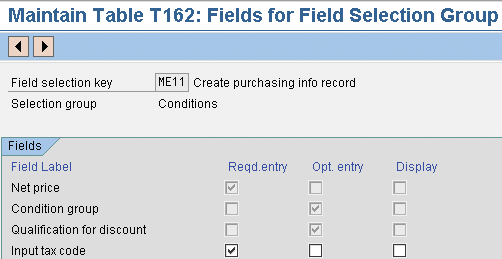
Figure 7
Define screen layout for info record using transaction SPRO
To resolve the issue related to an incorrect tax code being specified in the consignment info record, the purchasing department should receive a matrix from AP explaining the rules for entering the tax code for the following combinations: country of receiving plant/country of source (vendor, plant, business partners) for domestic, European Union (EU) country and non-EU country. Before you apply the system's technical setting, it is crucial that all organizations working in the same SAP system agree on the change.
If you cannot change the layout of the standard transactions (ME11 and ME12) based on company standards, you could evaluate using a transaction variant, for example, to hide a field, menu function, or screen, or supply a default value for a field.
Additional Reasons for Missing Tax Code Determination
Another reason you might miss the tax code determination could be due to one of the following settings:
-
The plant has no purchasing organization assigned to it (check it via IMG transaction OX17)
-
The plant has more than one purchasing organization assigned to it, but no standard purchasing organization (check it via IMG transaction OMKI)
-
Check the consignment info record activation via IMG transaction OMEV
-
If only the company code and plant are entered, the system lists all the pending consignment liabilities between the vendor and the plant. If more than one consignment info record between the vendor and the plant exists and one of them contains no tax code, the system issues the error message M8732 “No tax information found” for every line item, including the one that has a tax code maintained in the consignment info record.
If some tax codes are missing, transaction MRKO cannot post any invoice. If you enter the consignment material or material document, you need to settle on the selection screen. The system settles the vendor's consignment liabilities successfully if the tax code is maintained in the consignment info record. It is in the system logic.
Check the following SAP Notes to determine which ones are already implemented in SAP ECC 6.0:
-
140675 (Consignment determination of tax code transition)
-
350450 (MRKO: List display)
-
139792 (MRKO: Tax indicator via consignment info rec. as of 4.0)

Gaetano Altavilla
Dr. Gaetano Altavilla is a senior SAP practice manager. His focus is on pre-sales, delivery of SAP application solutions for large international corporations, and SAP knowledge management in Europe, the Middle East, and Africa (EMEA).
In his 18 years of SAP application experience working for many multinational companies, such as Procter & Gamble and Hewlett-Packard, he has covered a wide range of ERP logistic areas, focusing on the MM, WM, SD, LES, PP, PP-PI, PLM (QM, PM, PS) modules, as welll as CRM (TFM), SRM (EBP), SCM (SAP APO), and MES (ME) components.
Dr. Altavilla holds a degree with first-class honors in mathematics from the University of Naples and is certified in many SAP modules: SAP Logistics Bootcamp, SAP MM, SD, LE (SHP/WM/LE), PP, PLM (PM, QM, PS), SRM, CRM, SCM (APO), SCM (TM), FI, CO, and Solution Manager. He also has experience in ABAP/4 and application link enabling (ALE) and IDocs. He has participated in numerous industry conferences, such as the SAP Skills Conference in Walldorf at SAP SE.
You may contact the author at Gaetano_altavilla@hotmail.com.
If you have comments about this article or publication, or would like to submit an article idea, please contact the editor.



 Premium