Wrong or missing data could create a mismatch between the trial balance reports in your FI and Controlling and Consolidation (EC-CS) modules. Here’s how to identify and correct mismatches.
Key Concept
The Enterprise Controlling and Consolidation (EC-CS) module, used for consolidation of companies in R/3 and mySAP ERP Central Component, is a data repository based on dimensions. Dimension in EC-CS mainly focuses on the consolidation type — company, business area, or profit center. You can derive consolidation reports based on any one of the three, or you can use all of the types. The decision is determined by the nature of the company. For example, if a company is established in more than one country and it is listed on the New York Stock Exchange, a legal requirement is that it has to give a company consolidation report to its shareholders.
Wrong configuration or erroneous data posted to Consolidation (EC-CS) can cause a mismatch between the FI and EC-CS trial balances. I’ll show you how to correct the mismatch. In some cases, you delete incorrect data, and in others, you repost the FI document to restore it to EC-CS.
The reason they can become out of balance is that FI and EC-CS store data in different ledgers and in different tables. The system transfers the data table GLTO in FI to EC-CS, which has its own ledger that you define at the time of configuration. Intercompany (IC) is the standard ledger, but you can create multiple ledgers to suit your report requirements. The EC-CS ledger uses tables ECMCA (header table) and ECMCT (detail table, also called the totals table).
The EC-CS module provides various methods for data transfer. I’ll use the RealTime Data Transfer – FI process, which is part of a standard SAP system. The RealTime FI update procedure posts data directly to EC-CS in a similar way that a posting to FI generates a CO or profit center document. If you activate EC- CS, then along with other accounting documents the system posts a consolidation document. For example, the following Materials Management (MM), Sales and Distribution (SD), and FI documents generate financial documents after posting: goods issue (MIGO), goods receipt (VA01), invoice verification (MIRO), and billing document (VF01).
I’ll show you how to find a mismatch in the finance trial balance and EC-CS trial balance. Then I’ll show you how to restore or delete the data posted wrongly in EC- CS. Based on my experience, two approaches are available to post missing data. I suggest you try approach 1 first. If you still see a mismatch, then try approach 2. You use approach 2 if incorrect data is posted.
Approach 1: Once you have a list of the missing records you can use transaction CXNM, which is available in standard SAP, to post the missing documents. On occasion when I have used transaction CXNM first, I found that it did not work for some of the documents. I tried to post the documents individually, but they were still missing in EC-CS. Then I decided to delete the data for the particular period only using approach 2.
Approach 2: Delete all the documents in the period in question, and repost all the data using transaction CXNM. This has worked for me in several projects.
Identify a Mismatch
Report CXNX, which is available in EC-CS, reconciles FI data with EC-CS. In FI, you post documents. Every document should have a corresponding EC-CS document if you use EC-CS. The CXNX report shows the inconsistency between FI and EC-CS. It gives you a list of all the documents posted and not posted to EC-CS. Follow these steps to execute the CXNX report.
Step 1. Set the Global parameters (CXGP) before executing the CXNX report (Figure 1). The parameters include company code, fiscal year, and integrated consolidated type such as company consolidation, business area, or profit center.
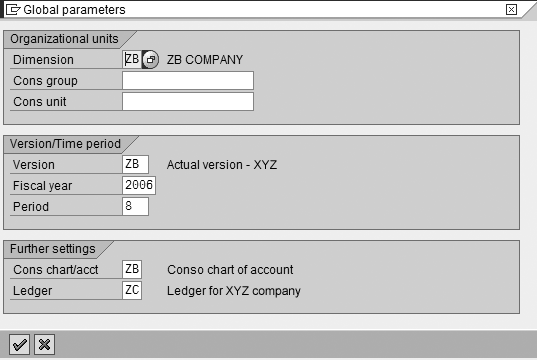
Figure 1
Set the global parameters via CXGP
EC-CS has three dimensions — company, business area, and profit center. You can report on only one at a time. You can have different sets of data for each dimension. If you set the parameters first, the system generates reports based on these values:
- Dimension
- Consolidation group
- Consolidation unit
- Version (1 is an actual version)
- Fiscal year
- Period
- Consolidation chart of account
- Ledger
Step 2. Select the Reconcile option (Figure 2) and execute the CXNX transaction by clicking on the execute icon.
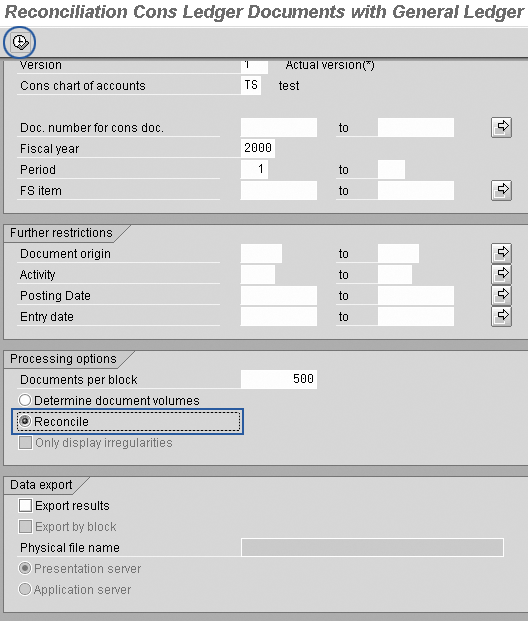
Figure 2
Select the Reconcile option
Figure 3 shows the output of the report. The report shows the mismatches between the G/L total and EC-CS (FSITEM total).
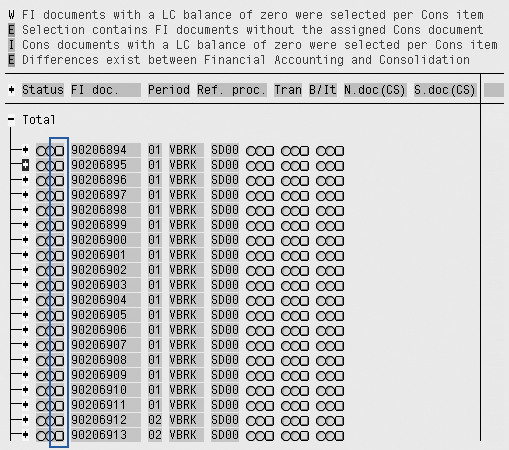
Figure 3
Data posted correctly to EC-CS
Entries with a green indicator are correct entries posted to EC-CS from FI (Figure 3). Entries with a red indicator are missing in EC-CS (Figure 4).
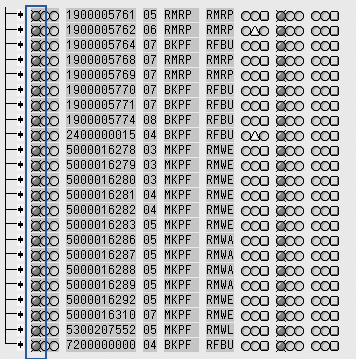
Figure 4
Missing documents indicated by red circles
Place the list of all the documents with red symbols, which are missing in EC-CS, in a Microsoft Excel sheet. You can do this manually or by using the standard SAP report download functionality. You can’t just double-click on the document and get back to the original document because the functionality to drill down to the accounting document is not available for this report.
If you want to verify that the documents are missing, you can view consolidation documents from the Display Document screen via transaction code FB03. Click on Document Environment, and then on Accounting Documents (Figure 5). A pop-up screen appears where you can look for the consolidation documents. If no consolidation documents are on the screen, it means they are not posted to EC-CS.
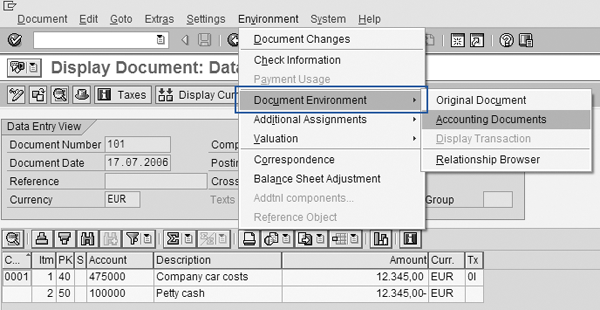
Figure 5
Click on Accounting Documents to view the posted documents
Figure 6 shows that only two documents are posted — Spec. purpose ledger and Controlling Document — meaning no consolidation documents are posted.
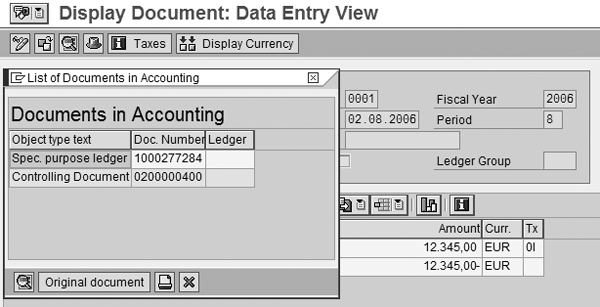
Figure 6
List of posted documents
Approach 1: Post the Missing Documents
Now I’ll explain how to post the missing documents in EC-CS. Use transaction code CXNM (transfer document from Financial Accounting to EC-CS). From report CXNX you have a list of all the missing documents in an Excel sheet. Follow these steps:
Execute the CXNM report (Figure 7). Enter the document number in the Document number field. You can enter individual document numbers or all the documents. Click on the execute icon.

Figure 7
Add the missing document number
Figure 8 shows the output of report CXNM. It lists the missing documents that you just posted to EC-CS.

Figure 8
List of documents posted to EC-CS
If Data Is Still Missing or Wrong
Most of the time when a document is listed in this report, the document is posted to EC-CS. However, it has been my experience that in some cases the document is on the list but does not actually post to EC-CS. After you post the documents, check again via the CXNM report to see if the documents are missing. If they are, try approach 2 to create a match between FI and EC-CS.
You also use approach 2 if you discover that wrong data is posted. You can tell if the data is erroneous when you drill down with report CXNM. If a document is listed and marked with a red symbol, then it is wrong.
Posting of erroneous data is mainly caused by wrong master data configuration. Manual postings in EC-CS can lead to incorrect data postings. In addition, if you upload data via the periodic method or upload method to EC-CS, chances of wrong data postings are high. When you use the upload method, you post the data to EC- CS via a file. If the file contains wrong data, a mismatch results. When you configure master data for EC-CS you must consider a number of fields. Any field value that is wrongly defined leads to the wrong posting of data. If you find wrong data, you must delete it and repost the correct data with approach 2.
Approach 2: Delete EC- CS Data from the Ledger and Repost It
When data is missing, with approach 2 you delete all the data from EC-CS. Because EC-CS is a data warehouse, the deletion does no harm — you can reload it. Before making any changes to the data, set the Global parameters in EC-CS via transaction code CXGP, as shown in Figure 1. You must set the global parameters in EC-CS before you execute any transaction. The reports and the data come from the parameters you set via transaction CXGP.
Step 1. Delete the entries in EC-CS via transaction code CXDL (delete transaction data from ledger). This is the standard SAP transaction to delete the EC-CS data (Figure 9). Run this transaction in test run mode first to verify that you are deleting the correct data. Then do the final run.
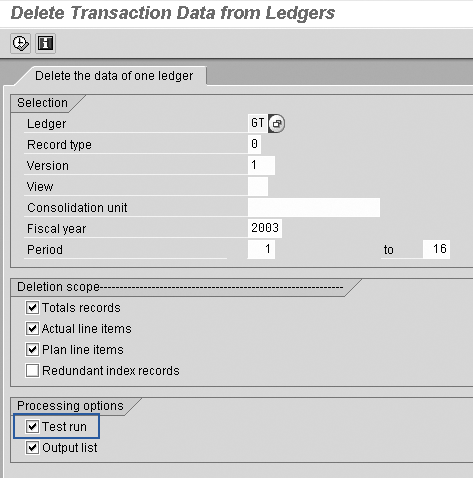
Figure 9
Enter parameters for data deletion with Test run selected for the first run
The system assigns the Ledger by default since you stored it via transaction code CXGP in the global parameters screen. The system takes the Version from the global parameters set at the beginning. Enter the following information:
- Ledger
- Consolidation unit for which you want to delete the data
- Fiscal year
- Period
- Check the boxes Totals records, Actual line items, and Plan line items. If you select this option, the system deletes total records and line item records from the ECMCT table
- Check Test run. Always do the test run first to check. Once the test run is OK, remove the indicator and do the final run. The test run does not delete the records and you always should use it for confirmation that you are deleting the correct records
- Check the Output list box to get the details of deleted records
Figure 10 contains the output of the CXDL transaction. It shows the number of records deleted from the ECMCA and ECMCT tables, in this case 87 records from the ECMCT table and 31,988 records from the ECMCA table. ECMCA and ECMCT are the EC-CS tables where the system stores the posted data. ECMCA is the header table that stores the header data, while ECMCT is the detail table that stores the detail data.
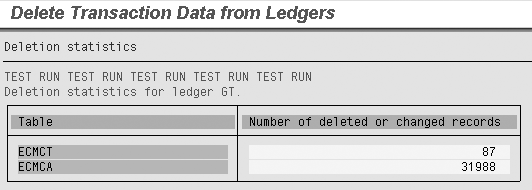
Figure 10
Number of records deleted
Step 2. Check the ECMCA and ECMCT tables in EC- CS. Use transaction codes SE11 or SE16 if you have access to them. If you do not have access, you can use standard report CX34 (database list of records), which is the output of the ECMCT and ECMCA tables.
The number of records should match the number of records deleted via transaction CXDL, shown in Figure 10, after you execute the test run. Once you confirm that the ECMCA and ECMCT tables match with Figure 10 (i.e., the output of CXDL in Test run), export a copy of all the records from both the tables and put them in a Microsoft Excel sheet. I’m advising you to put the records in an Excel sheet because you are going to delete all the transactions from the table for a particular period. In case any database issues arise that prevent you from finding the records, you can use the Excel sheet to upload the data.
The figures always should match as you are taking the list from EC-CS. You are not considering any FI tables, which is why you should use a test run to cross- verify.
You are deleting all the records for the period from the ledger via transaction CXDL. The test run cross-checks whether the output shown in Figure 11 matches with the ECMCA records.

Figure 11
Review table ECMCT
Go to table ECMCT (Figure 11) via transaction code SE16 or CX34. Enter the Ledger and Fiscal Year. Click on Number of entries which meet to see number of entries in the ECMCT table. The system says the table has 87 entries, which you compare with the number of entries in Figure 10.
Step 3. After you delete all the entries from EC-CS, use transaction code CXNM to transfer the FI data to EC-CS (Figure 12) . I already deleted all the data in EC-CS. Just give the Company code, Fiscal Year, and Period to post the finance data. After you click on the execute icon, you see the number of documents posted to EC-CS. I suggest you use background processing because executing CXNM takes a long time.
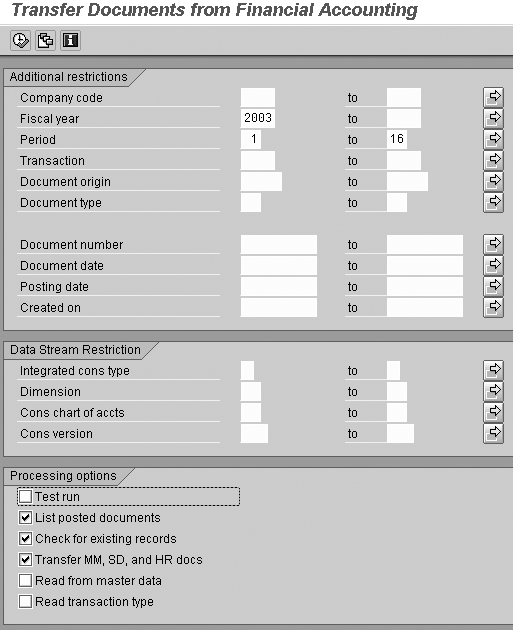
Figure 12
Transfer finance data to EC-CS
Figure 13 shows the number of transactions posted to EC-CS from FI via CXNM. It gives the document number list. You also can see the number of documents not posted correctly. Go to the Documents not posted tab to identify any issues. Now check the F.01 report and compare it with CX34 (the database list report) to make sure that the balances in FI and EC-CS match. Check the CXNX report and make sure that all the entries are in green.
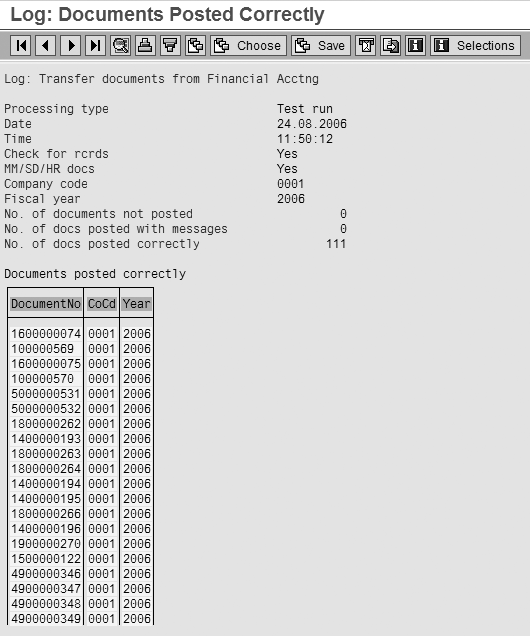
Figure 13
Output of CXNM transaction
Kiran Bapat
Kiran Bapat is an SAP FI/CO, EC-CS, and SEM-BCS expert. She has seven years of industry experience and has worked on SAP FI, EC-CS, and SEM BCS for three years.
If you have comments about this article or publication, or would like to submit an article idea, please contact the editor.




