Power users or developers with the appropriate authorization can connect end users to their BEx Web reports within R/3. This allows end users to perform detailed reporting and analysis from their current SAP session.
Key Concept
The role menu Web item permits users to access a Web menu that organizes Web reports in the same way as the folders in BEx Browser. This design benefits open environments that have little to no security restrictions in BW. More secure environments can use this function as well, since they establish roles and profiles based on user function. By selecting specific roles, users see a customized, uncluttered view of all their reports.
BEx Browser goes unused at some organizations because it’s difficult to regulate authorization roles and profiles while completing daily activities. In R/3, users often are afraid to branch out and use advanced BEx reports because they want to remain in their R/3 comfort zone. Users with BEx access often see a huge list of roles and folders and are unsure which report to choose (Figure 1).
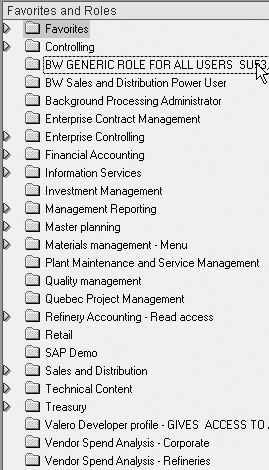
Figure 1
Typical BEx Browser display containing dozens of options
Users are more likely to take advantage of additional analytical tools in BW if they have easy access to them. By using the role menu Web item in Web Application Designer (Web AD) and the Favorites folder, analysts and business users can access BEx Web reporting and run reports in R/3. After you implement this procedure, end users can link directly to their specific roles and BEx Web reporting in R/3 or mySAP ERP Central Component (ECC). This technique works for BW 3.0 and Web AD 3.0 up to SAP NetWeaver 2004s.
I assume the following about your BW system: The roles are set up and a series of BEx Web reports exists that the end user accesses via BEx Browser, a portal, or an intranet.
Note
Depending on your organization, either a Basis or security team regulates and grants user role access. Each company sets up roles differently. Check with your Basis or security team to ensure that user roles and profiles are compatible with the procedure I describe in this article.
Configure the Role Menu Web Item
In Web AD 3.0 and up, the role menu Web item can link to all Web reporting in R/3. Execute Web AD (menu path Start>Business Explorer>Web Application Designer) and highlight the Role Menu Web item in Figure 2. The bottom of the screen has three tabs (Layout, HTML, and Overview). Select the Layout tab. Then, choose the Role Menu Web item and drag it to the right side of the page. Web AD displays the Role Menu Web item as an HTML icon (Figure 2). The HTML icon appears as a menu when you access it in R/3. The next step is to customize what roles users should see.
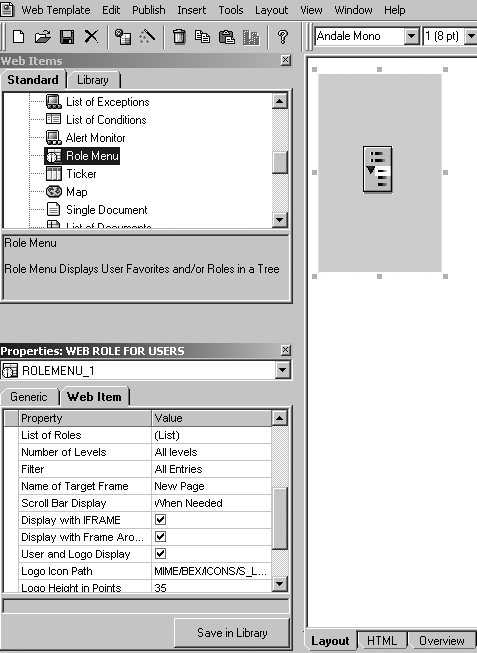
Figure 2
Highlight the Role Menu Web item
If you look below the Web Items area in the left side of the Web AD screen in Figure 2, you see another area entitled Properties. Click on the Web Item tab. The values in the columns labeled Property and Value affect how the role menu Web item behaves. You can control several attributes by changing the values of those line items. Each line item represents a property of the Web item. Changing the value of the property alters how the Web item behaves on the Web. The List of Roles line item in Figure 2 allows you to assign specific roles or folders presently on BEx Browser to a more customized menu path that end users find easier to view.
Select Your Roles
Double-click on (List) in the Value column in Figure 2 to see the List of Roles screen (Figure 3). If you are unfamiliar with role maintenance and administration, this would be a good time to involve your Basis or security administrators in the process to assign the right roles to end users.
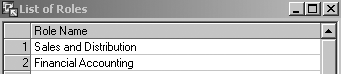
Figure 3
Click on the drop-down box to display a list of roles and select your roles
Click on the drop-down box in the right corner of the blank screen for a list of roles based on InfoAreas within BW as well as administrator and power-user roles. Assigning these roles in Web AD does not override individual security authorizations. However, it limits authorization. In other words, you can add as many roles as you want to this list, but if the users do not have these roles in their BW profile already, they do not have access. You can pick up to 15 roles per Web menu. In my example, I added two roles: Sales and Distribution and Financial Accounting (Figure 3). You also have the ability to create multiple Web menus for various user groups.
Click on the save icon to save your changes to the Web application. A dialog box appears (Figure 4). Save the template to your Favorites or to a place specifically for the IT staff. Give the Web application a Description and Technical Name and save.

Figure 4
Save the roles to your favorites
Test Your Customized Web Menu
Test your Web menu to make sure it works and contains the right roles listed on the Web menu. To execute your Web application, select the execute icon. You’ll see a dialog box asking you to provide a user name and password. Click on the OK button.
You should see a Web menu with the selection of roles that you chose to appear on your list (Figure 5). In this case, I selected two roles: Sales and Distribution and Financial Accounting, as seen in Figure 3.
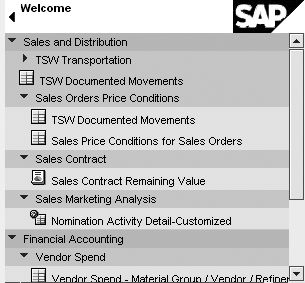
Figure 5
Web menu with links to various reporting options
In Figure 5, both roles have several folders with subfolders under them with indented arrows followed by Web reports as well as workbooks. These roles allow the user to view BEx reports in BEx Analyzer and view BEx workbooks, Web reports, transaction codes, and documentation in BEx Browser. These areas may correspond to your InfoAreas in BEx Analyzer. At this point, a user can select which item to execute. The Nomination Activity Detail-Customized item is a Web report and the others are workbooks.
Note
Businesses access Web reporting in many forms: Web links via intranet pages, portals, broadcasts of links, HTML pages, or Excel attachments to user groups. Some departments use and access BEx Web reporting in different ways, depending on the department or job function.
If you would like to learn more about BEx, SAP Education offers these classes in the US: BW305 SAP BW - Reporting & Analysis (for BW 3.5) and BW305 BI - Enterprise Reporting, Query & Analysis (for SAP NetWeaver 2004s). For more information, go to
www.sap.com/useducation.
Give Your Web Menu to End Users
In Web AD, capture the URL that connects your Web menu and Web reporting. To do this, select Publish>Copy URL to Clipboard to copy the URL in memory (Figure 6). Close Web AD and open an R/3 session.
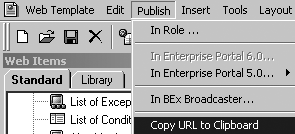
Figure 6
In Web AD, copy the URL in memory
The SAP menu is located in the top left corner of your R/3 screen. Right-click on the favorites icon to reveal the Favorites folder and the SAP menu. Right-click on your Favorites folder to see a dialog box and select Add other objects. In the screen that appears (Figure 7), choose Web address or file to copy your link to your Favorites folder.
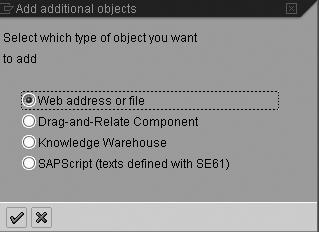
Figure 7
Choose Web address or file
Click on the green check mark icon to execute. You’ll see the screen in Figure 8, where you name the Web menu item and paste the URL link. Click on the green check mark icon to add the link to your Favorites folder in the R/3 menu (Figure 9). To execute the BEx Web menu, double-click on the globe icon in Figure 9. BW Web reporting via R/3 performs the same way as it does in BW.
BW teams should promote the business benefits of software like BEx and offer training. One easy way to encourage your end users to use BEx is to implement the process I’ve outlined here.
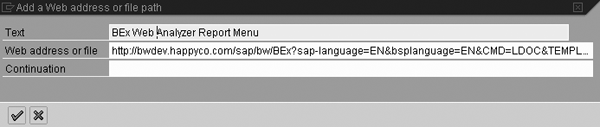
Figure 8
Name the Web menu item and paste the URL link
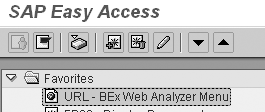
Figure 9
Access BEx Web reporting via your Favorites menu in R/3
Dr. Yasan Gooding
Yasan Gooding, Ph.D., is an information systems specialist with Valero Energy Corporation, Inc. He has worked with SAP NetWeaver BW for five years and works on the BW reporting systems front-end team developing, supporting, and gathering new reporting requirements for implementation to Valero's business units. He is a graduate of Saint Augustine's College and Iowa State University with majors in computer science and education.
You may contact the author at yasangooding@hotmail.com.
If you have comments about this article or publication, or would like to submit an article idea, please contact the editor.



 Premium