The SAP HR system often inadvertently exposes sensitive information. Follow this procedure to keep employees’ personal information such as Social Security numbers and other unique identifiers out of the wrong hands.
Key Concept
The key data that you must protect from exposure is known as personal identifying information (PII). This consists of an individual’s name, address, unique identifying number (such as a Social Security number or its international equivalent), and date of birth. This is familiar data to anyone who has ever had a job, applied for a loan, or participated in any health care activity. Over the past few years, the general public has begun to understand the intrinsic value of PII data. The increase in fraud is a less desirable consequence of the tremendous advances in collecting and processing data to provide enhanced value.
Recent stories in the news highlight the rise of identity theft and the increase in the number of data breaches at organizations around the globe. This correlation of events in the eyes of the public and legislative bodies has given rise to new laws and regulations that affect core HR data. The majority of the legislation relates primarily to the US. However, other areas (most notably the Asian and Pacific regions) are examining actions related to protecting personal data.
SAP HR professionals face the challenge of limiting the exposure of personal identifying information (PII) data within their own organization. New laws will soon require that organizations only use individuals’ Social Security numbers (SSNs) for payroll and a few other narrowly defined purposes. Several US states no longer use the SSN as a key for personnel identification for non-payroll information. IBM is one of the most visible and significant examples of the trend in securing SSNs with its mandate that all benefits providers use some other unique identifier.
How do you prepare for the limitations of using PII and SSNs? The first step is to identify where your organization properly uses it and where you need to control its exposure. I assume that HR users have authorization to view and use the PII data including the SSN. You should focus your efforts on end users outside of the HR user base with access to view SSNs. In this first of a two-part series about protecting personal data, I’ll explain the steps to remove PII like SSNs in screen headers. In the second article, I’ll describe how to minimize PII exposure and remove it from search helps.
In the standard delivered SAP HR application, the infotype headers come with many data elements. In a US-oriented system, this includes the SSN. In other countries, the SSN equivalent is also part of the standard-delivered header data elements (field PERID). You can customize these headers according to a company’s specific needs. Figure 1 shows the standard delivered header. Listing the information in the header exposes the personal data infotype 0002 to any user with any access, including display only.

Figure 1
This delivered infotype header includes the SSN or field PERID in the header data
The header modifier and associated header configuration are country specific (assigned to a country grouping). The header configuration allows a flexible method to tailor the display for any businesses requirements. Different countries have differing requirements for the header display and these requirements relate to the country grouping. This is how SAP associates the right data to the right requirement.
The need rarely arises to change the SSN because most people keep the same number for life. Therefore, you should help protect employees’ PII by eliminating the name and SSN from the header view whenever possible to minimize its exposure to casual viewers. Every person passing by a monitor with the standard display has the potential to note the name and SSN.
The greatest passive observational threat exists in key public areas such as employment reception, benefits, administration, or payroll offices. These areas often have high public traffic, SAP HR professionals, and casually exposed monitors.
Remember that you can assign every infotype to a different header definition. When a specific business requirement arises to display PII in the header, you should customize to meet those needs. For example, payroll administrators must use SSNs, so you should allow them to use SSN as a search term. Organizations should pay close attention to the circumstances of exposing any PII and plan to protect it with policies, procedures, and systems protections when possible.
The SAP-delivered search helps for looking up people include the SSN as a standard (Figure 2). When you execute the search help without criteria, R/3 may return all SSNs along with the PERNR. In the case of Figure 3, you could easily view the data in the PersNo column as well as the associated employee’s name (in the Last name – First name tab). This type of search links a piece of PII data (employee name) with a unique identifier (SSN), the very definition of a data privacy breach. You should examine the default settings to determine whether they provide any business value and if they are necessary.
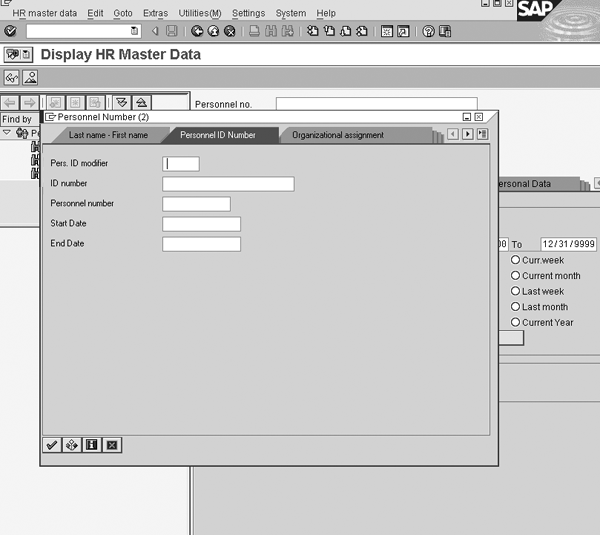
Figure 2
Standard search help for finding a person (PERNR). Note the ID number field; this is the SSN in US implementations.
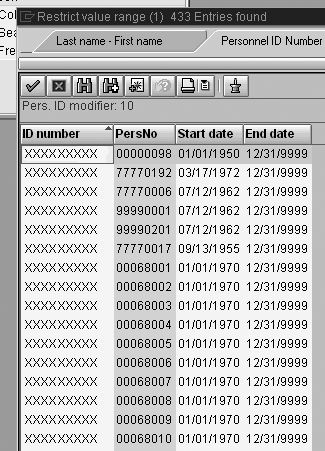
Figure 3
The ID number column consists of SSNs and the PersNo column contains PERNR data. Avoid presenting this information together with the name data in the Last name – First name tab.
This vulnerability occurs in all PERNR-related search helps. Examining the occurrence of the SSN in SAP is not currently a standard security practice, so you can often find this problem outside of the HR user base. The SAP HR support team and user base should ask the security manager whether this practice fits your security management plan.
Note
If you’re new to SAP HR, you can execute a search help by pressing F4 or using the drop-down icon.
Note
Perform these steps in the development system to ensure they work. Then, follow the normal change management procedures for system changes (e.g., document and monitor the changes).
Create Infotype Headers without PII
You can follow this procedure in any release of SAP HR. The settings you need appear in two areas, the infotype header definition nodes and the search help nodes. Adjusting them to achieve a better data protection is relatively simple but does require a minimal understanding of the infotype header structure and the way SAP defines search helps.
First, go to the Implementation Guide (IMG) using transaction SPRO. Open the Personnel Management node and then the Personnel Administration node. Select the Customizing User Interface node. Execute the Change Screen Header selection. Figure 4 displays the resulting activities that allow the user to change the header and eliminate any PII data.
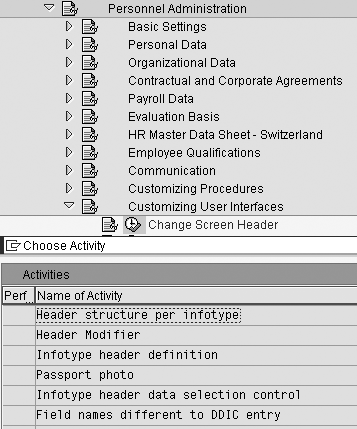
Figure 4
The IMG area to change the infotype headers
Double-click on the Header structure per infotype node to bring up the header identifiers assigned to the various infotypes. SAP delivers standard header identifier assignments and assigns header ID definitions to specific infotypes or infotype groups. They are standard functionality and you can customize them. Table 1 shows the assignments for the Personnel Administration (PA) infotypes.
In the example shown in Figure 5 (table V_582A_B), the main assigned headers are 01, 02, and 10. Note they are assigned to the Actions infotype 0000, the Personal Data infotype 0002, and the other common infotypes. It is important to determine which headers have the SSN or PERID field in their definition. It is a good practice to verify the delivered header configuration of each infotype planned for use in meeting your business requirements.
| Header ID |
Standard SAP infotype assignment |
| 02 |
Most other infotypes |
| 03 |
Infotype 0001: organizational assignment
Infotype 0039: additional organizational assignment (Switzerland) |
| 04 |
Most Personnel Time Management infotypes |
| 10 |
Infotype 0000: actions
Infotype 0302: additional actions
Infotype 4000: applicant actions |
|
| Table 1 |
PA infotype assignments |
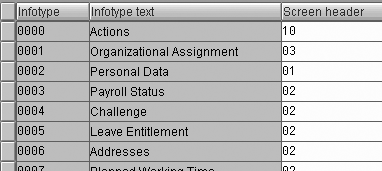
Figure 5
Header identifiers assigned to infotypes (table V_582A_B)
You can check any PII in the header (usually the SSN) against the risk of exposure and the business requirement. You should check the delivered configuration of every infotype you plan to use in your company to verify whether the SSN or PERID field is included in the header. These are the headers that you need to change.
Once you know the header identifiers to change, return to the screen in Figure 4. Execute the Header Modifier option of the Change Screen Header configuration node (Figure 6).
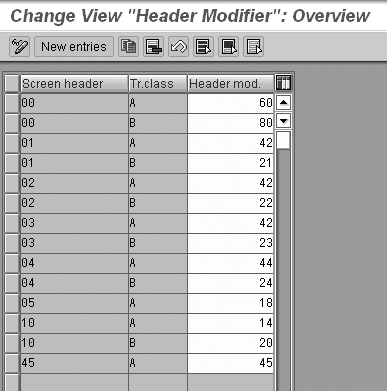
Figure 6
Link the header ID to the modifier (table V_T588I)
In Figure 6, the modifiers are 14 and 42. These provide a link to the field-level definition where you perform the actual change to the field in the header. The screen headers also relate to the infotype transaction class. Class A is for employee master data (PA TCLAS) and class B is for applicant master data (PB TCLAS).
The PERID stores the SSN number that infotype 0002 contains. Figure 7 shows the two components that you see when you execute the Infotype header definition node from the screen in Figure 4.

Figure 7
The header modifier links to the specific fields for display in the header (table T588J)
In Figure 7, the header modifier links to location information to display the field header. It also specifies the infotype and the fields from the infotype. To remove the SSN from the header, simply delete the related field entries for the header modifier. In this example, I deleted both the DAT (data field) and the TXD (text ID) lines from the header modifier numbers 14 and 42 from the header definition. To delete the PERID entry, select the appropriate line in the table and click on the delete icon or press Shift-F2.
Once you complete and save the configuration, test it by clicking on the Single test button (Figure 8). Next, activate the new configuration by clicking on the Generate button to generate the code for the header. What you do with the code depends on how your technical team configured your client. If the client is set up to record configuration changes, then the system automatically includes the generated code in the associated transport. However, if the client is set otherwise, then the next steps depend on the setting and client state. Figure 9 shows the standard and modified infotype headers.
Tip!
Make sure you look for the headers in all your screens. The screen headers for transactions PPOxx (e.g., PPOME and PPOSE) usually include the SSN or PERID by default (Figure 10).

Figure 8
Test and generate your changes

Figure 9
The infotype header before and after changes

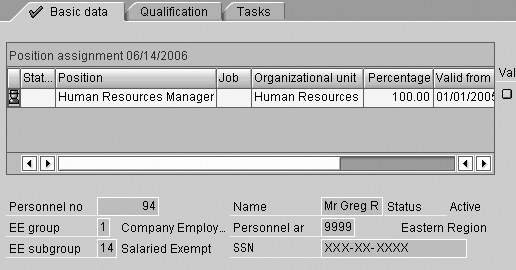
Figure 10
The personal information section of the PPOSE screen shows the SSN
Find the header assigned in the PPOxx screens by selecting one of the fields in the subscreen. Use the F1 key to access the help for that field. Access the technical details for the field. The screen displays the program name; for example, /1PAPAXX/HDR_10042A in Figure 11. The last three characters display the header modifier and transaction class for the screen. In this example, it is header modifier 42 for transaction class A, employee master data. When you have identified the header modifier, you can make changes as described in the steps above, if required.
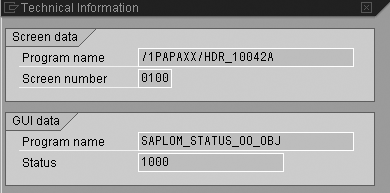
Figure 11
The pop-up screen that you see after you press F1 and access the technical details on the PPOSE personal data subscreen

Greg Robinette
Greg Robinette is currently a Level 5 Systems Engineer at Huntington Ingalls–Newport News Shipbuilding. His primary focus is on the SAP systems and supporting the delivery of HR, Payroll, and Environmental, Health, and Safety business value. He is an active member of the Newport News Shipbuilding Information Technology Change Agent Network and provides support as needed to the Systems Engineering Community. Previously, Greg was an independent SAP HR/HCM, SAP Security and Privacy Technology consultant with over 15 years’ experience in SAP HCM, SAP security, HRIS, and privacy consulting. He is certified as an information security manager (CISM) by ISACA, as a Project Management Professional (PMP) by the Project Management Institute, as a Scrum Master (CSM) by the SCRUM Alliance, and as an SAP HR/HCM consultant by SAP.
You may contact the author at gregrobinette@cox.net.
If you have comments about this article or publication, or would like to submit an article idea, please contact the editor.




 Premium