Manager/Mobile
Learn about a number of the features and enhancements that have been added since Solution Manager Support Package (SP) 05. A few of the features were actually released in SP06 but have been recently enhanced in SP08, which came out in February 2013. Plus, see some sneak peeks at what is to come later in the year with SP09 and SP10.
Key Concept
Support Package Stacks are collections of Support Packages and patches. Support Package Stacks provide added functionality as well as corrections for known issues within specific SAP products. Keep in mind Support Package Stacks also remove unnecessary or outdated functions. SAP recommends applying Support Package Stacks on a regular basis, at a minimum of once a year. Even-number Support Package Stacks primarily provide added functionality but can also include corrections. Odd-number Support Package Stacks are primarily comprised of corrections to known issues.
SAP released a number of significant features and functionalities in the last few Support Package Stacks for Solution Manager leading up to Support Package 08 (SP08), which came out in February 2013. These features involve updating the following processes:
- Engagement and Service Delivery
- Solution Implementation
- Template Management
- Test Management
- Change Control Management
- IT Service Management (ITSM)
- Technical Operations
- Upgrade Management
This article focuses on the enhancements and new features with SP08 in the following four main areas:
- General enhancements to Solution Manager
- Technical operations
- Technical monitoring
- Mobile applications
I’ll look at each of these in more detail. Later in the article I’ll discuss what SAP has announced about SP09 and SP10, which are due to be released simultaneously in the fourth quarter of this year.
Note
For more information about the Support Package Stack maintenance schedule, go to service.sap.com/support and follow menu path Software Downloads > Support Packages and Patches > SAP Support Package Stacks > SP Stacks Maintenance Schedule. You need login credentials to the SAP Service Marketplace.
Note
When applying Support Package Stacks, you should use the Maintenance Optimizer to determine which products need to be updated, followed by using Software Update Manager (SUM) to implement the updates and the Support Package Stack. I always recommend following SAP Guides, especially if SUM is new to you. You can find the guide for SUM at service.sap.com/instguides and by following menu path SAP Components > SAP Solution Manager > Release 7.1 > 5a Upgrade with SUM. You need login credentials to the SAP Service Marketplace.
Landscape Management Database
There are a number of changes to the Landscape Management Database (LMDB). For one, you can now create, display, and edit product systems in the LMDB (Figure 1). LMDB provides the ability to manage product systems within the LMDB instead of transaction SMSY. This is one more step in the direction of eventually making SMSY obsolete.
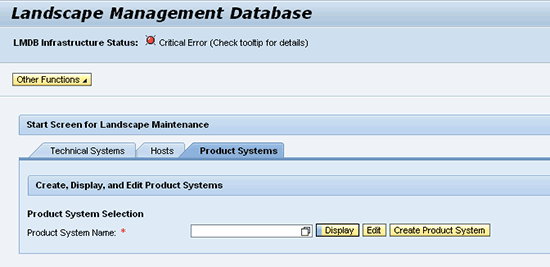
Figure 1
The LMDB
You’ll also notice there is now an LMDB Infrastructure Status indicator at the top of the screen, allowing you to quickly determine the infrastructure status of LMDB without having to navigate to the LMDB administration tool (Figure 2). Further, under the Other Functions button, there are quick links to the LMDB administration tool and the Solution Manager Administration work center. There are also options to quickly display license data and generate an installation key.
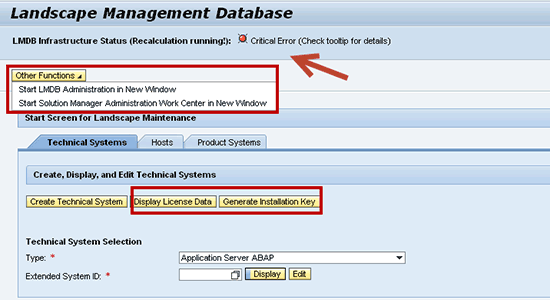
Figure 2
LMDB added functionality
Mobile Applications
Before I go into the new mobile applications, there are a few required technical components. First of all, you must be on Solution Manager 7.1 with at least at SP06. The mobile service must be activated within transaction SICF. System Preparation, Basic Configuration, and System Monitoring must be completely configured and activated via transaction SOLMAN_SETUP. Finally, you must complete the required configuration for the specific mobile application you want to use.
For connectivity to mobile devices outside your corporate network, you need one of these three required options:
- SAP Mobile Platform; previously known as Sybase Unwired Platform (SUP) 2.1.3
- SAP NetWeaver Gateway
- Port forwarding through the corporate firewall
As you can see in the system monitoring app connection settings in Figure 3, you are provided two ways of setting up the connection, SAP NetWeaver Gateway or SUP. Port forwarding uses the SAP NetWeaver Gateway option.
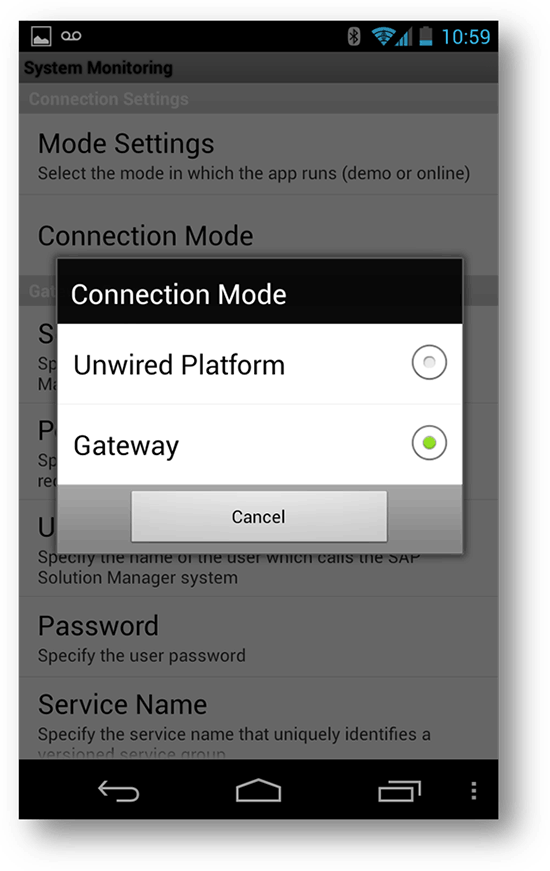
Figure 3
Mobile app connection settings
There are four Solution Manager mobile apps:
- System Monitoring
- IT Incident Management
- End User Experience Monitoring
- IT Change Approval
System Monitoring Mobile Application
This System Monitoring app is compatible for both Android (Figure 4) and Apple iOS (Figure 5). This app provides you with quick access to the live status of all active metrics on Solution Manager. It is identical to the System Monitor tool on Solution Manager with all the same metrics and alerts for technical systems, instances, databases, and hosts. It allows you to quickly respond to alerts and drill down to single metrics to see their current status. To use this app, you need to have completed managed system configuration and technical monitoring for each managed system.

Figure 4
The System Monitoring app - Android version

Figure 5
The System Monitoring app - Apple IOS version
IT Incident Management Mobile Application
The IT Incident Management mobile app is currently only available for Apple iOS. It allows you to respond quickly to ITSM tickets by making them available on mobile devices and providing detailed information about the tickets, including processing status, categories, priority, and attachments. In it, you can update, reply to, and confirm incident messages (i.e., Service Desk tickets). It requires you to configure IT Incident Management before using it. You can see the iOS version displayed on an iPad in Figure 6.
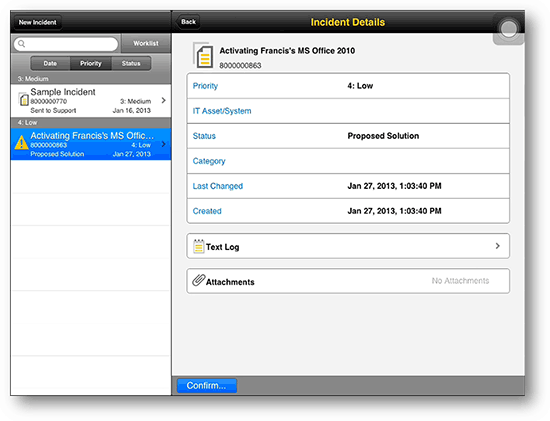
Figure 6
The IT Incident Management app - Apple IOS version
End User Experience Monitoring Mobile Application
The End User Experience mobile app is available in both Android and Apple iOS versions. It displays step-level details and error messages for the execution of an End User Experience monitoring script. You can display the results of the latest executions of a specific script on a robot, as well as see the status of those robots. To use the app, you must configure End User Experience Monitoring and deploy agents.
IT Change Approval Mobile Application
Like the IT Incident Management mobile app, the IT Change Approval app is only available for Apple iOS devices (Figure 7). It allows you to view, approve, and reject change requests. You can also sort the requests by multiple categories and view detailed information about them, such as categories, assigned approvers, test logs, and attachments.

Figure 7
The IT Change Approval mobile app - Apple IOS version
Technical Operations
Technical Operations has a number of new features as well as enhancements to previously released functions. New features include:
- Interface Channel Monitoring
- Operating System Command Adapter
- Remote Operating System Script Collector (ROSSC)
- Data Volume Management (DVM) Achievement application
Interface Channel Monitoring
Interface Channel Monitoring allows you to monitor the performance of interfaces between systems in real time. You can look into the technical interface landscape that covers Remote Function Calls (RFCs), Web services, and process integration interface channels.
There are four available metrics for each connection type:
- Usage: The number of function calls in a specific period of time.
- Response time: The average response time of a specific RFC or Web service.
- Availability: Solution Manager uses a simulated RFC or Web service every minute (or other custom interval). This provides the percentage of successful RFCs or Web services.
- Exceptions: The type and number of errors over a specific period of time.
You can define global interface channel attributes that are used to define a bundle of interfaces. Interface Channel Monitoring is comprised of monitoring scenarios made up of interface channels and connections that you define.
Note that monitoring is only available for ABAP systems at SAP Basis 7.00 and higher and SAP NetWeaver Process Integration systems at 7.00 and higher. You must complete managed system configuration and system monitoring for each system before using this feature.
Operating System Command Adapter
This adapter uses system monitoring to run operating system commands based on an alert. It allows for tickets to be generated in a third-party ITSM system when specific alerts are generated from system monitoring. It uses a Monitoring Architecture (MAI) Business Add-In (BAdI) to send specific alert information in one direction: to third-party tools. The MAI BAdI also triggers the OS command based on specific system monitor alerts.
To use the adapter, you must complete managed system configuration and system monitoring for each managed system.
Remote Operating System Script Collector (ROSSC)
The ROSSC allows you to integrate the monitoring infrastructure and custom operating system scripts providing unlimited monitoring possibilities. First you must create an OS script that can be run with the diagnostic agent admin user. Then you need to create a custom metric that calls the status of that specific custom OS script. Solution Manager uses the Diagnostic Agent on the managed system to collect the status of an OS script. You must complete managed system configuration and system monitoring for each managed system. The custom metric utilizes the Remote OS Script Data Collector for your specific OS script. Figure 8 is an example of the remote operating system script data collector.
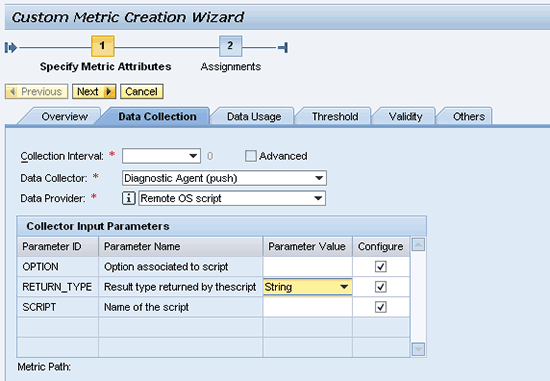
Figure 8
Remote OS Script Data Collector
DVM Achievement Application
The DVM Achievement application provides an overview of data management achievements (i.e., the amount of data archived and amount of disk space achieved due to data archiving). In addition to monitoring data volume management, you can also view the growth of databases and archiving systems. You can see the total amount of archived data delineated into monthly (or other amounts of time) totals.
In addition to these new features, there are also enhancements to existing capabilities, such as system monitoring and EarlyWatch reports.
System Monitoring Enhancements
One key system monitoring enhancement is template export (Figure 9). Template export allows you to export individual system monitoring templates, including custom versions. You can review current monitoring metric thresholds and manage and distribute system monitoring settings. It also creates an HTML Web site with all metrics and alerts in a system monitoring template that is easily printable. You can download the template in two views: simple and detailed. The export template function is located in the Template settings tab on each template Figure 10 is an example of the actual exported template.
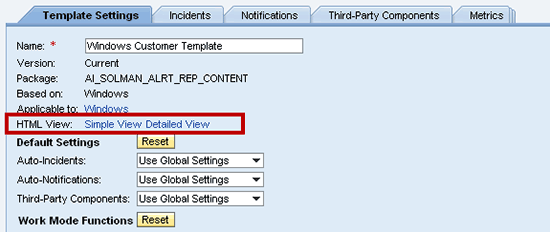
Figure 9
The template export funciton on every template
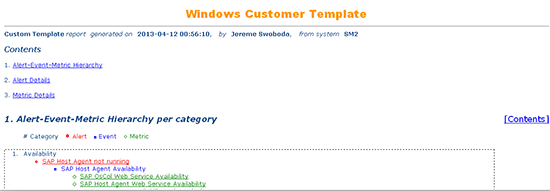
Figure 10
An example of the exported monitoring template
A few of the metric data collectors have been renamed, making it easier to determine which tool is doing the actual data collection. The three tools that have been renamed are the Diagnostic Agent (DAA), Wily Introscope, and RFCs from either the DAA or Solution Manager, as shown in Figure 11.
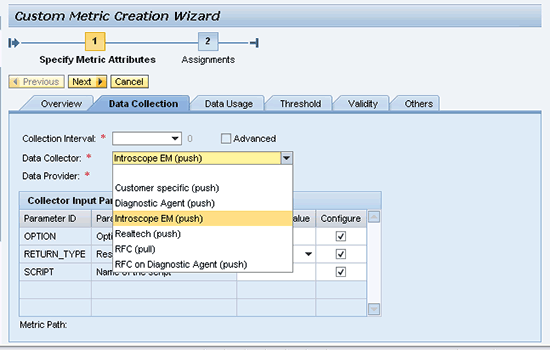
Figure 11
The actual data collectors
You can now monitor specific background jobs via a new data collection metric. A metric is a tool within system monitoring that collects data on a specific monitored object within a system. It monitors the background jobs. You have different options for monitoring, including the status of the background job, monitoring based on a specific client, or monitoring on a specific instance. The system uses an RFC to collect the data. Figure 12 shows the actual metric for monitoring specific background jobs.

Figure 12
A batch job metric data collector
There are now also two options to apply and activate templates to managed objects: You can apply and activate templates to all managed objects, or to selected objects only. This provides quicker processing time when making changes to templates. You can also apply and activate templates within each template from the Managed Objects tab (Figure 13).

Figure 13
New location to apply and activate monitoring templates
EarlyWatch Report Enhancements
You can now send business process data to SAP via EarlyWatch reports, allowing for feedback directly from SAP concerning your business processes. This setting is located via the SOLMAN_WORKCENTER transaction within the System Monitoring Work center > Setup section > Configure for a Single Solution > Details (Figure 14).
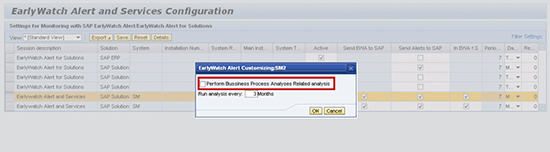
Figure 14
Early Watch Alert settings
IT Service Management (ITSM)
A new feature with ITSM is the integration with the Operating System Command Adapter. This allows for tickets to be generated in a third-party ITSM system.
You can find a complete list of ITSM changes (beyond those mentioned in this article) by going to help.sap.com and following menu path Application Lifecycle Management > SAP Solution Manager > SAP Solution Manager 7.1 > Application Help > SAP Solution Manager 7.1 SP08 > English > Changes and New Features in SAP Solution Manager 7.1 SP08.
What’s Next: SP09 and SP10
SAP has decided to combine SP09 and SP10 and tentatively release them at the same time, October 2013. Among the planned enhancements and features are the following:
Enhancements
I've grouped the enhancements coming with SP09 and SP10 in the following five areas:
- Integration of all SAP Notes within the Support Package. In an effort to simplify the Support Package upgrade process as well as minimize the amount of time it takes to implement the Support Package, SAP is planning to include all required SAP Notes for the Support Package upgrade.
- cProjects will integrate with Solution Manager. This allows for the tasks and users to be automatically created. It allows you to manage cProjects directly within Solution Manager and minimizes the time for, and amount of, configuration required for cProjects.
- Enhancements to three areas within Technical Monitoring: system monitoring, orchestration monitoring, and interface and connection monitoring. For system monitoring, SAP is adding monitoring capabilities for more SAP and non-SAP components and providing automatic reconfiguration of monitoring after changes in the landscape. For orchestration monitoring, watch for dedicated message flow monitoring and workflow monitoring of business process management. For interface and connection monitoring, IDoc and queued RFC (qRFC) interface monitoring types are planned.
- Root Cause Analysis: Analysis of Sybase Unwired Platform (SUP).
- ITSM. SAP is planning for simplified configuration, license management service catalog features (i.e., allowing end users to request hardware), and guided procedures.
New Features
There are three notable new features with SP09 and SP10:
- SAP HANA sizing tool. This provides easy calculation of memory and disk space requirements for a HANA project.
- Central CTS infrastructure. This added function to CTS allows the clustering of multiple systems to provide a transport route between multiple systems. It also improves change control management and provides more transport flexibility.
- EHP Scope and Effort Analyzer. This simplifies the planning of future software deployments.
Eliminated Feature
There is one significant eliminated feature: Transaction SMSY will no longer be necessary with SP09 and SP10. It will be replaced with the LMDB, which incorporates features from SMSY.
For the latest information on the planned enhancements and added features of Support Package Stack SP09 and SP10, go to service.sap.com/support and follow menu path Release and Upgrade Info > Road Maps > Product and Solution Roadmaps > Database and Technology > SAP Solution Manager > Edition 2013 Q1 V3 or April 2013 Webinar. This path requires login credentials to SAP Service Marketplace. As with all roadmap-type information for SAP, this is subject to change.
Jereme Swoboda
Jereme Swoboda is an experienced SAP Solution Manager and NetWeaver consultant focusing on proactive technical monitoring of SAP and non-SAP systems, supporting critical business processes. He has tremendous experience pairing real-world scenarios with Solution Manager’s Technical Monitoring capabilities. He is an expert at collecting requirements, creating a monitoring strategy, and then putting that strategy to work for SAP customers. Jereme has had the opportunity to work on a variety of platforms for companies large and small integrating Solution Manager 7.1.
You may contact the author at jereme.swoboda@benimbl.com.
If you have comments about this article or publication, or would like to submit an article idea, please contact the editor.