See how to maintain a hierarchy in an SAP Planning and Consolidation (BPC) system that merges data originating from a source system (SAP NetWeaver BW) with manual assignments done in a BPC system. You can extend this method, which is applicable for the SAP NetWeaver version, to merge data from two different sources. It is scalable and can be used for any number of dimensions once the steps listed here are followed.
Key Concept
SAP Planning and Consolidation (BPC) enables data to be grouped and analyzed using a hierarchy. You can create multiple hierarchies on a single dimension to make the analysis of data flexible. In the process of maintaining hierarchies, it may be necessary to merge data from a single hierarchy from a source – say the hierarchy data from SAP NetWeaver BW – with manual assignments done in SAP BPC.
In some business scenarios, it is necessary to pull data from multiple source systems into an SAP Business Planning and Consolidation (BPC) system. For example, in an initial implementation of a planning application, the data may be brought from a legacy system via flat files. This would serve as the history data.
The data after go-live may flow from the SAP ERP Central Component (SAP ECC) system into SAP NetWeaver BW and then into an SAP BPC system. This is especially true of organizations maintaining data in multiple source systems or for those that are implementing an SAP system for the first time. There may also be cases in which master data is maintained in the BPC system and is not available in the other SAP systems. The data in the BPC system is the one that is primarily required for reporting. These requirements call for master data to be maintained from more than one source such as a legacy, SAP ECC, or BPC system.
The ability to create hierarchies to group data inside a dimension helps in analyzing data. For example, if a company is involved in two business areas, say beverages and snacks, the data associated with beverages and snacks can be identified separately under a hierarchy and analyzed. This grouping could help the organization to determine how well each line of business is performing.
While the hierarchy data is clean when it is bought from one source system, it becomes muddled when the data is bought from a source system and customized with manual assignments. For example, when a hierarchy is brought from an SAP NetWeaver BW-based hierarchy into BPC, any hierarchy mappings maintained manually for the same hierarchy are lost. This presents a challenge in maintaining the hierarchies. The question is how to maintain the manual mappings when you load a hierarchy from SAP NetWeaver BW.
Note
Our solution is based on SAP BPC 7.5 and earlier versions. Also, bsic knowledge of ABAP is required to complete the steps outlined in this article. We have included the ABAP code within the article and
as a separate download via this link.
The example illustrated in this article supports the following requirement. The master and hierarchy data is extracted from the customer InfoObject in the SAP NetWeaver BW system into the customer dimension in BPC. However, a few customers are maintained in BPC only. Those customers need to be grouped under a hierarchy. When hierarchy data is loaded from SAP NetWeaver BW into a dimension using a Data Manager package, any manual hierarchy mapping maintained in the BPC system for this dimension is lost and replaced with the hierarchy data in the SAP NetWeaver BW object. The enhancement explained in this article helps to maintain the hierarchy mappings for data that exists only in BPC. Take the following steps to unify data loaded from a SAP NetWeaver BW hierarchy with data defined in a custom dimension to create a hierarchy inside BPC.
Note
BPC, version for NetWeaver, requires the Microsoft Office Add-in for BPC for reporting.
Step 1. From the Windows menu, select Planning and Consolidation Administration and log in to the BPC Administration Client. Select the application set for which the dimension and hierarchy data is required. Then create a user-defined dimension in that application set.
Once you are logged in to BPC, you see the screen displayed in Figure 1. To create a new dimension, click Dimension Library and select the Add a new dimension option under the Dimension Tasks in the right pane, as shown in Figure 1.
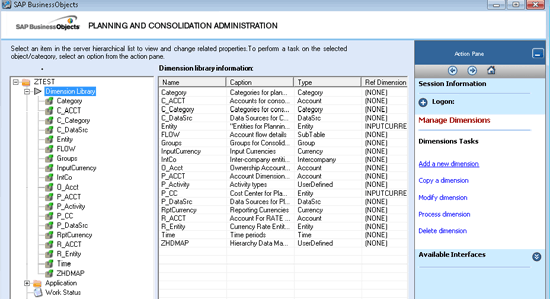
Figure 1
Create a user-defined dimension

Figure 2
Properties of the ZHDMAP dimension
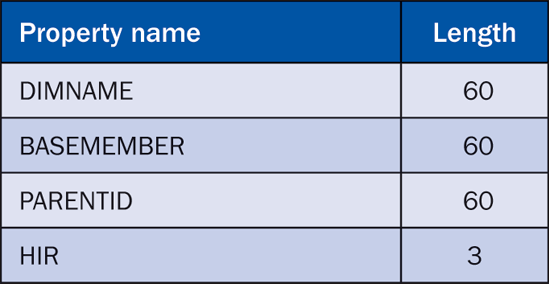
Table 1
Properties of the ZHDMAP dimension

Figure 3
Dimension members in the ZHDMAP dimension

Table 2
Dimension members in the ZHDMAP dimension
Note
The steps for creating a BAdI implementation are beyond the scope of this article.
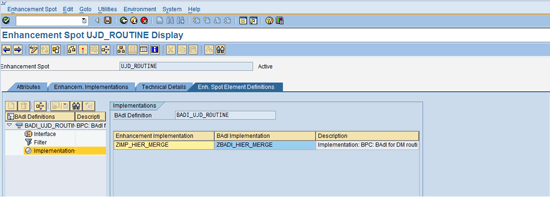
Figure 4
BAdI implementation

Figure 5
BAdI code – Unify hierarchy data from SAP NetWeaver BW with data in custom dimension
Each implementation includes a Filter name by which it is referenced in BPC. To set a filter name for your implementation, double-Click Filter in the BAdI created in Figure 4. Then create a filter for the BAdI. We named the filter ZHIERMAP (Figure 6).

Figure 6
BAdI filter

Figure 7
Transformation file

Figure 8
Conversion file

Figure 9
Hierarchy before custom enhancement

Figure 10
Hierarchy after custom enhancement
Sridhar Srinivasan
Sridhar Srinivasan is an SAP BPC/BI solutions architect working for Zebra Consulting, Inc. Sri has been working with SAP products since 1995.
If you have comments about this article or would like to submit an article idea, please contact the BI editor.
You may contact the author at sri.srinivasan@zebraconsultinginc.com.
If you have comments about this article or publication, or would like to submit an article idea, please contact the editor.
Kumar Srinivasan
Kumar Srinivasan is a senior SAP BPC architect working for Zebra Consulting, Inc. Kumar has more than two decades of experience in information technology.
You may contact the author at kshrini77@yahoo.com.
If you have comments about this article or publication, or would like to submit an article idea, please contact the editor.