When organizations implement SAP HANA, they need to devise a strategy to protect the data that the system manages in-memory. Depending on your SAP HANA use case, failure to protect this data can lead to significant monetary or productivity losses. One way to protect the data is through the implementation of a backup and restore strategy. This article helps to fortify your general knowledge of the SAP HANA backup and restore process.
Key Concept
Failure to back up log files can crash your SAP HANA system. Backup files should not be stored on the same file system that contains SAP HANA data files. Log segment backups need to be configured to a partition that can achieve throughput of 200 gigabytes (GB) to 300 GB per hour. SAP HANA studio contains a graphical user interface to manage the backup and restore process. The SAP HANA backup catalog needs to be kept small and pruned of any orphaned backup jobs. The restore process uses the database redo logs to provide precise point-in-time recovery.
SAP HANA has many technical features that make it a top-notch data management platform. One of the most promising features is its ability to store data in memory. In-memory data storage has the benefit of providing faster query access to data. With its speed advantages, SAP HANA can overcome many of the historical limitations of the legacy disk-bound database.
At its heart, SAP HANA stores data in memory. In-memory is a term used to describe the storage of information on random access memory (RAM) chips, solid-state disks (SSDs), or other flash memory devices. However, SAP HANA stores active data within RAM. By most estimates, RAM is thousands of times faster than SSD and hundreds of times faster than most flash memory devices. Therefore, SAP HANA has a huge advantage when compared with other relational database management systems that leverage SSD or flash storage technologies.
RAM is volatile, meaning that the data it stores is discarded when power is removed from the system. With this in mind, SAP HANA has mechanisms built in to protect in-memory data by committing it asynchronously and synchronously to persistent storage devices. In essence, SAP HANA has an automatic built-in in-memory backup mechanism. To further protect the data that is stored on SAP HANA’s persistent disks, organizations also need to devise a strategy to back up this data. This is a strategy in which the persistent data in SAP HANA is stored one or more times in anticipation of data loss.
As organizations adopt SAP HANA and run their critical systems on its platform, SAP HANA business continuity plans become a necessity. SAP HANA supports both high availability (HA) and disaster recovery (DR) through a variety of solutions. However, a backup and restore strategy is at the center of all SAP HANA HA or DR plans. The goal of this article is to educate you on the core options related to the SAP HANA backup and restore process. I then conclude with a few recommendations for implementing a proper SAP HANA backup strategy. SAP HANA supports two primary types of backups: data and log-segment backups.
Data Backups
Data backups create a copy of all data that is stored within SAP HANA specific to the time that the backup was initiated. Starting with SAP HANA Support Package Stack 10 (SPS10), there are three main types of data backups: full, delta incremental, and delta differential.
Full Backup
As shown in Figure 1, a full backup captures the complete state of all persistent data in the SAP HANA system. When you recover from a full backup, the SAP HANA system contains only the data from that point in time.

Figure 1
A full data backup and restore
Depending on the volume of data stored in SAP HANA, the traditional full backup can take from several minutes to several hours to complete. The size of the full backup is typically proportionate to the size of the SAP HANA persistent disk data files. The backup can be conducted while the SAP HANA system is running. Because the SAP HANA system is operational, careful attention should be given to the duration of the backup and the resources it consumes. For scalability purposes, SAP HANA offers two delta backup processes (discussed below) to reduce the duration and impact to SAP HANA resources.
Ideally, the backup files would be stored externally to the SAP HANA system. For example, you can mount a Network File System (NFS) share on the SAP HANA operating system (OS). You can then create scripts to perform a full system backup and store it on this share. Some organizations also choose to use supported third-party backup software to execute and store their full data backups external to the SAP HANA system.
Delta Incremental Backup
A delta incremental backup can be implemented to support smaller and more frequent backups of the system. Each delta incremental backup contains the data changes only from the preceding incremental backup. As shown in Figure 2, ideally you would perform a daily full backup and then perform multiple incremental system backups throughout the day. When restoring incremental backups, you need the preceding full backup and each associated incremental backup. The restore process uses the full data backup and each incremental backup to restore the database to a point in time.

Figure 2
The incremental delta backup and restore process
The recovery point in time depends on which incremental backup files are used during the restore process. Because each incremental file is assumed to be small, this is an excellent option to choose when backups need to be replicated off-site or over a slower network. However, the restore process can take time as it works through each incremental file set.
Delta Differential Backup
Delta differential backups are similar to delta incremental backups. However, each differential backup contains all the changes from the last full backup. Figure 3 shows how each differential backup contains the same data as the prior differential backup and any new data changes after the last full backup. If you are performing a daily full backup and then multiple differential backups, a single differential backup file and the full backup can be used to restore the system to a particular point in time.
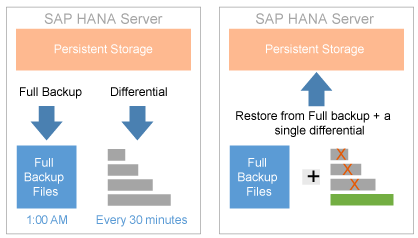
Figure 3
The differential delta backup and restore process
Log-Segment Backup
Log-segment backups are the second type of backup that SAP HANA performs. They back up the database log files used to provide transaction rollback and replay within the SAP HANA database management engines. By default, log-segment backups are completed every 15 minutes automatically. They are stored on the local disks in the $(DIR_INSTANCE)/backup/log mount by default. As I discuss later, they are very important to both the health and disaster recoverability of the SAP HANA system. Log-segment backups alone cannot be used to recover an SAP HANA system. They are a secondary type of backup that can be used with a full system backup to provide specific point-in-time recovery.
Log-segment backups also contain a backup of the SAP HANA backup catalog. The backup catalog contains a log or listing of all backups that have been performed within SAP HANA. This includes data backups, delta backups, and log-segment backups. The catalog stores information such as the backup ID, the backup type, the backup storage location, the backup start time, the backup file path, and backup file name.
This information can be used during the restore process to pinpoint the exact backup files required to restore the SAP HANA system to a desired point in time. Because the catalog backup process is a component of the log-segment backups, special attention should be given to the location of the log-segment backup files. Without the backup catalog or its backup, the restore process is limited to using only specified point-in-time full-data backups plus any available delta backup files.
The backup catalog can also be pruned to eliminate backup entries that are no longer needed or entries that are orphaned. Orphaned entries reference backup files that no longer exist. The command listed in Figure 4 can be executed with the SAP HANA SQL console to prune the backup catalog of all backups that occur before the provided backup ID. When the COMPLETE command is added, the command also removes the data backup and log segment backup files from the file system. This is an excellent way to discard unneeded backup files while reducing the size of the backup catalog itself.
BACKUP CATALOG DELETE ALL BEFORE BACKUP_ID <?BACKUPID?> COMPLETE
Figure 4
An example command that can be used to prune the backup catalog
Initiating a Data Backup
There are three main ways to initiate a data backup within SAP HANA. The options include using SAP HANA studio, executing a command within the SQL console, and using a third-party backup agent. SAP HANA studio is a graphical user interface (GUI) designed to facilitate both development and administration tasks within SAP HANA. Among other options, SAP HANA administrators can use it to manage security, change system settings, conduct restarts, back up the system, and restore the system. SAP HANA studio contains a backup console that can be used to monitor and manage backup settings.
SAP HANA Studio
To access the backup console, right-click your system in SAP HANA studio. Choose Backup and Recovery from the pop-up menu in Figure 5 and then click the Open Backup Console option.
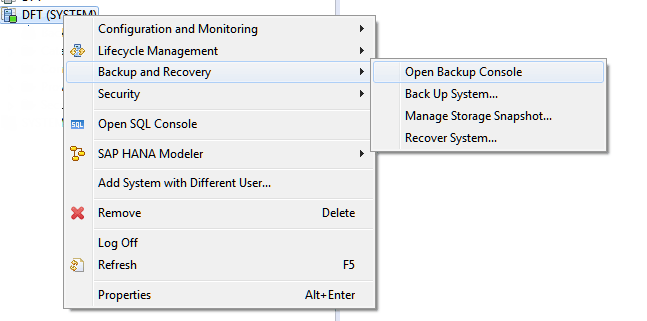
Figure 5
Opening the backup console within SAP HANA studio
The backup console Overview tab contains information about in-progress and prior backups. Tabs at the top allow administrators to see an overview, access backup configuration, and view the backup catalog information. Figure 6 depicts the different tabs that are available and just the details of the Overview tab. As you click the remaining two tabs, a different set of options appears below the tab set.

Figure 6
The SAP HANA backup catalog Overview tab
The backup console Configuration tab allows administrators to manage the BACKINT interface for third-party backup software. It also allows the administrator to specify the default backup paths and the frequency of log-segment backups. The Backup Catalog tab contains a list of entries in the backup catalog and their detailed statuses. In addition, administrators can prune the backup catalog by right-clicking a full data backup record and choosing the desired delete option.
To execute a backup, administrators can right-click their systems in SAP HANA studio. As shown in Figure 7, click the Backup and Recovery option and then the Back Up System… option.
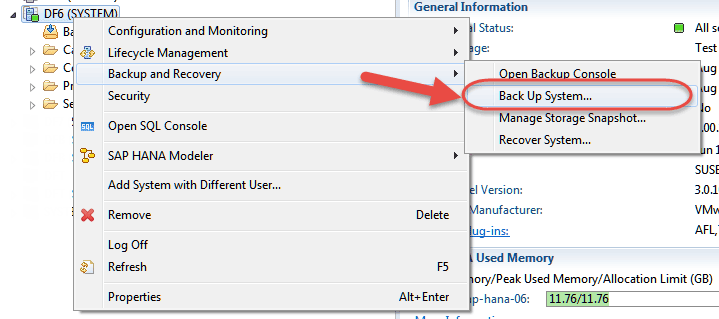
Figure 7
Launch the backup process in SAP HANA studio
The Specify Backup Settings window appears (Figure 8). Within this window administrators can choose one of the three backup types mentioned before. Again, the two delta options of incremental and differential are only available as of SAP HANA SPS10. You can also specify the backup destination path and backup file prefix name. Additional text is added to the backup prefix automatically by the system, and it will be reflected in the backup sets file names. The backup destination defaults to the path specified in the backup console Configuration tab. To start the backup, click the Next button and then the Finish button.

Figure 8
Specify the backup settings
SAP HANA SQL Console
As an alternative, the SAP HANA backup process can be initiated using SQL commands within the SAP HANA SQL console. SAP HANA studio contains a graphical SQL console interface. To access the interface within SAP HANA studio, right-click the SAP HANA system and choose the Open SQL Console option. A window appears that allows you to issue commands.
The SAP HANA client also provides a command line interface (CLI) with access to the SQL console. The SAP HANA client contains drivers and utilities necessary for software to interact with SAP HANA. Most applications require the SAP HANA client to interact with SAP HANA. Within the SAP HANA client’s installation directory, you find an executable file called hdbsql.exe or hdbsql. Executing this file from a terminal window invokes the SAP HANA SQL console. Hdbsql also supports input parameters that allow administrators to create scripts to automate routine tasks.
SAP HANA backups can be initiated within the SQL console by issuing commands. The syntax of the command varies depending on the type of backup required. Table 1 lists examples of the syntax depending on the type of backup required.
| Backup type |
Example syntax |
| Full |
BACKUP DATA USING FILE (‘FULL_01012015’) |
| Incremental |
BACKUP DATA INCREMENTAL USING FILE (‘INC_01012015’) |
| Differential |
BACKUP DATA DIFFERENTIAL USING FILE (‘DIFF_01012015’) |
BACKINT (SAP HANA's third-party backup Application Programming Interface ([API])
|
BACKUP DATA USING BACKINT ('NAME') TOOLOPTION ‘OPTION’
|
Table 1
Example commands required to initiate a backup within the SAP HANA SQL console
Table 1https://help.sap.com/saphelp_hanaplatform/helpdata/en/c4/0a5523bb571014b7b2af15e6243563/frameset.htmThird-Party Interface
The final way to initiate a backup is through SAP HANA’s third-party API called BACKINT. This interface allows backup software manufacturers to integrate SAP HANA backups into their platforms. In most scenarios a backup agent, from the backup software manufacturer, is installed on the SAP HANA OS. This agent creates an interface between SAP HANA and the backup software. Once the interface is operational, backups of the system can be initiated from the backup software. BACKINT backups can also be initiated from SAP HANA studio or the SQL console.
Initiating Log-Segment Backups
Log-segment backups do not need to be initiated. By default they occur every 15 minutes and are managed automatically by the system. Log-segment backups are important to the normal redo logging mechanism on SAP HANA. The SAP HANA redo log files cannot be reused under normal logging conditions, unless all the data in the log file has been backed up to a log-segment backup file. For example, if you were to disable the log-segment backup mechanism on SAP HANA, eventually the redo log files would consume all the storage on the log partition.
Because the log partition is directly proportionate to the size of the RAM on the system, it does not take long for the logs to outgrow that partition. Once the log partition is full, the SAP HANA server crashes and does not restart until the log partition is expanded or the files are relocated to a larger disk. Therefore, it is extremely important that you devise a backup plan that accommodates for proper log-segment backups.
Another important aspect of log-segment backups is understanding their throughput requirements. SAP HANA needs to be able to write these backup files to a location that can sustain write speeds of approximately 200 gigabytes (GB) to 300 GB per hour. This means that you might not be able to write them to tape or to a disk location located over a high-latency network connection. Log-segment backups can also use BACKINT as their target locations. When BACKINT is used, the backup software can receive the log-segment backups and store them in an appropriate location. However, the same throughput requirements apply when using BACKINT to store the backup files. Based on observation, failure to comply with this can actually result in delta-merge engine performance problems. In turn, faulty delta-merge engine performance can affect data load and data query performance.
Recovery Scenarios
Now I examine the options for restoring your SAP HANA system from a data backup and log-segment backup. As you recall, the SAP HANA system can be backed up while the system is operational. However, during the restore process the system must be shut down. This means that users and other dependent software applications cannot use SAP HANA during the restoration process.
It is also important to understand that the backup files cannot be restored to an SAP HANA system with a lower version. For example, backup files created with an SAP HANA SPS10 system cannot be restored to an SAP HANA SPS7 system. In contrast, backup files created in an older version can often be restored to a newer version unless otherwise indicated in the release notes.
Depending on your recovery scenario, different files are required to restore the SAP HANA system. Before you can consider recovering your SAP HANA system, at least one available full-data backup must exist. Then, depending on the recovery scenario, delta backup files followed by redo log files, and finally log-segment backup files might be required.
For complete point-in-time recovery, a data backup set, a log-segment backup set, and the standard redo logs are all required. If the redo logs are not available, the system can only be recovered to the latest log-segment or delta backup. As you recall, log-segment backups are automatically initiated every 15 minutes by default. Therefore, if your logging partition or logging files are not available, you can lose up to 15 minutes of committed transactions based on the default settings. Fortunately, this would only be an issue if the log partition /hana/log or the files within were completely lost due to a hardware failure.
To better understand how the recovery scenario is dependent on the different backup files and log files that are available, I review three basic scenarios. The first scenario assumes that you have all four major backup files available. Figure 9 shows a scenario in which you have all four sets of files available—full backup files, delta backup files, log-segment backup files, and the SAP HANA redo log files.

Figure 9
A recovery scenario in which all backup and logging files are available
For example, starting at 3:00 a.m., a full data backup was performed. Each preceding hour a delta incremental backup was also performed. Therefore, you should assume that the system could be restored to any point in time up to the last full hour. For example, if the system failed at 10:58 a.m., you could only recover to 10:00 a.m. without additional files. To restore to any point within the last hour, you would also need the log-segment backups. As you recall, they are created every 15 minutes. Therefore, with the log segment backups, you can restore to any point in time up to the last 15-minute increment. Finally, to restore to any point in time within the final 15 minutes, you would also need the redo log files.
You can also assume that there is some overlap between files. For example, the delta backups and the log-segment backups might contain some of the same data. With this in mind, you could exclude the delta backups and still achieve the same level of recovery. Because you had a full backup, delta backups, log-segment backups, and the redo log files available, you are able to recover to any point in time up to the last transaction committed.
Assume in scenario two that you are missing the SAP HANA redo log files. This might be because you are recovering to a different server at the disaster recovery site. It could also be because you lost the disk array hosting the redo log files. In this scenario you only have the full data backup followed by the delta backups and log-segment backups. Figure 10 shows such a scenario.
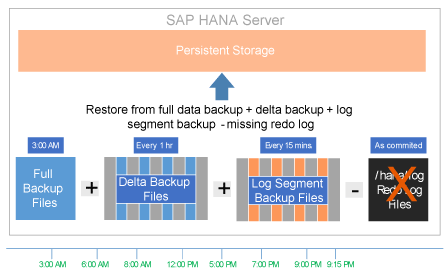
Figure 10
A recovery scenario in which all the backup files are available, but the redo log files are not
For example, starting at 3:00 a.m., a full data backup was performed. For each hour after that a delta incremental backup was also performed. You also have the log-segment backups occurring every 15 minutes. Therefore you should be able to restore to any point in time up to the last completed 15-minute increment. In scenario two, you could only restore up to 9:15 p.m. If the failure occurred at 9:29 p.m., you would lose the data between 9:16 p.m. and 9:29 p.m., assuming it takes approximately one minute for the log-segment backup to complete.
In the final recovery scenario, assume that the delta backups, log segment backups, and redo log files are all unavailable. As shown in Figure 11, only the 3:00 a.m. full backup is available.
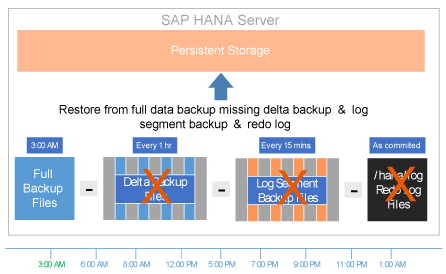
Figure 11
A recovery scenario in which only the full data backup at 3 a.m. is available
In this scenario, only the completed backup that started at 3:00 a.m. can be used to restore the data. Therefore, you can recover the data only up to that time. This scenario is very unlikely because you should also have the log-segment backups available. It is mostly used when transporting data from one SAP HANA system to another—for example, if I restore my production data to my development system for testing purposes.
As I mentioned before, there can be overlap between the log-segment backups and the delta data backups. Therefore, you could devise several additional scenarios based on the required service level agreements (SLAs) and DR requirements. You could also adjust the frequency of the log-segment backups and the delta backups. For example, you could run a delta backup every two minutes to provide recovery up to the last completed two-minute increment. The point of the three examples above is to illustrate the importance of each group of backup files and how they relate to the recovery process. These examples help show the different recovery scenarios that are available.
Restoring the System
You have various options available to restore your system. Similar to the backup options, you can choose to restore your SAP HANA system using SAP HANA studio, the command line SQL console, or the BACKINT interface.
SAP HANA Studio
To start the recovery process using SAP HANA studio, right-click your system, click Backup and Recovery, and then click the Recover System… option (Figure 12).
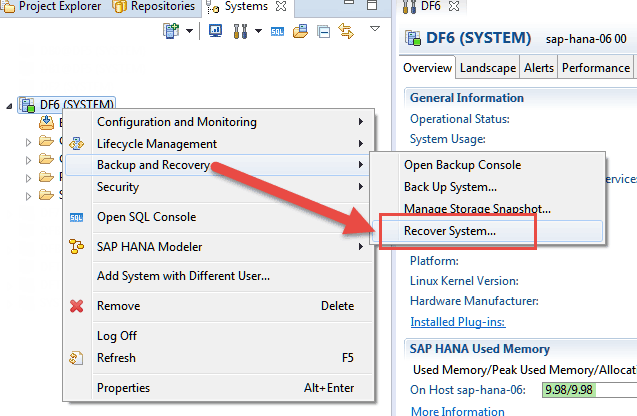
Figure 12
Start the recovery process using SAP HANA studio
If the system is currently active, you receive a dialog indicating that the system must be offline. To shut down the system and continue, click the OK button. You also need to provide the <SID>ADM Linux account credentials if they are not already stored in SAP HANA studio. After clicking the OK button, you are then presented with four recovery options (Figure 13).
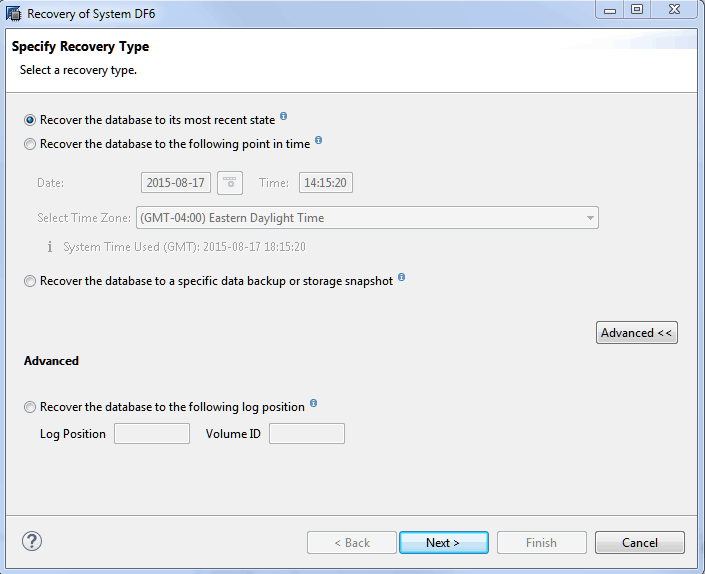
Figure 13
Choose one of four different recovery types
The first option allows you to recover the system to its most recent state. You can also recover to a specific point in time or to the most recent full data backup or storage snapshot. Under the advanced options, you can also choose to recover the system to a specific log position and volume ID. If you choose to recover to the most recent state or to a point in time, you must specify the location of the data and log-segment backup files. Click the Next button to go to the Locate Log Backups window. When recovering to the most recent state, a window, depicted in Figure 14, appears, allowing you to select the path to the log-segment backup file location.
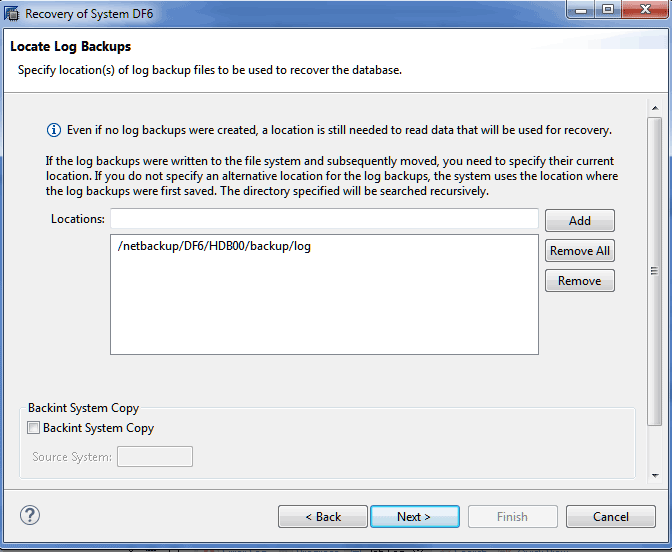
Figure 14
Specify the locations to search for log-segment backup files
The system will default to the location configured within the SAP HANA studio backup console. If the files have been moved from their default location, you need to ensure that the correct path is specified, that the path is accessible by the SAP HANA server, and that the SAP HANA <SID>ADM OS account has ownership of the files. For more information, consult your Linux OS administrator. If the correct path is specified, click the Next button to proceed to the next window.
As depicted in Figure 15, you are then presented with a window that allows you to select the full backup file set that you wish to use to restore the system.
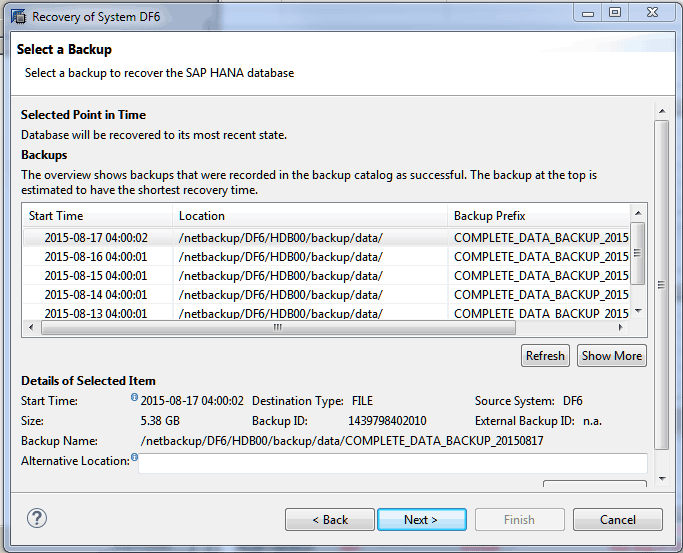
Figure 15
Select a full backup to use during the restore process
It is best to select the backup that was completed closest to your intended recovery point in time. For example, if you are restoring to the most recent state, select the most recent backup. If you are restoring to a specific point in time, choose the backup that was completed closest to your intended recovery point in time. Choose the appropriate backup and click the Next button to proceed to the next window.
In the Other Settings window additional settings are presented (Figure 16).
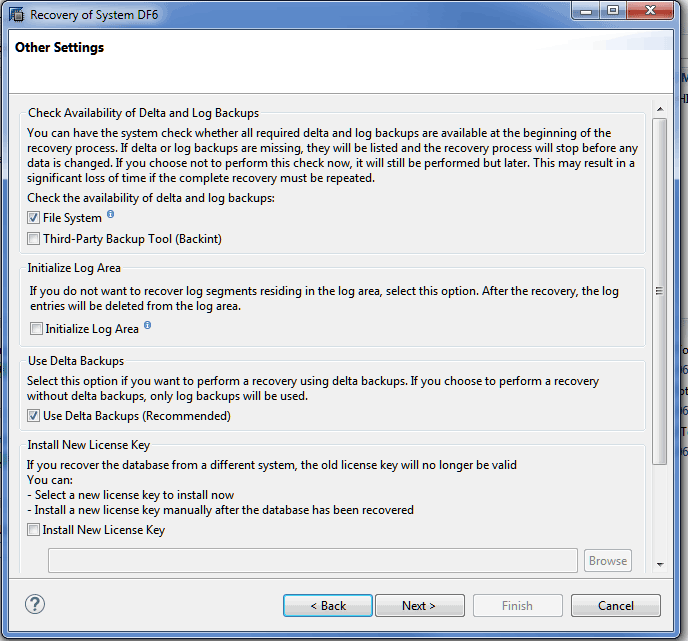
Figure 16
The other settings related to the restoration of an SAP HANA system
In the Check Availability of Delta and Log Backups section of Figure 16, you can choose to have the system validate that all required files are available before starting the restore process. You can then choose to check either the file system for the files or the BACKINT interface for the files. If the files are not validated, the restore process might fail. I generally recommend that you allow the system to validate the files before starting the restore process.
In the Initialize Log Area section, you can choose to reset the logging partition or log segments during the restore process by placing a checkmark in the Initialize Log Area check box. Checking this box replays the log segments from the log-segment backups. Log segments in the standard logging partition are not used during the restore. Consequently this means that you will not be able to restore to the most recent state. This option is often used when restoring files to a different SAP HANA system or one in which the log-segment files are corrupted or missing.
In the Use Delta Backups section you can choose to restore using delta backup files or log-segment backup files. As you recall from earlier, there can be overlap between the two types of files. It is recommended that you use the delta backup files when available. If they are not available, the log-segment backups can be used as an alternative.
In the Install New License Key section, you can choose to install a new license key. This is helpful if you are restoring files from another SAP HANA system to a different SAP HANA system. When restoring files, the license key of the source system, included in the backup files, will no longer be valid.
SQL Console
Recovering the SAP HANA system using the SQL console can be a challenge. Most documentation encourages administrators to use SAP HANA studio to perform these tasks. Because the SAP HANA system cannot be online, you cannot use the SQL console within SAP HANA studio or the SAP HANA client. As an alternative, SAP offers a command line utility to perform a system recovery. To use this utility, log on to the SAP HANA server’s Linux terminal using the <SID>ADM account credentials. A utility called HDBSettings.sh should exist in the default directory—for example, the /usr/sap/HD0/HDB00/ directory. Figure 17 shows an example of the syntax for the utility.
HDBSettings.sh recoverSys.py [<parameters>]
Figure 17
Example syntax
Table 2 contains a few example recovery commands and parameters that can be issued using the CLI. The SQL syntax of the restore command should be contained within the double quotes of the –command=”” parameter. Adding the –wait parameter forces the utility to wait for the restore to complete before completing the script. There are other parameters that can be used as well.
| Backup type |
Example syntax |
Recovery to a point in time using default backup file locations
|
HDBSettings.sh recoverSys.py –command=”RECOVER DATABASE
UNTIL TIMESTAMP '2015-10-19 20:00:00'” –wait |
Recovery to a point in time using specified directories
|
HDBSettings.sh recoverSys.py –command=”RECOVER DATABASE
UNTIL TIMESTAMP '2015-10-19 20:00:00' USING DATA PATH
('/netbackup/DF6/HDB00/data')
USING LOG PATH ('/netbackup/DF6/HDB00/log')” –wait
|
Recovery without redo log files
|
HDBSettings.sh recoverSys.py –command=”RECOVER DATA USING FILE
('/netbackup/DF6/HDB00/data/COMPLETE_DATA_BACKUP_10192015')
CLEAR LOG” –wait |
Recovery from BACKINT and reset logs
|
HDBSettings.sh recoverSys.py –command=”RECOVER DATA USING
BACKINT (‘BACKUP_PREFIX’) CLEAR LOG” –wait |
Table 2
Example commands required to initiate a restore within the SAP HANA SQL console
https://help.sap.com/saphelp_hanaplatform/helpdata/en/9a/24c0758c8f44eea0031aa0a57697cc/content.htm?frameset=/en/27/ee28dd489545aeaec3872ee05a4269/frameset.htm¤t_toc=/en/00/0ca1e3486640ef8b884cdf1a050fbb/plain.htm&node_id=537Software Packages
Finally, organizations can choose to manage their recovery options using certified backup software packages. SAP HANA provides an interface called BACKINT that third-party software vendors can leverage to restore the SAP HANA system. As with backups, a backup agent must be installed on the OS to complete the interface. The options available for restore vary by software vendor. Some software packages allow you to manage the restore processing using their software. SAP HANA studio can also be used to restore the system using the BACKINT interface. When you use SAP HANA studio with BACKINT, the restore process is similar to what is outlined above. For more information, you should review the documentation provided by each certified backup software vendor.
Recommended Practices
Now I discuss a few practices I recommend for devising a backup strategy that are based on my personal experiences. Devising a backup strategy revolves around the following key questions:
- How do I manage the backup process?
- What are the required SLAs?
- How long should I retain backup files?
- Where do I store my backups?
- What about the SAP HANA OS and SAP HANA configurations not stored with the backup files?
So how do organizations manage the backup process for SAP HANA? Managing the process involves devising a mechanism to automate and audit the backup process. You then have to develop a response plan to resolve any identified issues. Automating the process can be achieved using backup scripts and a scheduling engine. For example, you could develop a stored procedure and execute it using the SAP HANA client, a shell script, and a Linux cron job (a Linux OS scheduling utility). For a more elaborate solution, organizations could also use a certified backup software system to automate the process. These packages typically provide an easy-to-use GUI to simplify the setup of an automated process.
Automating the process is important, but organizations also need to devise a mechanism to audit the process. For example, you can configure SAP HANA to send an email alert when a data backup or log-segment backup fails. Most third-party backup software systems also provide an alerting process.
To address such alerts, you should devise an action plan. The action plan should include steps to address the failed backup. For example, if a log segment fails to back up, you lose the ability to recover beyond that point in time. Therefore, an emergency data backup should be executed to eliminate that risk. From a backup logging standpoint, the SAP HANA backup catalog within the backup console contains a history of all completed backups. You can also review the backup.log trace files located within the Diagnostic Files tab of SAP HANA studio. This file contains a detailed history of the backup process and would detail any failed backup jobs.
SLAs can also affect the types of backups you perform. For example, if the business requires that you restore SAP HANA to within five minutes of all committed transactions, you would need to make sure that your delta data backups or log-segment backups execute every five minutes. You also have to account for how quickly the backup data can be replicated off-site for DR purposes. This can affect both the type and frequency of backups that you perform. With this in mind, the recommendation is to ensure that your technical backup configuration can facilitate your required SLA.
How long an organization stores its backup files is a matter of requirements and its need to hedge against risk. For some organizations, data retention is a matter of compliance to a legal standard. For others, the requirement is based on the need to recover data for a period of time to reduce rework or to recover valuable information.
There are also cost considerations. The more storage you need to retain the files, the more expensive it can be to store them. Whatever your motivation, a key component of a backup strategy revolves around retention. Retention is a measure of how long an organization retains backup files before they are discarded.
With SAP HANA you need to consider both the data backup files and the log-segment backup files in terms of retention. For example, if you store five days of backup files and 10 days of log-segment backup files, you can recover to any point within a 10-day period. I generally recommend that you retain a few days of full data backup files and the same number of days of log-segment backup files. Keeping only a single day can be risky because files can become corrupted. At a minimum I typically recommend a five-day retention.
Where you store your backup files is equally important. For example, storing the backup files in the default location is not wise. By default, the backup files are stored within the /hana/shared partition. Depending on your setup, this partition might be on the same disk array as the data and logs you are trying to protect. If the disk array fails, you lose your data and your backups. Therefore, I strongly recommend that you store your backups on another file system. For example, you can store them on an NFS mount that is hosted on a network-attached storage (NAS) device.
You also need to store the files at your disaster recovery site or at an off-site location. For example, if you back up the files to a local NFS share, you should then replicate a copy of that data to an off-site location. Most organizations use file replication to a disaster recovery site to accommodate this. Other organizations back up to tape and then use a courier to shuttle the tapes to an off-site location. Most backup software applications support the automation of this process as well. Regardless of the method used, it is important that you ship the backup files to an off-site location to hedge against location-specific disasters.
How do you address the backup of the SAP HANA OS and configuration files that are not stored with the data backups? This is an excellent question and one that is sometimes overlooked. The SAP HANA data and log-segment backup options discussed thus far do not include the OS or any SAP HANA configuration files. Therefore, you need to back up the entire Linux OS and all the non-data related files. For example, you do not need to back up the data files stored on the /hana/data or /hana/log partitions because they should already be addressed by the SAP HANA backup strategy. Failure to back up the OS might affect the required SLA. Without an OS backup, the OS will likely need to be recreated from scratch. This could delay the recovery process if it is not well documented.
Of particular importance are the SAP HANA configuration files or .ini files. By default they are stored in the example SAP HANA configuration file path shown in Figure 18.
Example SAP HANA configuration Files Path
/usr/sap/<SID>/SYS/global/hdb/custom/config/*.ini
Figure 18
The SAP HANA configuration files
These files are important because they contain configuration information that might be critical to recovering the system to its original specifications. There are other files as well. For example, if you have configured SAP HANA to use Secure Sockets Layers (SSL) there are likely files on the OS that contain the certificate and key store. If you have configured the system for Active Directory authentication with Kerberos, there will be configuration files on the OS that control that setup. Again, overall I recommend a complete OS backup to make sure these files are available during a disaster.
Backups are important because they help to protect data that is stored within SAP HANA. Understanding the restore scenarios helps you devise the proper backup strategy. It will also help you to restore your data confidently during a disaster situation.
Jonathan Haun
Jonathan Haun, director of data and analytics at Protiviti, has more than 15 years of information technology experience and has served as a manager, developer, and administrator covering a diverse set of technologies. Over the past 10 years, he has served as a full-time SAP BusinessObjects, SAP HANA, and SAP Data Services consulting manager for Decision First Technologies. He has gained valuable experience with SAP HANA based on numerous projects and his management of the Decision First Technologies SAP HANA lab in Atlanta, GA. He holds multiple SAP HANA certifications and is a lead contributing author to the book Implementing SAP HANA. He also writes the All Things BOBJ BI blog at https://bobj.sapbiblog.com. You can follow Jonathan on Twitter @jdh2n.
You may contact the author at jonathan.haun@protiviti.com.
If you have comments about this article or publication, or would like to submit an article idea, please contact the editor.



 Premium
