Learn about the different locking options you can use in a planning area to eliminate the problem of locked data selections. See how you can share data with other users at the same time.
Key Concept
Locking prevents two or more users from accessing and changing data for the same selection at the same time. This prevents inconsistencies within the planning area. SAP SCM 5.0 has introduced the concept of key figure locking to allow a more granular control to locking within the planning area. It allows two people doing different planning functions to edit the same data selection at the same time. In previous SAP SCM versions only one user was allowed “change” access for a particular data selection at a time. Key figure locking allows the key figures to be different between the two users to prevent any inconsistency of data or changes overwriting one another. It also allows background processing to run while users are in planning books.
One limitation in SAP SCM previous to version 5.0 is that background processing had to be limited to hours when users were not working in planning books. Nightly processes had to rely on a mechanism that locks out users from the planning system to allow background processing to run without facing locking issues. In the absence of a locking mechanism, users could lock some data selections, preventing background processing from updating the same data selection. The background processes worked correctly on data selections that were not locked and did not work correctly on those that were locked. This caused inconsistent results and data integrity issues.
For example, suppose the sales history was being updated for all the products in a planning area through a background process. If the user was accessing data for a product A in change mode, the product’s sales history was not updated, whereas the other products were updated correctly. It was difficult for the users to know which data was correct without a complete analysis of the background process logs.
The locking logic in SAP SCM 5.0 and later offers more options. Its key figure settings, along with the Activate liveCache Lock setting, allow you to remove some of the constraints associated with background processing and make the system more available to users. Unlocking users also addresses the need of many SAP system implementations in which the nighttime windows available exclusively for background processing are becoming shorter, especially when users in multiple time zones are working on the same system.
Locking Options in the Planning Area
You can access the locking options in the planning area via menu path Demand Planning > Environment > Administration of Demand Planning and Supply Network Planning. Select Planning Area and double-click it to get to the Change Planning Area transaction. Click the last tab called the Locking Logic to view the available options (Figure 1).

Figure 1
Locking logic in planning area
Note that Detailed Lock is grayed out in Figure 1 because you can either select Activate liveCache Lock or Detailed Lock, but not both. For this example, I selected the former.
When nothing is selected, the system performs an Aggregate Lock. In this case, the user can select only one unique value for a characteristic within a planning area. Any other type of selection causes the entire planning area to become locked.
Note
With previous versions (prior to SAP SCM 5.0) the only options available were the Aggregate Lock and the Detailed Lock. There was no explicit tab, as shown in Figure 1, where you could change the locking options. In releases prior to SAP SCM 5.0, set the Detailed Lock by setting the value as X for the Detailed Lock field in the table /SAPAPO/TSAREAKO.
With SAP SCM 5.0 two more locking options are available: Activate liveCache Lock and Key-Figure-Specific Lock. The Activate liveCache Lock is an enhancement to the detailed lock functionality. The option to select the Key-Figure-Specific Lock becomes available when you select either Activate liveCache Lock or Detailed Lock. Let me explain all these locks further.
Detailed Lock
The Detailed Lock, in comparison to the Aggregate Lock, is less restrictive. It works well when the characteristic chosen for displaying data is the same as the characteristic chosen in the data selection. For example, consider a planning object structure with the characteristics Product and Profit Center. If the data is displayed for the characteristic Product corresponds to the Product values ranging from 1 to 100, the system keeps an internal record for all the 100 entries in a lock table. However, the Detailed Lock cannot keep entries in the lock table when the characteristic chosen for display is not the same as the one in selection condition. For example, if you want to display (and change) data for a Profit Center for Product values ranging from 1 to 100 in the same planning object structure, then the entries are not created in the lock table.
Activate liveCache Lock
The Activate liveCache Lock is the most precise locking method and is therefore the recommended setting for the planning area. With the Activate liveCache Lock, SAP has tried to address the challenges of too many characteristic combinations being locked when multiple users are working in the planning area with different selections. Detailed locking has limitations when the selections are range based (low to high limit), wild cards, or placeholders. The Activate liveCache Lock can work when the selections are range based and with any wild cards in single values.
Let me contrast Activate liveCache Lock and Detailed Lock with an example of a planning object structure with the characteristics Product and Profit Center. In this planning object structure, a product belongs to a single profit center, but a profit center can have many products defined. Two different sessions access different data for different profit center ranges. In one session, the user displays product-level data for a profit center range of 1020 to 1030 (Figure 2). In another session, the user accesses profit-center-level data between profit centers 1031 and 1060 (Figure 3).
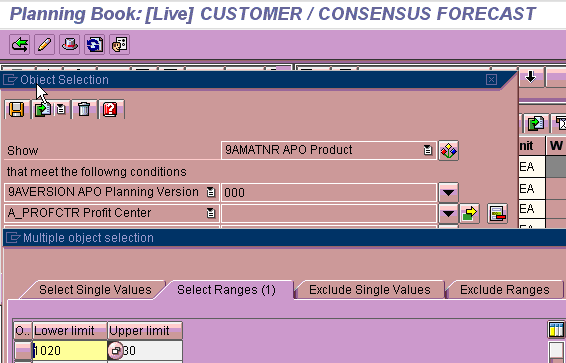
Figure 2
Product-level data for a profit center range between 1020 and 1030
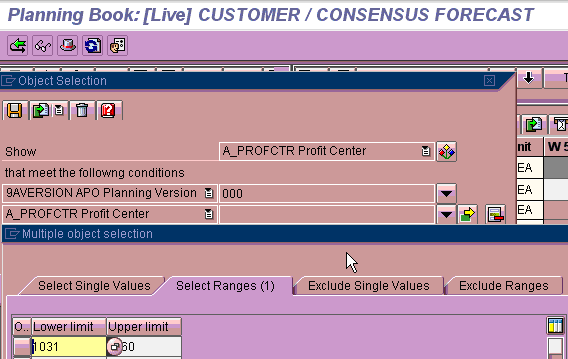
Figure 3
Profit-Center-level data for a profit center range between 1031 and 1060
If you have loaded the data as shown in Figure 2 and you are in the change mode, trying to edit the data as shown in Figure 3 gives an error that the selection is locked by the user (Figure 4). With Detailed Lock and a range of selections, the system is unable to acquire a lock.
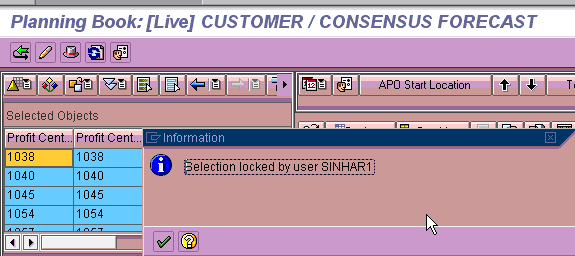
Figure 4
Detailed Lock scenario gives an error when going into change mode
When you change the locking to Activate liveCache Lock, you can access the edit mode as in Figure 3 while the data in Figure 2 is being edited by another user. Figure 4 shows errors, but in Figure 5, the edit mode is now permitted. The characteristic combinations between the two selections are distinct and the system should be able to acquire locks for both.

Figure 5
ActivateLiveCache lock allows the change mode
Note that in Figure 5, the Detailed Lock would have worked in the examples only if the product-level data was being accessed for editing for both the selections (i.e., if in Figures 2 and 3 the Show characteristic in the object selection was Product). In this case, the system is able to determine which products (corresponding to characteristic 9AMATNR) are locked by each selection of the profit center.
Note
Through the implementation of SAP Note 1265235 (Demand Planning: Report to display Activate liveCache Locks), a report called /SAPAPO/TS_LC_DISPLAY_LOCKS becomes available. This report identifies the locks based on selections in the planning area and the key figures if the Key-Figure-Specific Lock is being used. This works when using the Activate liveCache Lock for the planning area. You need the Activate liveCache Lock if the key figure specific lock used the report shows locks at the key figure level as well.
Key-Figure-Specific Lock
The Key-Figure-Specific Lock allows two users to share the same selection as long as the key figures are different between the two planning books being used. This sounds confusing, but really isn’t. For instance, suppose the Consensus forecast key figure is being edited for product A at the same time the Product Allocation key figure is being edited for the same product A. This means that the selection is the same for product A, but the key figures chosen are different.
Let me give you another example. Imagine two different users are responsible for distinct business aspects of planning — one is responsible for forecasting and the other is responsible for product allocation planning. However, data for both reside within the same planning area. In this case, whoever is responsible for configuring SAP Advanced Planning & Optimization (SAP APO) for the end users must create two different planning books — one for forecasting and the other for product allocation planning. Users can manage and edit data for distinct data elements (key figures) for the same selection. In the previous versions of SAP SCM, this was not possible. All the key figures for particular selections were locked and did not allow for sharing of the same selection.
In Figures 6 and 7, the planning book called Customer/Consensus Forecast and Customer/Allocation Planning are two different planning books for the same planning area. A camera model is selected in both planning books (APO Prod…), and the two planning books are edited simultaneously, evident in the white background for the cells that are ready for input. This would not have been possible if the Key-Figure-Specific Lock was not set for the planning area.

Figure 6
Edit for the customer consensus forecast `

Figure 7
Edit for the customer allocation data for the same selection
When you use the Key-Figure-Specific Lock, you also have the option of using the Do not lock read-only key figures lock. This option works with the Key-Figure-Specific-Lock. When checked, as shown in Figure 1, the read-only key figures in the planning book are not locked when the user is in the change mode for the selection. In Figure 8 the Consensus Forecast (MAD), Open sales orders, and the Prior Week Forecast (MAD) in the Customer/Consensus Forecast planning book are read-only key figures.

Figure 8
Set the Open sales order to a read-only key figure
Read-only key figures are output key figures in the planning book for which user input is not allowed. A key figure can be set as Output by going into the Design mode of the planning book circled in Figure 6 and changing the attributes of the key figure by right- clicking and changing the attribute to an Output only key figure (Figure 8).
There are several benefits to using the Do not lock read-only figures lock, but the most obvious one is that it allows users to view the same selection in change mode. If both users are in change mode, this is the only time that two users cannot edit the same key figure. However, if the key figures are different, then the regular rules apply.
Benefits of Key-Figure-Specific Locking for Batch Processing
The planning book has key figures that are informational based on user decisions or they are used in further calculations. This data from the key figures could be transactional, such as sales history that is the basis for calculating the sales forecast. Or the data could be the result of an upstream process (for example consensus forecast) used in a downstream process (for example allocation planning) to arrive at the product allocations. Such key figures in the planning book are set as read-only to prevent any inadvertent change in data. Many of these key figures are refreshed through background processing in batch.
In previous SAP SCM versions, for background processing to take place, users could not be in the edit mode for the selections being updated. This effectively locked users out of the planning system for the duration of background processing. The Key-Figure-Specific lock, with the option to not lock the read-only key figures, allows the background processing to continue even while the users are in the change mode for those selections. This flexibility is important when there are increasing demands from the user community to make more frequent updates to the demand planning area rather than just a daily data refresh. The key figures that the background processing update have to be read-only key figures.
Note
For the remainder of the article I will refer to the Key-Figure-Specific lock along with the do not lock read-only key figures as key figure settings.
Let me illustrate this with some examples of background processing. Some of the processes that update data in a demand planning book are:
- Copy of data from another planning area
- Release of data from a supply network planning (SNP) planning area to demand planning
- Loading data from an InfoCube to the planning area
Let me now explain how the key figure settings help in the three batch processes in detail.
Copy of Data from Another Planning Area
Take the example of the user in the edit mode for the planning book for the customer allocation planning book. The Total Supply key figure in the planning book is a read-only key figure and is planned in another planning area in the planning book called the Weekly Planning book (Figure 9). The key figure is a reference for the planner in the allocation planning book that was referred to in Figures 6 and 7 so that he or she doesn’t plan for more allocations than there is Total Supply. For example, for product Digital Still Camera the total supply values are shown as 2000 and 3000 in weeks 50 and 51. The corresponding values in the allocation planning book are zero.

Figure 9
Planning for Total Supply
Figure 10 shows that transaction Copy/Version Management is being run to update the Total Supply key figure in the allocation planning book (from the Weekly Planning Book) at the same time the planning book for allocations is being updated (Figure 11). You access the Copy/Version Management transaction through menu path Demand Planning > Environment > Data Administration > Copy/Version Management. The values for the source and target planning area are specified as APA_CP_SUPPLY and APA_SNPCP_1 for the Weekly and the Allocation planning books respectively.

Figure 10
Run the transaction for copying data from one planning area to another
Figure 11 shows the allocation planning book being edited while transaction/SAPAPO/RTSCOPY is running in Figure 10.

Figure 11
User editing Allocation planning book
Result Without Key Figure Settings
Now take the example in which the SAP APO consultant has not made the key figure settings as part of the locking options for the planning area. Uncheck the option for the Key-Figure-Specific lock for the planning area APA_SNPCP_1 (corresponding to the customer allocation planning book which uses this planning area APA_SNPCP_1), shown as checked in Figure 1. The result is an error with the message that the copy transaction failed, the selection is currently locked, and the key figure copy did not take place. The log is shown in Figure 12.

Figure 12
Error without the key figure settings in planning area
Result With the Key Figure Settings
Once the person responsible for the configuration of the planning area has made the key figures, the copy takes place as shown in the log (Figure 13) and the data in the planning book can be just refreshed by clicking the circled refresh button (Figure 14) and the data for Total Supply is refreshed with the same values as the source for Total Supply, as in Figure 10.

Figure 13
Copy successful

Figure 14
Total Supply after the refresh
After clicking the refresh icon, you can see the values for the Total Supply are refreshed corresponding to the same vales as its origin in Figure 4.
Release of Data from SNP Planning Area to Demand Planning
Demand planning often relies on release of transactional data that is updated in real time in an SNP area. For example, the open sales order information is updated in the liveCache in SAP APO directly as sales orders are entered in the SAP ERP Central Component (SAP ECC) environment. This data can also be required in demand planning to make comparisons of how the open sales order track against the consensus forecast. Without the key figure settings, updates to the planning area would not be possible without locking out users from the planning books. Let me explain that with an example.
The release of data from SNP planning area to demand planning is carried through menu path Supply Network Planning > Environment > Release to Demand Planning. Figures 15 and 16 show the split screens where the release transaction is being carried out to the planning area APA_SNCP_1 (planning area for the planning book Customer/Consensus Forecast) while the user is in the edit mode for the same selection corresponding to the product Digital Still Camera.
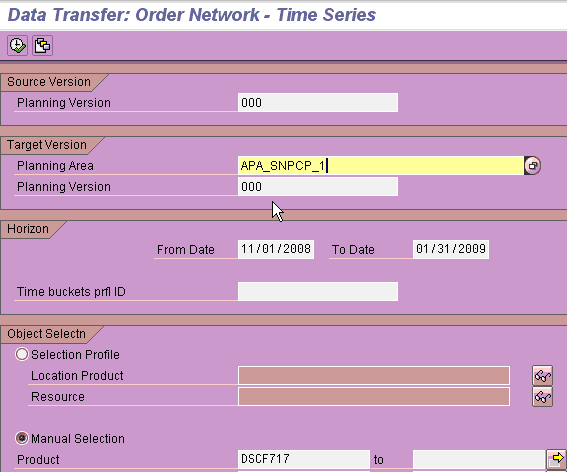
Figure 15
Release of order series data to demand planning
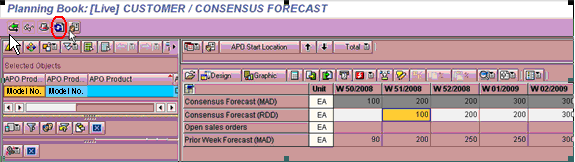
Figure 16
Release of SNP data to demand planning while user is in edit mode
Result Without Key Figure Settings
Similar to the error in the TSCOPY transaction, the release transaction failed as the log in Figure 17 shows. This means that the system failed to copy the data.

Figure 17
Error without the key figure settings
Result With the Key Figure Settings
With the key-figure settings no such error occurs and you can just refresh the screen by clicking the refresh icon. The data is refreshed with the key figure Open sales orders populated with values (Figure 18).

Figure 18
Refresh screen to show the updated data
Loading Data from an InfoCube to the Planning Area
The same kind of behavior occurs for the loading of data from an InfoCube to the planning area as is described for the TSCOPY and the release transaction. The loading of data for a key figure in the planning area from an InfoCube can be made while a user is in the edit mode for another key figure when the key figure settings are made
Planning Book Design Considerations
When making key figure settings, you must understand some considerations for default macros and the attributes of the key figures that are updated by the default macro.
Note
Default macros are macros that are executed every time the user presses Enter while editing data in a planning book.
Typically key figures calculated by the default macro are set up as read-only key figures because they are not intended to be changed by the user. The background color of the row changes to gray, indicating that it cannot be changed once you have set up the attribute as read only. Let me illustrate with an example. In Figure 19, the key figure Remaining allocations is calculated by a default macro that takes the difference between the key figure Allocations and Consumed Allocations. The key figure is also set as a read-only key figure. When the key figure settings are made for the planning area you run into errors because a macro is attempting to change a key figure that is not locked based on your settings. Notice the pop-up window in the screenprint with the error condition.

Figure 19
Considerations in planning book design
Ranjan Sinha
Ranjan Sinha is a senior managing consultant at IBM. He has vast experience implementing SAP APO functionality in various industries, including electronic and chemical.
You may contact the author at RSinha1152@yahoo.com.
If you have comments about this article or publication, or would like to submit an article idea, please contact the editor.