Step through the details behind an SAP Note that shows you how to maintain master data in production without going through other developers or users.
Key Concept
SAP Strategic Enterprise Management – Business Consolidation System (SEM-BCS) controls the consolidation activities in the SAP system, including currency translation and validation.
In Strategic Enterprise Management – Business Consolidation System (SEM-BCS), the configuration items and master data are part of a single transaction, UCWB. If you have to maintain master data, you normally have to give business users access to transaction UCWB, which also includes configuration. You can also make the changes in master data using transport requests and migrate them from development to quality assurance and production. However, this approach is not suitable because you can’t change the master data when required, such as at month end or year end. You have to depend on someone in the company to change it and move it to production.
In SEM-BCS in SAP ERP 6.0 (as well as prior versions), it is possible to maintain master data directly in production without transport requests. You have to set certain configuration for this, which I’ll show you how to do. This is a standard approach suggested by SAP in SAP Note 804057. The note describes the process but the steps are not given, so I will cover all the steps for implementing the note. For more on what this entails, see the sidebar “Master Data Access.”
Maintain Master Data in Production
Here are the steps you need to follow to maintain master data in production in SEM-BCS:
- Step 1. Set up the global parameters
- Step 2. Create a dummy entry for each node that is given access
- Step 3. Go to the transport organizer and check the requests created
- Step 4. Use transaction SOBJ and search for the objects
- Step 5. Change the client settings
- Step 6. Change settings related to customizing objects in SEM-BCS
- Step 7. Use transaction UCWB and try to change the master data
Step 1. Set up the global parameters. Use transaction UCPP and enter the details shown in Figure 1. After you’ve done this the first time, you just have to change the period and the year.

Figure 1
Enter parameters
Step 2. Create a dummy entry for each node. To do this, use transaction UCWB (Figure 2). Create a dummy entry of the following nodes:
- Financial statement item: Create/change and delete
- Breakdown category: Create/change and delete
- Movement type: Create/change and delete
- General ledger account: Create/change and delete
- Functional area: Create/change and delete
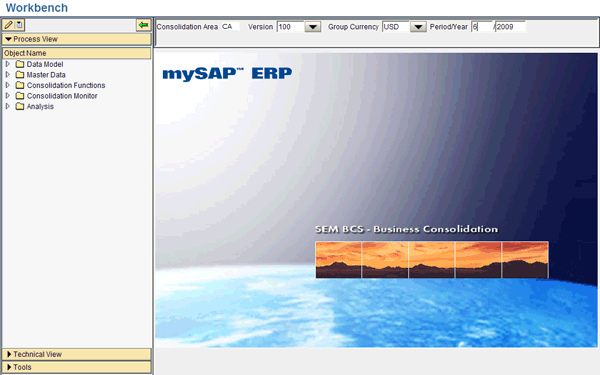
Figure 2
Maintain master data in transaction UCWB
Save the entry in a separate request. Create a different transport request for each node and each step.
Step 3. Go to the transport organizer and check the requests you created. You can do this using transaction SE09 (Figure 3). Do not release these requests.
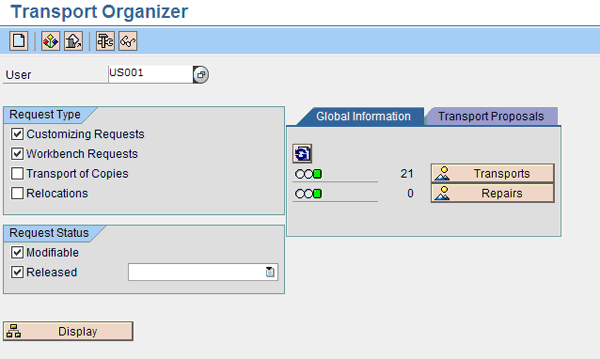
Figure 3
Check the requests
Click the Display button to see all the requests under the Customizing – Modifiable node (Figure 4).

Figure 4
View the requests
Expand the request and you can see the customizing objects (Figure 5). For the functional area, the customizing object is UCGSUBACCNT; for a financial statement item, it would be UCITEM.
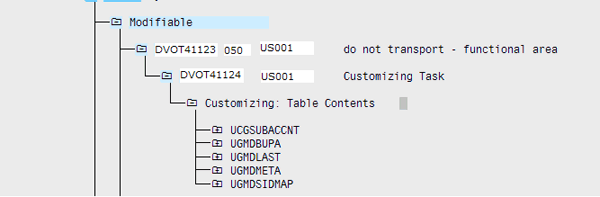
Figure 5
Expand the request to see the customizing objects
Start with the first object from the list and make a list by saving the objects listed in the table in a Notepad file. In the same way, create a list of all the required objects for which you are planning to give access.
Step 4. Use transaction SOBJ and search for the objects. Normally the access to transaction SOBJ is not given to functional users, but your ABAP resource should have access to it. To change the object, you need an ABAP specialist’s access as well as the object key change access, which you can get from your Basis team.
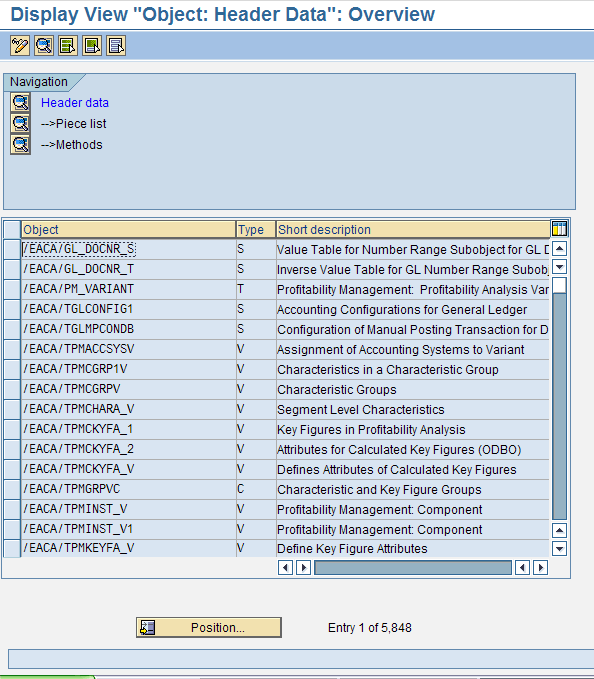
Figure 6
Search for objects
Use the standard SAP find option to find object UCITEM. This brings up the screen shown in Figure 7.

Figure 7
Object UCITEM
You can see the object UCITEM with Type T. Double-click the line item to bring up the screen in Figure 8. Make sure that the Category is CUST (Customizing objects (client-specific)). Change the Transport field to No transport. Then check the Current Settings check box, which will be available for you to select using the find option.
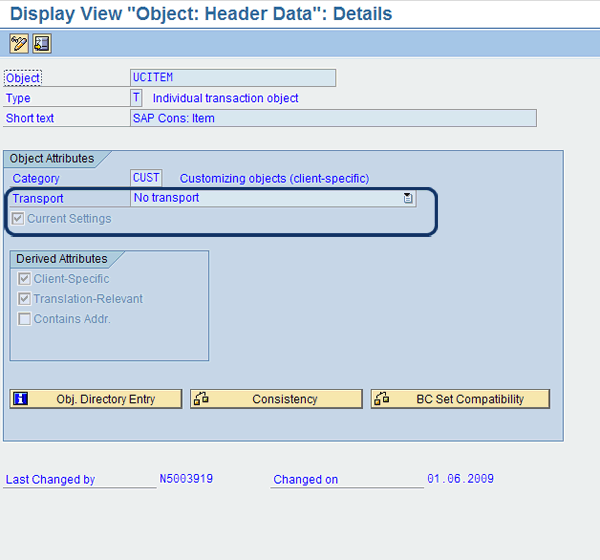
Figure 8
Change settings
Change the settings for all the objects in the same way. To change these settings, you need to have the access key and the object key, which the Basis team can provide.
Step 5. Change the client settings. Use transaction SCC4 (Figure 9). Make sure that the client role is Production. For Changes and Transports for client-specific objects, select the No changes allowed radio button. This ensures that you are not changing anything apart from the master data objects.
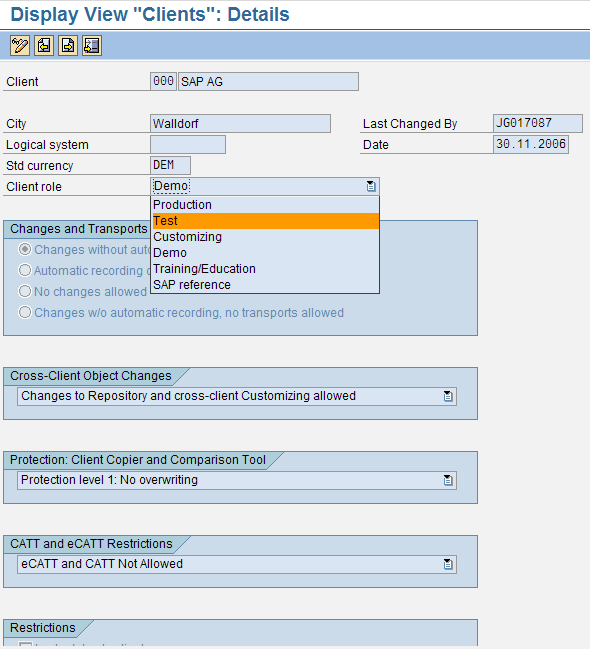
Figure 9
Object changes
Step 6. Change the settings related to customizing objects in SEM-BCS. Go to transaction UCWB and follow menu path Tools > Transport > System Settings > Customizing Objects (Figure 10).
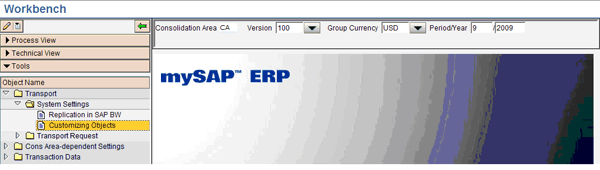
Figure 10
Customizing objects
In the resulting screen, check all the Container, No AT (automatic transport), and Cur.Sett. (current settings) check boxes, and leave the No Transp. (no transport) boxes unchecked (Figure 11).
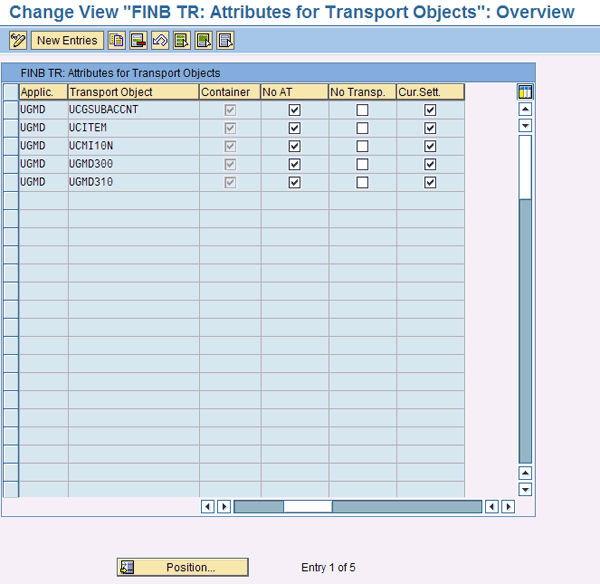
Figure 11
Select the check boxes
Step 7. Use transaction UCWB and try to change the master data. You are able to change it without any transport request. Try to change the other objects that were not changed to ensure that you get the following message: Client is non-modifiable.
Synchronization of Master Data
Management might ask questions about SEM-BCS master data direct maintenance: How will the systems be synchronized? If changes are made in the production client, how would it be reflected in the quality and development clients? What is the process? There is a simple process you can follow to answer these queries:
- Step 1. Download the master data from the production system in a Microsoft Excel sheet
- Step 2. Save the file to the local PC
- Step 3. Log in to the quality system
- Step 4. Use transaction UCQB to perform data collection using the flexible upload method
- Step 5. Create a flexible upload method for the financial statement item, functional area, general ledger account, and movement type
- Step 6. Execute the method, copying the entire master data
Using this process along with an automated validation process, you can make sure that the QA and development clients are in sync with the production system. Look into the setup of workflow to confirm that once changes are made in production, the responsible people are aware of these changes and follow the above steps to synchronize the master data in all clients.
Master Data Access
You can give master data access to the following items in SEM-BCS:
- Financial statement items
- Breakdown category
- Movement type
- General ledger account
- Functional area
It’s not advisable to give access to the creation of a company or version, though it is part of master data. Creation of a company is part of the configuration process, not the master data process.
Kiran Bapat
Kiran Bapat is an SAP FI/CO, EC-CS, and SEM-BCS expert. She has seven years of industry experience and has worked on SAP FI, EC-CS, and SEM BCS for three years.
If you have comments about this article or publication, or would like to submit an article idea, please contact the editor.