Certain data elements including the warehouse, storage type, storage section, and bins are required to use Warehouse Management. Other data elements such as picking areas, material staging areas, and doors can bring additional flexibility to the warehouse design. See how you can use these data elements to keep the warehouse simple and efficient while meeting your business requirements.
Key Concept
Taking material segregation down to the Warehouse Management level adds complexity to the supply chain, but it can allow materials to flow more efficiently through the warehouse. By subdividing the warehouse, you can improve your processes for receiving, putaway, material storage, and picking.
To manage your warehouse, you can use the more basic Inventory Management (IM) or IM with Warehouse Management (WM), which is a more complicated setup. Some of the reasons a business would implement WM include the following:
- Bin-level material segregation is required
- Mobile data entry (RF) is required
- You must separate hazardous materials storage (dangerous goods) by material storage classification — for example, water pollution class or fire containment section
When you implement WM, you have a series of decisions to make about the data elements that comprise WM. They include the basic data elements that all warehouses have, such as the warehouse, storage type, storage section, and bin. The other data elements — picking area, material staging area, and door — are optional. Each data element contains a variety of configuration options.
Using SAP ERP Central Component (ECC) 5.0, I’ll walk you through each of the data elements involved in WM and explain the appropriate uses of each. Although I refer to ECC 5.0, this information also applies to R/3 4.6A through 4.6C, R/3 Enterprise, and ECC 6.0. Download the flowchart “SAP Material Segregation Criteria,” which outlines the decision process for the data elements.
Warehouse
Figure 1 shows an example of a WM-managed warehouse with both WM and IM data elements. I focus on the WM elements for this article. The warehouse is the highest level WM data element. It is then further subdivided into the other WM data elements.
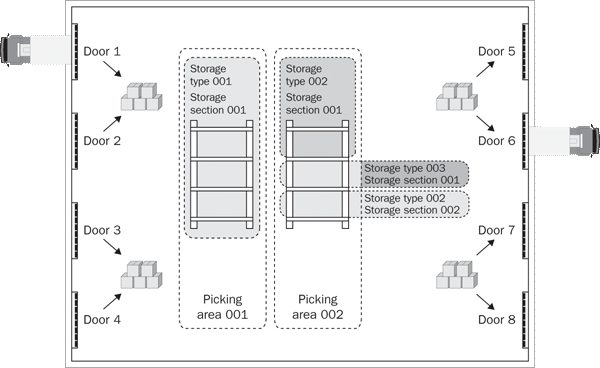
Figure 1
Material segregation diagram
The example warehouse has four doors for receiving and four doors for shipping. Doors 1 and 2 are linked to a bulk receiving area. Doors 3 and 4 are for smaller quantity receiving, such as cases. On the shipping side of the warehouse, two staging areas are each linked to two additional doors. You can use one of these staging areas for example, for domestic orders and the other for exports.
In the middle of the diagram are two sets of racks. On the left side, the first set of racks has a single storage type (001), a single storage section (001), and a single picking area (001). The business determines the structure and a WM functional team member configures it. You would see this type of configuration if, for example, the materials from the bulk receiving area were put away into a rack using a forklift that reaches all four shelves. The forklift picks the materials, so you need a separate picking area for this rack.
The rack on the right side is divided into two storage types — 002 on the top and bottom and 003 in the middle. Storage type 002 is further divided into two storage sections with section 001 holding the materials on the top shelves and storage type 002 holding the materials on the bottom. You can store the same materials in each storage type and replenish materials from the 002 storage type into the 003 storage type. In the middle, storage type 003 also uses storage section 001. The entire rack is grouped into a single picking area (002).
This configuration is suitable if, for example, you place bulk materials into the warehouse and direct the materials first to the top and bottom racks. In this case, you replenish case quantities on the middle shelf for picking. Material handlers use different equipment to pick cases than they require for picking pallets. Here, a second picking area improves material storage efficiency.
Note
In WM, you can assign the SAP warehouse to multiple storage locations under different plants. The advantage of this data structure is that a single warehouse can man- age materials at the bin level for one or many storage locations and plants. This brings a consistent physical flow of materials in the warehouse while maintaining separate financial balances at the storage location and plant levels.
In the warehouse, you can control weights and measures; the storage unit and capacity management; and error processing and user notification. Also at the warehouse level you can control how transfer orders behave in terms of bin blocking and partial picking. Figure 2 shows the configuration available at the warehouse level. This configuration is available in the IMG by following menu path Logistics Execution>Warehouse Management>Master Data>Define Control Parameters for Warehouse Number.

Figure 2
Warehouse number control
To keep the supply chain as simple as possible you need to determine whether to use a storage type, storage section, or a set of bins to store your materials.
Storage Type
Storage types include rack storage, bulk storage, storage for liquids, and storage for high-value items. These storage types represent bins that store materials with similar characteristics. Some situations in which you use storage types include:
- To segregate material that uses a similar putaway or picking strategy
- To store materials together by packing configuration — for example, cases, pallets, or eaches
- To replenish one storage type with materials from another
- To store similar hazardous materials together
Figure 3 shows the configuration settings available at the storage type level. This configuration is available in the IMG by following menu path Logistics Execution>Warehouse Management>Master Data>Define Storage Types. Note the check box for storage unit management, SU mgmt active. With this check box, you can control storage unit management at either the warehouse or storage type level. This is the one point of overlap between the warehouse and storage type configuration.
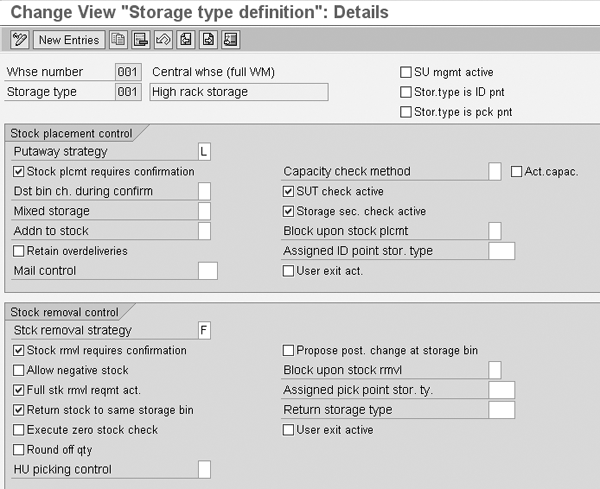
Figure 3
Storage type definition
Storage Section
If the material requires additional segregation, then you move to the storage section, which is a group of materials with the same storage type and similar characteristics. An example of this is fast-moving items (storage section) in the pick faces (storage type). Storage sections provide little configurable functionality beyond providing a grouping of bins. Also, whereas storage types affect both stock putaways and picking, storage sections only have an impact on the material putaway process.
The advantage of the storage section is that it allows a mechanism to group together one or several bins within a storage type for the purpose of stock placement. For example, you can store material in a storage type and divide it by the storage section data element into fast- and slow-moving sections.
Another reason to subdivide a storage type into storage sections is that you can group bins by loading capacity or temperature. For example, when you group bins by loading capacity, you can place heavier materials in bins that can handle the extra capacity. On the other hand, temperature may be a factor in refrigerated warehouses in which you need to store certain products using different refrigeration equipment.
Bins
The bin is the lowest level of material storage available in WM. Every bin in the warehouse is located under both a storage type and a storage section. You must assign bins to a single storage type and storage section. At times, a simple warehouse can get away with requiring only this level of material segregation.
When creating bins, you must determine if you can place materials in a bin using a single storage type and section. Bins provide configurable functionality primarily around capacity management. Find the configuration by following IMG menu path Logistics Execution>Warehouse Management>Master Data>Storage Bins. They consist of four levels of configuration: bin type definition, bin type configuration, bin blocking reasons, and storage bin structure. The first section of the bin configuration is the bin type definition, shown in Figure 4.
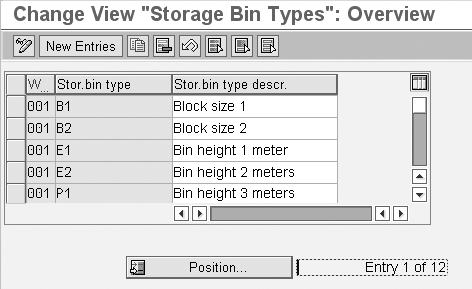
Figure 4
Storage bin types
Bin type configuration deals with storage unit and handling unit management. Specifically, you can configure certain bin types to manage certain types and numbers of storage units or handling units.
The bin blocking reasons are the next level of configuration. They provide explanations about why a bin is blocked — for example, because a material handler damaged the bin with a forklift or because water is leaking into the warehouse above a particular bin.
The final and most complicated section of configuration for bins is the storage bin structure, also known as the bin templates (Figure 5). These structures enable a configurator to define a set of rules that allows the user to create one, tens, hundreds, or even thousands of bins in a single set of keystrokes. Rather than creating bins individually, the structures let you create bins using a rules-based formula.
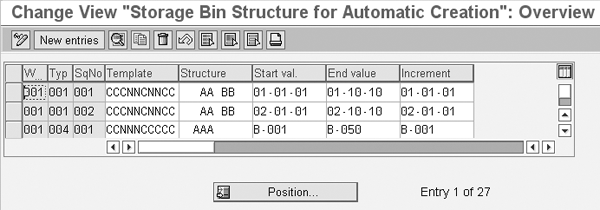
Figure 5
Storage bin structure
A simple way to think about this is to imagine a warehouse with bins labeled 10.1A. 10.1B, 10.1C, 10.3A, 10.3B, and 10.3C. These bins all fit into a simple formula. They start with the value 10 followed by a period. The fourth character can be either 1 or 3. The fifth character is an alpha character which increments from A to B to C.
If you place this simple set of bins into the WM bin structure configuration, you can see that the first required field template in this formula contains a value NNCNACCCCC in which A represents the alpha character, N represents the numeric values, and C represents values that are constant to all the bins. Note the CCCCC is required because SAP implies a 10-digit bin number — in this example, I have five implied blank values following the numbers.
The Structure field in the bin structure tells WM which portions of the bin label are incremented together. My example uses a structure of AA BC because the AA values are incremented together (even though the value does not change), then B increments alone, and finally C increments alone. Next you enter a start and end value. In this example, the bins begin with the value 10.1A and end with the value 10.3C. Finally you set an increment. Use the value 10.21. The “10.” part of the increment is static so it matches the first three digits in the bin. The “2” value in the increment increases the numeric value in the bin by two. That is, it moves the second to last character of the bin from 1 to 3. The “1” value in the increment field increased the alpha character by 1 — for example, from A to B to C. You can see the resulting values in Figure 6.
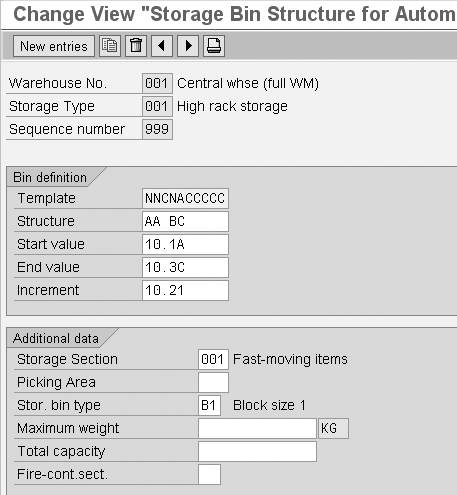
Figure 6
Storage bin structure for automatic creation
Other fields to note in Figure 6 are in the Additional data section. These fields allow you to set the storage section and picking areas as well as the storage bin type, fire containment section, and capacity information.
Optional Data Elements
While the warehouse, storage type, storage section, and bins are required data elements, picking area, doors, and material staging areas are optional data elements. Here’s a brief overview of these data elements.
Picking Area
Whereas storage sections help manage the putaway process, picking areas group bins together for picking. By subdividing the storage type for picking, a picking area can group together bins that you must pick using specific material handling equipment, such as a forklift or a pallet jack. Unlike storage sections, in which you must assign a bin to a storage section, you do not need to assign a bin to a picking area.
Doors and Material Staging Areas
Doors and material staging areas allow you to divide the workload across the warehouse for receiving and shipping. They also provide more advanced warehouse functions, such as flow-through and cross-docking. You can use doors and material staging alone — for instance, to segregate an area of the warehouse staging areas for shipping — or you can use them together — for example, you can assign the material staging area to a set of doors.
Figure 7 shows the view in which you define the doors. Follow IMG menu path Logistics Execution>Warehouse Management>Master Data>Define Doors. Here you can see the settings available to direct materials into and out of the warehouse doors. The check boxes on the right side route materials through the door for goods issues, goods receiving, cross-docking, and flow-through. Similar configuration exists for materials staging areas. For this, follow IMG menu path Logistics Execution>Warehouse Management>Master Data>Define Material Staging Areas.

Figure 7
Define each of the doors

Bruce Rishel
Bruce Rishel is a partner with Venetia Systems. He has earned the APICS Certified Supply Chain Professional (CSCP) certification as well as the Project Management Institute’s Project Management Professional (PMP) designation. Since 1998, Bruce has served his clients in a number of roles including both functional and technical leads and as a project manager. Bruce helps companies develop and improve logistics and supply chain processes and specializes in implementing the LE module, including WM and TM. Bruce has considerable experience integrating external logistics systems with SAP and is an expert in the SAP XSI solution facilitating SAP communication with third-party transportation providers. In addition to his client experience, Bruce is a frequent contributor to SCM Expert and speaker at SAP’s SAPPHIRE conference. He continues to work hands on, helping his clients realize their potential.
You may contact the author at bruce.rishel@venetiasystems.com.
If you have comments about this article or publication, or would like to submit an article idea, please contact the editor.



 Premium