Using an interactive Xcelsius report to conduct what-if scenarios allows users to quickly see the effects of business decisions in an engaging manner. Find out how to create your own what-if analysis report. A sample data file and a working what-if analysis report are provided as download files to help you get started.
Key Concept
Business decision making is a complex mix of reporting, tracking trends, and benchmarking. This involves a simulation of the many parameters involved in complex business equations. What-if analysis is one of the ways to simulate and check the overall effect of changes.
Successful companies know how to best plan for possible scenarios by using what-if analysis. This enables companies to review potential outcomes to business decisions without affecting the business. SAP BusinessObjects Xcelsius Enterprise is one application you can use for this what-if analysis.
I’ll use the example of working capital to illustrate how to launch a what-if analysis with SAP BusinessObjects Xcelsius. A CFO of a retail enterprise (My Retail Business) wants to evaluate how the enterprise is doing with respect to working capital and how he can improve the overall cash flow position. Working capital depends on four main variables:
- Accounts receivable (AR) days
- Accounts payable (AP) days
- Inventory days
- Available cash
Furthermore, the following formulas define data points about the cash flow:
- Working capital = (available cash) - (cash held in receivables) + (cash due for payment) - (cash held in inventory)
- Cash held in receivables = accounts receivable days * average daily receivables
- Cash due for payment = accounts payable days * average daily payables
- Cash held in inventory = inventory days * average daily inventory
- Target working capital = available cash - (target AR days - current AR days) * average daily receivables + (target AP days - current AP days) * average daily payables - (target inventory days - current inventory days) * average daily inventory
Figure 1 shows an example Microsoft Excel worksheet using these formulas. You can download an example of this Excel sheet via this link.
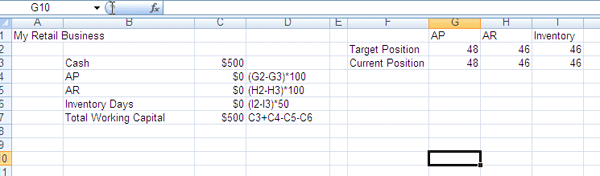
Figure 1
Working capital Excel model with formulas and calculations
To create an interactive, visual what-if analysis, take the following six steps.
Step 1. Launch SAP BusinessObjects Xcelsius Enterprise software. Click the import icon  to import your Excel spreadsheet. Select the desired workbook and click the Open button to import the spreadsheet. Your screen should look like the screen in Figure 2.
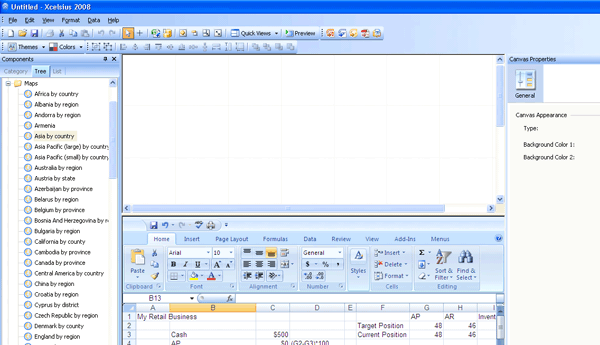
Figure 2
SAP BusinessObjects Xcelsius Enterprise screen after an Excel import
Step 2. Drag and drop components to the canvas. On the right side of the screen, click the Category tab in the Components section, then click Charts. Select Column Chart and drag it to the canvas on the left (Figure 3). I’m using the column chart to display the total working capital and its components.

Figure 3
Add a column chart to the canvas
Repeat this step to add sliders to your canvas as well. The sliders allow users to modify the target accounts receivable (AR), accounts payable (AP), and inventory days. Under the Category tab, click Single Value. Select the Horizontal Slider and drag it to the canvas (Figure 4). Repeat this twice so that you have a total of three sliders on your canvas — you use these for accounts receivable, accounts payable, and inventory days. When finished, your canvas should look like the one in Figure 5.
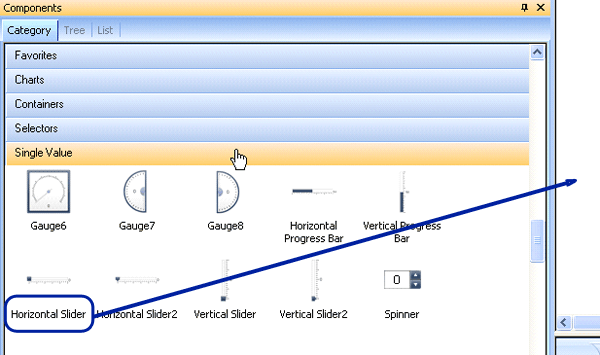
Figure 4
Add two sliders to your canvas
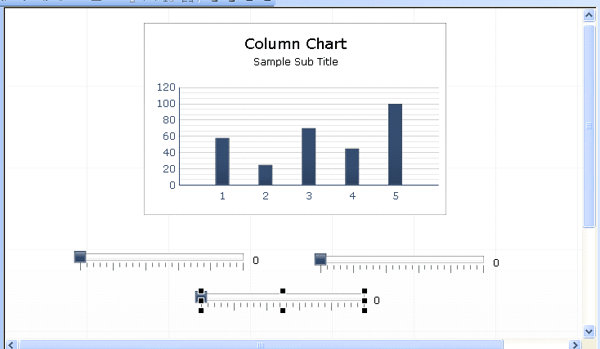
Figure 5
Canvas layout after adding a column chart and three sliders
With this step, you have assembled all the components that you need to build the working capital dashboard.
Step 3. Set the column chart properties. Click the chart and the properties appear on the right side of the canvas (Figure 6). In the Data section, select By Range and Data in Columns. Then click the icon to the right of the field and select your data from the Excel worksheet.
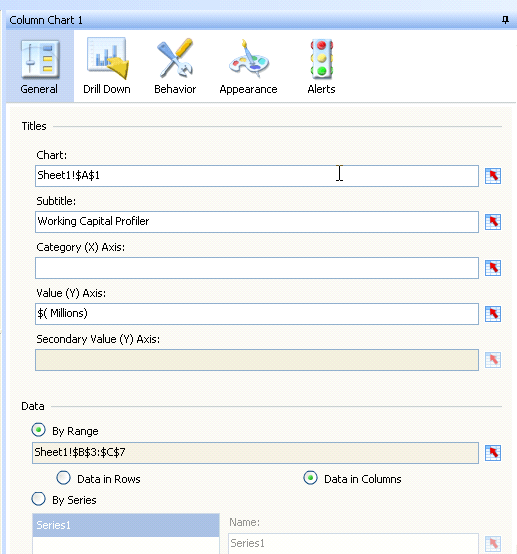
Figure 6
Select the data for your chart
Step 4. Set the slider properties. Click the first slider and the properties appear on the right side of the canvas. Name it Accounts Receivable (Figure 7). In the Scale section, select Manual and enter a minimum and maximum amount. Then set the target value for the slider by clicking the icon to the right of the data field and selecting the appropriate cell from your worksheet.
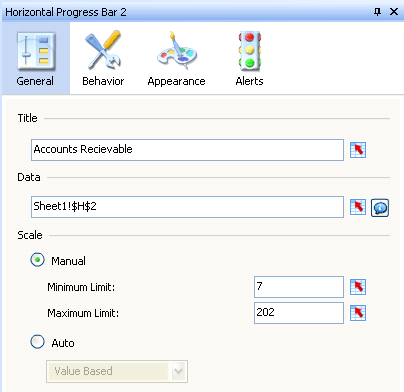
Figure 7
Set the properties for the accounts receivable slider
Then click the Alerts button at the top of the properties area (Figure 8). Select Enable Alerts and then select By Value. Make sure to select the Enable Auto Colors check box to use the default red, yellow, and green colors. For accounts receivable, set low values in the green range and higher values in the red range.
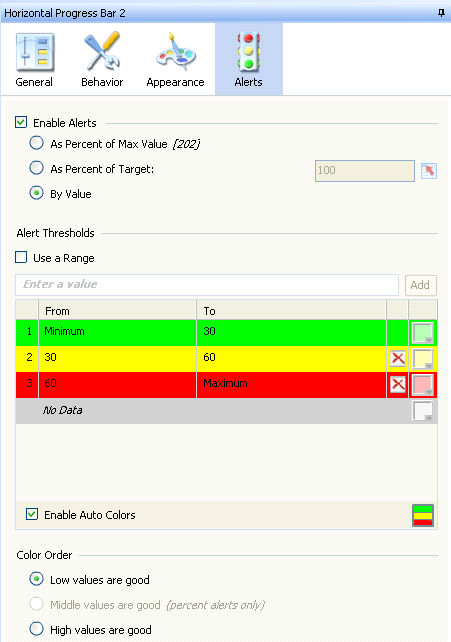
Figure 8
Set the alerts for the Accounts Receivable slider
Repeat this process for the Accounts Payable and Inventory Days sliders. Note that you should keep the color order property consistent with the value. For example, for accounts payable, higher values are considered good, so you would set these in the green range instead of the red range. After setting up the properties, the canvas should look like Figure 9.
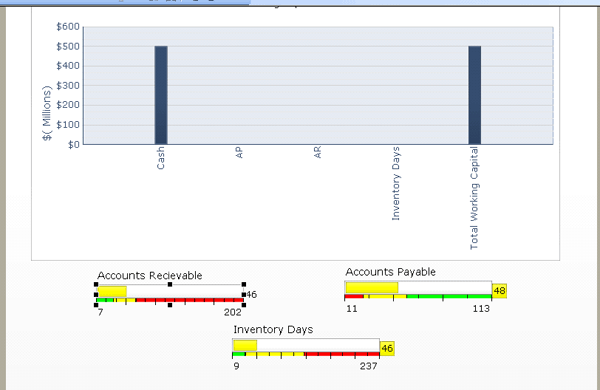
Figure 9
Your canvas after setting up the properties for the column chart and sliders
Click the Preview button to view your model. In the preview page that appears, you can check the functionality by moving the sliders and noting down the effect on the overall working capital. When you are satisfied with the model, you can export it to Microsoft Office applications or Adobe Reader/Acrobat by clicking the appropriate send-to icon in the menu bar. Your recipient receives a report like the one in Figure 10. You can download a working version of this report via this link.
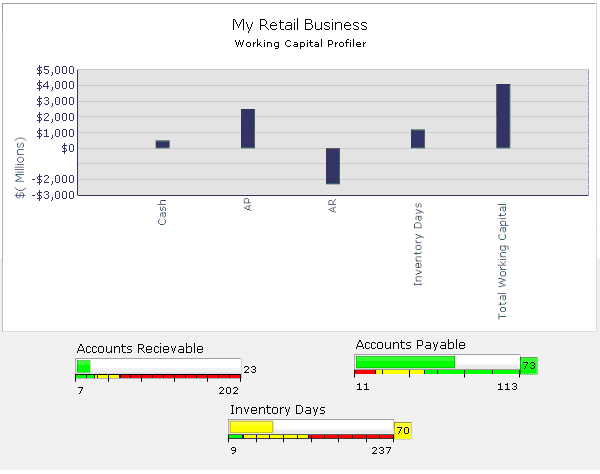
Figure 10
Final working capital model
Now senior management executives can visually perform a what-if analysis by adjusting the AR, AP, and inventory days to arrive at the desired amount of working capital. Similarly, you can use SAP BusinessObjects Enterprise software for complex models — for example, for a product promotion or sales forecasting.
Nikhil Sharma
Nikhil Sharma is a manager in the advisory practice at PricewaterhouseCoopers LLP, based out of Mclean, VA. He specializes in SAP NetWeaver BW architecture, design, and visualization. For the past 10 years he has led several implementations, including projects in the retail, automotive, and chemical domains. Prior to consulting, he was involved in sustenance and development of SAP NetWeaver BW at SAP, primarily concentrating on master data services.
You may contact the author at nikhil.sharma@us.pwc.com.
If you have comments about this article or publication, or would like to submit an article idea, please contact the editor.




 Premium