See some relatively simple changes you can make to SAP-delivered functionality to make it more accessible to casual users. These changes only require SAP’s Web Application Designer and a little knowledge of HTML and JavaScript.
Key Concept
Usability refers to how easy it is for someone to use an application to achieve a specific goal. You can measure the usability of an application along several dimensions, including how intuitive the application is, how quickly users can complete a task, how successful the users are, how accommodating the application is to different user populations, and how the application compares to alternative methods of completing a task.
In some situations, customizing features of BW can be beneficial to your end users in terms of intuitiveness and usability. I’ve collected a few short tips that can benefit your everyday BW users or your users who may only need to run reports in BW a couple of times per month, whom I’ll call casual users. You can improve their use of BW Web reports with SAP Web Application Designer (Web AD).
I’ll focus on four short tips:
- Simplify the initial view for the casual user
- Display the date data was last loaded
- Customize the Variables button
- Customize the Save This View button
My examples for customizing Web templates are set in BW 3.x. Users of newer SAP NetWeaver versions may not be able to use these tips exactly as written, but the same concepts should still apply. Also, you need to rebuild Web templates built in BW 3.x upon migration to SAP NetWeaver.
Simplify the Initial View for the Casual User
When a variable is set as required and is not pre-populated — for example, if the user must select a cost center before the report runs — the variable screen is the first thing the user sees. It can present some confusion to a new or casual user because not all variables actually apply to the user’s task. You can address this by eliminating variables with mandatory input or ensuring they are pre-populated (unless there is a business reason to leave it blank), and making sure to set the VARIABLE_SCREEN parameter to blank when calling the report. For example, you can use the URL https://yourAppServer:yourPort/SAP/BW/x?CMD=LDOC&TEMPLATE_ID=your Template&VARIABLE_SCREEN= to open a Web template and bypass the variable screen, assuming that any variables with mandatory input are pre-populated. If there is an X after VARIABLE_SCREEN=, the variable screen is always shown first, so make sure to remove the X in the URL.
A simple way to address this is to collapse the navigation block by default. Then, when the user executes the report, he isn’t bombarded with possible options for customizing it. He just sees the data. If the user wants to see the navigation block, he can easily expand it. Don’t forget to give the navigation block a caption that’s meaningful to a business user. I used Filters & Drilldowns in my example (Figure 1).
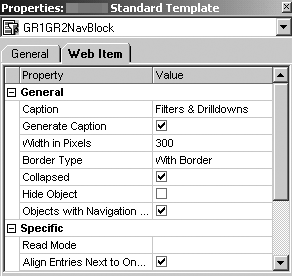
Figure 1
Web Item tab of the navigation block
You can set the navigation block to show as collapsed by default. Open your Web template in SAP Web AD and click on your navigation block. Select the Web Item tab and check the Collapsed box. Click on Generate Caption and type in a descriptive name for the navigation block in the Caption field. When you have addressed these two items, your users will be able to jump straight to their report data with minimal distractions.
Display the Date Data Was Last Loaded
Casual BW users often ask, “How old is this data?” Whether you load data into your BW system hourly, daily, or weekly, including this piece of information front and center in your reports can help users better understand what they see.
You can include the data load date on the header of your report by using the Text Element Web item. Open your template in Web AD, then drag Text Elements from the Web Items palette onto your template (Figure 2). Click on the new Web item you just created, and navigate to the Web Item tab.
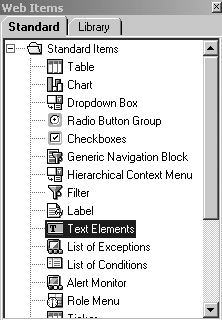
Figure 2
Web Items palette
To minimize the amount of space taken up by interface elements above the data table, I recommend setting the properties for the Web item as shown in Figure 3. Double-click next to List of Text Elements. In the resulting screen, click on the first row under Element Type and select General Text Symbol. Next, under Element ID, enter ROLLUPTIME. Click on OK.
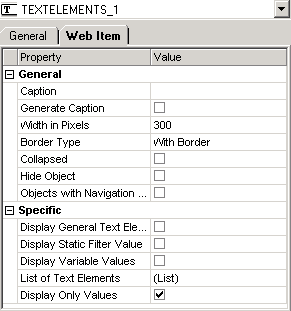
Figure 3
Text element Web Item properties
Because of the settings you select in Figure 3, your report would not be very descriptive at this point — it would just show a string like 03/09/2007 14:32:16. You can remedy this — and gain precise control over what the system displays — by switching over to the HTML tab at the bottom of the main window in Web AD. Click on the HTML tab on your Web template, and a colorful screen of code replaces the layout screen.
Scroll down until you see the <OBJECT> tag corresponding to the text element you just created. In my example, it is TEXTELEMENTS_1. The entirety of the code for the text element Web item is contained between the <OBJECT> and </OBJECT> tags (Figure 4). Next you need to create a simple JavaScript wrapper around the Web item code to add a custom description of exactly what you see. Truncate the date/time string to get rid of superfluous information.
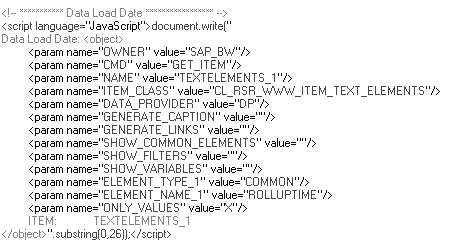
Figure 4
JavaScript code for the text element Web item
First, you need to let the system know that you’re about to write JavaScript by adding <script language=”JavaScript”> and </script> before and after the Web item code. Then you need to tell JavaScript to get ready to output some text by adding document.write(“just after the first <SCRIPT> tag. Then add a description — SAP’s official term for this is Status of Data, but I chose Data Load Date because it is more intuitive. Enter this description after the quote.
Now let’s assume you refresh your BW system daily. Your users might not be terribly interested in what time data was last loaded; they may only be concerned with the date. You can use a JavaScript command to truncate the date/time string to only show the date.
For this to work correctly, you’ll need to count characters carefully. Count the characters you used for your description, up to < in <object>. For example, if you used Data Load Date: , that would be 16 characters, including the colon and the spaces between the words and after the colon. Now count how many characters you want to show from the date/time string, using 03/09/2007 14:32:16 as an example. (Your date/time string may vary depending on your system’s localization.) If I only want the date to appear, I’m going to want to see only the first 10 characters: 03/09/2007. Add this to the number of characters in your description, and, in this case, you have 26. Type in ".substring(0,26)); after the closing </object> tag.
The end result is a concise string you can put anywhere in your Web template that would look something like: Data Load Date: 03/09/2007.
If you are using a MultiProvider, the ROLLUPTIME element displays the earliest load time of any cube in the MultiProvider. If one of the cubes in the MultiProvider is not loaded as often as the others, the date could be misleading.
Customize the Variables Button
In an earlier section, I discussed not showing the variable screen by default so users could immediately see report results. One problem with this approach is that when users need to access the variable screen, they often don’t know how to do so. You can use the variables icon  on the toolbar, but it’s not immediately obvious that this is the way to get to the variable screen.
If you think the variables icon is one of the most important icons on the toolbar, you can create a larger version of the button using a graphics program such as Adobe Photoshop. When creating the new button, you may want to incorporate SAP’s icon for a personalized variable (you can copy it off a screenprint of the variable screen) to emphasize that this was the place you go to personalize variables, an important task most users need to complete. Adding the word Variables to the button leaves no question about which button to use to access the variable screen. You can see the design I chose for the Variables button in Figure 5 and the code for implementing the button in Figure 6.

Figure 5
New Variables button

Figure 6
Code for Variables button
Customize the Save This View Button
Web page personalization saves the current view of the report, complete with filters, drilldowns, and variable selections, and makes that view open up the next time you run the report. However, you may see initial hesitancy to Web page personalization as many users might confuse it with variable personalization. At my company, we decided to rebrand it to make clear that what Web page personalization enabled was saving the current view of the report for next time. We chose the phrase Save this view.
We also struggled with how to represent this feature in a button on the toolbar, but as with the Variables button, we decided to include the text Save this view on the button itself, along with a disk icon similar to the one used to represent the save function in many other applications (Figure 7). You can see the HTML code you use to add this functionality in the first two lines of Figure 8.

Figure 7
New Save this view button

Figure 8
HTML code for Save this view and Restore original view
We also added a semi-transparent trash can icon (created using Photoshop) next to the button to allow users to remove the saved view. Hovering over the trash can with the mouse shows the text Restore original view, and clicking on it brings up a dialog box saying that the original view has been restored, and the user must reload the report to see it. You can see the HTML code you use to add this functionality in the last three lines of Figure 8.
For more information about navigating SAP BW reports using the Web, attend SAP class BW305, Business Information Warehouse: Reporting and Analysis (for BW 3.x) or BW 306, BI Enterprise Reporting, Query and Analysis (Part 2) (for BI 7.0).
Jason Kraft
Jason Kraft is Business Warehouse team lead at Johnson & Johnson Pharmaceutical Research & Development, in Mountain View, CA. Jason has five years of SAP experience, specializing in the development of front-end BW queries and dashboards. He also has 12 years of experience with Web development and graphic design.
You may contact the author at jason.kraft@gmail.com.
If you have comments about this article or publication, or would like to submit an article idea, please contact the editor.



 Premium