Does your organization require quota entitlement banks for an accrual period that is not a part of the standard SAP system settings? You don’t have to create custom ABAP enhancements or write custom personnel calculation rules. With a few simple configuration steps, you can create quota entitlement banks for time evaluation by establishing a fiscal year parameter that meets your organization’s needs.
Key Concept
Entitlement banks, also called leave entitlements, are the balances of time off an employee may take during a specified period. The time off may be paid or unpaid and falls into various categories such as vacation, sick leave, or personal time. Organizations may grant employees entitlement banks in whole or the employees may accrue a certain number of hours during a specific period of time, such as daily, weekly, or by pay period.
For most SAP ERP HCM implementations, you can use SAP standard base and accrual periods such as calendar year, payroll period, daily, and monthly, to establish entitlement banks for tracking employee leave balances. These standard time measures define how and when entitlement banks are generated and deductible. However, your organization may require the generation of a quota entitlement bank to be based on its fiscal calendar.
This is not one of the standard selections when configuring quotas but you can make it an option with additional configuration. Using this configuration in the standard functionality eliminates the need for costly custom enhancements or ABAP development. The configuration is fully maintainable within the IMG, which reduces risk, simplifies support, and reduces the total cost of ownership. Retroactive accounting within Time Management is also fully supported with this method.
I do not discuss how to perform complete quota configuration, but do provide steps on how to establish the fiscal period and where you can reference the fiscal period within the quota configuration to meet the specified business requirement. To read more about complete quota configuration, read “Four Easy Steps for Absence Quota Configuration,” by Manual Gallardo.
First, I start with five steps you can use to establish a period parameter and assign it within the quota configuration. These steps should help you understand how the period parameter may be used in quota generation, using the example of setting up a period parameter to define a fiscal year. This is a straightforward business requirement. Later, I provide additional configuration steps you can use with time evaluation and accruals for more complex requirements.
Configuring a Period Parameter
The period parameter is a two-character field mnemonic that represents a calendar frequency, such as weekly, monthly, or annual frequency. Based on the frequency assigned, a calendar may be generated to reflect the corresponding beginning and ending dates for each period from a specified start date. Follow these steps to establish a period parameter:
Step 1. Define a period parameter to assign the dates for the fiscal year period in your organization. In the IMG, follow menu path Payroll > Payroll:USA > Basic Settings > Payroll Organization > Define Period Modifiers. Create a new period parameter entry and give it a unique number and name. Assign time unit 06 Annual for the period parameter entry (Figure 1). The Start Date field is not the fiscal year begin date, but the date that this value takes effect in your organization for validity. I am using period parameter 99 as the working example.

Figure 1
Create a new period parameter
Step 2. Assign the dates of the fiscal year period to the period parameter.
Note
The period parameter is normally the first step in creating a payroll control record and assigning each payroll period and check issue date using the automatic generation feature provided in an SAP system. Since a payroll control record is not necessary for this functionality and you’re only creating the initial step of the period parameter, the automatic generation of the periods is not an option; however, since you only need one entry per year, manually adding the entries to the calendar table requires minimal effort. As time passes, you can add or adjust entries as required. This is configuration, so any changes you make need to be transported.
To define the fiscal year periods, in the IMG, follow menu path Payroll > Payroll:USA > Basic Settings > Payroll Organization > Generate Payroll Periods. Double-click on Check Payroll Periods. A prompt requires you to enter the period parameter. Enter the value you created in the previous step. Next, the table where you enter the payroll periods and date definitions displays (Figure 2). Click the New Entries button and create the entries for each year. The payroll year is when the fiscal year begins and the payroll period is always 01. There is only one payroll period in an annual year, which is the time unit you assigned in step 1.
Next, enter the beginning and ending date of the fiscal year. Finish by entering the previous payroll year, which is the prior year and the previous payroll period, which, again, is 01 due to the annual time unit. Figure 2 shows sample entries with the fiscal year beginning April 1 of each year and ending March 31.
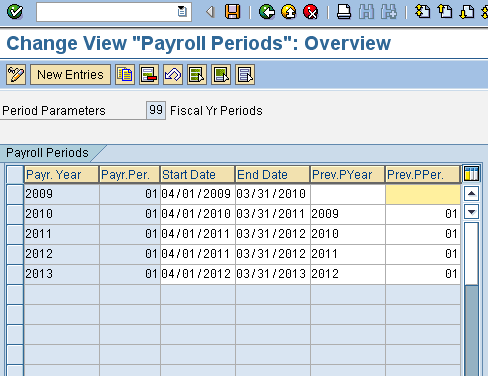
Figure 2
Create entries for the begin and end dates of each fiscal year
Step 3. Define the fiscal year as the entitlement base period. Now that the fiscal year has been assigned to a parameter, quota configuration proceeds per standard configuration. This includes creating the quota types and assigning the appropriate entitlement rules, generation rules, validity dates, and deduction dates.
If the fiscal year is the base period for entitlement, then assign the fiscal period to the appropriate entitlement rules. To create base entitlement rules, follow IMG menu path Time Management > Time Data Recording and Administration > Managing Time Accounts Using Attendance/Absence Quotas > Calculating Absence Entitlements > Rules for Generating Absence Quotas > Set Base Entitlements. Complete the required fields in base entitlement entry. Also fill in any relevant seniority and entitlement value as appropriate to meet your organization’s requirements. Under related to period, the fiscal year parameter is associated with the entitlement rule. Select Other period and from the corresponding drop-down menu, choose the period parameter you created in step 1 (Figure 3).
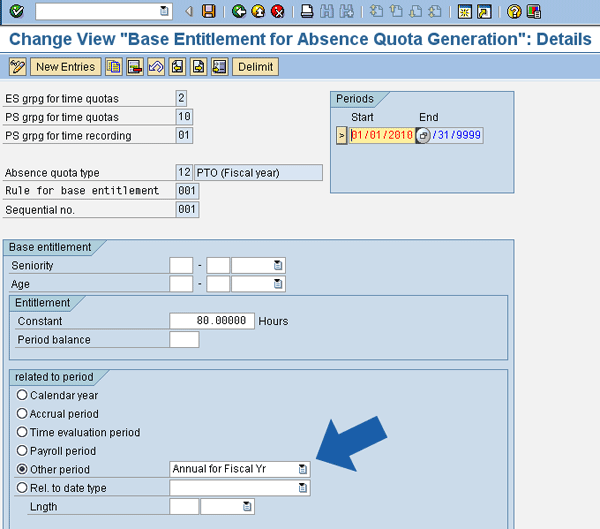
Figure 3
Base entitlement entry
Step 4. Define the fiscal year as the validity date. The validity date of the quota bank generally represents the period the employee earned the entitlement. The deduction date is the period in which the employee may take the entitlement. The two dates do not have to be the same. To create the validity and deduction rule for the fiscal year quota bank, follow IMG menu path to Time Management > Time Data Recording and Administration > Managing Time Accounts Using Attendance/Absence Quotas > Calculating Absence Entitlements > Rules for Generating Absence Quotas > Determine Validity and Deduction Period. Under the Validity interval tab, there are options for defining the starting and ending validity dates (Figure 4). Choose Other period and from the corresponding drop-down list select the period parameter value created in step 1.

Figure 4
Define the validity and deduction dates
Note that with all validity date options, the deduction period is calculated as relevant to the validity period. Using a fiscal year does not change this base functionality, so when establishing the deduction interval, remember to use the beginning and ending dates of the fiscal year assigned when calculating the relative position, if applicable. In Figure 4, the validity and deduction periods are the same. If the requirement was for the value to be deductible in the next fiscal year, then adding 12 months to the relative position would meet this requirement just as it would when using any of the other available options, such as calendar year.
Step 5. Define the fiscal year to coordinate with the selection rules for quota generation. This customizes when the entitlement should be granted or accrued, if it will be pro-rated, when it should transfer to the employee’s bank, and any applicable seniority or maximum accrual values based on your organization’s requirements. To assign the fiscal year parameter to coordinate with a selection rule, follow IMG menu path Time Management > Time Data Recording and Administration > Managing Time Accounts Using Attendance/Absence Quotas > Calculating Absence Entitlements > Rules for Generating Absence Quotas > Define Generation Rules For Quota Type Selection (Figure 5). Create the selection rules for any fiscal year-related quota banks. Within the selection rules, there are two areas in which you can assign the fiscal year parameter. The first is the accrual period. Under the Accrual tab, select Other period and from the corresponding drop-down menu, choose the fiscal year parameter you created in step 1.

Figure 5
Assign the fiscal year parameter in the Accrual period tab
The second option within the selection rule configuration is under the Transfer time tab (Figure 6). Under this tab, select Other period and from the corresponding drop-down menu, select the period parameter you created in step 1.
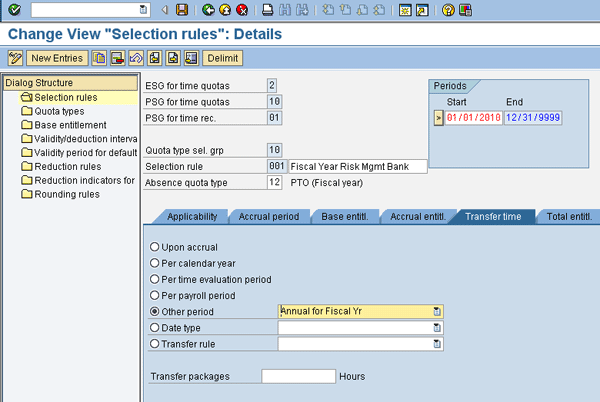
Figure 6
Assign the fiscal year parameter in the Transfer time tab
Results of the Period Parameter Configuration
In the very basic period parameter example, the organization’s requirement is to generate a constant value of PTO for salaried employees for each fiscal year with validity and deduction in the fiscal year. Figure 7 shows an example of the generation of the entitlement using transaction PT_QTA00. Note the start and end dates for the records and also the deduction from and to dates. They are the fiscal year that was established in step 2 of the sample configuration above. Note that the generation period is the dates entered for data selection on the initial screen.
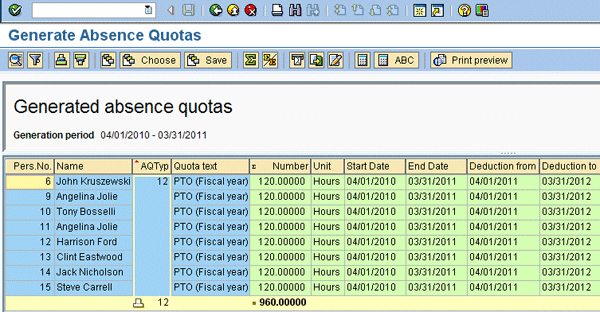
Fgiure 7
Generated Absence Quotas with the Fiscal Year Period
Time Evaluation and Other Complex Requirements
While the example I give above satisfies a very basic requirement to generate a quota bank entitlement on a fiscal year, most organizations need to apply more complex requirements around the fiscal year generation, such as accruing on a different time unit then the fiscal year. Using the configuration techniques described in the above steps and applying those concepts when establishing the quota configuration, I will show you how you can use this configuration functionality in conjunction with time evaluation and quota generation using accruals.
Assume your organization’s business requirement is to accrue five hours of a specified leave type per semi-monthly pay period, transferring the accrual each pay period. The full bank is deductible the following fiscal year. For example, employees receive 120 hours of vacation time for each fiscal year. To configure this more complex requirement, follow these steps:
Step 1. Set the base entitlement for the quota bank to five hours and the base period to the accrual period as shown in Figure 8.
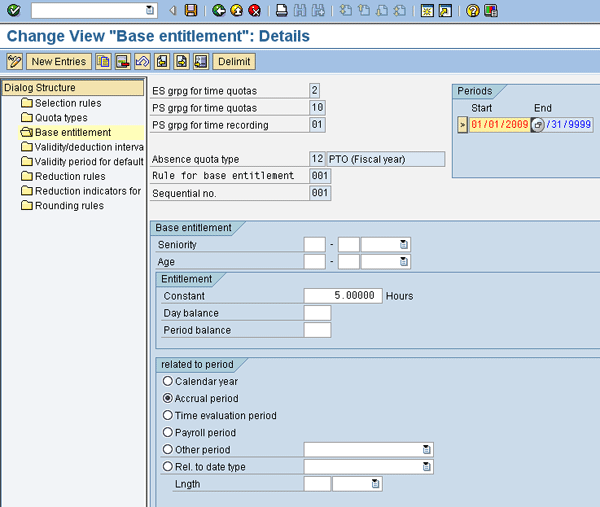
Figure 8
Set the base entitlement and base period
Step 2. Now set the period for accrual. Since the requirement is to accrue per payroll period, set the selection rule to Payroll period, under the Accrual tab (Figure 9). This is the processing employee’s assigned payroll period based on the payroll area on the Organizational Assignment record. Under the Transfer time tab, select On accrual.
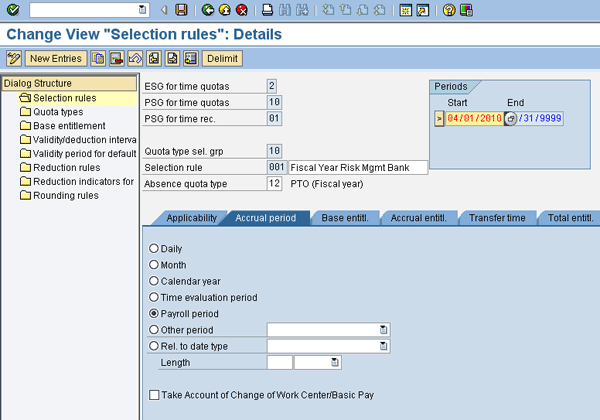
Figure 9
Set the employee’s payroll period
Step 3. Now that you’ve set the accrual period and the accrual value, you establish the deduction and validity period. The requirement is to accrue in the current fiscal year, and then deduct that accrual in the following fiscal year. To accomplish this, configure the validity and deduction dates as shown in Figure 10.

Figure 10
Configure validity and deduction dates to meet requirements
Once you’ve executed time evaluation, the quota processing generates an accrual for five hours with the required validity and deduction dates each pay period. Figure 11 shows an excerpt from the schema. Note the validity and deduction periods in relation to the accrual period circled in Figure 11.
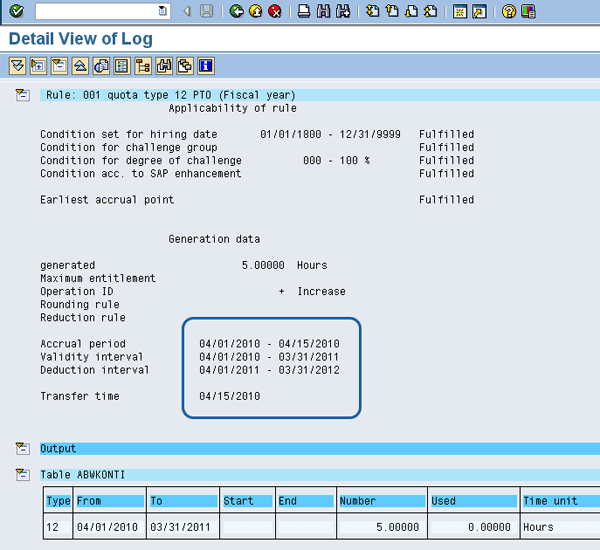
Figure 11
Schema from completed configuration
Figure 12 shows the employee’s quota record after three pay periods have processed. Notice there are 15.00 hours in the Quota number field.
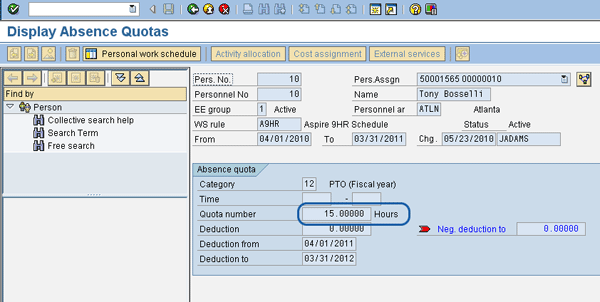
Figure 12
Employee’s quota record
Perhaps the requirement is to accrue the hours, but hold them to be transferred at the end of the fiscal year. You can easily accomplish this by adjusting the transfer time on the selection rule to use the fiscal year period configured in steps 1 and 2 (Figure 13).
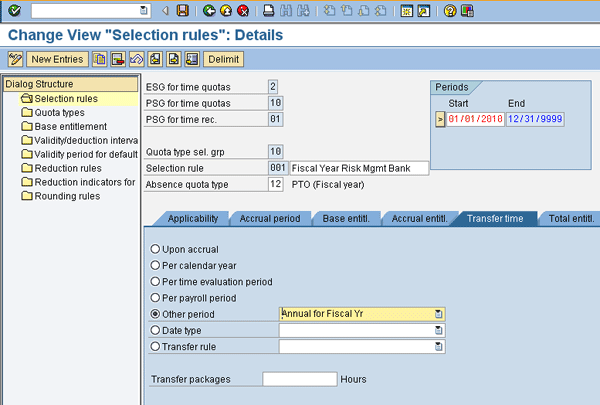
Figure 13
Adjust the transfer time on the selection rule
When using the transfer time option, the date of transfer is the last day of the transfer period, so in the fiscal year example I used, the full sum would transfer on 3/31/2011. Figure 14 shows an example of the accruals occurring during the fiscal year for the employee. Note the last period for the fiscal year and the transfer that occurs.
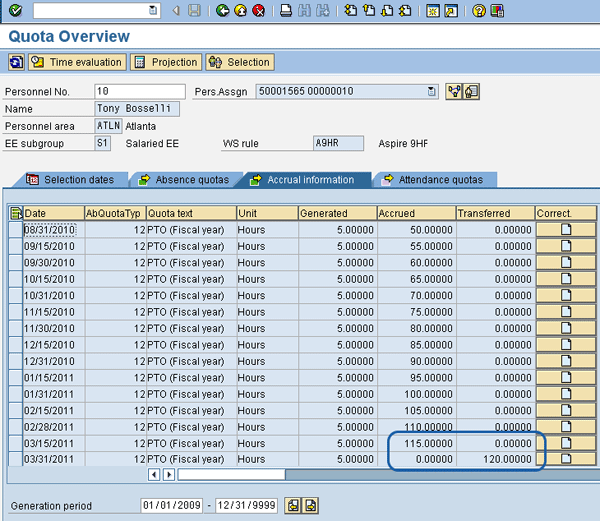
Figure 14
Employee’s accruals during the fiscal year
Through 3/15/2011, five hours accrued each pay period, but no value has been transferred. The employee is accruing this time, but these hours are not yet visible on the absence quota record. On 3/31/2012, the five hours accrued are added to the previous 115.00 hours and the balance is transferred to the employee, giving the employee a full quota bank (Figure 15).
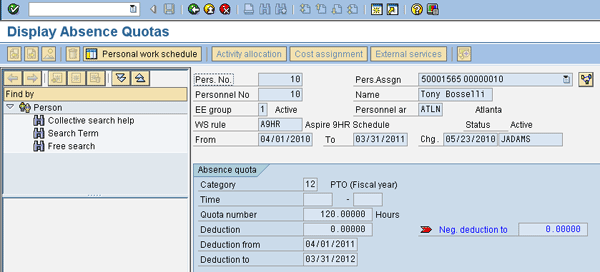
Figure 15
Employee’s full quota bank
Tips To Avoid Errors When Setting Up This Configuration
Some common errors occur when setting up this configuration. If you experience any errors, here are a few items to check:
- If you receive a complex quota error, the payroll periods established may not exist for the entire processing period. If the configuration entry for the selection rules does not exist during the entire fiscal period, errors will occur during time evaluation. For example, if the fiscal year begins April 1, 2010, but the quota generation selection rule isn’t set to begin until July 1, 2010, then the selection rule is not valid for the entire validity period. You can avoid this by setting the selection rule for the first fiscal period the accrual should begin.
- If you encounter time evaluation errors indicating the payroll periods do not exist, then the selection rule is attempting to process for a period that is not in the payroll period table (the first step 2). For example, if the entries begin with year 2010 and the period start date is 4/1/2010, then entries processing prior to 4/1/2010 are considered part of fiscal year 2009, even if it is technically in 2010 (e.g., 1/15/2010). To resolve, either add the payroll periods to the table or adjust the effective dating on the selection rule for the first fiscal period the accrual should begin.
- If time evaluation errors indicate that the validity dates are outside the accrual period, adjust the validity and deduction dates accordingly. This error occurs when the validity dates are set to be greater than this value. For example, if the start date is set to Transfer time with a relative position of one day and the transfer time is March 31, 2011, the transfer time would be April 1, 2011, which is outside the accrual period of April 1, 2010, through March 31, 2011.
Using the concept and flexibility associated with the period parameter allows maximum flexibility with standard functionality and eliminates or reduces the need to write custom personnel calculation rules in the time evaluation schema or develop custom enhancements using ABAP.
Jennifer Adams
Jennifer Adams has 15 years of SAP ERP HCM experience and currently works as a principal consultant with AspireHR, specializing in Time Management and US payroll. She will be a presenter at the HR 2011 conference to be held March 8 to 11 in Las Vegas. Her topic will be “A Comprehensive Guide to Configuring, Integrating, and Optimizing the Family Medical Leave Act (FMLA) Workbench.” Jennifer also has experience with Compensation Management, Personnel Administration, and Benefits. Before that, she spent 12 years in systems analysis and design for mainframe environments, supporting multiple business streams.
You may contact the author at jadams@aspirehr.com.
If you have comments about this article or publication, or would like to submit an article idea, please contact the editor.