Learn how to restrict payroll payments for position- and location-based payments and automate the restrictions for every payroll period and for the entire organization. Also learn how to automate the calculations of payments based on constant values.
Key Concept
Companies sometimes have the need to restrict payments that are applicable only to employees in certain positions or certain locations. They can restrict some payment types based on position or location by appropriately using the relevant indirect evaluation module in wage type configuration. An indirect valuation module is a type of module assigned to a wage type in configuration that determines the wage type characteristics.
Most implementations of payment type restrictions are factory based. Using two examples, I show how to address position-based and location-based restrictions. In both of these examples, I show how to avoid errors in entering payroll payments in the SAP ERP HCM system, as the system restricts entries based on the users’ eligibility criteria.
Requirement A: Restrict Payment by Position
Company A’s payroll department has a typical requirement on wage types. The company is in the banking industry and the organization has branches across the country. Each of these branches has a position called cashier.
Cashiers handle cash transactions of at least 10,000 Euros a day on a busy working day, and Company A has a special monthly allowance payment only for cashiers because of the strenuous and risky nature of their job. This special payment is fixed at 1,000 Euros per month. The requirement is to restrict this payment only for the cashier positions and to default the payment while creating this record for the employee.
Prerequisites for Requirement A
The prerequisites for restricting payment by position are as follows:
- A payment wage type with a required description
- A clearly identified position for which this payment has to be made
- The employee master data with an employee assigned to the above-referred position
Note
The creation of wage type and position is beyond the scope of this article and is not covered here. To learn more about these steps, refer to SAP SPRO Documentation.
For more information about your employee-based wage type calculations, or if you want to achieve the creation of your own indirect valuation with complex formulas, please refer to the article, “Indirect Valuation Modules: Customize Your Wage Calculation,” by Rehan Zaidi.
In my example, I have taken a payment wage type 2968 (cash-handling allowance and position) for the cashier position (position ID 01502010). The employee used in this example is 5000231. You configure a few basic items in the system to achieve the requirement A.
Configuration Steps for Requirement A
First you must:
Step 1. Configure the wage type required with the indirect valuation module ARBPL
The menu path to achieve step 1 (applicable for infotype 0014 [recurring payments and deductions]) is SPRO > Personnel Management > Personnel Administration > Payroll Data > Recurring Payments and Deductions > Wage types > Check Wage type catalog > Check wage type characteristics.
Step 2. Assign this wage type to the required position
Note
As this wage type — which is restricted for a position — is recorded in infotype 0014 (recurring payments and deductions), I have given the menu path. If you want to pay through the basic pay (infotype 0008) or additional payments (infotype 0015), then you need to follow the respective menu paths as follows. The menu path to achieve step 1 using infotype 0008 (basic pay) is SPRO > Personnel Management > Personnel Administration > Payroll Data > Basic Pay > Wage types > Check Wage type catalog > Check wage type characteristics. The menu path to achieve step 1 using infotype 0015 (additional payments) is SPRO > Personnel Management > Personnel Administration > Payroll Data > A
When you click the execute icon  in SPRO, you get the screen shown in Figure 1.
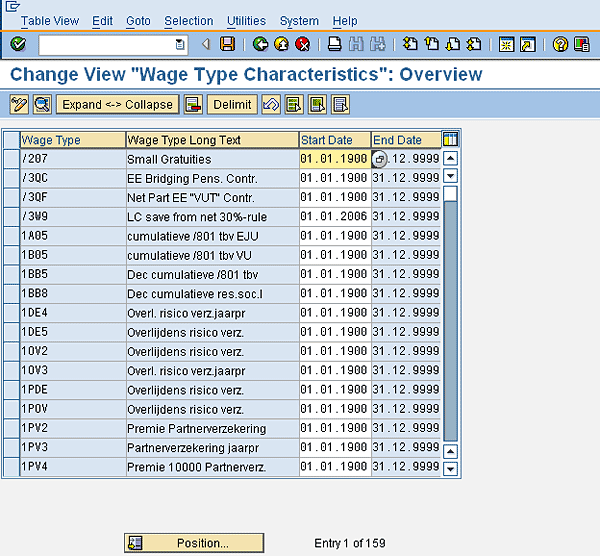
Figure 1
Change the wage type characteristics
Click the Position… button, enter the required wage type code (Figure 2), and click the enter icon  .
.
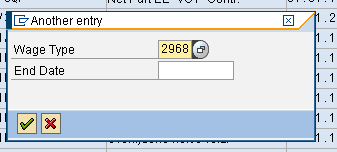
Figure 2
Select the required wage type for changing the wage type characteristics
Now you get the selected wage type on top of the list. Select the line item and double-click (Figure 3).
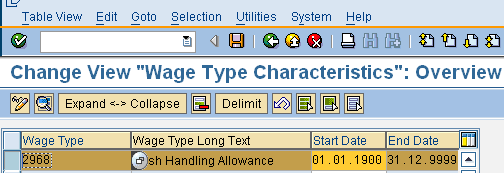
Figure 3
Wage type 2968 selected for modification
Now you need to ensure that the following characteristics (as shown in Figure 4) are assigned to the selected wage type.
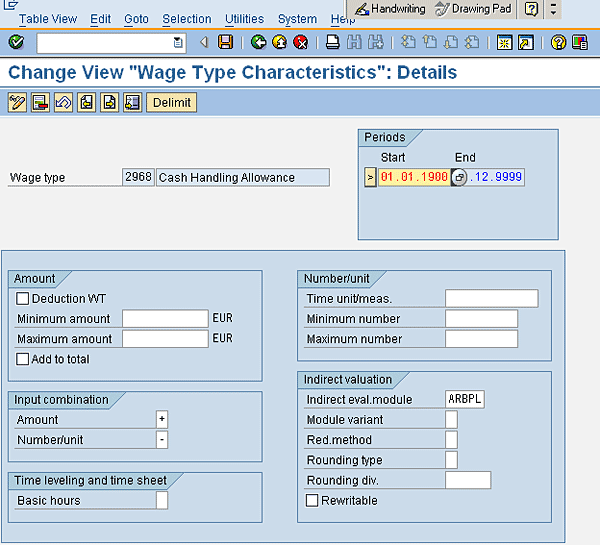
Figure 4
Wage type 2968 change characteristics screen
Following are the details of the screenprint in Figure 4:
Deduction WT: Checking this wage type check box makes it a deduction wage type
Minimum amount: This field sets the minimum amount of the wage type
Maximum amount: This field sets the maximum amount of the wage type
Add to total: If this check box is selected, it adds the amount in the total field in infotype 0008 (basic pay)
Amount +: If this is selected, it means the amount in the input field is allowed in the wage type
Number/unit -: If this is selected, it means the input field for the unit is not allowed in this wage type
Basic hours: If this check box is selected it means that this is a bonus wage type
Time unit/meas.: This field is where you can assign the required units if applicable (e.g., hours or minutes)
Minimum number: Enter the minimum input number for units
Maximum number: Enter the maximum input number of units
Indirect eval.module: Where you update (with ARBPL) the required value for the desired function. The ARBPL is an indirect evaluation module that helps assign a wage type to either a position or a work center. In this example, this is assigned to a position.
Module variant: If this field is left blank, it means that no defaults have been set for any position group, area, or type
After assigning the characteristics as shown in Figure 4, move on to step 2.
Follow menu path SPRO > Personnel management > Personnel administration > Payroll data > Basic Pay > Wage types > Determine indirect valuation for positions/Work centres. Click the execute icon and you get the screen shown in Figure 5.
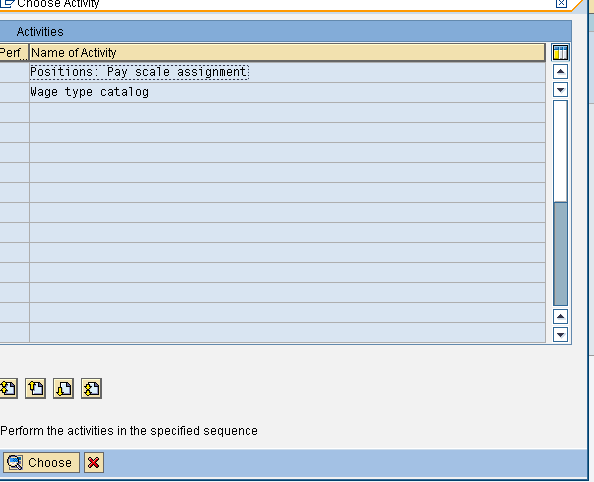
Figure 5
Wage type activity screen
Select Positions: Pay scale assignment and double-click. This results in the screen in Figure 6.
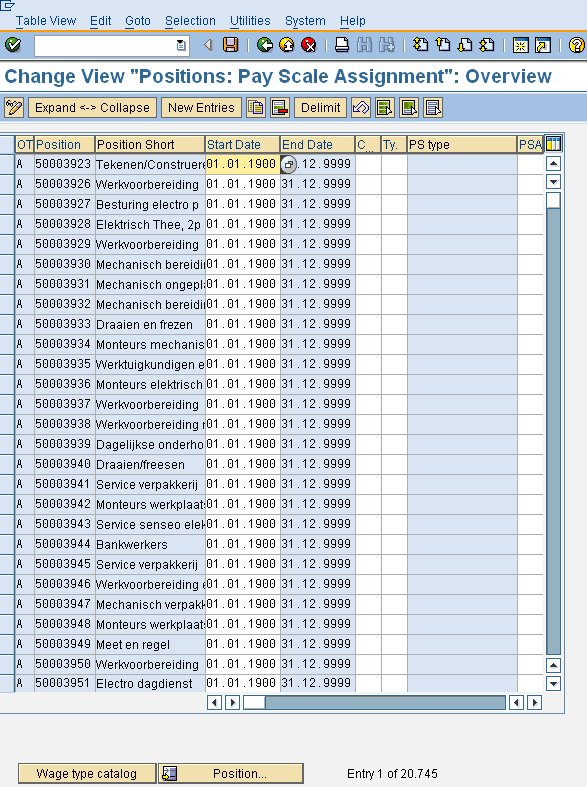
Figure 6
Positions: Pay Scale Assignment view
Now select the Position… button in Figure 6 and enter the required position code for which you need to assign this wage type. Then enter the applicable country grouping (Figure 7). (In my example, the company code is for The Netherlands which is 05, so I have given the country grouping as 05.) I used Cashier (Position ID number 01502010) for the position.
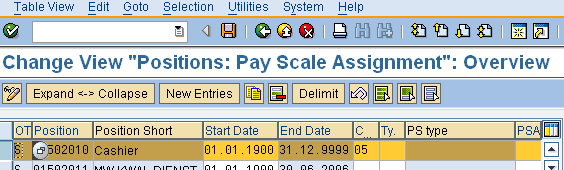
Figure 7
Positions: Pay Scale Assignment view
Select the entry and click the Wage type catalog button (shown in Figure 6). This results in the screen in Figure 8.
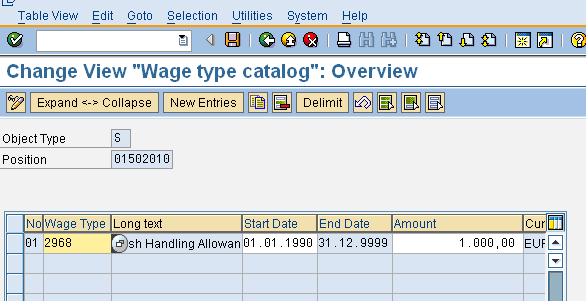
Figure 8
Wage type catalog change view
Now you add the relevant wage type as shown in Figure 8. To do this, click the New Entries button and enter the details as shown in Figure 8.
Note
Wage type 2968 is the cash handling allowance wage type that you assign for the required position. The amount 1,000 EUR refers to the default payment for this position, which is 1,000 Euros.
This completes the required wage type configuration for position-based payments. Now, let’s test this scenario.
System Prerequisites for Testing Requirement A
The basic prerequisite for the employee is that employee master data is required. If an employee is properly assigned to a position, the information is displayed as in Figure 9 (which shows the employee master data using infotype 0001 [organizational assignment]). This screen shows all the information about the employee, such as personnel area, subarea, and position to which he or she is assigned.
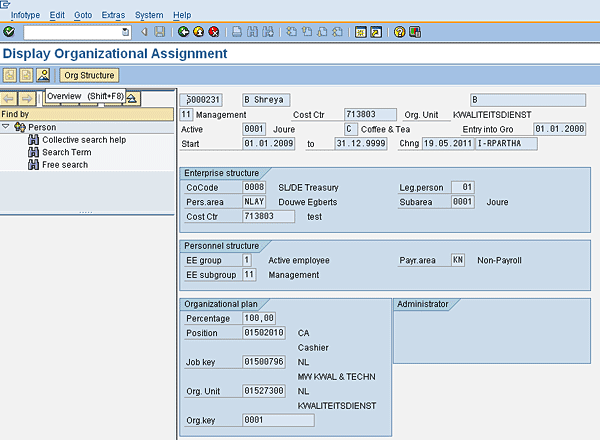
Figure 9
The organizational assignment display view
In Figure 9, the required position — cashier — is assigned to this employee and it meets the prerequisites.You assign this wage type in infotype 0014 (recurring payments in deductions) and the transaction code is PA30 (maintain master data).
When you enter the Wage Type (2968, Cash Handling Allowance, in my example) the system automatically defaults to the amount 1,000.00 Euros (Figure 10). Save this record by clicking the save icon  .
.
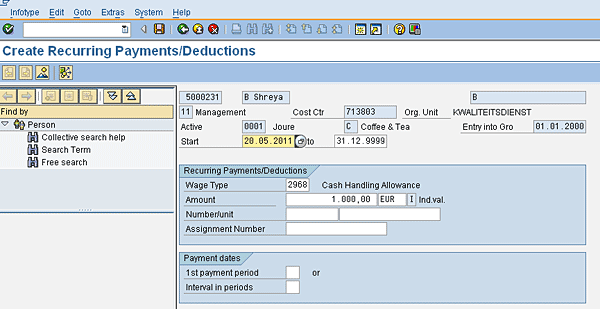
Figure 10
Create recurring payments or deductions
Now, let’s assign this wage type for another employee who is not in the cashier position and see what happens. I’m entering Wage Type 2968 for employee personnel number 5000232 (Figure 11).
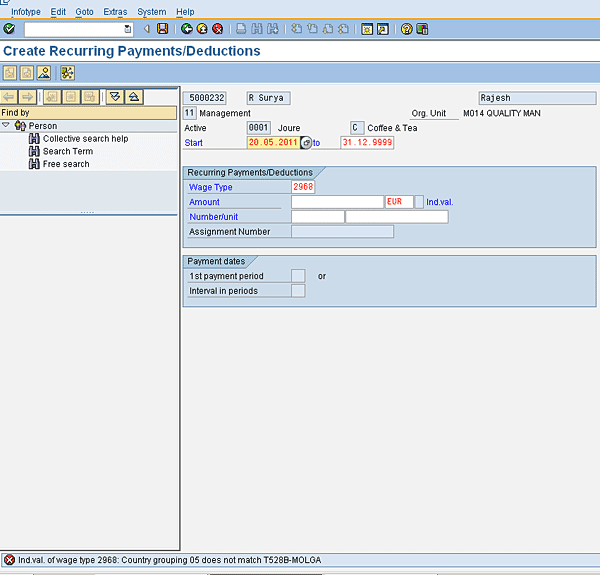
Figure 11
Create Recurring Payment/Deductions results with invalid data
The incorrect entries are highlighted in red and the system doesn’t allow you to assign this wage type for this employee ID with a different position code (Figure 11).
Requirement B: Restrict Payment by Location
Company B’s payroll department has a typical requirement on wage types. This company has several factory sites where employees have to work in grimy environments. Thus, they are given a laundry allowance with the default amount of 100 Euros a month to offset the extra costs of keeping their work clothing clean.
The requirement is to restrict this payment only for particular sites/locations. Now, let’s see how to configure the system requirements based on location/site for Company B.
Prerequisites for Requirement B
- A payment wage type with a required description that is applicable only for selected locations/personnel subareas
- A clearly identified location that is eligible for this payment
In my example I assigned the payment wage type 2970 (washing allowance) and the applicable location is personnel subarea 0099 (factory). The employee used in this example is personnel number 5000233 and he belongs to the personnel subarea factory location.
First, let’s configure a few basic settings in the system to achieve the requirement B.
Configuration Steps for Requirement B
Step 1: Align and enter the required position grouping value for the personnel subarea factory
Step 2: Restrict this wage type to employees at only certain locations
For step 1, follow menu path SPRO > Personnel Management > Personnel Administration > Payroll Data > Recurring Payments and Deductions > Wage types > Personnel sub areas for Primary Wage type. When you click the execute icon in SPRO, you see the screen shown in Figure 12. Enter 9 as the PS Grouping value. The number 9 refers to the personnel subarea grouping; it has no significance other than grouping the area for the required configuration.
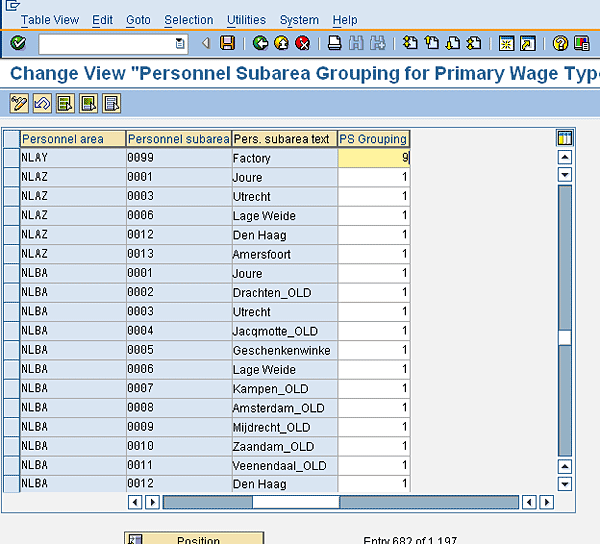
Figrue 12
Personnel subarea grouping for the primary wage type
For step 2, follow menu path SPRO > Personnel Management > Personnel Administration > Payroll Data > Recurring Payments and Deductions > Wage types > Check wage type catalog > Define wage type permissibility for each PS and ESG.
When you click the execute icon in SPRO, you see the screen shown in Figure 13.
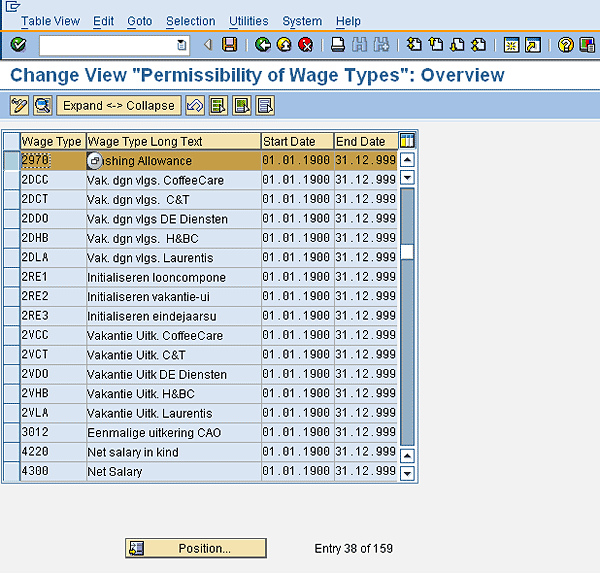
Figure 13
Permissibility of wage types
Click the details icon  and you see the configuration screen in Figure 14.
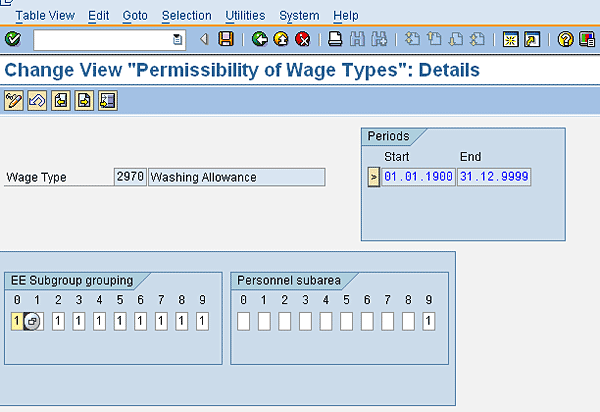
Figure 14
Change view of entry permissibility of wage types
In Figure 14, if I enter the value 1 under the respective EE Subgroup grouping and Personnel subarea then the wage type 2970 is permitted for those groupings. That’s why I marked 1 only under Personnel subarea 9, and marked 1 under all the EE Subarea groupings. The wage type is restricted for the rest of the personnel subareas, which are left blank.
Let’s test this with one employee belonging to the factory location and another employee being assigned to that personnel subarea. (Note that, as shown in Figure 14, this wage type is applicable to all employee sub-group groupings in this factory location and I have not restricted any employee sub-group grouping — the restrictions are in place for location only.)
Prerequisites for Testing Requirement B
The prerequisites for restricting payment by location are as follows:
- An employee at the factory location (personnel subarea)
- An employee in a different personnel subarea
An employee in the factory personnel subarea and the wage type value screen is shown in Figure 15.
Figure 5
Wage type activity screen
The incorrect entries are highlighted in red and the system doesn’t allow you to assign this wage type for this personnel number with a different location code (Figure 16).
Figure 6
Positions: Pay Scale Assignment view
Raghavendran Parthasarathy
Raghavendran Parthasarathy works for Hexaware Technologies as a Principal Consultant,where he manages SAP solution design for customers across the globe. He has worked in SAP ERP HCM for over 14 years in various capacities, including payroll projects in the Middle East, Europe, and Asia/Pacific. In addition to payroll, Raghavendran has experience in negative time management, personnel administration, and recruitment. He has also been a part of portal implementations. Currently, he is involved with cloud-based HCM applications such as SAP SuccessFactors and Workday.
You may contact the author at raghs99@yahoo.com.
If you have comments about this article or publication, or would like to submit an article idea, please contact the editor.



 Premium

