You can prevent changes to SAP List Viewer (ALV) report layouts in sales and distribution (SD) by activating the save ALV variants functionality. The save layouts pop-up screen is not a bug, as some users think, but a user parameter that the user administrator usually sets.
Key Concept
To restrict users from changing sales and distribution (SD) report layouts in the SAP List Viewer (ALV), you can define authorizations in the user role. The user parameter that controls the access for changing of SD report layouts is SD_VARIANT_MAINTAIN (authorization for variant maintenance).
When a user working with sales and distribution (SD) reports wants to save an SAP List Viewer (ALV) variant, it is common that the option to save the layout is grayed out and disabled. This occurs even if the user has the SAP_ALL authorization. A user parameter for maintaining authorizations allows you to save those variants and make them available for users.
I tested this process in SAP R/3 4.6C, but it is valid for later releases such as SAP ERP Central Component (SAP ECC) 6.0.
Users who want to manage the Save Variants function in SD reporting should ask the authorizations administrator to define the parameter in the user role. In the standard system, this parameter is not activated by default. When the administer changes the parameter, the user does not need to log on again to activate the authorizations. Table 1 shows all possible values for parameter SD_VARIANT_MAINTAIN. Standard variants can be used by all users in the system, but user-specific variants can be used only by the user, who has created the variant.
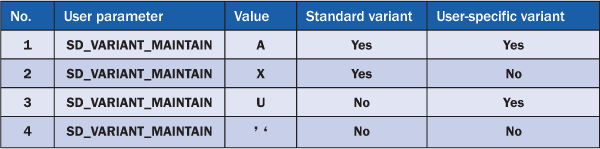
Table 1
User parameter SD_VARIANT_MAINTAIN values
I describe all four options in Table 1 and show the results in transaction VA05 (list of sales orders). This transaction uses the ALV Grid Control, which is a tool for displaying lists so that you can perform functions such as sorting and filtering. With ALV Grid Control, you can use drag-and-drop functionality to move columns, adjust column width, select and deselect results, and sort results. When you create, change the layout, or insert or hide columns, you need to save layout variant. To save the layout variant, follow menu path Settings > Display variants > Save … (Figure 1).
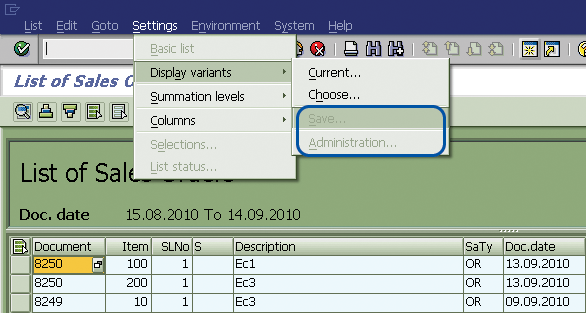
Figure 1
Save a layout variant in transaction VA05
Option 1. SD_VARIANT_MAINTAIN = A
With this option, you can store both standard and user-specific variants. You define the parameter using transaction SU01. Enter the user name, click the change icon, select the Parameters tab, enter A as the Parameter value for Parameter ID SD_VARIANT_MAINTAIN, and then save your work (Figure 2).
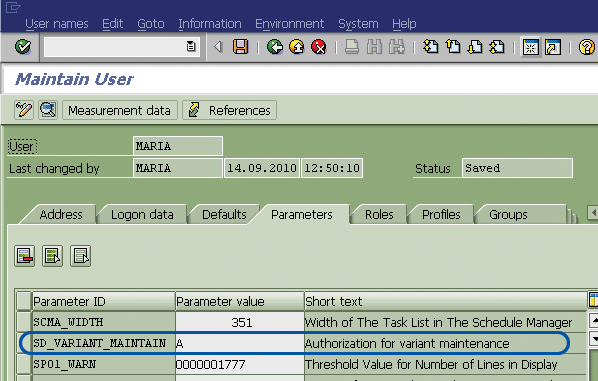
Figure 2
Maintain User profile screen using transaction SU01
When you set the parameter with the value A, X or U, these values automatically activate the Save Variants function (Figure 3).
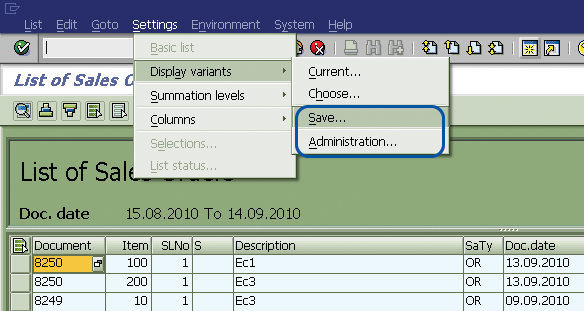
Figure 3
Save variants function activated in List of Sales Orders screen
When the user clicks Save…, the Save layout screen pops up (Figure 4). The user chooses whether the layout is user specific or standard by checking the User-specific or Default setting (standard variant) check box. With the standard variant (/TEST_VAR01, in my example), anyone can view the output table in transactionVA05 globally, whereas with the user-specific variant, only the user can see the view of the output table in transaction VA05.
Note
Standard layouts must start with a special character /. If you are then only one using the variant, you do not need to put a slash sign in front of the technical name.
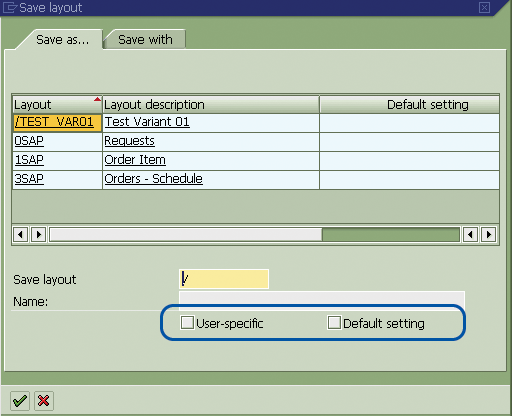
Figure 4
Save layout screen when SD_VARIANT_MAINTAIN = A
Option 2. SD_VARIANT_MAINTAIN = X
With this option, you can only store standard variants. As in option 1, you set the parameter using transaction SU01. Enter X for Parameter ID SD_VARIANT_MAINTAIN, and save your work.
When you select Display variants > Save… the Save layout screen appears (Figure 5). As in the previous example, the name of the standard variant is /TEST_VAR01.
The User-specific check box is grayed out. Select the Default setting check box. Because the parameter has a value of X, the Save Variants function is automatically activated in the List of Sales Orders.
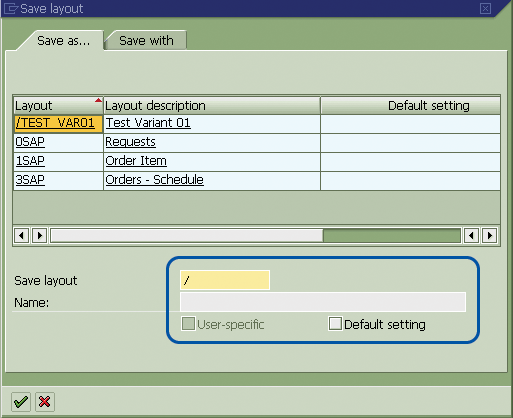
Figure 5
Save layout screen when SD_VARIANT_MAINTAIN = X
Option 3. SD_VARIANT_MAINTAIN = U
In this option, you can only store user-specific variants. As in the previous two options, use transaction SU01. Enter U as the Parameter value for Parameter ID SD_VARIANT_MAINTAIN, and then save your work. The Save Layout screen will appear (Figure 6). In this example, the name of the user-specific variant is TEST_VAR02.
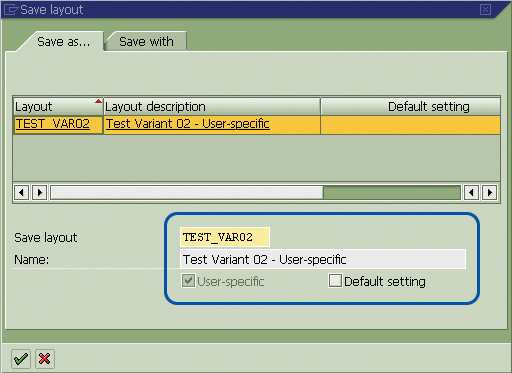
Figure 6
Save Layout screen when SD_VARIANT_MAINTAIN = U
The user-specific variants box is selected automatically when the Save Layout screen appears. Because the user parameter has a value of U, the Save variants function is activated in the List of Sales Orders screen.
Option 4. SD_VARIANT_MAINTAIN =’ ‘
In this option, you cannot maintain either standard or user-specific variants. Although you set a parameter, you do not specify a parameter value. You do not have any work to save, so the Save Layout screen does not appear.
The four options described are valid for the SD transaction codes shown in Table 2. Therefore, if you use transaction VA15 and the Save Layout screen is not active, you will know that this might be controlled by the user parameter SD_VARIANT_MAINTAIN and that it is not a bug in the system.
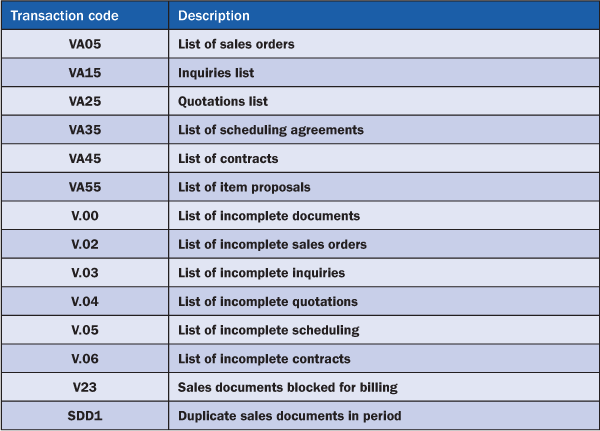
Table 2
SD transaction codes in which you can use the options
Note
For further details about how to activate Save ALV Variants in SD reporting, review SAP Notes 413511 “Authorizations for variant maintenance in ALV I” and 300633 “General administration and setting information for ALV variant.” You have to log on to the SAP Service Marketplace to access the SAP Note database.
Maria Nikolova
Maria Nikolova has worked as a senior SAP expert for the National Electricity Company (NEK) in Bulgaria since January 1999. Maria has a master’s degree in telecommunications as an engineer from the Technical University in Sofia, Bulgaria. She has experience with an MIS project implementation of SAP R/3 (headquarters and rollout), the authorization concept and user administration, SAP Customer Competence Center (SAP CCC) , SRM, and the SD, HR, CO, Asset Management (AM), MM, and PM modules. Prior to joining NEK, she worked as a manager of Equipment Engineering Ltd. for four years.
You may contact the author at searchsapmnikolova@yahoo.com.
If you have comments about this article or publication, or would like to submit an article idea, please contact the editor.






 Premium