/HR
Understand and quickly fix integration issues between SAP ERP HCM and SAP CRM systems, without having to rely on the HR team. Also learn the basics of SAP ERP HCM and Application Link Enabling (ALE) distribution of organizational data and business partner data from SAP ERP to an SAP CRM system.
Key Concept
SAP CRM team members need a basic understanding of how to navigate HR data, what to look for, and how to troubleshoot issues without the need to depend on their HR counterparts.
In many SAP CRM projects, CRM functional and technical workers face challenges with issues relating to HR data and distributing sales and organizational data. Common issues include knowing which SAP reports to use to distribute sales organization and HR personal data, as well as how to verify data in the HR system.
For example, an employee’s personal and address information changes and this is not reflected in the business partner record in the SAP CRM system. Or perhaps the employee moved to a different position in the organization and this data was never integrated into the SAP CRM system.
I cover how to synchronize sales and service org structures between SAP ECC Human Capital Management (HCM) and SAP CRM, and how to distribute both personal and organizational data from the former to the latter. That includes how to transmit data via Intermediate Documents (IDocs) to SAP CRM, and how to process the IDoc in the SAP CRM system.
If you are not familiar with SAP ERP HCM, see my two sidebars. The first is an introduction to the infotype, the main method of organizing HR information. The second sidebar addresses the basics of viewing HR data from an SAP CRM system.
SAP CRM Organizational Structure
You can synchronize the organizational structure for sales and service in SAP ERP and SAP CRM by mapping organizational units. This is a basic requirement for master/transactional data integration between SAP ERP and SAP CRM.
If you use SAP ERP as a back-end system in SAP CRM, you need the sales structure from the SAP ERP system in order to transfer or create master data such as business partner, products, and conditions in SAP CRM. The organizational model can initially be created automatically based on the sales organizational structure in SAP ECC. An automatic transfer of the SAP ECC sales structure is only possible once.
Following are the steps to take in SAP CRM to match the SAP CRM sales organization with the SAP ECC sales organization.
First you copy the SAP ECC sales structure. You can automatically display the sales structure from your SAP ECC system as an organization structure in SAP CRM. Then you can copy it into your SAP CRM system. Follow menu path Customer Relationship Management > Master Data > Organizational Management > Data Transfer > Copy ECC Sales Structure. You could also use transaction code CRMC_R3_ORG_GENERATE or report CRM_ORGMAN_R3_ORGDATA_GENERATE via SA38).
- When you get to the screen, you see a prompt to log into your SAP ECC system
- You can pick Sales organization/Distribution channel/Division/Sale office/Sale group
- You then see a generated list of the selected items
- Click the Save button
- Now you can see the sales structure from SAP ECC in your SAP CRM system
Using report CRM_ORGMAN_R3_ORGDATA_GENERATE, you can automatically set up an organizational structure in the SAP CRM system. This structure overwrites or changes the existing organizational structure in your SAP CRM system. Make sure no organizational structure is created in your SAP CRM system manually as this leads to inconsistencies. Once this task is executed the generated Sales structure cannot be undone and you cannot reset it.
Before you can copy the sales structure from SAP ECC your sales team must maintain sales-related configuration in your SAP ECC system. In SAP ECC you maintain the sales organization and sales offices via configuration steps SAP Customizing Implementation Guide > Enterprise Structure > Definition > Sales and Distribution > Define, copy, delete, check sales organization and Maintain sales office. You then can configure the sales organization, distribution channel, sales offices, and sales groups.
Distribute HR Data to a CRM System
To distribute data from SAP ERP HCM to SAP CRM, you can generate an outbound IDoc using transaction code PFAL (HR: ALE Distribution HR Master Data). You could also execute SAP ERP HCM report RHALEINI (HR: ALE Distribution of HR Master Data) using transaction code SA38 (ABAP Reporting).
Let’s assume that I have modified HR data for personnel number 46056. I want to distribute this employee’s information for infotypes 0000, 0001, 0002, 0006, and 0105. Figure 1 shows the selection criteria that need to be input in transaction PFAL to distribute HR personnel data. This screen can also be accessed through SAP Easy Access menu path SAP Menu > Tools > ALE > Master Data Distribution > Human Resources > Organizational Data and Master Data > PFAL – Send.
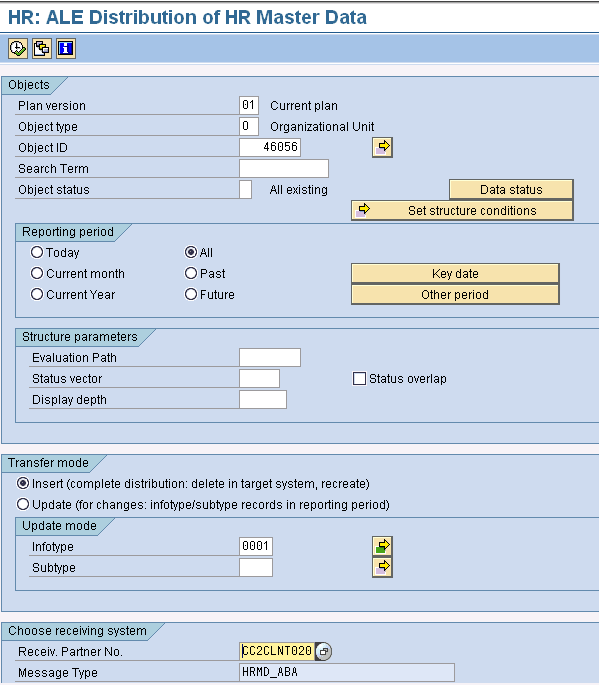
Figure 1
Distribution of HR employee master data from a central HR system
You can distribute relationship or organizational attributes for HR Objects to your SAP CRM system by executing transaction code PFAL with the variant shown in Figure 2. This transfers all relationships from infotype 1001 and replicates the organizational structure to SAP CRM.
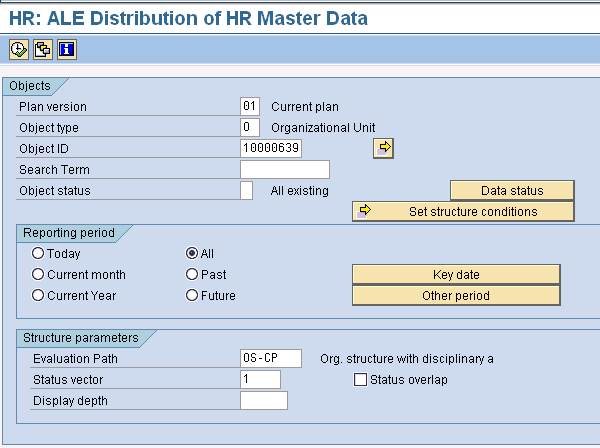
Figure 2
Distribution of HR relationship or organizational master data from a central HR system
You can run the report by clicking the execute icon . The report’s output is displayed as shown in Figure 3. This screen confirms that IDocs are successfully sent to the target systems. You can view data from the data records section, and you can view personal information (see the content of the selected section on the right side of the screen) and the status of the record.
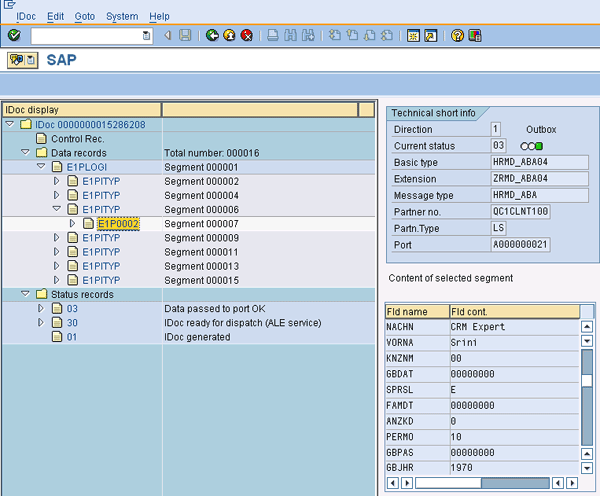
Figure 3
Display IDoc and status messages
Executing the report creates objects and object relationships in SAP CRM based on those in SAP ERP HCM, as displayed in Table 1.
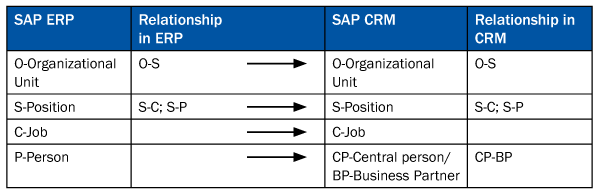
Table 1
Object relationships in SAP ERP HCM and SAP CRM
The IDoc from the source system (SAP ERP HCM) was successfully transferred to the target SAP CRM system by following the steps mentioned above. The IDoc resides in the SAP CRM system as an inbound IDoc, which needs to be processed using transaction code BD20 (IDoc passed to application). You can also submit it in the background via report RBDAPP01. Using transaction BD20 takes you to the screen in Figure 4. This is the selection screen, where you can display information about an IDoc such as the date it was created, its status, or message type.
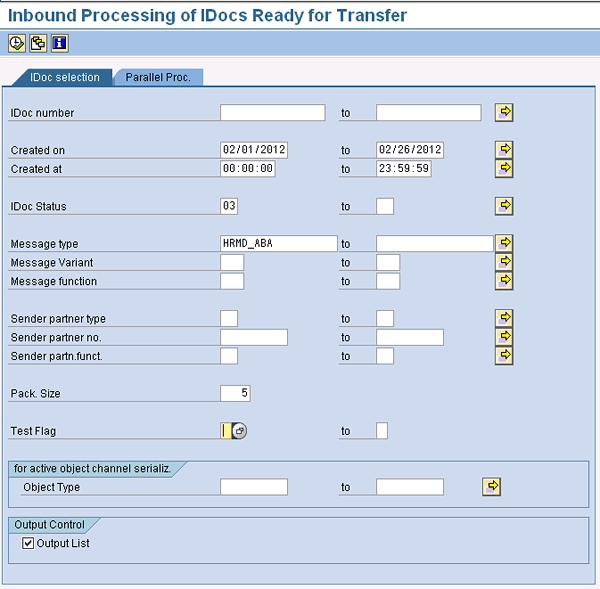
Figure 4
Inbound processing of IDocs ready for transfer
Upon processing by clicking the execute icon you see a success or error message as shown in Figure 5.

Figure 5
Processed IDocs
You can now verify this data in your SAP CRM system by accessing business partner data via transaction code BP (Maintain Business Partners), which takes you to Figure 6. This transaction helps you create and display business partners, persons, organizations, and groups. Personnel number 44446 in the SAP ERP HCM system is created as business partner EP00044446 in your SAP CRM system, as displayed in Figure 6.
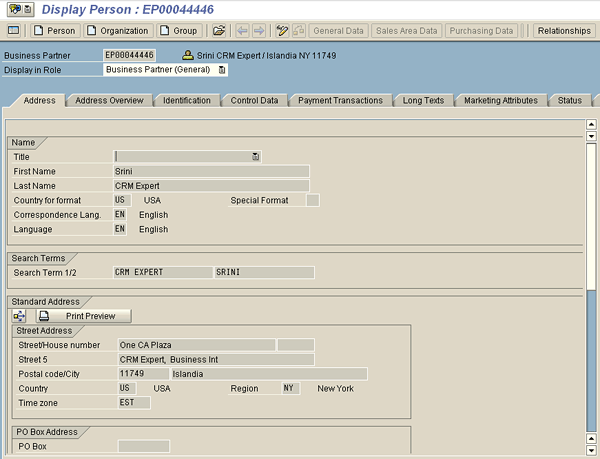
Figure 6
Employee details as seen via transaction code BP
Note
You can monitor Application Link Enabling (ALE) messages via transaction
code BD87 (Status Monitor for ALE Messages), or via menu path SAP Menu
> Tools > ALE > ALE Administration > Monitoring > BD87 -
Status Monitor. This is a transaction code for troubleshooting import
issues.
Note
Business roles are added by your SAP security team. After you have the
Business Partner created with the correct org unit and position, the
security team can add business roles based on the job function. You
maintain this in the CRM system after distributing HR data from SAP ERP.
Business roles are assigned via transaction code PFCG (Role
Maintenance).
Basic Configuration Steps in SAP ERP HCM and SAP CRM
If you see issues with integration (such as data missing during ALE distribution) make sure integration between the SAP ERP and SAP CRM systems is enabled. This can be configured via table T77S0 (Figure 7). You access table T77S0 via transaction code SM31 (Call View Maintenance) or via menu path SAP Implementation Guide > Customer Relationship Management > Master Data > Business Partner > Integration Business Partner-Organization Management. Make sure you maintain values for at least the items listed below:
- Activate HR integration – Activate global HR integration by setting the main switch HRALX/HRAC to X.
- Integration of O-BP Activated – Activate the integration between business partners and organizational units by setting the switch HRALX/OBPON to ON.
- Business Partner Role (Organizational Unit) – Switch ON means any updates in SAP ERP will be distributed to SAP CRM (Both New and Updates).
- Integration of Employees/BP Activated – Activate the integration between business partners and employees by setting the switch HRALX/PBPON to ON.
- Employees Are Replicated from HR System – Switch ON means any updates in SAP ERP will be distributed to SAP CRM (Both New and Updates).
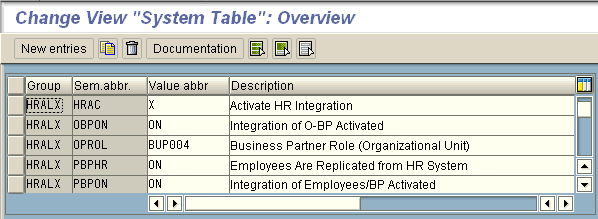
Figure 7
Configuration steps to enable integration between the SAP ERP and SAP CRM systems
In your SAP ERP HCM system configuration, make sure that configuration for integration is enabled. This subset of configuration is critical to distributing data from the back-end SAP ERP HCM system to target SAP CRM, SRM, and external systems (Figure 8). You can drill down into these three ALE configuration views to have a closer look at your configuration elements.
To access this screen, follow menu path SAP Customizing Implementation Guide > SAP NetWeaver > Application Server > IDoc Interface / Application Link Enabling (ALE) > Modeling and Implementing Business Processes > Configure Predefined ALE Business Processes > Human Resources > Master Data Distribution > Distributed HR Master Data.
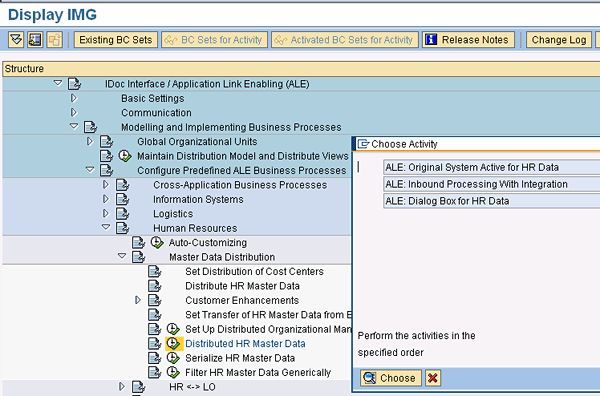
Figure 8
Distributed HR master data
Sidebar: Infotypes and Subtypes
Data in an SAP ERP HCM system is stored using infotypes and subtypes. Infotypes store all types of information about an employee and also
provide that information with a structure. They facilitate data entry
and enable you to store data for specific periods (Time-Dependent
Storage). When you update an infotype, old data is not lost but is
instead stored in the system for historical evaluation purposes. For
example, infotype 0001 stores organizational assignment data for an
employee, while infotype 0002 stores personal data for an employee.
Subtypes are subunits of an infotype. Subtypes are used
to subdivide infotype records. They subdivide infotype data by subject
matter, which makes it easier for you to access and manage information.
For example, for infotype 0105 (Communication), you can maintain the
following subtypes:
- 0001 System User Name information
- 0005 Fax information
- 0010 Email information
As an SAP CRM functional or technical team member, it is
helpful to understand the following infotypes. These infotypes are
commonly distributed from an SAP ERP HCM application to an SAP CRM
application. As an example, infotype 0002 holds First name and Last name
information of the business partner, infotype 0006 holds the business
partner address information, and infotype 0105 hold contact information
such as email, fax, and phone number.
- 0000 Actions (mandatory)
- 0001 Organizational Assignment (mandatory)
- 0002 Personal Data (mandatory)
- 0006 Addresses (mandatory)
- Subtype 0001 Permanent Residence
- 0105 Communication
- Subtype 0001 System User Name SAP System
- Subtype 0005 Fax
- Subtype 0010 Email
- Subtype 0020 First Phone Number at Work Center
Note: Personnel Management data information is stored in PA0001, PA0002, and
PA0006 database tables. Recruitment (Applicant) data is stored in
PB0001, PB0002, PB0006 database tables. SAP Organizational Management
data is stored in HRP1000, HRP1001, HRP1005 tables.
Sidebar: Viewing HR Master Data
It is useful for SAP CRM functional or technical team members to
understand how data is structured and how to create or modify data in an
SAP ERP HCM system. However, you should not change any of the HR data
in your production system due to the sensitive nature of personal data.
Now let’s see how you can view data from your SAP ERP HCM system. To
view this data, you need to have access to either transaction PA20
(Display HR Master Data) or PA30 (Maintain HR Master Data). You can also
access these screens through the SAP Easy Access menu path SAP Menu
> Human Resources > Personnel Management > Administration >
HR Master Data > PA30 – Maintain (or PA20 – Display).
This takes you to the initial display screen for HR master data.
Enter the employee’s personnel number. Select either the infotype you
want from the infotype selection list or directly enter the name/number
of the infotype whose record you want to display in the Infotype field.
If necessary, enter the number of a subtype. From the Edit menu at the
top of the screen, select Display, or use function key F7 on your
keyboard. The current infotype record is displayed.
To view personal data (infotype 0002) enter the employee’s personnel
number in the Personnel no. field. Select Personal Data (or Input 0002
in the Infotype field in the Direct selection block) as shown in Figure A.
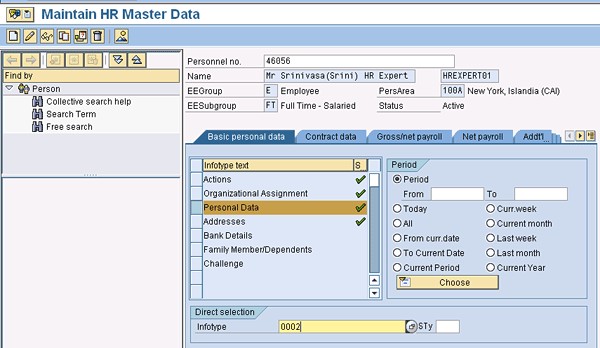
Figure A
Maintain HR Master Data screen
To display personal data for a given personnel number, click the
change information icon or press F7. This action displays the
employee’s personal information as shown in Figure B.
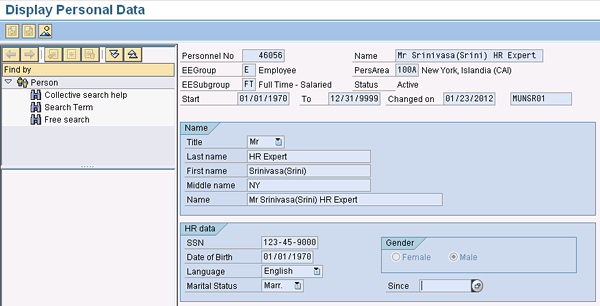
Figure B
Display employee personal data
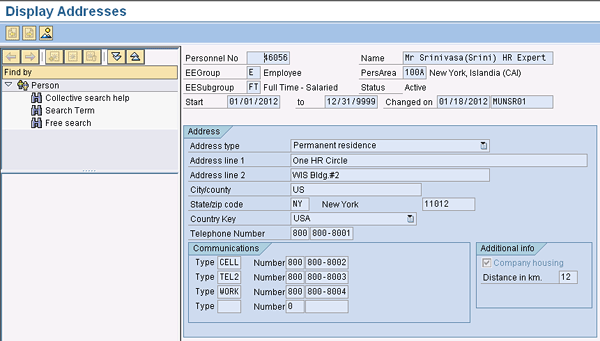
Similarly, to view address information (infotype 0006), enter the
employee’s personnel number in the Personnel no. field. Select Addresses
(or Input 0006 in the Infotype field in the Direct selection block),
and click the Change Information icon, or select F7 on your keyboard.
Address information is displayed as shown in Figure C.
Future C
Display employee address information
Similarly, to view communications information (infotype 0105), enter
the employee’s personnel number in the Personnel no. field, input 0105
in the Infotype field of the Direct selection block, and click the
Change Information icon or select F7. Address information is displayed
as shown in Figure D.
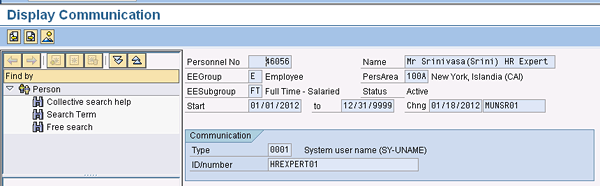
Figure D
Display communication type user name for the employee
Organizational Management Data
Organizational structure is critical data that is distributed from
SAP ERP to the SAP CRM system. Your sales organizational model and its
relationships with position and business partner objects in SAP CRM are
important to sales processes. Any changes to data in SAP ERP HCM should
be distributed accurately. Understanding how to navigate organizational
data in SAP ERP HCM helps to simplify troubleshooting issues.
You can view organizational management data via transaction code
PP02, or follow SAP Easy Access menu path SAP Menu > Human Resources
> Organizational Management > Organizational Plan > Expert Mode
> PP01 – General. Select Position in the Object Type field, input
the employee’s position number in the Object ID field, and choose
Object, as shown in Figure E.
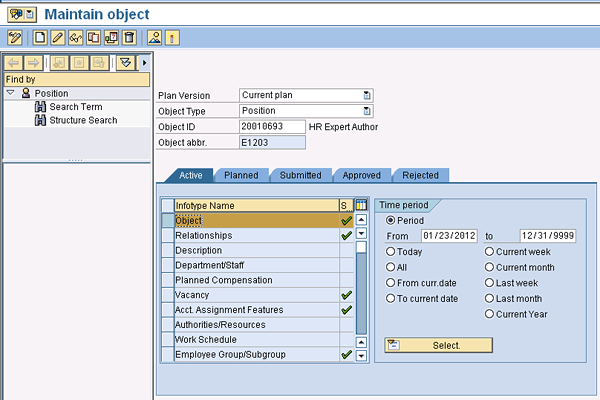
Figure E
Maintain objects
Click the change information icon or press function key F7 to display position data as shown in Figure F.
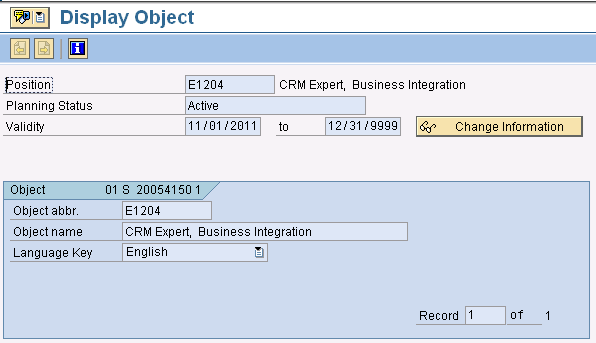
Figure F
Display position details for an employee
You can similarly display relationships (infotype 1001) between
organizational units, employee positions, and personnel numbers. Figure G
displays the relationships between position and relationship with
employee. You get to this screen by selecting Relationships from Figure E and clicking the change information icon (or F7 key).
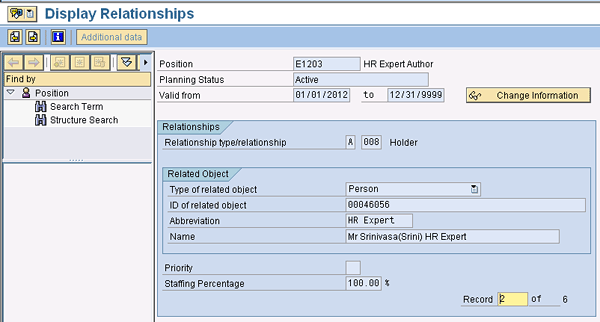
Figure G
Relationship between employee position and employee personal number
Srini Munagavalasa
Srinivasa (Srini) Munagavalasa has 14 years of experience in various SAP modules. Srini has worked on multiple SAP global implementations at major clients. He has experience as a project manager, deployment lead, build manager, and technical development manager.
If you have comments about this article or publication, or would like to submit an article idea, please contact the editor.