PHP developers can access and view the Oracle database with the help of an Apache server and make changes in the Oracle database regarding tablespaces, tables, and indexes.
Key Concept
PHP is a server-side scripted programming language designed and developed to run server programs.
Most SAP environments involve a variety of non-SAP technologies. Sometimes you need to retrieve data to use in your SAP system, but to do so you have to connect a number of systems. For example, a common database provider is Oracle, and a common language used in these environments is PHP. Sometimes PHP developers need to access the Oracle database – for example, due to maintenance of the Oracle database on standard and custom tablespaces, tables, and indexes. To do this, however, you need to establish a connection with the Oracle database using an Apache server, a widely used Web server. I’ll show you how to set up this connection so you can solve this technical challenge.
Required Software
The open-source software shown in Figure 1 is required for you to perform these actions. You can download these files using this link.

Figure 1
Required software
Extract the ZIP files shown in Figure 1 and you get the folders shown in Figure 2. You can use these folders for configuration.
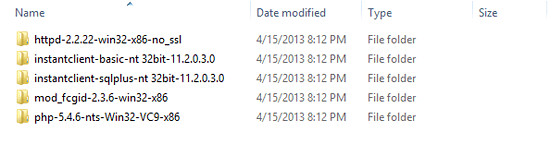
Figure 2
Extracted files
Install the Apache Server
Step 1. Unzip FastCGI component mod_fcgid-2.3.6-win32-x86.zip to the installed Apache 2.2 directory. The C:Program Files (x86)Apache Software FoundationApache2.2modules directory should now have the mod_fcgid.so and mod_fcgid.pdb files (Figure 3). (After extraction of mod_fcgid-2.3.6-win32-x86.zip, you get the files shown in the figure.)
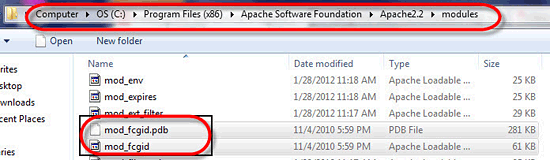
Figure 3
Apache files
Step 2. Edit C:Program Files (x86)Apache Software FoundationApache2.2
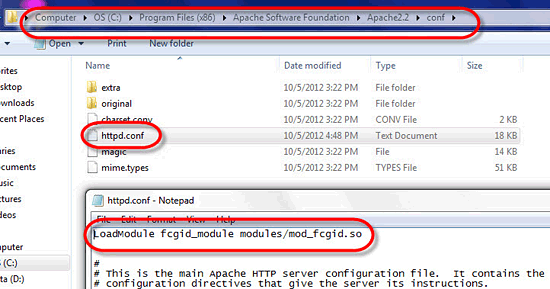
Figure 4
Change in httpd.conf file
Step 3. In httpd.conf, locate the section for htdocs and add ExecCGI to the Options (Figure 5):
<Directory "C:/Program Files (x86)/Apache Software Foundation/Apache2.2/htdocs">
...
Options Indexes FollowSymLinks ExecCGI
...
</Directory>
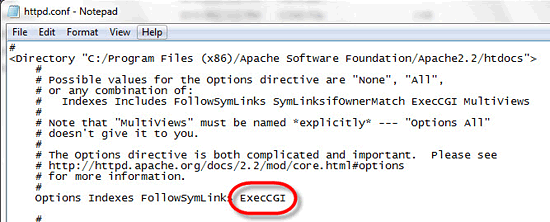
Figure 5
Add the text in httpd.conf
Step 4. Put php-5.4.6, a folder with PHP configuration files that you extracted earlier, in the C drive (Figure 6).
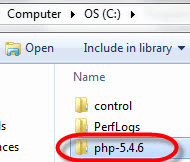
Figure 6
After extraction
Step 5. In C:php-5.4.6 copy php.ini-development to php.ini (Figure 7). Php.ini is the configuration file for PHP.
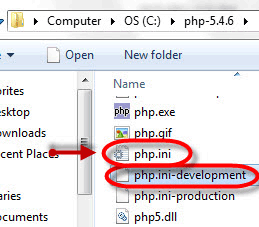
Figure 7
php.ini file
Step 6. Add the following line in php.ini: extension_dir = C:php-5.4.6ext (Figure 8). This command tells PHP in which folder to look for the executable files that are used by PHP during execution.
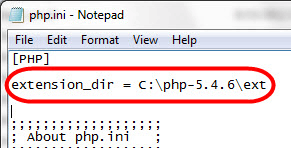
Figure 8
Add the path in php.ini file
Step 7. Remove the semicolon from the beginning of the line extension=php_oci8_11g.dll as shown in Figure 9. The semicolon is used as a comment, so whatever you write after the semicolon is ignored in the php.ini file.
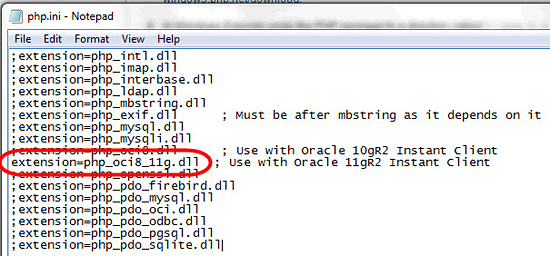
Figure 9
Remove the semicolon
Step 8. Edit C:Program Files (x86)Apache Software FoundationApache2.2confhttpd.conf and add the following lines, which are settings required by the environment in which you are setting up PHP with the Apache server:
- FcgidInitialEnv PHPRC "c:/php-5.4.6"
- AddHandler fcgid-script .php
- FcgidWrapper "c:/php-5.4.6/php-cgi.exe" .php
Make sure you use forward slashes (/) and not back slashes () as shown in Figure 10.
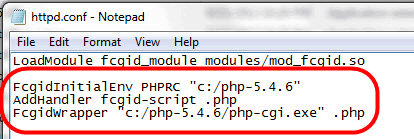
Figure 10
Add the lines
Step 9. Because PHP is 32-bit, use the 32-bit version of Instant Client. Unzip the Instant Client files to C:instantclient_11_2 (Figure 11).
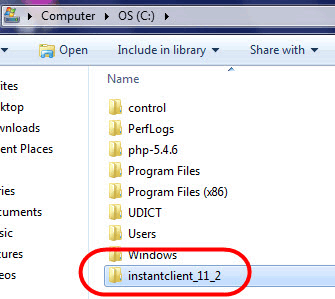
Figure 11
Locate the Oracle client
Step 10. Edit the Windows Path environment setting and add ;C:instantclient_11_2 as shown in Figure 12. Save the paths in the PATH variable of the system resources so you can access that file that is pointed to by the path in the PATH variable from anywhere in the system.
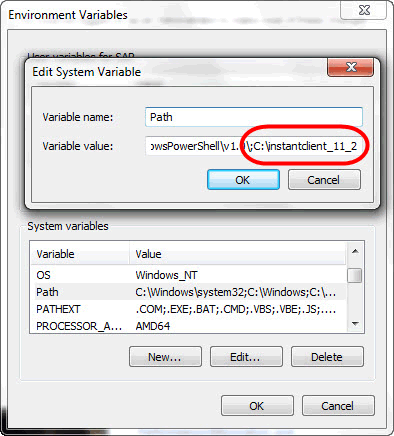
Figure 12
Environmental variable
Step 11. Reboot your Windows system so the new environment is correctly set.
Step 12. Restart Apache using the system tray Apache Monitor or the Start menu option.
Verify the PHP OCI8 Extension Is Installed
Step 1. To check the Oracle Call Interface (OCI8) configuration, create a simple PHP script called phpinfo.php in the Apache document root with the content shown in Figure 13:
<?php
phpinfo();
?>
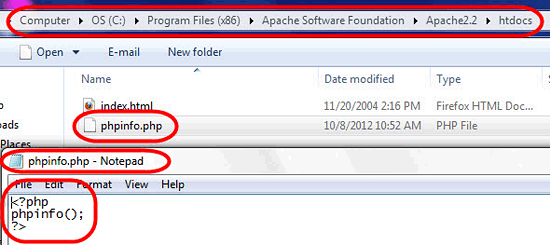
Figure 13
Write the script in phpinfo.php
Step 2. Load the script into a browser using the appropriate URL (e.g., https://localhost/phpinfo.php). The browser page contains an oci8 section saying OCI8 Support enabled and listing the OCI8 options that can be configured (Figure 14).
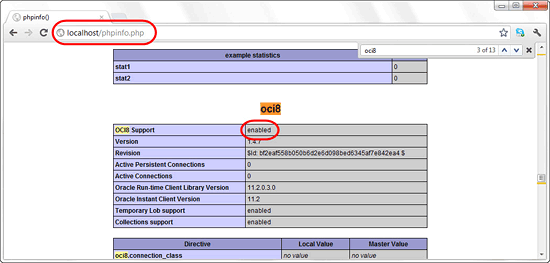
Figure 14
Check the status
Connect to an Oracle Database
You need to use an Oracle database name connection identifier for the third parameter (the first parameter is the user name and the second parameter is the password) because programs linked with Instant Client are always considered remote from any database server and need to be told to which database instance they should connect:
$conn = oci_connect('hr', 'hr_password', 'mymachine.mydomain/orcl');
Use OCI8 to Connect PHP and Oracle
Create a simple PHP script testoci.php in the Apache document root (Figure 15). This script connects to the Oracle database and retrieves the list of employees from the database table employees. The script then prints the data as rows and displays it in a table.
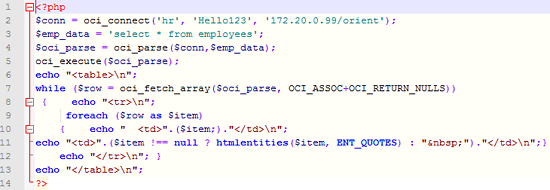
Figure 15
Oracle in PHP
Troubleshooting About Connectivity
Check the Apache error log file for startup errors. Temporarily set display_errors = On in php.ini so script errors are displayed (Figure 16). Switch it back off when finished for security reasons.
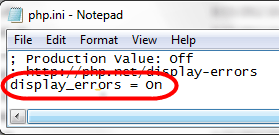
Figure 16
On the display error
Note
In new databases the demonstration schemas, such as the HR user, need to be unlocked and given a password. This can be done in SQL*Plus by connecting the system user and executing the statement: ALTER USER username IDENTIFIED BY new_password ACCOUNT UNLOCK;.
Muhammad Abdul Jamil
Muhammad Abdul Jamil is an SAP Basis Administrator at the Orient Group of Companies. He has more than four years of SAP Basis experience. He has a degree in computer science and has worked in industries such as Beverages, Home Appliances, Food, and Chemicals. Previously, he worked at Siemens Pakistan Consulting and he completed four SAP projects (E2E) as a SAP technical (Basis) consultant at Siemens Pakistan Consulting.
You may contact the author at majamil1@hotmail.com.
If you have comments about this article or publication, or would like to submit an article idea, please contact the editor.