Learn how to simplify the revaluation of absence codes and attendance records in the SAP ERP HCM system.
Key Concept
A revaluation of absences may occur when certain conditions of the quotas change and the absence has already been entered — for example, vacation leave was entered for the next year before any vacation carryover was generated, but the rule is to use carryover quotas before vacation quotas.
The SAP system has a standard program that you can use to revaluate absences. In this article, I provide simple step-by-step instructions on how to use the SAP standard program on revaluation of absence and attendance records. This is a better and easier method than deleting and re-keying each absence entry, and is useful when many records have been created and it would be too labor intensive to manually correct them all.
I use a vacation-based example to illustrate the business benefits behind this option. In my example, the vacation leave quotas (infotype 2006) generated are effective 6/1/2010 to 12/31/2011 (Figure 1).
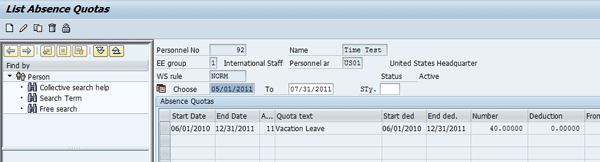
Figure 1
Generate leave quotas
Before a carryover quota is created for 2011, create an absence entry (vacation leave) for the period 1/11/2011 to 1/14/2011 (Figure 2). Common business practice is to prioritize carryover quotas before vacation quotas. This normally causes a problem if vacation leave is keyed in before the carryover quota is created. The most common reason for a delay in the creation of carryover quotas is that the quotas to be carried over normally go through a review process before they become carryover quotas.
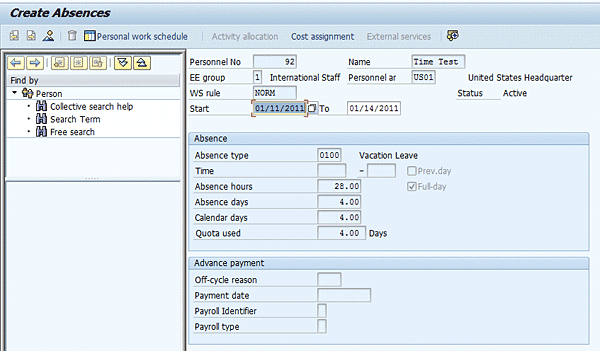
Figure 2
Create an absence entry — vacation leave
After creating the absence leave entry, you double-check the quota (infotype 2006) again and see that it has reduced the vacation leave quota (Figure 3). You see this in the Deduction column.

Figure 3
Check the vacation leave quota
After adding a few more vacation leave absences (Figure 4) and checking the quota in infotype 2006 (Figure 5), you see that, since there is no other quota created, the vacation leave created in Figure 4 is still deducting from the vacation leave quota.

Figure 4
Create additional vacation leave
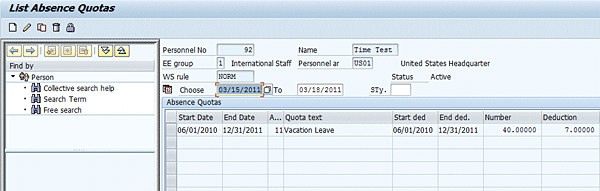
Figure 5
Absence quota list
Note that the deduction has now increased to seven days (see the Deduction column in Figure 5). Since all the absences were created before the carryover quota is generated (and the carryover should have priority in the quota deductions), once the carryover quota is created the absence quota overview looks like the screen in Figure 6.
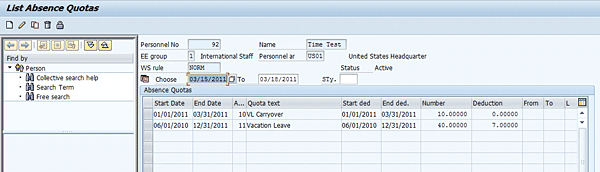
Figure 6
Absence quota after carryover quota is created
In Figure 6, the correct display should be a seven-day deduction under the Carryover quota instead of under the Vacation Leave quota. You can immediately correct this issue by using the revaluation of absences transaction code PT_UPD00. This is useful when a lot of absences have been created for many employees and need to be mass corrected. To do this, take the following steps.
Step 1. Enter transaction code PT_UPD00 in the field (circled in Figure 7) and press Enter; this takes you to the screen shown in Figure 8.
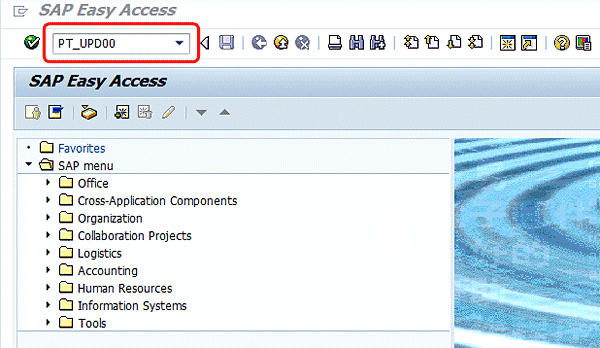
Figure 7
Transaction code to start the revaluation of absences
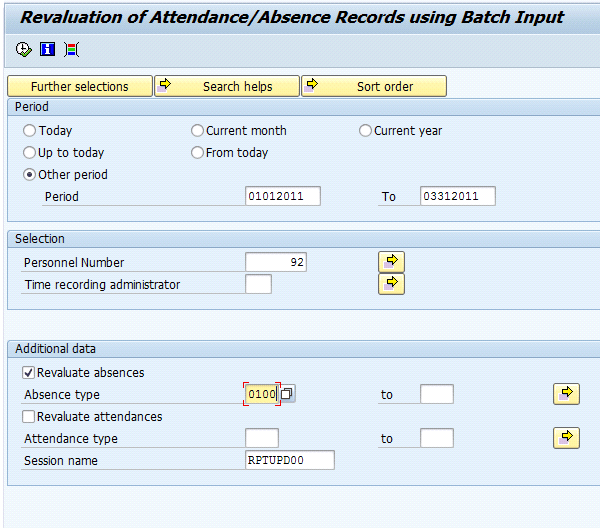
Figure 8
Enter revaluation data
Step 2. Enter the data to revaluate. On the Revaluation of Attendance/Absence Records using Batch Input screen, enter the period to revaluate the Personnel Number and the Absence type (Figure 8). Make sure to check the Revaluate absences box in the Additional data portion of the screen. Note the Session name at the bottom of the screen (RPTUPD00 in my example).
Step 3. Click the execute icon  (Figure 8). This displays a summary of the records processed. In my example, the two vacation leaves created in Figures 2 and 4 are processed (absence type 0100) and shown in Figure 9, and a batch input record is created.
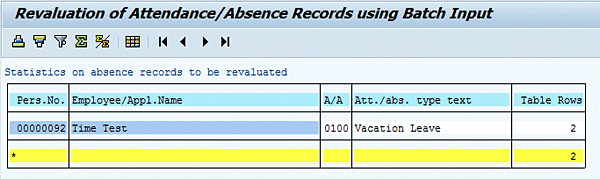
Figure 9
Display of summary records processed
Once the execute icon is selected, the system creates a batch input record that needs to be processed. The batch input record process is detailed in steps 4 to 6.
Step 4. Process the batch input record. Using transaction code SM35, access the Batch Input: Session Overview screen. Locate the correct batch input record. Find your user name and the batch input session name, RPTUPD00 in my example, from step 2 as shown in Figure 10. Select the session name by clicking the box on the left side of the Session name and clicking the Process button at the top of the screen. This starts processing the batch input session.
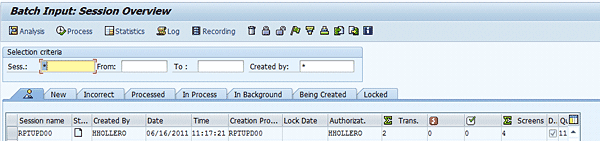
Figure 10
Display of batch input record
Step 5. Process the batch input session. Once you click the Process button, another screen pops up with the processing options (Figure 11). For a batch upload of a small number of employees, for example, 20 employees or fewer, use the Process/foreground option under Processing Mode. The Process/foreground option takes you through a step-by-step display of what is going on in the batch input session.
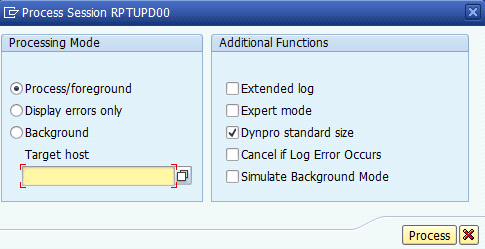
Figure 11
Processing options screen
If you are processing a lot of employees (e.g., more than 20), you can use the other processing mode options. The Display errors only option processes in the background and stops every time the program encounters an error. The Background option runs through the whole file and displays a summary of the successful and erroneous records. Based on the number of employee records that you are processing, select the option you want and click the Process button at the bottom of the screen (Figure 11).
Step 6. Finish the batch processing session. Once the process is complete, the Information screen displays “Processing of batch input session completed” (Figure 12). Click the Session overview button to see the statistics (only if this was processed in background — the Process/foreground and Display errors only options give you the opportunity to fix errors as they come up).
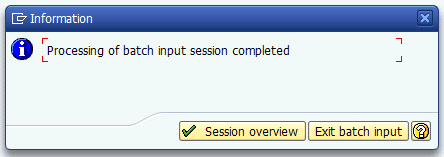
Figure 12
Complete the batch input session
In my example, when you check the absence quotas in infotype 2006, the absences are now under the Deduction column of the carryover quota instead of the vacation leave quota (Figure 13). This means that the absences created earlier are now correctly deducted from the carryover quota.
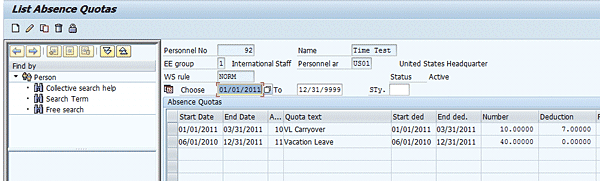
Figure 13
Changed absence quota assignments
Harold Hollero
Harold Hollero has been an SAP HR consultant for more than 11 years. He started out as a time and payroll consultant in the Philippines, and after six years, moved to the United States, where he has been doing time management projects.
You may contact the author at hhollero@gmail.com.
If you have comments about this article or publication, or would like to submit an article idea, please contact the editor.





 Premium