Learn how to configure and implement SAP’s shift note functionality with the installation of SAP ERP Central Component (SAP ECC) 6.0 enhancement package 3 or above. Find out how to use shift notes in the production planning (PP) and plant maintenance (PM) modules to record important details related to any specific shift, such as those pertaining to a defective production batch, a problem in the equipment, a labor issue, or simply a few notes on the routine activities performed during a shift.
Key Concept
With the installation of SAP ERP Central Component (SAP ECC) 6.0 enhancement package 3 and above, you can activate the versatile shift note functionality and use it to record the day-to-day activities of different work shifts. The shift note derives its origin and concept from the notification functionality included in the plant maintenance module. A notification is a formal indication that a problem or an issue has occurred and needs to be addressed. In a shift note, the options to record important information, especially for production teams, are far greater than those available in a notification, and it includes the added benefit of relating information to production for reporting and evaluation purposes.
There has been a long-standing need for a provision to record production-related activities and issues and make them subsequently available for reference, analysis, and remedial action. With the installation of SAP ERP Central Component (SAP ECC) 6.0 enhancement package 3 and above, you have the option of shift notes and shift reports to cater to these requirements.
Shift notes are integral when, for example, during a night shift, a machine malfunction results in defective products being produced. The machine has to be immediately stopped by the line supervisor and corrective actions need to be taken, such as adjusting the gauges and the heating temperature. After these adjustments are made, the machine then begins to work at the optimum level. At the end of his shift, the line supervisor records all the pertinent information related to this event in a shift note, including:
- Shift time when the problem occurred
- On which machine the problem occurred
- The production order number of that night shift
- Types of problems encountered
- Checks conducted to ascertain the root cause analysis of the problems
- Corrective actions taken
- How long it took to fix the problem
- Any preventive maintenance or other suggestions that can help in ensuring that the same does not reoccur in future
The next day, when the line manager reviews the previous day’s shift notes, he or she has all the necessary information on the issue that occurred, and can also add further instructions or engage relevant departments or persons as deemed necessary. All of this comprehensive information also acts as a reference to someone encountering a similar problem in the future.
In this article, I cover the steps needed to successfully configure shift notes and to assign this configured shift note to a resource in the production planning (PP) module as a part of master data. I also highlight how these can be used in equipment and functional locations of the plant maintenance (PM) module. Thereafter, I describe creating, changing, and printing shift notes and sending them by email. Finally, I conclude with instructions on how to search and list various shift notes already created in your SAP system.
Note
Shift notes can be output into a shift report, which includes information, analysis, and remedial action related to a collection of shift notes.
Configuration Node for Shift Note Functionality
The necessary node of SAP ECC 6.0 enhancement package 3 for shift note activation is LOG_PP_SRN_CONF. After your Basis team has activated this, the Make Settings for Shift Notes node automatically appears in configuration (SPRO). You can access it via menu path SPRO > SAP Reference IMG (or press F5) > Logistics – General > Make Settings for Shift Notes.
Tip!
It is helpful to consult the help documentation available in the Make Settings for Shift Notes node before initiating the configuration process, as it can prove to be a good reference document. It provides basic guidelines on how to configure shift notes. You can access this document at Logistics – General > Make Settings for Shift Notes > Make Settings for Shift Notes.
Configuration Settings for Shift Note
Following are the actions needed to successfully set up shift notes in your SAP system.
Define Notification Types
A shift note type indicates a document type with a unique number range, configuration, and screen templates defined for it. As a result, the shift note type Z1 may have a different number range and screen template (input options available on SAP screen) from shift note type X1. When generating shift reports for such shift notes, the notification type can be given as one of the selection parameters. For example, in PM, the standard notification types available are maintenance notification and service notification, while in the quality management (QM) module, the notification types available are customer complaint, complaint against vendor, and internal problem notification.
Note
As explained in the Key Concept, a shift note is a form of a notification. As a result, the SAP system refers to shift notes as notifications, as seen in some of the steps in this article.
To define shift note types, follow menu path Logistics – General > Make Settings for Shift Notes > Define Notification Types (Figure 1). In my example, I created the shift note type (or notification type) X2. Select a shift note type and then click the New Entries button to create a new shift note with this type.

Figure 1
Initial screen for the creation of notification types
Figure 2 is the detailed screen for shift note X2, in which the Notification origin is defined as G1 General notification, under which the category shift notes come. Enter your details here, such as Catalog profile, and press Ctrl-S to save the shift note.

Figure 2
Detailed screen for creation of shift notes
Define Number Ranges
You need to define a number range for every shift note type so that whenever a shift note is saved, it is assigned a unique and incremental number range. These numbers can be external or internal. An internal number denotes that whenever a new shift note is created, the next incremental number (n+1) will be assigned to the shift note automatically. With an external number range, users have the flexibility to assign any number of their choice. In my example, I defined the number range for shift note X2 as internal.
The process of defining number ranges starts with creating a number range group in which the range is defined. This is then followed by the assignment of the shift note type to the number range group. If needed, you can assign more than one shift note type to a number range group. In my example, I have maintained a one-to-one relationship, that is, one number range group X2 is assigned to one shift note type X2. These steps are detailed below.
To begin, follow IMG menu path Logistics – General > Make Settings for Shift Notes > Define number ranges. Once there, click the change groups icon  , which takes you to the Maintain Number Range Group screen (Figure 3).

Figure 3
Number ranges grouping
Click the Group button and then click Insert (not shown here) to bring up the Insert Group window (Figure 4). In this pop-up, you define a new number range group. In my example, I’ve named the number range group X2 and set the number range as 1100000 to 1200000. All shift notes assigned to the number range group X2 will have a number assigned from this group. You can name the new group anything you’d like, but for the sake of simplicity I named my number range group and notification type the same thing. Once you’ve given the group text and number range, click the insert icon  to save this number range group.

Figure 4
New number range group creation
Toward the bottom of the screen shown in Figure 3, all the unassigned shift notes are listed (Figure 5). Here I’ll show you how to directly assign shift note X2 to the number range group X2.

Figure 5
Unassigned notification types and shift notes
Back in the Maintain Number Range Groups screen, you can see the number range group X2 now appears after inserting it as a new group in the last step (Figure 6). To assign shift note type X2 to number range group X2, first check the box for number range group X2 (1) and click shift note X2 from the list of unassigned shift notes (2). Click the select element icon (3) and finally, click the Element/Group button (4). After the above steps are successfully performed, shift note type X2 is listed under number range group X2, as you can see in Figure 7.

Figure 6
Steps for grouping shift note X2 with number range group X2

Figure 7
Shift note X2 is now grouped with number range group X2
Define Screen Templates
You use a screen template to define the information that is available for a particular shift note, such as the option to incorporate a process order or maintenance order or a link to the SAP document management system (DMS). This information can vary with each shift note type. For example, if there is no need to write anything in detail in notes of shift note type Z1, leave the long text option inactivated in Z1’s screen template so that the long text field doesn’t appear.
To define your screen template, follow menu path Logistics – General > Make Settings for Shift Notes > Define Screen Templates (Figure 8). Double-click Define Screen Areas and Tabs to get to the screen in Figure 9.

Figure 8
Main screen for defining screen templates for shift notes

Figure 9
Initial screen for defining the screen template for shift note X2
Figure 9 contains the list of shift note types I’ve already created. Select a shift note type from this list and double-click Notification Header and Screen Areas on the left side of the screen (Figure 10). Assign the Screen type hdr 0070, which is used for general notifications.

Figure 10
Shift note header and screen areas details
Next double-click Simplified View: Screen Areas on the left side of the screen in Figure 10 to get to the screen in Figure 11. Click the New Entries button, enter the Activity cat. (category) as H (which represents the add function), Tab Page Allocatn as 1, and Screen area 1 as 130. These settings ensure that whenever a new shift note of type X2 is created with activity category H, the screen has one tab with the provision to enter details of the shift note (screen area 130).
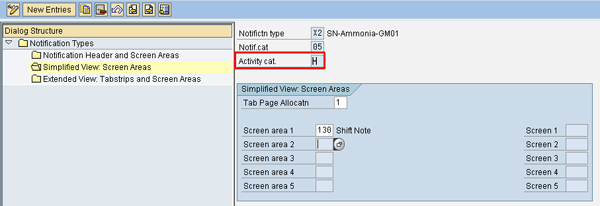
Figure 11
Screen areas for defining the display of shift notes
Note
You can set as many as five tabs for a shift note. The tabs can contain various other details such as attachments from SAP’s DMS as well as any customer-specific screens (ABAP development).
Repeat the process of creating new entries to add the categories V (change function) and A (display function) on shift note X2. The overview screen should now look like Figure 12.
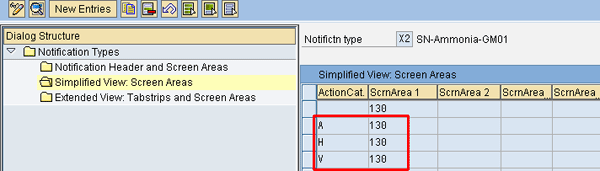
Figure 12
Simplified view of screen areas after add, change, and display options are defined
Now double-click the Extended View: Tabstrips and Screen Areas on the left side of Figure 12, which takes you to the extended view of shift note X2 (Figure 13). Here you perform the same activity as you did for the simplified view, but add in more details, such as a tab header name. Define the description of the tab header and the allocation of number of tabs. Again define Screen area 1 as 130. Save these settings by pressing Ctrl-S.
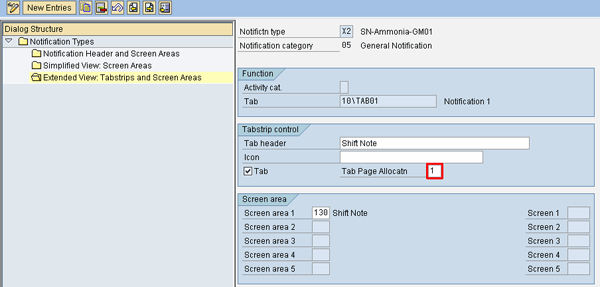
Figure 13
Tabstrips and screen areas for shift note X2
Maintain Catalogs
A catalog makes standard and repeat shift note information available in the form of a drop-down menu. In my example, I defined five production shifts in my catalog. Three are normal eight-hour shifts (morning, evening, night) and two are for 12-hour shifts used by a company during an annual plant shutdown. This enables the person creating the shift note to choose the relevant shift number in which the event occurred from the dropdown menu.
To maintain a catalog, follow IMG menu path Logistics – General > Make Settings for Shift Notes > Maintain Catalogs (Figure 14). In this pop-up window, select the first activity, Define Catalogs by double-clicking it. This leads to the screen in Figure 15.
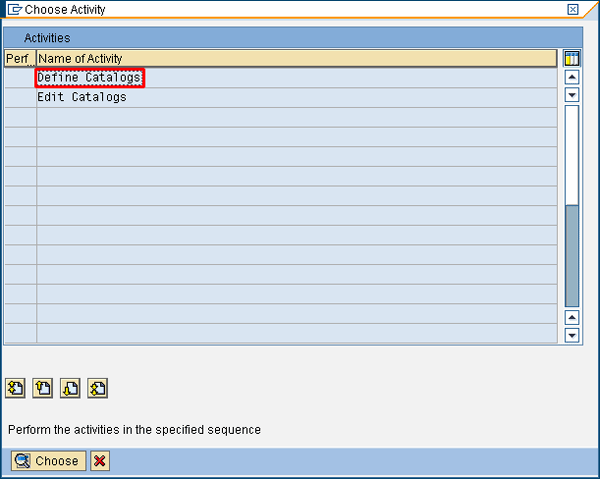
Figure 14
Main screen for creating a catalog
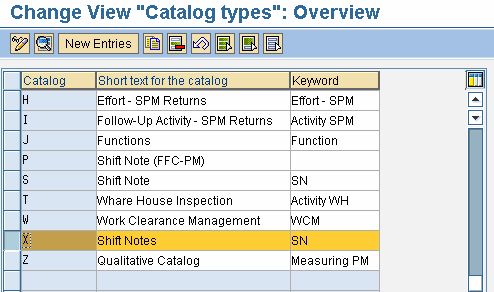
Figure 15
Catalog definition for shift notes
Click the New Entries button and define a new catalog. In my example, I defined catalog X for Shift Notes. Save the catalog by pressing Ctrl-S. This takes you back to the screen in Figure 14. Now perform the second activity (editing the catalog), by double-clicking Edit Catalogs. This brings up the screen in Figure 16.
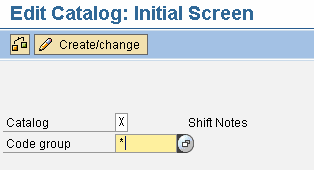
Figure 16
The initial screen for editing a catalog
In the screen in Figure 16, enter catalog X for the one you just created, and either leave the code group field blank or put an asterisk (these are the same actions). Click the Create/change button to get to the screen in Figure 17.
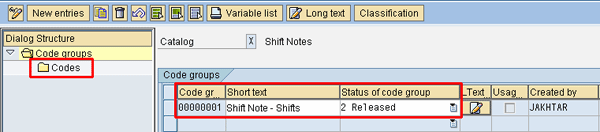
Figure 17
Code groups and codes definition
Click the New entries button and enter the code group. In my example, I defined the code group as 00000001 with short text as Shift Note – Shifts. Set the status of the code group as released so it is available when creating a new shift note (as seen in Figure 2). Click the Codes folder on the left side of the screen to get to the codes overview screen (Figure 18).
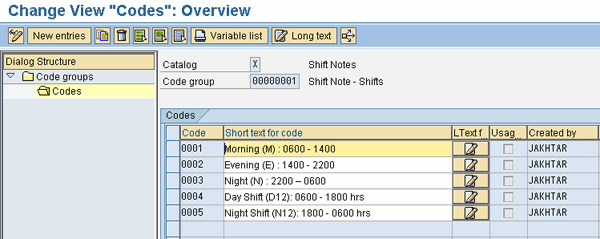
Figure 18
Code definitions within code group
Click the New entries button and provide the code and its short text for each of your codes. In my example, I created five different codes and descriptions for the five production shifts I need. Once this is complete, press Ctrl-S to save the catalog.
Tip!
To better manage the content of the catalog, create just one new catalog for shift notes-related code groups and codes. Having all pertinent code groups and codes in one catalog makes it easier to search for them when creating a new shift note.
Make Setting for Shift Note Type
You need to maintain several shift note type settings for use later in the shift note creation process. These settings control the actions that can be performed during the creation of a shift note.
Follow IMG menu path Logistics – General > Make Settings for Shift Notes > Make setting for shift note type (Figure 19). Either double-click shift note type X2 or select the shift note X2 and click the details icon  to get to the screen in Figure 20.
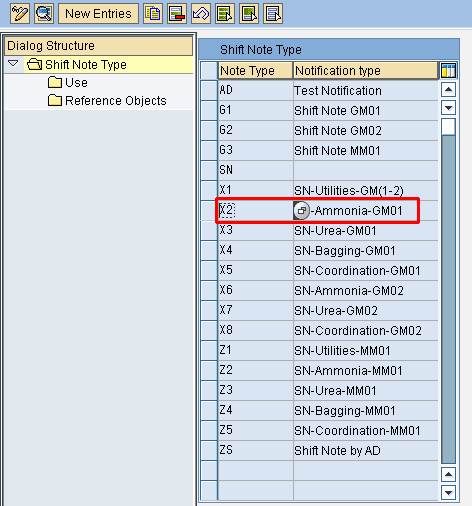
Figure 19
Main screen for shift note type settings
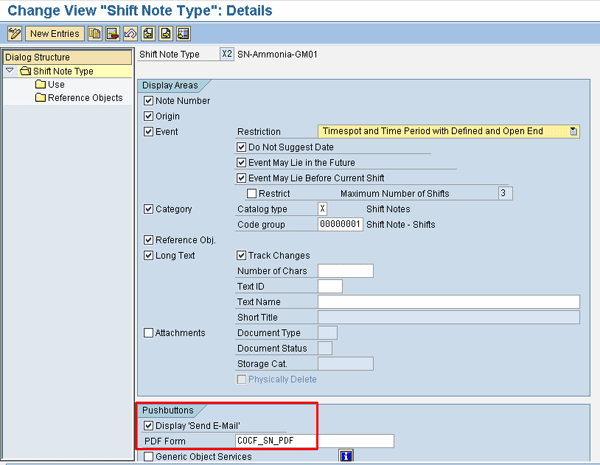
Figure 20
Details screen for shift note settings
In my example, I specified that the shift note number must be displayed while creating a shift note (indicated by the selected Note Number check box). In the Restriction section, I set that the date and time must be either automatically proposed by the system as the default or the user must enter it at the time of creating shift note. If your shift notes can be created at any future date (which is generally not preferred in the interest of having the most accurate records possible), then select the Event May Lie in the Future check box. There is also the option to allow shift notes to be created in the past if there is any need for that, such as recording incidents that weren’t recorded when they first occurred.
I activated the Category check box with Catalog type X, which stipulates that this option, with the code group and codes I previously defined in Figures 15 through 18, will be available when creating shift note X2. The Reference Object check box provides the option to refer to a specific object, such as a process order, production order, or equipment, while creating a shift note. I cover a reference object in greater detail in the next section.
The Long Text field is of paramount importance because it’s here that all the shift-related details can be entered into the shift notes for reference, as well as for taking any remedial action. Additionally, the content of the long text box can be searched later for keywords to determine how many times a specific problem on a machine occurred. You can limit this field to a specific number of characteristics or make it unlimited by leaving it blank. Activating the Track Changes check box ensures that once a shift note is saved, any further changes are made while keeping the original content of the shift note intact. In other words, the original content of the shift note cannot be changed once it is saved, but new details can be added in the change mode of the shift note. All changes are date and time stamped and include the name of the person who made the changes.
Finally, in the Pushbuttons section, selecting the Display ‘Send E-mail’ check box allows the shift note to be sent to other users in their SAP inbox. The option PDF Form is the output form in which the shift note will be either printed or displayed on the screen. Generally, the standard format provided by SAP for shift notes suffices (COCF_SN_PDF), but you can define a custom-developed form at this stage.
After specifying these settings, click the Use folder on the left side of the screen to bring up the screen Figure 21. As per SAP’s recommendations for creating shift notes, define the use as Independent Shift Note. This option ensures that a complete window is available in the shift note to record all details, rather than just a portion of the screen.
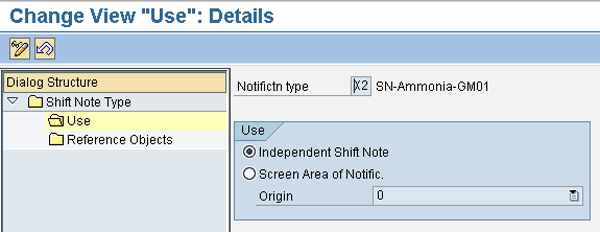
Figure 21
Define use of shift note type
Next click the Reference Objects folder on the left to get to the screen in Figure 22. A reference object is defined as a standard SAP object to be made available during shift note creation. In my example, I have defined three different reference objects: process order, functional location, and equipment. This means that at the time of creation of shift note X2, any of these three reference objects can be used to better describe the details of the shift note with a specific reference. These reference objects are then searchable too, which means that you can search all shift notes with reference to a specific reference object.
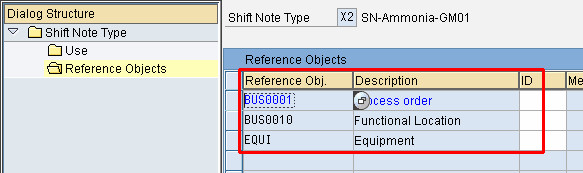
Figure 22
Definition of object types for shift notes
Table 1 is the standard list of various reference objects available for PP-Process Industry (PP-PI) (process industry and discrete manufacturing), PM, QM, and materials management (MM) modules for use in shift notes.
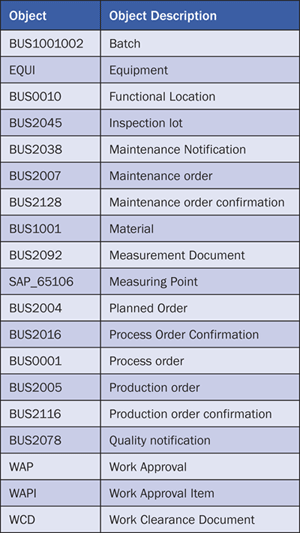
Table 1
Standard object types available for shift notes
Control Settings for Printing Shift Notes
Often there is a business need to print shift notes at the end of every shift. Printing shift notes is different than printing a shift report, which I have covered in a separate article titled “How to Configure and Implement Shift Notes and Shift Reports in PP and PM: Part 2.” Only one shift note can be printed at a time, whereas in a shift report several individual shift notes can be printed in the form of a report.
To control print settings, follow menu path Logistics – General > Make Settings for Shift Notes > Make settings for printing of shift notes (Figure 23). Double-click Define Shop Papers to get to the screen in Figure 24.
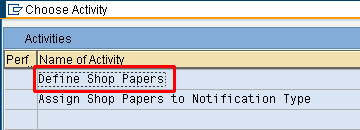
Figure 23
Main screen for shift note printing
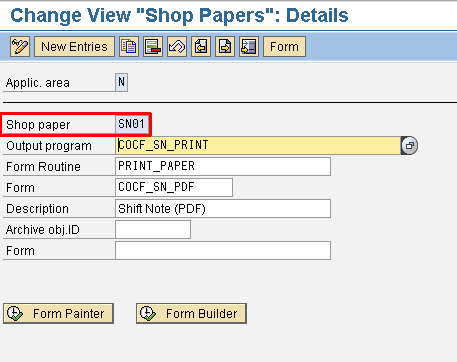
Figure 24
Details screen for shop floor print
Figure 24 specifies the details of the output form for shift note printouts by clicking the New Entries button. In my example, I defined Shop paper as SN01 with an output program and form. Save the entry either by pressing Ctrl-S or by clicking the save icon. This takes you back to the screen in Figure 23. Double-click the second activity (Assign Shop Papers to Notification Type) to bring up the screen in Figure 25. Select the work area N for notifications and press Enter, which links up the shop floor paper SN01 with shift note X2, as seen in Figure 26.
Note
Generally the standard format provided by SAP for shift note suffices (COCF_SN_PDF); however, you can assign any custom-developed form to cater to a specific business need at this stage.
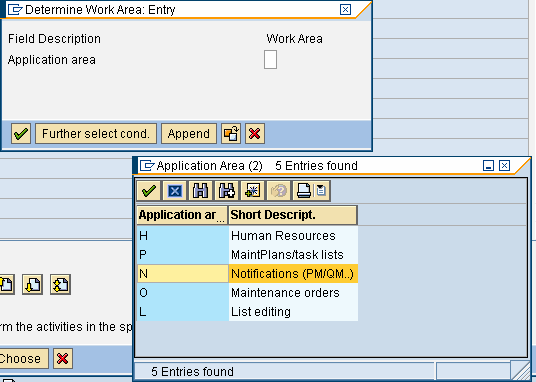
Figure 25
Assign shop floor paper SN01 to a shift note type
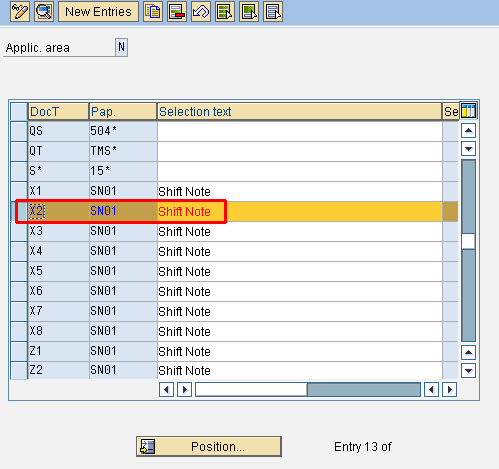
Figure 26
Assign the shift note type to the shop floor paper
With this, the main configuration required for shift notes is complete. Next I cover the master and transactional data.
Master Data Maintenance for Shift Notes
You can assign a shift note to a resource in PP or to an equipment or functional location in PM by referring to the following steps.
Assign Shift Notes to a Resource in PP
To assign a shift note to a resource, follow menu path Logistics > Production – Process > Master Data > Resources > Resource > Change, or use transaction code CRC2 (Figure 27). Enter a plant and resource. In my example, I set the plant as GM01 and resource as Ammonia.
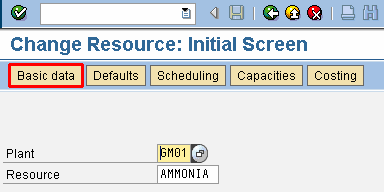
Figure 27
Initial screen for a change in resource
Click the Basic data button, which leads to the screen in Figure 28. Assign the Shift Note Type as the previously defined X2 and save the resource by pressing Ctrl-S or clicking the save icon.
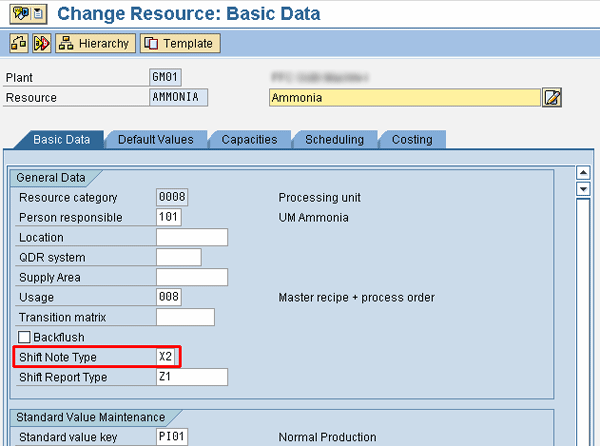
Figure 28
Basic data of resource in which shift note X2 is defined
Assign Shift Note to Equipment in PM
To assign a shift note to equipment, follow menu path Logistics > Plant Maintenance > Management of Technical Objects > Equipment > Change or use transaction code IE02 (Figure 29). Enter an equipment number and press Enter.
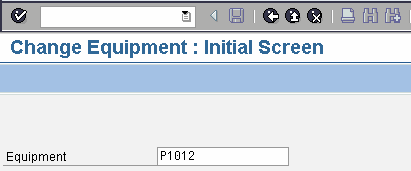
Figure 29
Initial screen for equipment change
In the screen in Figure 30, assign the respective shift note type in the General data section of the equipment entry.
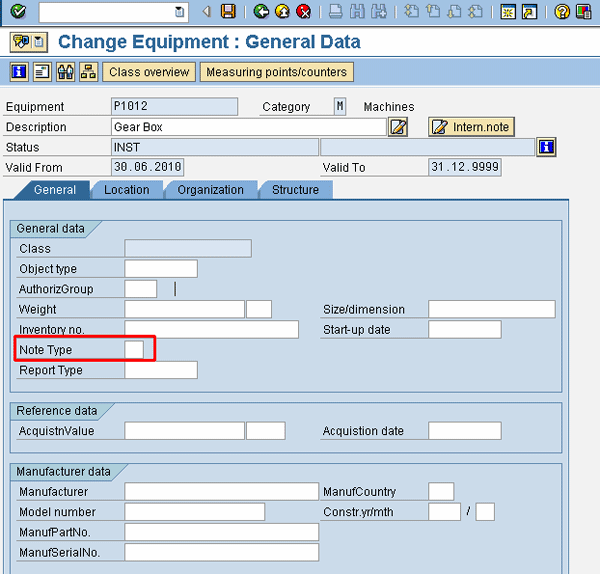
Figure 30
The detailed equipment screen in which you can define shift notes
Assign Shift Note to a Functional Location in PM
To assign a shift note to a functional location, follow menu path Logistics > Plant Maintenance > Management of Technical Objects > Functional Location > Change or use transaction code IL02 (Figure 31). Enter the functional location number and press Enter.
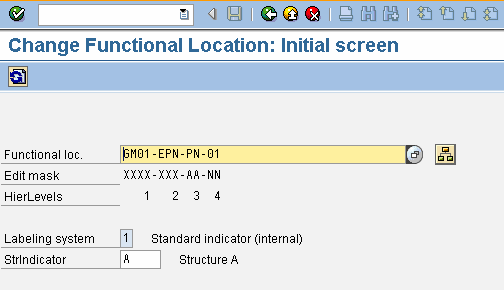
Figure 31
Initial screen for functional locations
In the screen in Figure 32, assign the shift note type in the General data section.
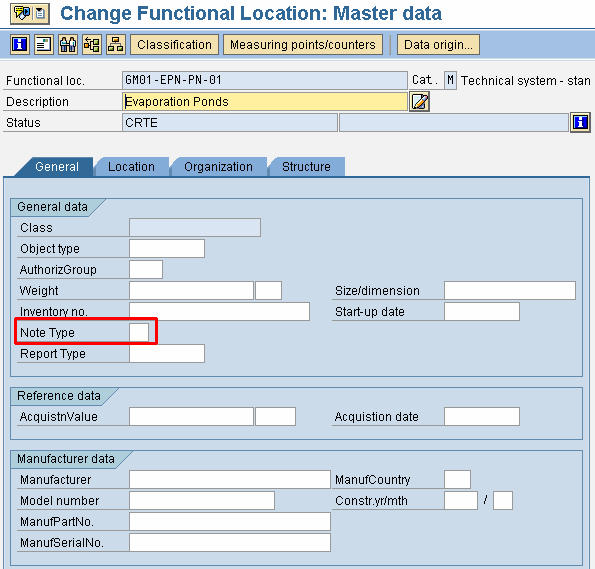
Figure 32
Detailed functional location screen in which you can define shift notes
Create a Shift Note
Having set up the master data in PP by assigning shift note X2 to resource Ammonia in plant GM01, I now describe how to create a shift note for this work center.
Follow menu path Logistics > Central Functions > Shift Notes and Shift Reports > Shift Note and Shift Report for Work Centers > Shift Note > Create or use transaction code SHN1 (Figure 33). Enter a work center and press Enter.
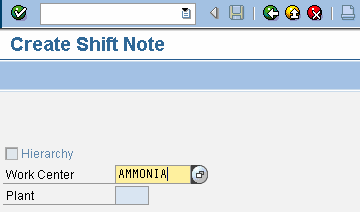
Figure 33
Initial screen for shift note creation
In the screen in Figure 34, notice that all the previously configured information is available to choose from: the option to define date and time, the category (which is the catalog X, code group 00000001, and codes for five different shifts), and the reference objects as process order, equipment, and functional location (shown in Figure 35).
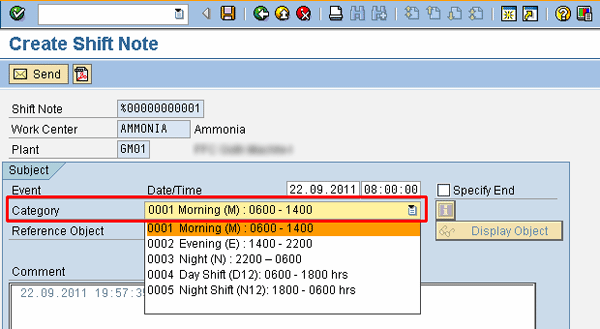
Figure 34
The different categories available during shift note creation
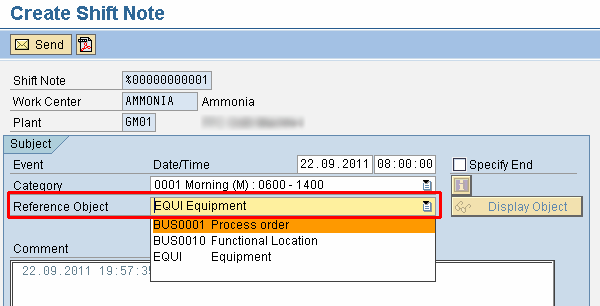
Figure 35
The different reference objects available during shift note creation
In the screen in Figure 36, the details related to the shift are written in the Comment field. Notice that it has the date and time stamp as well as the name of the person making the entry. After entering your choices and text, save the shift note by pressing Ctrl-S or clicking the save icon.
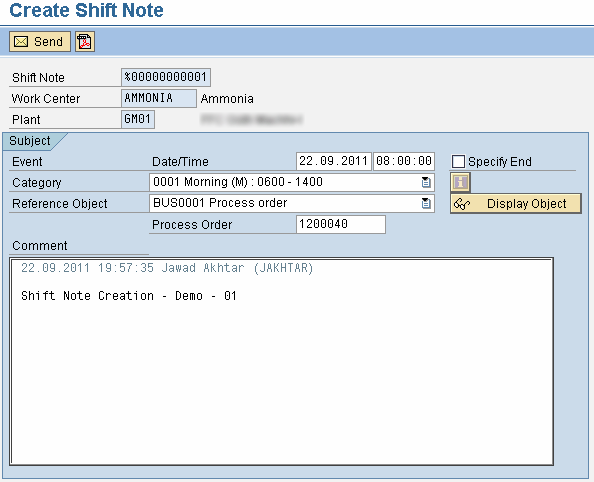
Figure 36
Shift note creation with long text
After saving, a message is displayed that the shift note (or notification) has been saved (Figure 37).
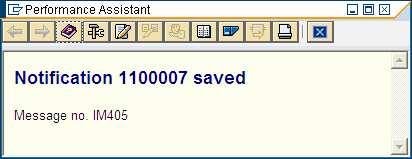
Figure 37
Shift note saved message
Tip!
If you are unable to create a shift note, check with a Basis team member to see if the two objects C_COCF_SRA and C_COCF_SRH are assigned to your SAP user profile.
Change the Shift Note
Now I’ll show you how to make changes to the shift note and describe the options available in the shift note change mode. To change the shift note, follow menu path Logistics > Central Functions > Shift Notes and Shift Reports > Shift Note and Shift Report for Work Centers > Shift Note > Change or use transaction code SHN2 (Figure 38).
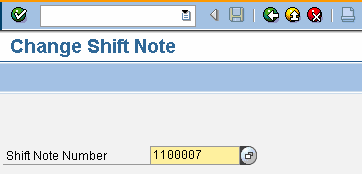
Figure 38
Change a shift note
Enter the shift note number and press Enter. This leads to the shift note change screen (Figure 39). Notice that the original content (Shift Note Creation - Demo - 01) in the Comment field is no longer editable. However, to incorporate new comments in the comment box, a new date and time stamp is affixed automatically and the user is able to add further comments, if needed. This option ensures that no one can change the original content of the shift note once it has been saved.
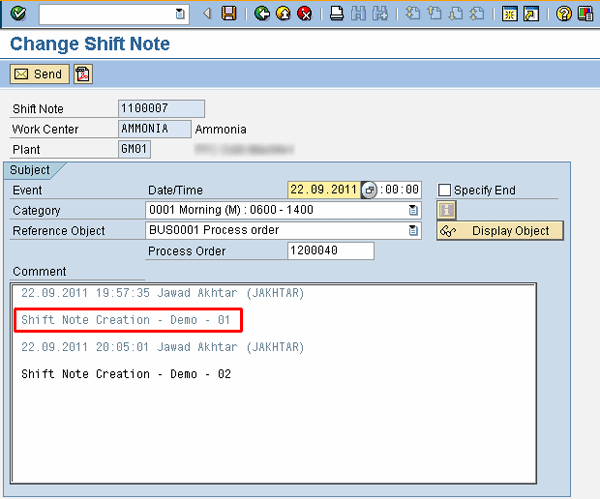
Figure 39
Shift note change screen
PDF Printout or Print Preview of the Shift Note
To print the shift note to PDF, click the PDF icon  in the screen in Figure 39, which brings up a print preview of the shift note in Adobe Acrobat (PDF) format (Figure 40). You can then print this file if necessary.
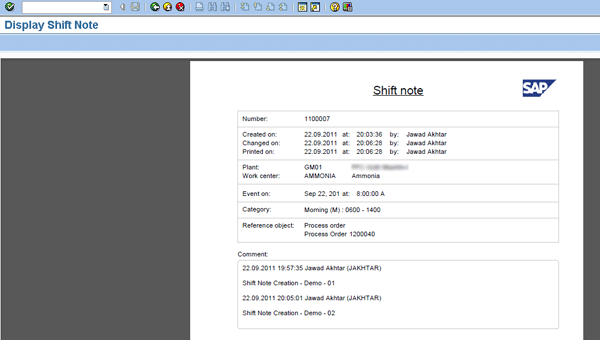
Figure 40
Shift note in PDF format
Send a Shift Note by Email
Another available option is to send a shift note to one or more users by email. To do this, click the Send button in the screen in Figure 39, which leads to the pop-up screen to send a shift note to other SAP users (Figure 41). You can write a short note to include with the shift note and it appears in the body of the email message. Click the send icon to email the shift note.
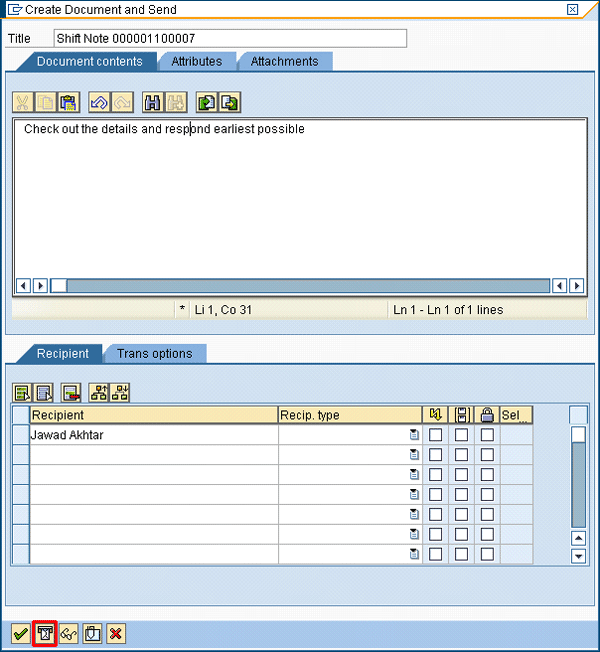
Figure 41
Shift note sending option by email – initial screen
Shift Notes List
The shift note list is an SAP report you can use to search shift notes. You can search based on specified criteria, such as shift notes created during a given timeline or those pertaining to a specific functional location.
To access the shift notes list, follow menu path Logistics > Central Functions > Shift Notes and Shift Reports > Shift Note and Shift Report for Work Centers > List Shift Note > Create or use transaction code SHN4. This is the initial screen to define parameters for searching a list of shift notes (Figure 42).
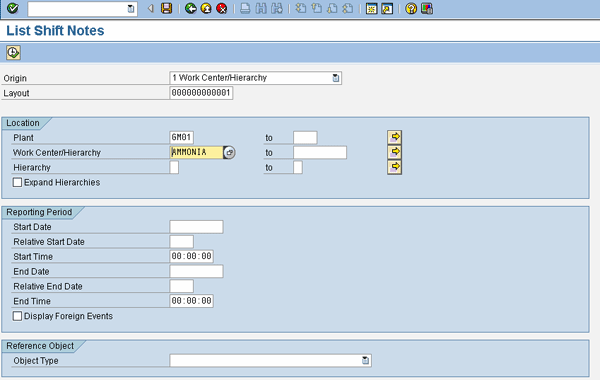
Figure 42
Initial parameter screen for the shift notes list
In my example, I set the Plant as GM01 and Work Center/Hierarchy as Ammonia and pressed F8 (you can also click the execute icon). This leads to the list of shift notes (Figure 43). Notice that you can easily navigate to the original shift note in change or display mode, if needed. Other standard functions, such as downloading to Excel and sending the list by email, are also available here.
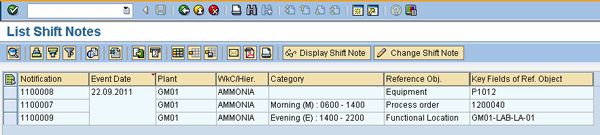
Figure 43
List of shift notes search results

Jawad Akhtar
Jawad Akhtar earned his chemical engineering degree from Missouri University of Science and Technology. He has 17 years of professional experience, of which nine years are in SAP. He has completed eight end-to-end SAP project implementation lifecycles in the areas of PP, QM, MM, PM, and DMS in the steel, automobile, chemical, fertilizer, FMCG, and building products industries. He also has worked as an SAP integration manager and an SAP project manager. He has been proactively involved in a business development and solution architect role for seven years. He is the author of Production Planning and Control with SAP ERP, it's filled with in-depth infomation on discrete, process, and repetitive manufacturing types. His profile on LinkedIn is at https://pk.linkedin.com/in/jawadakhtar. You may follow Jawad on Twitter @jawadahl. Currently, he is associated with AbacusConsulting as Head of SAP Delivery.
You may contact the author at jawad.akhtar@live.com.
If you have comments about this article or publication, or would like to submit an article idea, please contact the editor.



 Premium