Discover how to facilitate a simple automated campaign for campaign enrollment. In this example, a sample third-party marketing company handles email delivery and response handling.
Key Concept
Companies can use the SAP CRM campaign automation tool to take advantage of automated marketing campaigns while still having the flexibility to outsource key components of the process. They can take advantage of the email channel to directly communicate with prospects and customers because it is effective from a communication and cost standpoint. For many companies, the supporting processes needed to facilitate the use of an email channel are a huge undertaking. You can achieve a significant ROI by providing services to communicate with prospects and customers via an email channel without sacrificing efficiency in marketing programs.
Many companies face challenges working with vendors to facilitate components of a business process, such as disconnected IT environments and mixed systems and data formats. Marketing is one department in which vendors frequently provide products and services that are then incorporated into a marketing plan. These vendors perform tasks such as creative development, direct mail production, list preparation, data enrichment, media procurement, delivery, and response analysis. From a technical perspective, it can become challenging to seamlessly incorporate marketing service providers into your automated campaigns in SAP CRM. However, technology advancements in the area of integration, such as Web services, mean better opportunities to ensure smooth business process execution across landscapes and network boundaries.
I’ll show you how to trigger an automated campaign element using data supplied by a third-party vendor to ensure a smooth-running marketing campaign. Several variations of this solution are available. In the example that follows, I demonstrate the use of SAP CRM external list management (ELM) to import the third-party marketing vendor’s responses. Alternatives to this method include using Web services or Web forms. The bottom line is that using third-party marketing services should not prevent you from using campaign automation functionality in SAP CRM. You can still automate the campaign processes even if these processes are not all carried out in your system’s processing environments.
I will demonstrate how to set up an automated campaign that enrolls prospects into a follow-up campaign based on responses to an email blast from a third-party service partner. The responses are uploaded using ELM. I’ll show you how to use the ELM upload to create transactions that in turn trigger the workflow associated with the automated campaign and enroll business partners into the customer segment associated with the follow-up campaign.
Note
Many of the steps and concepts in this article are geared toward an audience that is already familiar with SAP CRM Marketing objects and processes.
Get Started with Campaign Automation
To begin, you need to develop a marketing project representing the project’s strategic and operative levels. You must carefully consider the overall needs of a department or company from a marketing organization perspective, including activities that are outsourced. Top-down planning usually takes place according to time periods, divisions, channels, and products.
For this article, I created a campaign in my sample marketing plan C/3002 by selecting the Marketing work center from the navigation bar in SAP CRM and then clicking the Create Marketing Plan link. Because I wanted to automate the campaign using multiple channels, I first had to define a campaign. Then I modeled the campaign elements that I needed to automate. I’ll use this campaign to plan all the operative steps for enrolling prospects into a campaign carried out by a combination of internal and external processes.
I planned my budget and expected revenue in the parent level of marketing plan C/3002 using the planning profile. This list of prospects will receive an email from my example vendor asking them to participate in the promotional offer campaign. Once the prospects respond to this invitation, they are placed into a predefined target group and enrolled in follow-up campaigns.
Use the Marketing Planner view in Figure 1 to model the automated campaign elements. Here, you can define all the required settings for automating the steps of the marketing campaign, in addition to the standard settings and descriptions that you maintain in the marketing planning or marketing calendar views of the campaign.
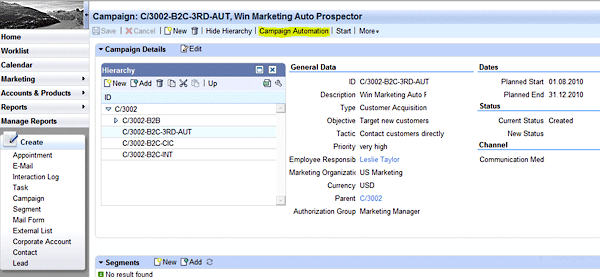
Figure 1
Marketing planner view of campaign
Click the Campaign Automation link in the application toolbar in Figure 1 to launch the process view of the campaign (Figure 2).
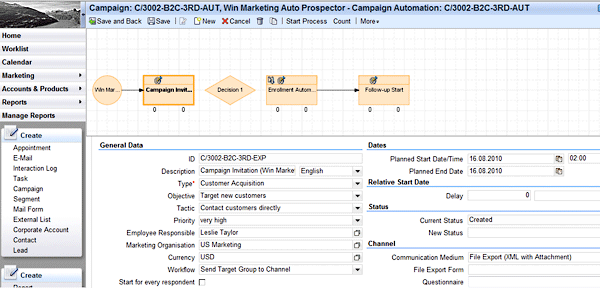
Figure 2
Process view of campaign with detail of initial campaign invitation
In the process view screen, you can define and maintain all the campaign action steps using various campaign elements. You establish connections between the action steps to identify the campaign flow. Click the New button in the toolbar of the campaign automation view to add an element (Figure 2). You can insert decision nodes between campaign elements to establish the rules for when other action steps should be carried out. Optionally, you can also use optimization elements to identify capacities for the number of business partners that can participate in certain campaign elements as well as planned values for specific action items. I did not need an optimization node in this example.
Figure 2 also includes the campaign itself (in the circle), campaign elements or action items (in the rectangles), and decision nodes (in the diamond). You can also see that the flow has been established by connecting the campaign and campaign elements. The system automatically creates the connections from the decision nodes to follow-up campaign elements, but you must manually establish any other connections. In this campaign, an initial campaign invitation element takes place. The invitation element creates a file export of all the prospective business partners in the assigned target group. You can then manually transmit this file to the third-party marketing firm or use the electronic file transfer via open channel for email distribution and response handling functions. After you receive feedback on the initial invitation responses, you can decide which prospective business partners to add to the target group associated with the follow-up promotional campaign.
To trigger the follow-up campaign element, the system considers the rules that have been established in the decision node and then executes the workflow associated with the identified follow-up steps. You can form the decision rules on the basis of predefined variants such as time, campaign elements, surveys, and system elements. In Figure 3, I selected the various rule variant, which offers the condition of a business partner response using a transaction type. This means I can designate that any business partner that has an activity type ZCP3 Contact also has the Enrollment Automated Follow up triggered.
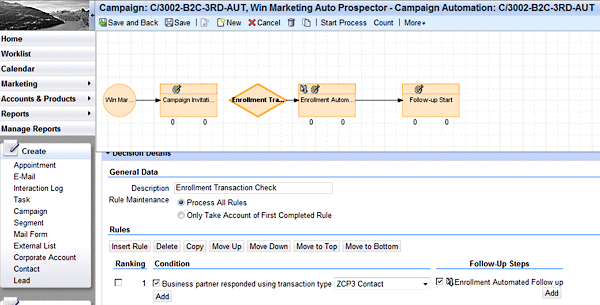
Figure 3
Decision details establish the conditions that must be satisfied so your specified follow-up steps are triggered
Of course, you can combine multiple conditions (e.g., time and transaction) so that only prospective business partners who have activity type ZCP3 Contact assigned within two weeks of the campaign start date are enrolled. Also, you can carry out multiple follow-up steps so that if the conditions are satisfied, both a follow-up enrollment element and a reply to thank the business partner for its decision to participate in the campaign are performed. You can define various rules and use them inclusively or exclusively to perform different follow-up steps.
Note
For more on the options of campaign automation, I recommend you take the SAP training course CR600 – CRM Marketing. A full unit is dedicated to explaining the configuration and options of the Campaign Automation application, including the decision node variants.
Before you can start any of the campaign elements, you must release all the parent level marketing project elements. If you release the campaign (the circle in Figure 3) from the campaign automation view, all the associated campaign elements are also released. Once they are released, you can start the campaign by clicking the Start Process link in the campaign automation toolbar (Figure 4). Planned start dates and times for execution are then evaluated from the child elements, in addition to any conditions defined within your decision node rules.
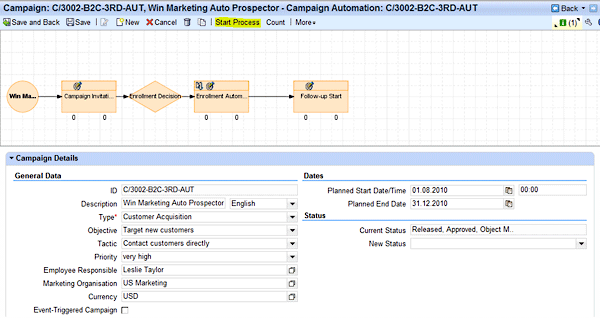
Figure 4
Trigger the start of the entire campaign once it is released
The first campaign element triggered on campaign start is the Campaign Invitation (Win Marketing), as shown in Figure 5. This element uses the File Export communication medium, which creates a file of all the business partners in the target group in CSV or XML format. You can create the file export form by going to the Marketing work center and clicking the Mail Form link on the left side of the screen shown in Figure 3. Search for your form in the marketing planner to assign it to the campaign element (Figure 5). The file export form C/3002-B2C-3RD is assigned under the Channel section of the screen. You can see that a new attachment has been created by the system in the Attachments section. The attachment is linked to the file that was generated using the file export form.
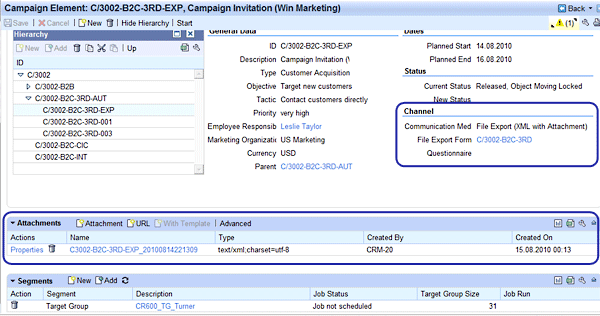
Figure 5
Details of the first campaign element that triggers the file export
The file export campaign element uses a file export form to generate a new attachment with all the business partner information fields associated with the target group. Click the form name in the campaign planner (C/3002-B2C-3RD in my example) to navigate to the details of the mailform (Figure 6).
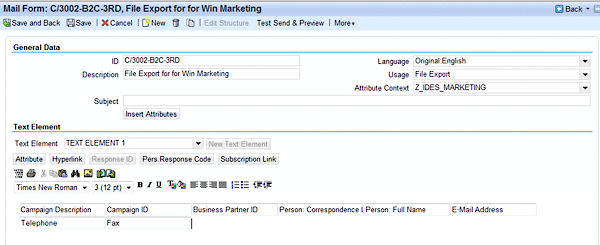
Figure 6
The file export form identifies the attributes from the various structures that are to be included
In the C/3002-B2C-3RD form, I identified the necessary fields that should be included in the export form (Figure 6). I used fields of information from the campaign element as well as from the business partner master record. You should include any information that the third-party marketing firm needs in the file export form. (Note that the Usage field needs to be File Export.) The attribute context identifies which objects and fields can be inserted into your form. You can customize the mailform tool to include custom attributes from structures in your attribute context as well, but this is beyond the scope of this article.
You can now transmit the export file to the vendor so it can carry out the email distribution and collection of responses. You can automate this process using the open channel, which transmits the file via Remote Function Call (RFC) destination. Now the vendor needs to supply information based on the responses of the participants, which you use to trigger the next step of the automated campaign.
In this scenario, I use the ELM tool to import the response file from the vendor. To create an external list for the vendor’s returned file, you need a mapping format that identifies the fields of information and how they are mapped to fields in SAP CRM. In Figure 7, I used the ELM Activities category. This allows me to specify mapping of fields from the supplied file to the target fields within my activity transaction. Note that in my scenario, the prospect data has already been defined, so I’m only using the ELM tool as a method for generating the creation of activities for each business partner in the list I will import.
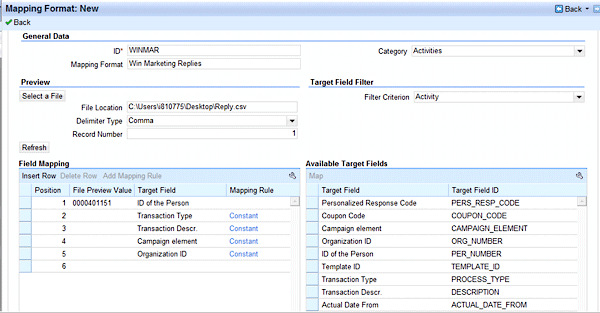
Figure 7
ELM mapping formation can map import file data to transaction fields
You can establish constant values or custom logic for determining field values within this mapping format for using mapping rules. For all the mapped fields in my mapping format, I established the assignment of a constant value (with the exception of the business partner ID of the person, which the vendor supplies). In Figure 8, you can see that in the Constant field, I use the same transaction type (ZCP3) that I established as a condition in my decision rule earlier. You can use mapping rules to put logic around fields that are supplied by the vendor or to establish values for fields that will not be included in the vendor-supplied file (such as the transaction type that is to be created).

Figure 8
Mapping rules place logic around fields
Once a mapping format has been established, you can create an external list for each of the returned vendor files of response data. When you use the Activities category, the only process steps that you can perform are reading the file, mapping the data (using the assigned mapping format), and creating business transactions. In this scenario, I am only importing the business partner ID of the people who want to accept the offer that was emailed (Figure 9). You can start the import immediately or schedule it to run as a background job. You could alternatively automate the import using a recurring job.
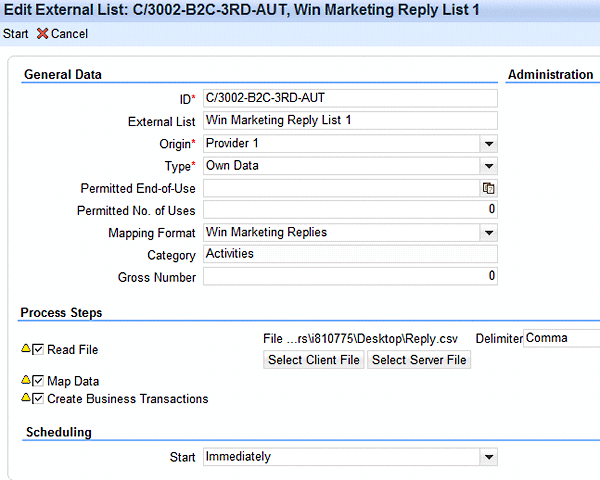
Figure 9
The ELM list for the Activities category allows the creation of business transactions for the participants in the file supplied by my example vendor
After the file upload has started, the ELM Key Figures assignment block shows you how many activities have been created (Figure 10). Four activities have been created for the four business partners that were in the uploaded file.
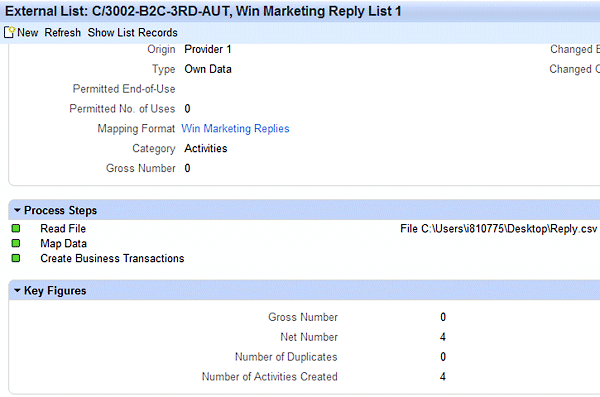
Figure 10
Key Figures identify the number of activities that are generated
You can view the activities using the Show List Records link from the external list (Figure 10) or by searching for them manually (Figure 11). These activities are linked to the campaign for which they were created. This link was established during the ELM import using the mapping format for the Campaign ID field with a mapping rule that specified the constant value for the campaign ID C/3002-B2C-3RD-AUT.

Figure 11
The activities the ELM import generated
Once the activities are generated, you should now be able to see that the follow-up step of adding these business partners to a new target group was performed. This target group is already assigned to the next campaign element. Therefore, only business partners that you created an activity for or that did not opt out of the email offer will be enrolled in the next campaign. Figure 12 shows the details of the target group, including the business partners for which activity type ZCP3 Contact was generated.
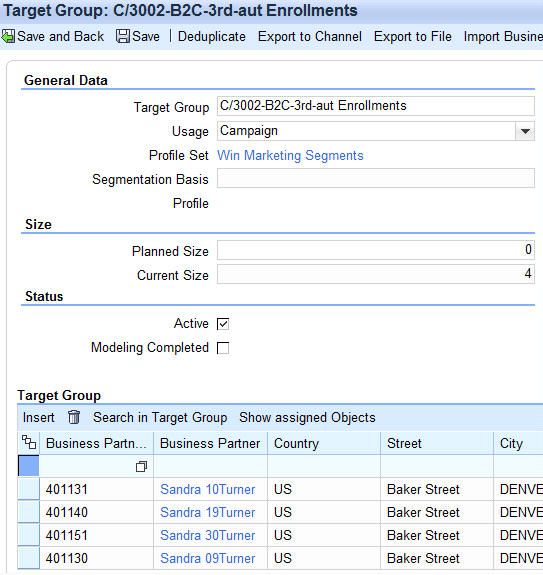
Figure 12
Target group to be used in subsequent campaign elements with a list of business partners that had activities generated for them during the ELM import
Matt Mantooth
Matt Mantooth is an education consultant at SAP in the areas of SAP CRM, SAP NetWeaver Application Server, SAP ECC, SAP ERP HCM, and SAP NetWeaver BW. He has more than eight years of SAP CRM and technical consulting experience. Matt holds an SAP CRM 7.0 associate level certification and a bachelor’s degree in information systems from the University of Alabama, Birmingham.
You may contact the author at matt.mantooth@sap.com.
If you have comments about this article or publication, or would like to submit an article idea, please contact the editor.