See how an SAP system handles the media industry’s need to manage intellectual property and to avoid the conflicts that can arise when an intangible product is licensed in multiple ways.
Key Concept
SAP Intellectual Property Management (SAP IPM) is part of the industry-specific offering SAP for Media. It sits on top of SAP CRM. Intellectual Properties (IPs) are intangible products. A single IP is licensed multiple times using multi-dimensional rights. That’s one of the key differences between the media industry and other industries, especially manufacturing, in which one product is sold and consumed in just one sales order.
The business process of any media company is going through interesting times with new markets, product digitalization, and social networking, leading to the need for an IT platform to manage media sales and licensing. Unlike other industries, the media industry’s core product is intangible and the same product is licensed in different markets and territories. SAP’s answer for this business need is SAP Intellectual Property Management (SAP IPM), which sits on top of SAP CRM. We cover the IP rights management process of any media business as well as what we term the standard Rights Inventory Management (RIM) capabilities of SAP IPM.
Note
Rights Inventory Management (RIM) is a term we coined to represent all aspects of managing IP inventory in an SAP system. Unlike physical material, IPs are intangible products that are not stored in a plant or storage location.
Understanding RIM for the Media and Entertainment Industry
The IP rights can be looked at as a multi-dimensional cube comprised of various right dimensions such as market, territory, or language. The cube represents all the rights owned by the media company for a certain duration (Figure 1). For example, a US-based media company might make its first license for the theatrical market in the US in English (represented by a colored cube). Although the company owns rights for 20 years, it may be able to exploit it in the theatrical market only for six to 12 months (while theatrical admissions are good).

Figure 1
Example of rights owned by a media company
The life cycle of an IP such as a feature film in the media and entertainment industry involves the acquisition and exploitation of rights. Rights are defined by a legal contract between a licensor and licensee, which defines what, how, where, and when the licensee can exploit the product, and the financial terms to own that right. From the licensor’s perspective, owned rights are analogous to inventory. The legal contract is checked against the rights inventory to determine whether the rights for exploitation are available. Once the contract has been executed successfully, then the revenue is recognized along with royalties or cash application. The business model of RIM in any media and entertainment industry typically follows the path starting with rights acquisition and then exploitation per legal agreement between licensee and licensor.
The standard SAP IPM solution gives the flexibility of handling RIM using media-specific CRM components. Configurable tools are available for the IP rights life cycle. RIM consists of rights-in (IP inventory of a media company) and rights-out (existing licenses granted) described below.
Rights-In
Rights-in forms the inventory of an IP media company that may have been home produced or acquired from another vendor — for example, old library titles are acquired to be used in the cable TV market for the US. Rights-in has three components: rights owned, release dates, and release restrictions.
Rights Owned
Figure 2
- Rights Scope consists of Description, valid from, valid to, and underlying multiple Rights Groups
- Each Rights Group consists of the unique combination of Market, Territory, and Language.

Figure 2
Rights owned from 2009-2018 (duration) for Video on Demand (market) in German for Germany and in French for France but not owned in French in Germany or in German in France
- Rights view is a pre-selected list of nodes from a rights hierarchy (i.e., a pre-selected list of nodes that you can save so that if such rights are acquired from a third party, you can quickly maintain them in SAP IPM). Figure 3 is a pre-defined view for French-speaking territories that you can use by clicking Add Rights View on any territory selection screen. A multi-national media company could have up to 100 nodes in its hierarchy, making views much more useful for data entry.

Figure 3
A simple territory setup
- Rights templates are multi-dimensional nodes — for example, for rights acquired on library titles for media (all TV), territory (French-speaking Europe), and language (French). You can save this combination in a reusable rights template so that it’s much quicker to update rights on all IPs by just applying the same template. Figure 4 is an example of a template.

Figure 4
Rights owned for Video on Demand (VOD) in Germany and France created using a rights template
Note
SAP provides templates and views as tools for quick data entry. However, if an organization wants to control segregation of duties for markets and territories, you can use views and templates as security controls with minor development. Users can work only with templates and views for their own markets or territories.
- Rights Generation Formula — Rights views and templates allow easy entry for one IP at a time. However, in scenarios in which rights owned are needed on multiple related IPs, the Rights Generation Formula is a quicker solution. For example, when a TV series is acquired or produced by any organization, the same rights are applicable for the series, the season, and its episodes. SAP IPM requires rights at each of those levels of IP.
Release Dates
Release dates are the next component of rights-in. Once rights are owned or acquired by a company, they go through internal planning to exploit those acquired rights effectively.
Figure 5
Figure 5
A typical example of release dates on a superhit feature film that is strategically released in markets in a staggered pattern (to maximize profits)
- Rights views: The SAP system provides rights views for release dates for quick data entry
- Release date generation formula: This formula-based application in SAP IPM helps manage staggering of release dates on an IP
Release dates are normally staggered across market and territory. Media organizations have pre-defined rules for each market and territory. For example, a feature film with a major star cast after final production goes into this schedule: one month of prep work, six months in theatrical, one month gap, three months on DVD, two months of rental DVD, and then the television market. The one-month blackout gap is intended as a way to avoid the cannibalization effect and to entice viewers to view the IP in upstream rather than downstream media. Figure 6 is a graphical representation of one such rule.

Figure 6
Example of a release schedule
Normally the same pattern is applied across many IPs of a certain kind (e.g., feature films follow the above pattern whereas a TV series goes directly to the TV market and then into DVDs). The SAP system creates this pattern with a generation formula that you can apply to multiple IPs in SAP IPM based on a trigger date such as a production or release date.
Each release date rule is set up as a mathematical formula in the form of rows. You set up the pattern in SAP IPM using a profile, as shown in Figure 7. The yellow columns correspond to the duration of release dates in each media. The green highlighted columns indicate the start date of the downstream market (DVD sales) one month after the end of the upstream market (theatrical).

Figure 7
Pop-up shows the profile tool that allows release dates to be calculated with reference to the IP date and the previous or current rule line. Rule line refers to the mathematical expression used in a previous or current record.
Release Restrictions
Release restrictions refer to restricting licensing of an IP in certain markets and territories. They can stop a company from distributing or licensing an IP in certain markets and territories. A situation could arise that would lead to a block in a specific country (Figure 8). For example, a film actor might object to releasing it in a certain territory. License sales for the IP in those markets and territories result in a collision error (i.e., inventory check). The SAP system allows you to create a configurable list of restriction types to manage restrictions on an IP.

Figure 8
A feature film is restricted from release during December in France due to an unforeseen request by the producer of the film
Rights-Out
The SAP IPM system provides functionality to license rights out to customers, including licensed rights, rights options, and holdbacks.
Licensed Rights
SAP IPM uses CRM Contracts Line Items (Item Category belonging to Object Type BUS2000176: Rights Sale Contract Item) to denote rights out. Standard CRM line items cover item details such as organization, parties involved, and pricing and billing. SAP IPM contract items include additional entries called rights scopes that denote rights being licensed out from that specific IP.
Rights can be licensed either exclusively (blocking availability completely in a specific market and territory) or non-exclusively (allowing other companies to license it too). Rights views and templates can be used as quick data entry tools to set up rights scopes and rights groups. Figure 9 shows rights being licensed out in an SAP IPM contract.
Note
You can make a minor enhancement to restrict employees so that they can license IPs into only certain markets and territories. This can be done by restricting users to work only with pre-defined non-changeable views and templates. (Views and templates are pre-defined lists of values for media, territories, and languages.) If a user wants to work with extra media and territories, you can set up a workflow approval process to allow access to a wider list of views and templates.

Figure 9
Exclusive rights scope in license sales contract
Rights Options
SAP IPM allows for rights to be licensed as optional, thereby reserving them for a specific licensee. Options are a promise to the licensee from the media organization that it will reserve specific rights of an IP for the licensee for a sum of money paid up front. The customer is given a period to execute the option either by accepting it, paying more money, or refusing it. Until the option is executed, those rights are considered licensed from the rights inventory for the option period. SAP IPM provides a rights object (i.e., rights scope with underlying rights groups) to manage options (Figure 10).

Figure 10
Rights scope with option and option exercise period defined
Holdbacks
SAP IPM allows for rights to be licensed exclusively to a client or to be blocked from some other market or territory. For example, a licensee bought rights for original premium TV distribution for 2011, but requests a holdback against free TV from December 2010 to February 2012 to earn non-competitive profits for the duration of the first quarter. Just as in options, holdbacks require an extra fee. In this case, the licensee is still allowed only to exploit the premium TV market but is also ensuring that no one else can exploit free TV in a specific territory or language.
- Choose a rights (premium TV) for which you need holdback (free TV) as shown in Figure 11
- Within such rights, click the Edit button and navigate to the Holdbacks assignment block. Click the New button
- The Holdback screen opens as shown in Figure 12
- Specify Free Television and set up the coupling date rules. For example the client (e.g., premium TV channel Cinemax) would not want a competitor to show the same feature film on free TV starting one month prior to, and up to two months after, Cinemax is done exploiting the feature film.
- These rules are setup using the Pre Value, During Value and Post value fields in the Holdback screen. In this case the Valid From and Valid To fields are grayed because they are rule based and not changeable by the user. (Figure 12)
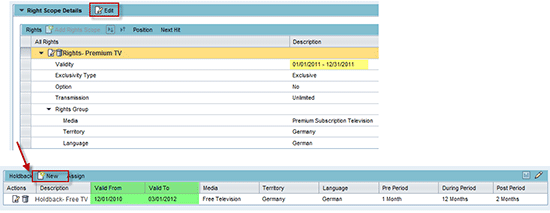
Figure 11
Navigation path to set up holdback

Figure 12
Holdback for Free TV, which is coupled with premium TV rights scope
In the case of an uncoupled holdback, the holdbacks are valid with dates independent of when the rights license starts or ends. You can uncouple the holdback by clicking the Set Validity Manually button in the same holdback screen (see the Set Validity Manually button in Figure 12). In this case, the holdback is independent of the rights scope, and the user can edit the dates manually as shown in Figure 13.
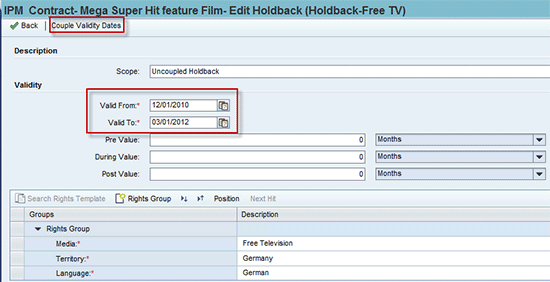
Figure 13
Uncoupled holdback from rights scope
Availability Check of RIM in SAP IPM
SAP IPM provides the functionality to check for IP availability. It checks the rights inventory, license sales, and license acquisition contracts. The rights availability check is one of the crucial activities in media and entertainment industries.
Rights Availability Analysis (RAA) represents the rights query and calculation system used to determine the time period in which IPs are available for licensed sales across all rights dimensions (i.e., media, territory, and language). Based on the specified parameters, the Rights Avails Engine calculates the requested rights in the system and gives an IP availability status.
Wizard-Based Application
The SAP IPM RAA is a wizard-based application tool that steps a user through the process of defining which rights dimensions or IPs an application needs to run. The RAA Wizard is a step-by-step tool that allows the user to create RAA requests by entering parameters associated with time and rights dimensions to narrow the search for available IPs. The user can save and copy the RAA request as Saved RAA Request at any stage within the RAA. You have the option to skip or go back through the various stages of the wizard to change criteria and allow for more robust search flexibility.
The SAP IPM RAA wizard consists of the following four steps:
Step 1. Enter the General Data
The first component of the RAA tool is General Data (Figure 14). In this step, the user enters the basic data of the RAA request including the mandatory text for the description field. The system automatically generates the Request ID after you click the Save button. SAP IPM gives the option of configuring the number range for RAA requests. Except for Business Partner, the system auto populates the remaining fields of the step 1 screen. The Business Partner field in step 1 has no relevance and no functionality is associated with it. However, you can enhance this field to incorporate the logic for satisfying unique media industry requirements around licensee-specific exclusivity.
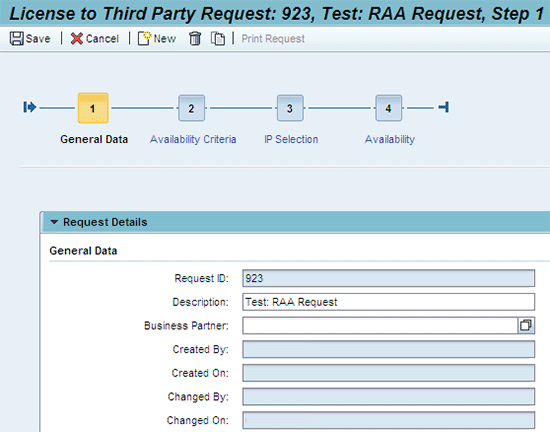
Figure 14
General data screen
You can configure the number range for avails request in the system. Follow IMG menu path Customer Relationship Management > Industry-Specific Solutions > Intellectual Property Management > Define Number Ranges for Rights Availability Requests.
Step 2. Set Up the Availability Criteria
The Availability Criteria screen supplies parameters to help create the desired avails results. RAA allows users to select and execute the multiple rights dimensions combinations in a single avails request. You set up the RAA request by specifying the time frame for which the IP availability is to be searched. Within the requested time frame, you can set up the requested license duration (RLD), which is one of the new features available in SAP IPM enhancement package 1, version 7.0. This feature proposes the earliest possible license period within the requested time frame. Another new feature in 7.0 is the setup of holdbacks in RAA. Per the business scenario in this article, the rights manager of the company searches for five years using the parameters entered in step 2 of the wizard:
Timeframe Start: 01/01/2012
Timeframe End: 12/31/2016
Requested License Duration: 1 Year
Exclusive Rights: Yes
License Period
Free Television
USA
English
Holdback
(Pre): 2 months / (During): 1 Year
Premium Subscription Television
USA
English
Figure 15 shows how to set up the parameters using the avails wizard.
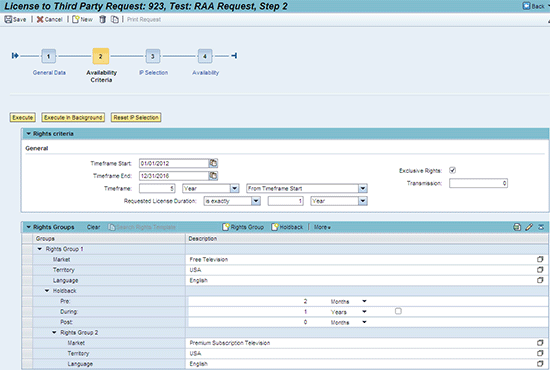
Figure 15
Availability criteria screen to enter the rights and time frame
- Rights templates
- Rights views
You configure these tools in your SAP IPM system, which allows for an easy entry for the rights manager. For example, let’s assume that the rights manager frequently checks the rights availability in free television in US and English. Instead of typing in the rights dimensions every time, the rights manager executes the avails. Once it is set, you can launch these tools with the rights groups in step 2 of the Avails wizard.
Step 3. Search the IPs Based on Attributes
The IP Selection screen allows the user to narrow the RAA search based on the IP attributes. The input to this step is optional. If the user does not specify any IP attribute, then depending on the selection parameters entered in step 2, the RAA executes all the IPs. The IP selection further restricts the IPs to be checked for availability.
Say you want to check the availability of comedy feature films that have a US box office of more than $10 million. In this case, you specify the following IP attributes in step 3 of the RAA request:
IP Type: Feature
Genre: Comedy
US Box office greater than $10 million
The step 3 IP search screen can be enhanced to accommodate the additional IP attributes depending on your business scenarios as shown in Figure 16.
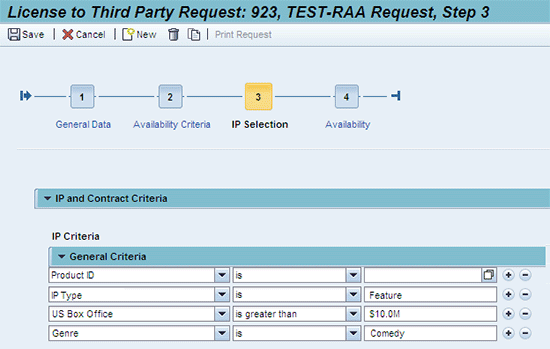
Figure 16
IP Selection screen to enter the IP attributes to filter the search
Step 4. Analyze the Availability Results
The rights avails results are analyzed in step 4 of the wizard. The following are the three sections in which you can analyze the Avails results:
• Availability overview
• IP availability details
• Criteria fully met or partially met
Availability Overview
The Availability Overview (Figure 17) gives you a single snapshot of the IP’s availability status. The IP status column gives you either a green, yellow, or red light against an IP. A green light means the IP’s rights are fully available and meet the parameters for which you ran the avails request. A yellow light means the IP’s rights are partially available for exploitation and partially meet the parameters you entered. A red light means the IP’s rights are not available for exploitation and do not meet the parameters.
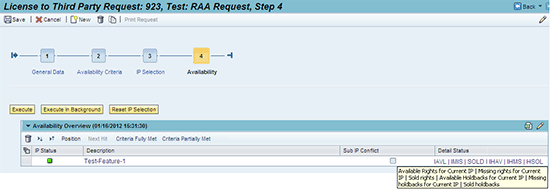
Figure 17
Availability overview screen
IP Availability Details
The IP Availability Details section of step 4 gives you the detailed analysis of the IP’s availability status. It gives you the information both from IP rights in as well as rights out used to determine the IP’s availability status. It gives the time frame in which the requested rights are available and the missing rights within the requested time frame. It also gives the license sale and acquisition contracts that contain the rights that were sold to a licensee. This information is captured in individual assignment blocks. Figures 18 and 19 show the type of detailed information that is available.
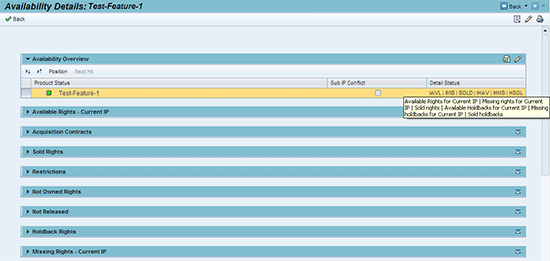
Figure 18
IP availability details
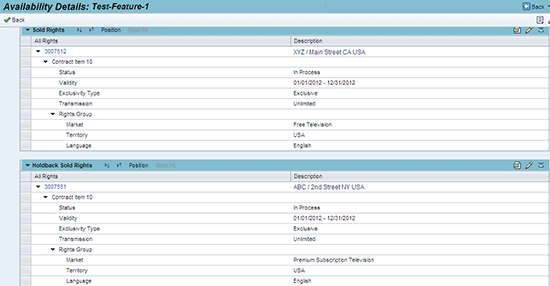
Figure 19
Expanded view of sold rights and holdback sold rights assignment blocks
Access the Criteria Fully Met or Partially Met IP Status
The last section of step 4 gives you the calculated proposed time frame of an IP based on the selection parameters you entered. You access it by clicking the Criteria Fully Met or Criteria Partially Met buttons in the Availability Overview section.
All IPs that have a green status are displayed under the Criteria Fully Met section. Click the Criteria Fully Met button to see the IPs having green status. The green color IPs means that the IP rights are available for exploitation and fully satisfy the avails requested rights and time frame.
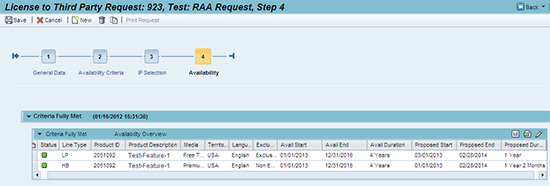
Figure 20
Criteria Fully Met screen
- License period available from 03/01/2013 to 02/28/2014
- Holdback period available from 01/01/2013 to 12/31/2016
The IPs partially meeting the avails requested rights and time frame are displayed under the Criteria Partially Met section. Click the Criteria Partially Met button on the Availability Overview screen to see all IPs that have a yellow status.
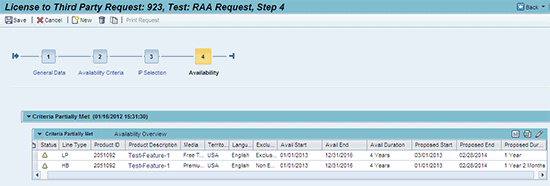
Figure 21
Criteria Partially Met screen
The IPs that do not meet the Avails requested rights and time frame are not displayed in the avails results. The Criteria Not Met IPs or red IPs are filtered in the avails calculation and are not part of the calculation results.
Exclusion of Contract Items Based on System Statuses
The contract items whose statuses are set to cancelled can be excluded from the Avails calculation. Since the contract item is cancelled and you want Avails to show the time window as available, items with the system status CANC can be excluded from the calculation. A configuration setting is available in SAP IPM to exclude contract items from the avails calculation. If you want to exclude certain contract item system statuses, then you can enter the contract item statuses by following IMG menu path Customer Relationship Management > Industry-Specific Solutions > Media > Intellectual Property Management > Rights Availability Analysis > CRM WebClient UI > Define Status for Rights Availability Analysis.
In a standard SAP-IPM system, you can exclude only the system statuses from the calculation. You cannot exclude the user statuses from the avails calculation. To do that, you need an enhancement to map the user status to system status and the configuration setting can be used to exclude the given contract item based on user status. As a business example, for licensees who are bankrupt, you do not want to block the time window of their contracts. You can exclude their contract user statuses from the Avails calculation. By doing this, the sales person can exploit their contracts time windows to other licensees.
Create License Sales Contract from Avails Results
SAP IPM gives the provision of creating the license sales contracts from the avails results. You can select the individual result lines from the avails Criteria Fully Met or Criteria Partially Met sections. Then click the Create Contract button. The system prompts you for the transaction type and scope type (whether rights only or rights and royalties only) message boxes. Once you choose the selections based on your business needs, the license sales contract is created with the selected avails result lines as individual line items in the contract.
Collision Checking
The collision checking function of SAP IPM is available in the license sales contract. The purpose of this functionality is to ensure that there are no rights conflicts in the contract. To trigger the collision checking functionality, clicking the Check Collisions button in the license sales contract and the results in the form of messages are populated in the assignment block. The collision checking function checks the rights components of IPs as well as contracts. It represents the process that provides rights validation. The collision checking in the license contract identifies conflicting rights sold in a separate contract (i.e., two or more contracts that conflict in the same market, territory, and language combination that share overlapping term dates). The standard system checks the rights conflicts in the following order:
- Rights owned
- Exclusivity in rights owned
- Release dates
- Release restrictions
- Sales contracts
Figure 22
- Rights Scope 1 is exclusive and rights are sold in France with the French language and for all media
- Rights Scope 2 is non-exclusive and rights are sold in Belgium and Luxemburg with the French language and for all media
- Royalties Scope with Rights Scope 1 and Rights Scope 2 assigned to it and Royalties are distributed for Belgium and Luxemburg (40 percent) and France (60 percent) with the French language and for all media.
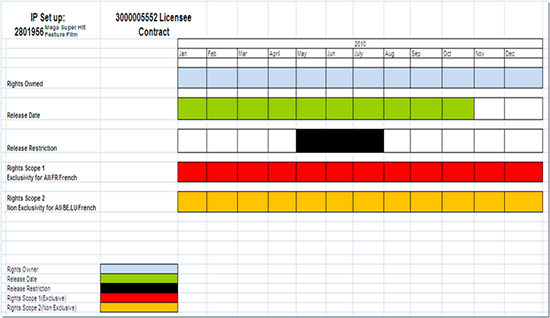
Figure 22
Calculation worksheet: setup of the business case in this article
- Rights Owned: January 1, 2010, to December 31, 2010
- Release Date: January 1, 2010, to October 31, 2010
- Release Restriction: May 1, 2010, to July 31, 2010
- License Sales Contract: January 1, 2010, to December 31, 2010 (exclusive for All Territories/France/French and non-exclusive for All Territories/Belgium, Luxembourg/French)
Collision Checking Message Types
The collision checking is represented in the form of messages in the license sales contract. You can define three types of messages in SAP IPM:
- Warning
- Error
- Information
These message types can be configured and depending on the business requirements, you can change the severity of the message. For example, the error message type can be changed to a warning message. To change the collision check message priority follow IMG menu path Customer Relationship Management > Transactions > Basic Settings > Define Attributes for System Messages.
Different Levels of Performing Collision Checking
Figure 23
- Collision checking at the contract header level: At the Deal header level, the collision checking functionality performs for all the IPs and the underlying scopes in the contract. It checks the rights conflicts defined for a whole contract with other overlapping IP rights and other contract rights. The collisions in the form of messages are displayed in the Collision Check assignment block at the license sale contract header level.
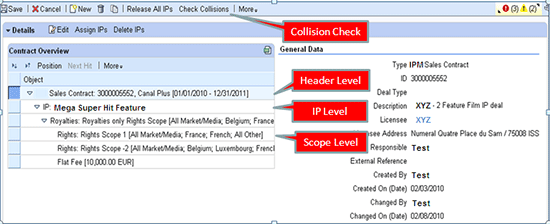
Figure 23
Collision checking levels in the license sales contract
- Collision checking at the IP level: At the IP level, the collision checking performs for all the rights and holdback scopes within an IP. Figure 24 shows how to perform a collision check at the deal header or IP level. Select the IP row in the Contract Overview section of the contract and then click the Check Collisions button.
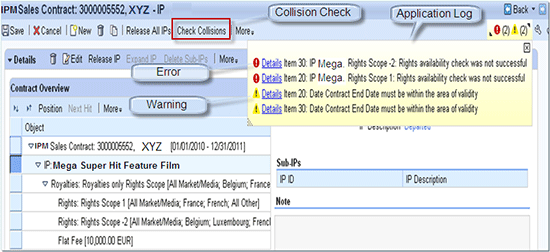
Figure 24
Collision checking with message of type Error and Warning
- Collision Checking at Scope Level: The collision checking can be performed at the individual scope level within a contract (Figure 25). When checking at the scope level, the SAP IPM only checks the rights defined for a scope with other overlapping license sale rights and IP rights.
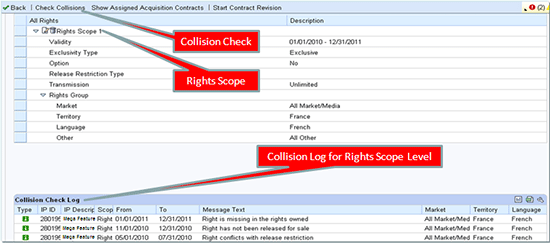
Figure 25
Rights scope level within IP (collision checking performs only for the rights scope selected)
Analysis of Collision Checking Results
Figure 26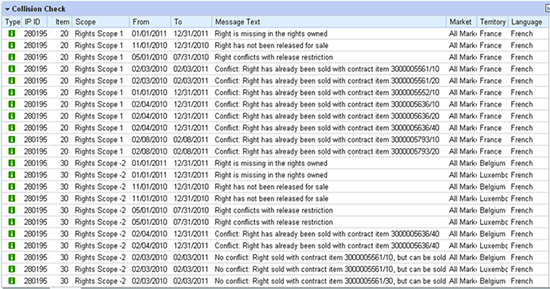
Figure 26
Collision Check assignment block showing information messages
- Right is missing in the Rights Owned
- Right has not been released for sale
- Right conflicts with Release Restriction
- Conflict: Right has already been sold with contract item <contract number/line item number >
- No conflict: Right sold with contract item <contract number/line item number>, but can be sold again
Figure 27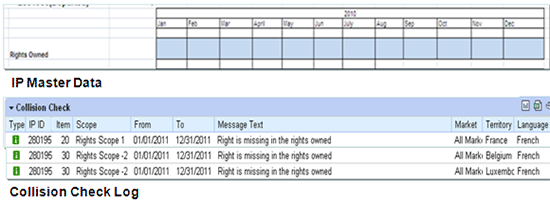
Figure 27
Message that rights are missing
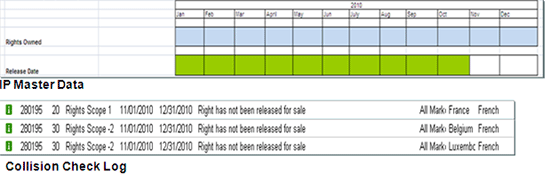
Figure 28
Message says right not released for sale
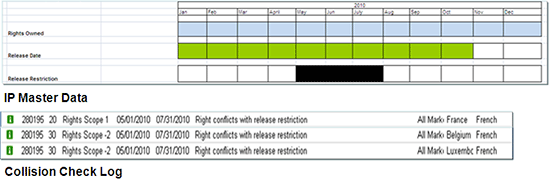
Figure 29
Message says there is a release restriction
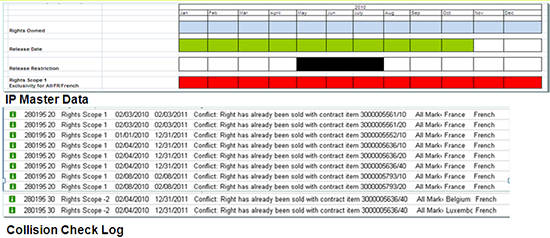
Figure 30
Message says the rights are already sold
The message that No conflict: Right sold with contract item <contract number/line item number>, but can be sold describes the rights out message and gives the rights conflict with another license sales contract (Figure 31). The license sale rights for which you are trying to run the collision check have been sold non-exclusively in another contract and hence conflict in the same media, territory, and language for a given time period. As described in the previous section, this type of collision check message only comes when the rights have been sold in another license sales contract non-exclusively.
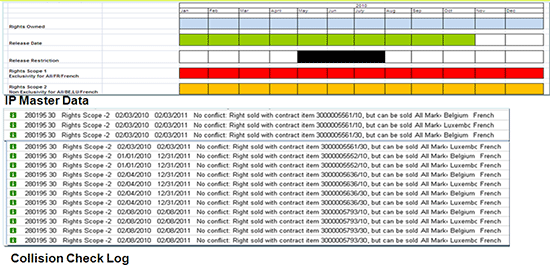
Figure 31
Message says it can be sold even though rights are sold elsewhere
Key Gaps and Challenges within Rights Inventory in SAP IPM
- When library titles are acquired by a media company from a vendor, all such titles are acquired with the same rights. However, you can’t use the rights generation formula here because all these library titles may not be related using IP (product) relationship. Product relationship is normally used in relating series to season to episode or linking certain movies into a movie package. You can address this gap with a custom enhancement to allow the rights generation formula to copy rights from one IP to other IPs (even if the IPs are not related to the original IP in product relationship).
- Typically release restrictions are used in the industry to block the release or license of an IP. Not all types of restrictions are hard blocked from licensing the IP. Some such restrictions require negotiations with a customer and the IP may still be licensed out. However, SAP IPM treats all restriction types as hard errors or just warnings and does not allow each restriction to be handled differently. You can address this gap with some enhancements.
- In the media industry rights are not always exclusive or non-exclusive. Sometimes they may be co-exclusive if a media company licenses exclusive rights to a customer to stop competition, but still allows its strategically affiliated partners to license the same product. Co-exclusivity is available in SAP IPM but not yet developed in SAP IPM to affect avails or collision checks. Therefore enhancements are required.
- Media contracts are typically multi-year contracts in which IPs and additional rights are added in the same contract from time to time. However, SAP IPM allows rights to flow from availability only into a new contract. This is a significant gap. However, SAP CRM architecture allows custom enhancements to fill in this gap, which can allow you to add IP rights to existing contracts.
Maneesh Agarwal
Maneesh Agarwal is a manager with Capgemini’s SAP Service line. Maneesh has been working with SD and CRM solutions of SAP and implemented such SAP solutions for FMCG, leasing, healthcare, equipment manufacturers, and media and entertainment clients. Maneesh has strong expertise in SAP CRM Sales, Service, Contract Management, industry solutions (e.g., leasing and media-IPM), and specializes in SAP CRM and SD pricing.
You may contact the author at maneeshsapcrm@gmail.com.
If you have comments about this article or publication, or would like to submit an article idea, please contact the editor.

Manjinder Sohi
Manjinder Sohi specializes in deploying SAP ECC and CRM solutions and has a track record of successes in implementing IT solutions in the auto manufacturing, chemical, educational, banking, healthcare, and media and entertainment industry sectors. His expertise includes SAP ECC Sales and Distribution, Material Management, Production Planning and SAP CRM-IPM. He holds certification from SAP and is the order-to-case (OTC) industry solution leader for Capgemini’s SAP digital industrialization group. Manjinder graduated from the University of Texas at Dallas with a master’s degree in computer science.
You may contact the author at manjinder.sohi@gmail.com.
If you have comments about this article or publication, or would like to submit an article idea, please contact the editor.