Your users can benefit from one another when they run similar queries thanks to the online analytical processing (OLAP) cache. It is designed to store the results set used by certain queries to improve system performance. The system quickly reads from past query results stored in the cache rather than from the InfoCube or aggregate. It must be maintained properly along with the queries that use it for the OLAP cache to reach its fullest potential. Here's how.
Key Concept
Frequently used queries, if configured to do so, are automatically saved into the OLAP cache when the user initially runs the query. The same or similar queries are read from the OLAP cache after the initial query is run, typically providing better performance. Storage options are available for query results and can be optimized to best meet the needs of the system as well as for the individual queries.
It goes without saying that all BW customers are concerned about query performance. Of all the tools and methods to improve query performance, one of the most underused is the online analytical processing (OLAP) cache.
The OLAP cache was introduced in BW 2.0B expressly to improve query execution. It allows data that supports certain queries to be stored or “cached” in the main memory or distributed to an application server or a network. After a query is run, the results are stored and available to similar queries that run at a later time. The OLAP cache offers significant performance gains over other techniques such as aggregates when it is configured correctly. Moreover, its benefits can be expanded if qualifying queries are enabled to fully access cached data.
As with most performance improvement techniques, however, costs are associated with caching. Penalties are incurred when data is organized and retained in the cache. It is important to make sure the OLAP cache is configured properly to minimize any drag it may place on the system. To learn about the essentials of configuring the OLAP cache, refer to Ned Falk’s article, “OLAP Cache: Does It Have to Be Configured?”.
I will provide you with an overview of the storage options available with the OLAP cache. Then I will introduce you to a couple of new terms and discuss how to manage your cache. Lastly, I will show you how to make sure the queries you’re running are best able to access cached data so they can perform at their highest level. In another article, "All Users Benefit When You Prime the OLAP Cache," I discuss how to use a reporting agent to prefill the cache in batch, providing more efficient cache usage and better performance.
Choose the Cache Mode
The query cache mode determines if and how a BW system actually caches query results. It is set either as an InfoCube default or individually by query. The best caching options depend on several factors including how often a query is requested, the query complexity, and how often data is loaded. In general, queries that make good candidates for caching are complex and popular with users and run on a data set that is not often refreshed.
Queries created and run by a small user group that never uses the same query variables twice do not execute faster from the cache. There is no repeated query data set to be read and the system incurs the overhead of filling a cache that is rarely, if ever, employed. It would make more sense to turn off the cache for this type of query. The query author must determine if multiple users run the same query for the same results sets before the data is reloaded. The cache is not automatically turned on or off by the system.
Note that data in the cache is stored until the system determines that it is invalid. Cached data automatically becomes invalid whenever data in the InfoCube is loaded or purged and when a query is changed or regenerated. Once cached data becomes invalid, the system reverts to the fact table or associated aggregate to pull data for the query.
Use the Query Monitor via transaction RSRT to set the cache by query (Figure 1). The mode determines if the cache is used and there are five different modes of query cache.
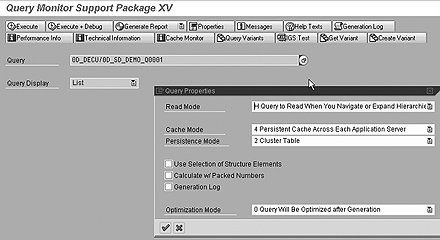
Figure 1
Cache settings in the query (transaction RSRT)
- 0 Cache Is Inactive — no cache is available for queries in this mode.
- 1 Main Memory Cache Without Swapping — entries are cached into a shared memory and cannot be moved (or swapped) to a flat file or cluster table when the memory cache is full. If the memory cache is full, then no cache is saved.
- 2 Main Memory Cache with Swapping — query results are cached into shared memory and swapping data is supported.
- 3 Persistent Cluster/Flat File Cache for Each Application Server — entries are saved into a cluster table or flat file on each application server. In a multi-server environment, the cache is saved on each application server.
- 4 Persistent Cluster/Flat File Cache Across Each Application Server — a cluster or flat file is shared by all application servers to query results. This setting is preferred when multiple application servers are used in a BW landscape.
You can see the cache settings for all queries in your system using transaction SE16 to view table RSRREPDIR (Figure 2). The CACHEMODE field shows the settings of the individual queries. The numbers in this field correspond to the cache mode settings above.
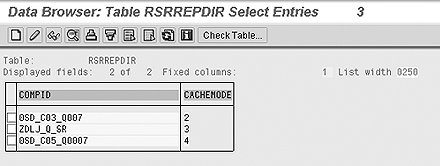
Figure 2
Cache mode settings for queries in table RSRREPDIR (transaction SE16)
To set the cache mode on the InfoCube, follow the path Business Information Warehouse Implementation Guide (IMG)>Reporting-Relevant Settings>General Reporting Settings>Global Cache Settings or use transaction SPRO (Figure 3). Setting the cache mode at the InfoCube level establishes a default for each query created from that specific InfoCube.
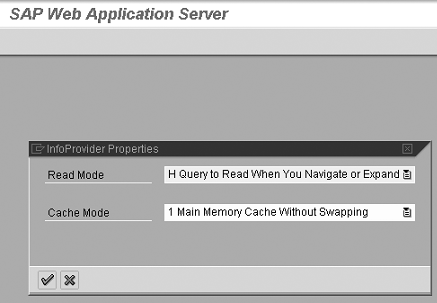
Figure 3
Cache setting in Customizing by InfoCube
Main Memory vs. Application Server
Notice that the cache options allow information to be cached either in main memory or persistently on an application server. Main memory cache saves query results sets in the system’s shared memory, which takes memory resources away from other BW processes. Persistent cache keeps a persistent copy of the cache in tables so cache can be shared across users, and even across application servers. More information about these settings is available in Falk’s “OLAP Cache: Does It Have to Be Configured?” article noted earlier.
Main memory cache is typically not used in a large BW environment because it requires a great deal of memory to be allocated to cache. In an active BW environment, persistent cache is used across application servers. This allows the cache to be saved either to a cluster table or binary large object (BLOB) table. BLOB tables allow for faster access than cluster tables. If available in your release and database, the optimal setting is to cache across application servers on BLOB tables. In Support Pack 22 of BW 3.0B, all supported databases can use BLOB tables.
Subset Cache
Now that you have a basic understanding of what the cache does and where it stores information, let’s look at how it saves data. I’ve coined a couple of terms to describe two key components of the cache functionality: verbatim and subset cache. These two terms describe the two ways the system accesses its cache.
The system uses what I call verbatim caching to store data once the cache is enabled. All queries not set to option 0 use verbatim caching and enjoy its benefits when subsequent queries run that match the original query exactly.
The subset cache refers to reading a smaller results set from a larger buffered result cached from a previously run query. The subset cache typically provides better performance than verbatim cache because more queries are eligible. All queries that are a subset of larger queries will use the subset cache, while the verbatim cache is only invoked when there is an exact query match.
Note that it is important to make sure that subset cache is enabled whenever possible because if it’s not enabled and the cache is turned on, the system automatically reverts to verbatim cache. I will explain later how to make sure that the subset cache is enabled.
Note
You can find more information on subset cache in SAP note 751402.
Let’s take a look at an example of subset cache. After setting the cache mode to one of the four options, I run a query of material group sales for the last fiscal year drilled down by division. The results set for that query is saved into the cache. Another user runs a similar query for division 10, also for the last fiscal year. The system knows that division 10 is in my results set, so it uses the subset cache for the second query. The second query benefits from my earlier query run, yielding better performance and quickly freeing up the system for more complex queries.
As long as the larger buffered query includes a later query’s data, the system reads from the cache instead of the aggregate or InfoCube fact table when the subset cache is employed. Because data in the cache is available, the system does not have to go to the source, making the process much quicker. Except for the quicker performance, the user experiences no difference between a query using the cache and one that doesn’t.
Subset Cache Requirements
For the subset cache to be active, data cached for the initial query run must appear in its result area. In the example above, the division category must be in the results set of the original query for the system to use the subset cache when running the second query. It must appear either in the rows or columns in the results set of the query. If the division category is not shown in the results set of the report, then it is ineligible for the subset cache.
Only queries that use free characteristics can benefit from the subset cache and results set data must appear either in the rows or columns. Query filters and values in the variables not shown in the results set are not saved, so they are not available to the subset cache. The bottom line is that you must have the values appear in the results set for the system to use the subset cache. In my example, the division category must be in the results set of the original query for the system to use the subset cache when running the second query for division 10.
If I run a sales query for the past fiscal year and use the filter criteria of material group, the material group is not the drill-down characteristic for the query and no material group data is shown in the results set. In this case the query is not eligible for use in the subset. If another query runs for a specific material group for the past fiscal year, the system cannot use the subset cache because the material group is not shown in the results set.
Note
The system will never merge caches or read from two different cache entries. To use the cache, the system must read from one cached query.
Enable the Subset Cache in BEx
Most queries use variables to allow dynamic filtering, but settings in the BEx variable editor allow the data to be available in the subset cache. To use the subset cache, check the box for the Can be changed in query navigation setting on the variable creation screen of the Business Explorer (BEx) for every variable (Figure 4). Once set, the entered values in the query can become values in selection conditions in the free characteristics rather than filter values.

Figure 4
Variable setting Can be changed in query navigation in the variable creation screen in BEx
If a variable in a query does not have the Can be changed in query navigation setting checked, its associated characteristic is ineligible for subset cache and uses only verbatim cache. This limits the usefulness of the cache.
Let’s go back to my earlier example. Now, I run a query of material group sales drilled down by division for the prior year and prompt users for a division entry in the variable screen. A user enters in division 10 and 20 in the initial query and the results are saved into the cache.
Another user then runs the same query for division 10. If the division variable setting was set to Can be changed in query navigation, the system knows that division 10 is in my pervious cached results set, and thus uses the subset cache for the second query. If that option was not set for the division variable, the system would not use the cache at all because there is no data in the verbatim cache and the subset cache is not enabled.
It is advantageous, then, to have all your variables set to Can be changed in query navigation, but it alters query behavior slightly. If turned off, variable values act as a filter and are not shown on the query. The variable values are filter values only and cannot be altered. If the option is on, the variable values appear in the free characteristic drill-down as a selection criterion and can be changed by selecting filter values while running the query.
You can check all existing variables in your system to see which are changeable during query navigation. Use transaction SE16 on table RSZGLOBV. Find all version A variables (they have an A in the OBJVERS field) and check the DYNCHANGE field. An X in the DYNCHANGE field means that the variable’s Can be changed in query navigation setting is active and eligible for subset cache (Figure 5). If the field is blank, then the variable’s Can be changed during query navigation setting is inactive and ineligible for subset query cache.
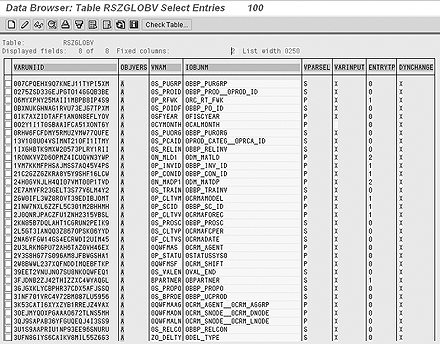
Figure 5
Variable table RSZGLOBV with DYNCHANGE entries
Using the subset cache in BW can substantially improve query performance. Monitor the statistics InfoCubes to get an idea of the best cache candidates and set a baseline service level for these queries. Implement the cache and monitor the query for improved runtimes.



 Premium