Learn how to use the limits for balances table T559P to pay guaranteed hours and to apply a cap for certain attendance codes.
Key Concept
Table T559P allows users to set the limits on certain attendance codes. The function LIMIT in the time schema plays a key role in checking the conditions set in the table to adjust the time wage types accordingly.
In some organizations, certain employees are guaranteed a specific number of hours for a day or for a week. That means that employees are paid for the guaranteed hours even if they don’t work the entire number of planned hours that they are assigned. This can be achieved in the SAP payroll system by configuring table V_T559P (limits for time balances). You can also use table V_T559P to apply a cap on any excess hours entered other than the allowed hours with a particular attendance code (for example, training hours).
In this article, I use two examples of working hours and work schedules to show how you can configure table V_T559P (Figure 1). Before I get into detail with my two scenarios, the first step in both examples is to set up the time balance rule group.

Figure 1
Table T559P
Set Up the Time Balance Rule Group
Before configuring table V_T559P, you must set up the selection grouping for the table (the value in the second column of table V_T559P). You use the TMON rule to do this. This grouping is set using operation MODIF L = XX (here XX is the time balance rule group). For more details about the ZMON rule, see my article “How to Use the Fields in Table T510S to Generate Time Wage Types.”
Notice that in Figure 2 the time balance group for all employee sub-group groupings for personnel calculation rules (ESGs for PCRs) is set as MODIF L=02.

Figure 2
PCR TMON showing the value 02 assigned to MODIF T
Configuring the Balance Limits
Following are two examples of how you can configure table T559P. In the first example, the table is configured to pay the guaranteed hours to the employee, even if the employee does not work the entire amount of time that is scheduled. In the second example, the table is configured to set a cap for the maximum number of hours that an employee can work in a day in a specific job (i.e., it configures the system to restrict the number of hours that can be assigned to an employee in a one-day period for training).
Example 1: Configure Table T559P to Pay Guaranteed Hours
In this example, I show you how to configure the balance limits. Say an organization has a policy that guarantees a number of working hours. That means that if an employee is scheduled to work for 8 hours a day but only works for 4 hours on a particular day, he or she is still paid for a full day (i.e., 8 hours). The configuration for this scenario can be done in the following three steps.
Step 1. Create an error message in table T555E. You must create a warning or error message before configuring table T559P; this is because the message number is specified in the table T559P entry (Figure 3). This message is created in table T555E or by following IMG menu path Time Management > Time Evaluation > Time evaluation without clock time > Processing balances > Balance Formation > Balance Limits. In the screen that appears, click the Define Messages for Exceeding Value Limit field.

Figure 3
Table T555E with the error messages
Figure 3 shows table T555E where the error message is created. The first column of the table refers to the personnel sub-area grouping for time recording (PSG…) which is set in table V_001P_H. The second column refers to the message type (Ty.). In my example, this is set at 5, which indicates that this message is to be created in the time evaluation log. The third column refers to the message number (MessTy). This consists of two characters of any numerical, alphabetical, or alphanumerical value. Here I use Z1 as my message number. The fourth column of the table is the Message long text which is to be displayed in the time evaluation. The other columns — Mail, List ID, and Balance — are optional, and I have left them blank.
Note
For the purpose of this article, I have used only one message example. However, there are other types of messages that can be configured in table T555E. For example:
1 – Error set via operation COLER in time evaluation
2 – This is no longer used in the SAP system
3 – Technical error in pair formation
4 – Technical error in time evaluation
5 – Warnings and notes generated by time evaluation
Step 2. Configure the limits for time balances in table V_T559P. You can configure table V_T559P using transaction code SM30 or by using the same IMG path as above and clicking Define Limits for Time Balances. Click the New Entries button to create a new rule for limits (Figure 4). For ease of understanding, I have segregated them into four sections. The first column of table T559P is the personnel subarea grouping for time recording and the second column is the MODIF L value that was set in the rule ZMON. The third column is the serial number of the rule. In the fourth column you enter the name of the rule.
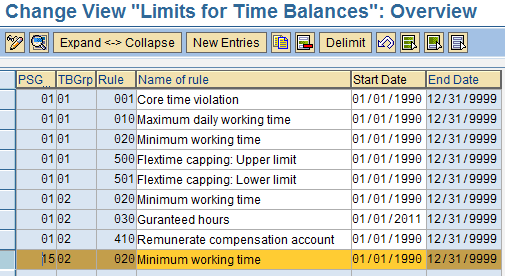
Figure 4
Table T559P
Figure 5 shows the detailed view of the configuration. The conditions for the limits can be set for the entry as shown in Figure 5.
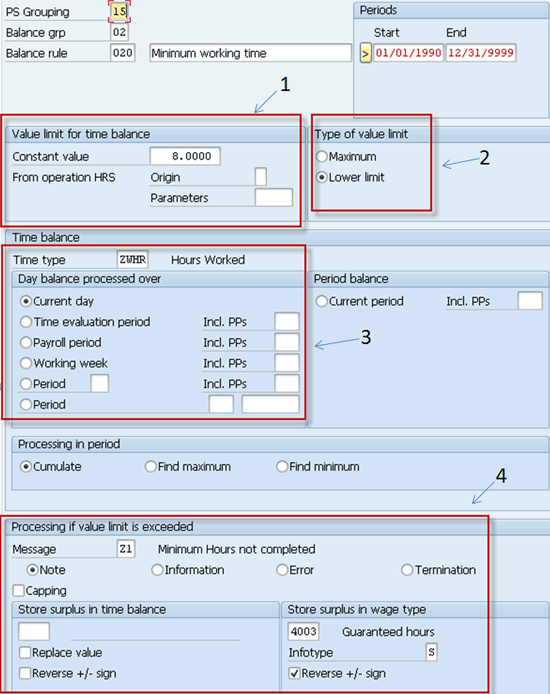
Figure 5
Table T559P entry with the configuration to pay the guaranteed hours
Here is an explanation of each circled section in Figure 5.
Section 1: Value limit for time balance. In this block the guaranteed hours to be paid to the employee are specified in the Constant value – 8.0000 hours in my example (Figure 5). This means that the employee is paid for 8 hours even if the employee works for fewer hours.
Section 2: Type of value limit. In this block, you select the type of value limit. In my example, the Lower limit radio button is selected, which means that the minimum guaranteed number of hours is 8.
Section 3: Time balance. In this block, the time type that stores the number of hours entered by the employee is specified in the Time type field. Here I have used the time type ZWHR (Hours Worked).
Section 4: Processing if value limit is exceeded. In this block, the Message number (Z1), which was created in table T555E (Figure 3), is specified. The wage type 4003 (Guaranteed hours) is entered in the Store surplus in wage type field. The system then compares the number of hours entered by the employee with the guaranteed hours, and wage type 4003 is generated in the time evaluation with the deficit hours.
I go into more detail about these sections later in my article.
Step 3. Run the time evaluation. If the time worked by the employee is recorded with the attendance type BASE for 4 hours, these hours should be stored in time type ZWHR. Time type ZWHR is used for comparing the stored hours with the guaranteed hours (8 hours in the example). Storing the recorded attendance hours of the employee in the time type ZWHR can be done in two ways. One way is to link the attendance type to the time type through configuring table T555Y. (This is discussed in more detail in my article “How to Use the Fields in Table T510S to Generate Time Wage Types.” The second method is to write a rule as shown in Figure 6. The logic of the rule is to check the attendance type used. If rule type is BASE, get the number of hours and store this number in time type ZWHR. This rule should be inserted in the time schema (Figure 7) before the function LIMIT.
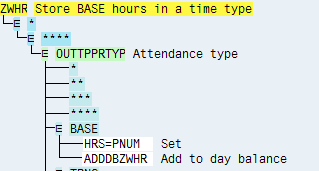
Figure 6
PCR ZWHR to store the regular hours entered in a time type ZWHR

Figure 7
Time schema with the function LIMIT
When the time evaluation is executed for the employee on the day when 4 hours is recorded, the function LIMIT in the time evaluation log compares the number of hours recorded (4) with the guaranteed number of hours (8) and displays a note that the minimum hours are completed (Figure 8). It then generates a wage type 4003 (guaranteed hours) with a deficit of 4 hours (Figure 9).
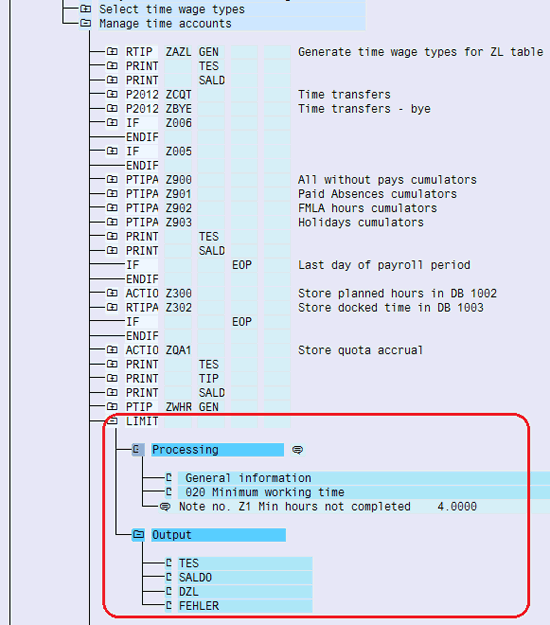
Figure 8
Processing of the LIMIT function example

Figure 9
Wage type table showing the deficit hours with a wage type 4003
Example 2: Configure Table T559P to Cap Balance Limits (Hours Entered)
In the second example I show how to configure balance limits with a cap on the time to be entered in the system. This means that employees are not allowed to enter a specific attendance code for more than 8 hours.
Say an organization has a policy that only 8 hours can be entered with the training attendance type. In this circumstance, if an employee attempts to enter 9 hours for training, the system generates an information message during the time evaluation. In addition, it automatically generates a training wage type with a negative hour, and the employee is paid for only 8 hours on that day. You take the following steps to configure the system.
Step 1. Create an information message in table T555E. This message is created in table T555E the same way it is created in step 1 in the first example (Figure 10).

Figure 10
Table T555E showing the error message for the cap hours
Step 2. Configure the limits for time balances in table V_T559P. This step is the same as step 2 in example 1. The configuration of the table entry is as shown in Figure 11.

Figure 11
T559P table entry (example 2)
Enter the maximum — CAP — hours for the employee in the Constant value field (Figure 11). Here I have entered 8.0000 as the cap on the number of training hours. Select the Maximum radio button as the Type of value limit to make the value limit entered (8 hours) be the maximum number of hours (i.e., the cap).
In the Time balance section, the Time type (attendance hours) TRNG (Training Hours) is entered. This time type is generated in the time evaluation if the attendance type TRNG is recorded. The hours in the time type TRNG are compared with these maximum hours (8).
The message number, Z2, which you created earlier in table T555E (Figure 10), should be specified in the Message field (Figure 11). In the Store surplus in wage type field, specify the wage type as 4005 with deficit hours.
Step 3. Run the time evaluation. If 9 hours of training time are entered (which exceeds the 8-hour cap), the function LIMIT generates a message when the time evaluation is executed (Figures 12 and 13). Figure 14 shows the input of the LIMIT function before the process, with 9 hours of training (TRNG) in the Time Type column. Figure 15 shows the output table after processing of the LIMIT function with 8 hours after the cap is applied.

Figure 12
The processing of the LIMIT function

Figure 13
Processing of the LIMIT function displaying the note after the comparison is made
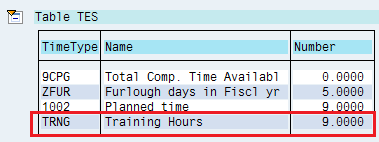
Figure 14
Time type table (Table TES) before the processing of the LIMIT function showing 9 hours in the TRNG time type
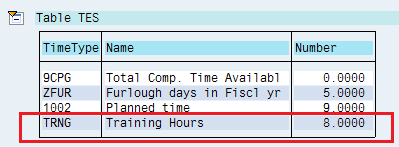
Figure 15
Table TES after the processing of the LIMIT function showing 8 hours in the TRNG time type
Venkat Dasika
Venkat Dasika is a certified senior SAP HR consultant. He has been consulting in the SAP HR Time/Payroll modules for more than nine years in private- and public-sector implementations.
You may contact the author at vrsdasika@yahoo.com.
If you have comments about this article or publication, or would like to submit an article idea, please contact the editor.





 Premium