Manager
Learn how to deploy SAP End User Experience Monitoring (EEM) scripts in SAP Solution Manager with enhancement package 1. Then see some administrative tasks you can perform based on your requirements before observing the EEM dashboards with real-time data.
Key Concept
| SAP End User Experience Monitoring dashboards allow you to monitor your end users’ issues in real time. They show you potential problem areas for different steps, which you can further filter by location and time. |
Dashboards have become a popular way to monitor data across all sorts of applications. This is true in SAP Solution Manager as well. SAP End User Experience Monitoring (EEM) allows you to monitor problems your users are having in their work on their SAP system. EEM has dashboard functionality that can help you understand the data in a more intuitive way than in the past.
In my previous two articles, “Configure EEM to Monitor Your End Users’ Application Issues” and “End User Experience Monitoring: A Guide to the Technical Configuration of EEM Scripts,” I showed you how to set up the infrastructure to support EEM in SAP Solution Manager. Now I’ll show you how to deploy the EEM scripts and use the EEM dashboards for real-time visibility into end users.
I’ll continue the steps I laid out in the previous article:
- Step 1. Install SMD agent 7.2
- Step 2. Record and edit the ABAP EEM script
- Step 3. Record and edit the HTTP EEM script
- Step 4. Deploy ABAP and Java EEM scripts to SMD agents
- Step 5. Perform EEM administration
- Step 6. Perform real-time monitoring of the end-user experience dashboard
Let’s pick up where I left off, on step 4.
Step 4. Deploy ABAP and Java EEM Scripts to SMD Agents
After the scripts are successfully recorded and edited, you can deploy them. Follow the instructions in SAP Note 1475198 and extract the installation files EemEditor-win32.win32.x86.zip and EEMRecorder.zip into a directory. After extraction, navigate to the EEM editor and open plugin-starter-gui (Figure 1).

Figure 1
Launch the editor
Configure the connection between SAP Solution Manager and the EEM editor by clicking File > Editor Configuration (Figure 2). The screen in Figure 3 opens.

Figure 2
Editor Configuration to set up the SAP Solution Manager connection

Figure 3
SAP Solution Manager Connection parameters
In the Configuration Scope drop-down list choose Editor and navigate to Editor > Solution Manager Connection. Enter the parameters from the previous article for Host name (sapsrv01erp), Port (8000), User name (eem_admin), Password, and Client (100). You need to enter these parameters to be able to upload the script to SAP Solution Manager. After entering all the parameters, click the Test connection button to check if the communication between the EEM editor and SAP Solution Manager passes the test. If it’s successful, the pop-up window in Figure 4 appears.

Figure 4
Connection testing
To deploy the scripts, right-click each one and navigate to Export to EEMAdmin Repository…(Figures 5 and 6).

Figure 5
Deploy the script to the EEM admin repository
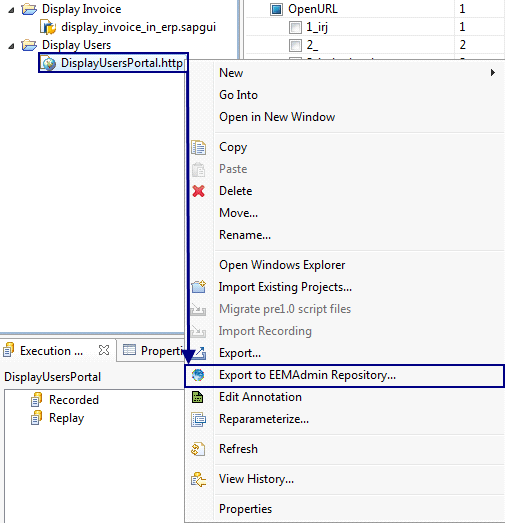
Figure 6
Deploy the HTTP script to the EEM admin repository
In EEM, navigate to EEM > EEM Administration and Configuration as shown in Figure 7 or go to https://<Host>.:<port>/sap/bc/webdynpro/sap/eem_admin.

Figure 7
Open EEM Administration and Configuration
Click the Script Distribution tab to see both scripts (Figure 8). The icon in the Type column shows that the display_invoice_in_erp is an ABAP script and DisplayUsersPortal is an HTTP script.

Figure 8
The scripts were successfully uploaded
To deploy the script to the SAP Solution Manager Diagnostics (SMD) agent (also known as a robot), navigate to the Robots tab (Figure 9) and follow this process:
1. Click the display change icon
2. Click the Check Agents button and a list of all agents appears on the right in the Robot Name column
3. Click the agent or agents you need (which you’ll know based on the server on which it is installed)
4. Move them to the left in the Configured EEM Robots section by clicking the < button

Figure 9
SMD agent configuration
Now you can change and modify settings for the robots. For example, you could add a Region, Country, or Location by clicking the appropriate field and entering the information that fits your example (Figure 10). In the configuration panel, you can still add, edit, and delete parameters of the script. When any changes are made you should always save them; the same goes for making changes to the robots.

Figure 10
Modify the parameters for robots if needed
Now, click the Script Distribution tab and you can deploy the scripts (Figure 11). Choose the robots in which the script should be deployed and click the Save and deploy button.
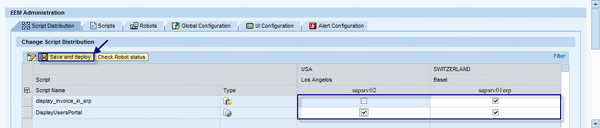
Figure 11
Deploy the scripts
Step 5. Perform EEM Administration
This section is optional, but I’ll show you some popular alternatives for EEM administrative tasks.
Edit Scripts
To edit the scripts and save the configuration, navigate to the Scripts tab (Figure 12). Click the change display icon and then select the scripts. In the Script Resources section, choose the resource file (script.sapgui.xml). If you want to back it up (in case of subsequent deletion or changes), you can do so by clicking the Download Resource link. You can also upload or remove resources by clicking the appropriate button. In the Configuration Parameters section, you can edit parameters for the Script, such as the Parameter Value.

Figure 12
Edit scripts
Edit General Settings
To edit general settings, navigate to the Global Configuration tab (Figure 13). Click the display change icon to be able to change the parameters. Then in the Global Resources section, choose ConfigGlobal.xml and back it up before making any changes. You can download the XML file from https://<smd_host>:<port>/sap/bc/webdynpro/sap/e2ewa_cfg. (Be sure that that the <smdhost> is a Fully Qualified Domain Name: smdhost.domain.topleveldomain.)
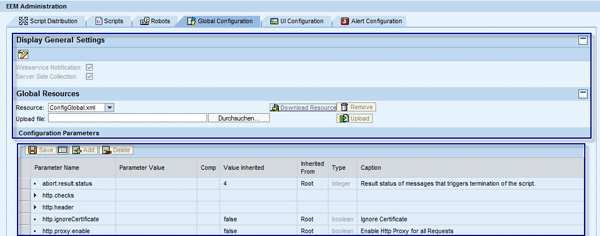
Figure 13
View or edit global configuration
Edit the Background Image
Under the UI Configuration tab you have several options (Figure 14). For example, you can upload your company logo as the background image. To do this, in the Choose Tab drop-down list select Robot, upload the image (e.g., world_map_capitals.jpg) and save. You can also add temporary configuration, such as defining the expiration time in seconds, or adding or removing parameters. For example, you can add temporary parameters for 15 minutes; when the time expires the parameters aren’t valid anymore.

Figure 14
Modify UI and temporary configuration
Edit and Make Changes to Script Steps
Navigate to the Alert Configuration tab and click the display change icon to make changes to the scripts (Figure 15). Check each step for which you want there to be alerts. For example, if you want an alert just for step 1 (the log-in step), select the Performance Alerting or Availability Alerting check box for that step. These alerts can let you know about response times or errors for a given step in the EEM script.

Step 6. Perform Real-Time Monitoring of the End-User Experience Dashboard
After all changes to the configuration are made, open SAP GUI and navigate to EEM > EEM Realtime Monitoring (Figure 16).

Figure 16
Launch EEM real-time monitoring
After launching the real-time monitoring, the robots appear in the window (Figure 17). You can see a graphical interface in which the robot is shown and also which script is running on that robot. In the Robot step shown in Figure 17, you can see the robot and also the script running on that robot, as well as the alerts of the response times. Green means everything went well. Red means there is an issue with response time or performance.

Figure 17
Monitoring interface
You can also to check the monitoring of the last 15 minutes (or more — up to 24 hours). Click the filter radio icon if you want to make changes on the Filter and see the Legend shown in Figure 18. Select the appropriate check box to filter for the selections you are interested in and click Apply.

Click the Settings button at the bottom of the screen in Figure 17 and you can change the Refresh Interval and Tiles Layout as well as view the Application log (Figure 19).

Figure 19
EEM settings
Valton Berisha
Valton Berisha has more than 15 years of consulting experience in managing, developing, and implementing software solutions, including SAP solutions. He has been associated with several SAP implementations in various capacities. Valton is the co-founder of Corealm Consulting Company, specializing in SAP consulting — in particular, application life cycle management, SAP Solution Manager, and third-party solutions that are integrated with SAP Solution Manager. He is Microsoft, Red Hat Platform, and Novell certified.
You may contact the author at valton.berisha@corealm.com.
If you have comments about this article or publication, or would like to submit an article idea, please contact the editor.




 Premium