Learn a failsafe method for finding table and field names using Runtime Analysis with transaction SE30. The method is particularly useful when you need to view or download information directly in SAP tables. First determine the table and field names with Runtime Analysis, and then view them with the Data Browser with transaction SE16N.
Key Concept
Finding where data is stored for custom reports is not always possible via methods that locate the table from data displayed on the screen. Some data is accessed from tables during program execution, and only assembled and displayed on the screen temporarily. Runtime Analysis with transaction SE30 can locate tables and specific data accessed during a program’s execution. When the table and field names are determined, you can view and download the data via the Data Browser with transaction SE16N.
When other techniques do not work, you can use my method to determine a transparent table name when you need to access information directly in SAP tables. In a previous article I explained how to find a table name by drilling down on the Data Element field in the Technical Help dialog box and by using the Where Used functionality to determine the table name. However, when you use that method, described in the quick tip "Display Table Contents Without Technical Help," the system sometimes displays a message that “no table could be found.”
In many cases, users then refer to someone from the Basis team for assistance. However, my technique allows you to determine the table name within several minutes with no assistance. I recommend using the other techniques first because they are simple, quick, and work well in most cases. The method I’ll describe works well in the few instances in which the other methods don’t deliver results. Several readers contacted me to ask for assistance in those few cases, so I researched the topic and found out what programmers do to discover the table names storing data.
Runtime Analysis, an application in the ABAP Workbench, allows you to determine which tables a given transaction accesses when it runs. If you analyze a transaction while it accesses the data that you need to find, then you can determine the table name. To find a table name using Runtime Analysis, which works in both R/3 and SAP ERP Central Component (ECC) systems, follow these simple steps:
- Step 1. Display the Runtime Analysis screen
- Step 2. Determine a transaction code that accesses the data
- Step 3. Create your own variant
- Step 4. Execute Runtime Analysis
- Step 5. Display cost data with transaction SE16N
Step 1. Display the Runtime Analysis screen. Use transaction SE30 or follow menu path Tools > ABAP Workbench > Test > Runtime Analysis to display the screen shown in Figure 1. In this screen, enter data such as a Transaction or Program name that allows you to analyze an ABAP program while it is running. You can analyze the tables accessed during program execution, as described in the following steps.
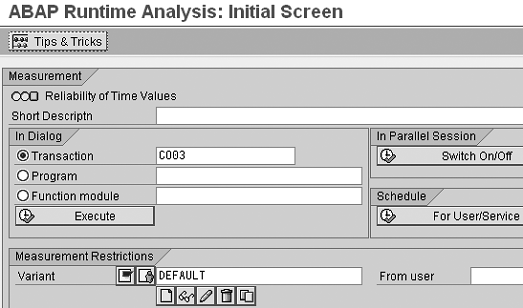
Figure 1
Runtime Analysis initial screen
Step 2. Determine a transaction code that accesses the data. You can access production order costs by displaying a production order with transaction CO03 and following menu path Goto > Costs > Analysis. However, you can’t determine the table that stores the cost data by using other methods I’ve described in previous articles. That is because some programs assemble data dynamically when you execute the program. They present results on the screen and the system does not store the results in a database table. Instead, select the Transaction button in Figure 1 and enter the transaction code to display the cost information, CO03 in this case.
Step 3. Create your own variant. Click on the new page icon in Figure 1 to display the screen shown in Figure 2. Click on the Duration/Type tab, select the None button in the Aggregation section, and click on the save icon. This ensures that the Runtime Analysis results screen lists all tables accessed during the transaction being analyzed. Now click on the left arrow icon to return to the screen shown in Figure 3. You’ll notice that your user name now appears in the From user field. This confirms the system uses the variant you just created during Runtime Analysis.

Figure 2
Runtime Analysis variant screen
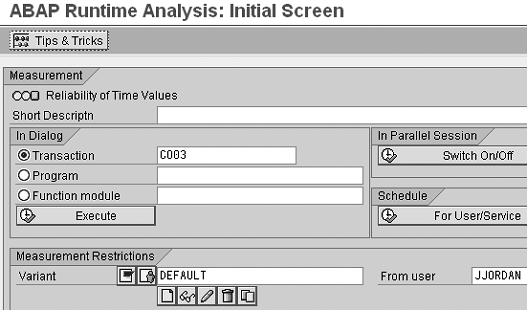
Figure 3
Runtime Analysis initial screen with variant saved
Step 4. Execute Runtime Analysis. Click on the Execute button in Figure 3 to run transaction CO03 while it is being monitored by Runtime Analysis. The system prompts you to enter a production order number (1000102774 in my example) as shown in Figure 4.
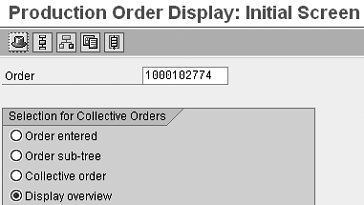
Figure 4
Display production order initial selection screen
Type in a production order number and press Enter to display the production order header information. Follow menu path Goto > Costs > Analysis to display production order cost information (Figure 5).
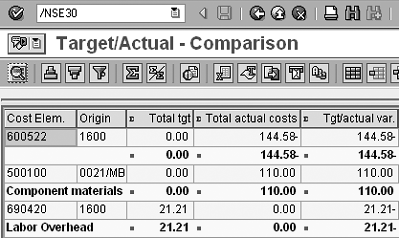
Figure 5
Production order cost analysis screen
You can view a list of tables that the program accesses to display this cost information by returning to the Runtime Analysis screen. To do this, enter /NSE30 in the command field at the top of the screen and press Enter to return to the Runtime Analysis screen. An additional Performance Data File section containing the results of the evaluation is now available, as shown in Figure 6.
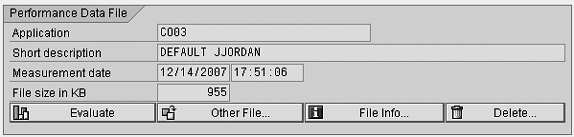
Figure 6
Runtime Analysis screen with Performance Data File section
This section of the screen displays the information on the file that the system saved, which contains information collected during Runtime Analysis. Ensure that this is the file you wish to analyze and click on the Evaluate button to see an overview of the analysis results, as shown in Figure 7.

Figure 7
Runtime analysis overview screen
This screen displays an overview of the information contained in the Runtime Analysis file. Click on the database table hit list icon to display a list of tables accessed while displaying the production order, as shown in Figure 8.

Figure 8
List of the database tables accessed during transaction CO03
Step 5. Display data with transaction SE16N. You can see from the Description column that tables COSS and COSP contain production order cost information. Generally table names with CO as the first two letters contain Controlling information. If you attempt to display the contents of these tables with transaction SE16N, you need to limit the data selection by entering an object number, which is the production order number with a prefix. You can determine the object number using a program breakpoint, which I describe in the “Analyze Data Details with Program Breakpoint” sidebar.
Now let’s display the cost data in table COSS. Use transaction SE16N or follow menu path Tools > ABAP Workbench > Overview > Data Browser to display the selection screen shown in Figure 9.
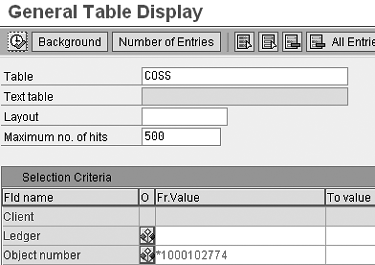
Figure 9
SE16N selection screen with table and object number entered
Type COSS in the Table field in this selection screen. You can further limit data selection by entering an object number, which is the production order number with a prefix added by the system to describe the type of cost object. If you’ve determined the object number by a technique such as breakpoint analysis described in the sidebar of this article, then enter the object number directly in the transaction SE16N selection screen. If you don’t know the object number, enter an asterisk followed by the production order number as shown in Figure 9. This should limit the results in the output screen enough for you to easily analyze the data.
Now click on the execute icon to display the cost data contained in table COSS for this production order (Figure 10). You can either view the cost data directly in this screen, or download it for use in a custom report.
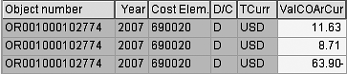
Figure 10
Production order costs contained in table COSS
Analyze Data Details with Program Breakpoint
To further analyze the data accessed during the execution of a program, you can place a breakpoint in the program code. This causes the program to cease execution at the breakpoint and to display the program source code. You can then display the data in the database tables being accessed at that point in the program execution.
To do this, double-click on table COSS (shown in
Figure 8 in the main text of this article) to display a list of calls to access table COSS, as shown in
Figure 1.
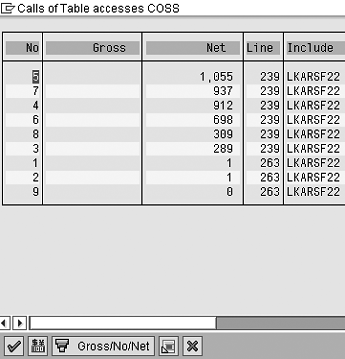
Figure 1
List of calls of table accesses to COSS
Click on the first line in
Figure 1 and then on the display source code icon to display the source code at the point in time the program accesses the production order cost data. You can see the resulting source code screen in
Figure 2.
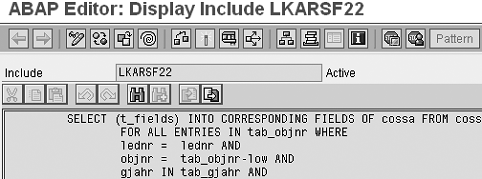
Figure 2
Source code when CO03 accesses cost data
Next place a breakpoint in the source code. This causes the program to stop when accessing costing data and allows you to analyze the data. To place a breakpoint, click on the first line of code in
Figure 2 and click on the set session breakpoint icon. Now start another session, run transaction
CO03 and follow menu path Goto > Costs > Analysis. You can see the source code that the system displays as the program accesses the costing data in
Figure 3.
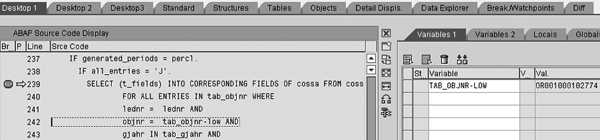
Figure 3
Source code displayed at breakpoint
You can see the exact point of the breakpoint in the source code, as indicated by the red stop icon in
Figure 3. Browse through the first couple of lines after the breakpoint to find where the object number is accessed. To see details of the data accessed by the program at this point, double-click on the tab_objnr-low section of code to display object number OR001000102774 at the right of the screen. This object number is the production order number with a prefix automatically determined by the system. The prefix determines the type of cost object. You can enter the object number in the transaction SE16N selection screen to restrict the cost information displayed in table COSS to a production order as described in the main text of this article.
John Jordan
John Jordan is a freelance consultant specializing in product costing and assisting companies gain transparency of production costs resulting in increased efficiency and profitability. John has authored bestselling SAP PRESS books Product Cost Controlling with SAP and Production Variance Analysis in SAP Controlling.
You may contact the author at jjordan@erpcorp.com.
If you have comments about this article or publication, or would like to submit an article idea, please contact the editor.






 Premium