Extending the visualization capabilities of Xcelsius to display data from BusinessObjects enterprise performance management (EPM) solutions requires an evaluation of data sources and complexity. Learn two approaches to related data integration and discover insights for enabling Xcelsius Enterprise 2008 connectivity to EPM solutions.
Key Concept
Heterogeneous data sources refers to data that exists in different forms (e.g., relational database, OLAP cube, text file). There may be a common data value within each data source but the data are represented differently and at different levels of detail. An example: Budgeting is entered into BusinessObjects Planning and Consolidation at a month level, and the date is stored as YYYYMM, but in Actuals, budgeting is loaded into another data source at a daily level and date is stored as mm/dd/yyyy.
Incorporating data from SAP BusinessObjects Enterprise Performance Management (EPM) solutions in Xcelsius strengthens data visualization capabilities and enables business users to view data from multiple solutions in a single interface. Users benefit from an easier and faster way to find information with a consistent look and feel. When integrating EPM solutions with Xcelsius, organizations must adapt their integration strategy based on whether data resides exclusively in these systems or whether it resides in multiple, heterogeneous sources.
For example, when source data exists solely in BusinessObjects Planning and Consolidation, Financial Consolidation, or Profitability and Cost Management solutions, the EPM connector and SAP BusinessObjects extended analytics analyzer effectively support data integration. However, when data resides in disparate sources of varying structures, you should establish a semantic layer to bring conformity to the various data by enabling extract, transform, and load (ETL) or enterprise information integration tools.
I discuss two integration scenarios:
- Visualizing data exclusively from EPM solutions in Xcelsius Enterprise 2008
- Visualizing data residing in EPM solutions and other, heterogeneous sources in Xcelsius Enterprise 2008
Note
While reading this article, it is important to have a working knowledge of applicable EPM source systems, including:
- SAP BusinessObjects Planning and Consolidation 7.5
- SAP BusinessObjects Profitability and Cost Management 7.5
- SAP BusinessObjects Financial Consolidation 7.5
In addition, you must have a strong working knowledge of Xcelsius Enterprise 2008, service pack 3 or higher.
Your organization must install and configure the applicable EPM solutions listed above and Xcelsius Enterprise 2008 prior to integration. In addition, your company must install the following tools:
- SAP BusinessObjects extended analytics 7.5, service pack 5 or higher
- SAP BusinessObjects EPM connector 7.5, add-in for Xcelsius
- ODBO client for relevant EPM solution (e.g. Planning and Consolidation 7.5 ODBO client)
- Microsoft Visual C++ 2005 service pack 1 redistributable package (x86)
- Flash Player 9 (for viewing the Shockwave file at runtime)
Scenario 1. Visualizing Data from EPM
BusinessObjects Planning and Consolidation, Profitability and Cost Management, and Financial Consolidation each contain multidimensional databases with OLAP capabilities. Due to their OLAP nature, these systems can be sourced directly to Xcelsius using the BusinessObjects EPM connector and the BusinessObjects extended analyzer. The EPM connector is an Xcelsius add-on that enables data and metadata retrieval from Planning and Consolidation, Profitability and Cost Management, and Financial Consolidation. The extended analyzer is a Microsoft Excel add-in installed with EPM solutions that enables users to query respective OLAP cubes to extract data to an Excel spreadsheet.
The steps below illustrate the high-level process for enabling connectivity between Planning and Consolidation, Profitability and Cost Management, and Financial Consolidation solutions and Xcelsius:
- In Xcelsius, define the extended analyzer query within the embedded Excel spreadsheet
- Define the dashboard layout and bind applicable components to the Excel spreadsheet
- Configure an EPM connector for each extended analyzer query added to the Excel spreadsheet
- Add a connection refresh button to refresh the EPM connectors
- Export the dashboard to a supported platform (Figure 1)
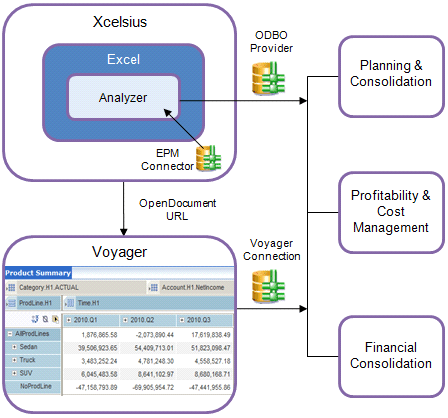
Figure 1
Architecture and data flow for sourcing Xcelsius dashboards using SAP BusinessObjects EPM solutions (modification of a diagram from “SAP BusinessObjects EPM Connector User Guide 7.5” )
Dashboard Accessibility Options
The ability to export Xcelsius dashboards to different platforms provides flexibility for users with different needs. Executive users seeking high-level summary information may benefit most from dashboards exported to a Shockwave (swf) file then uploaded to the Planning and Consolidation Web content library and will be able to leverage current view parameters.
Financial analysts and other users that require more extensive drill-down capabilities will benefit from the ad-hoc capabilities of SAP BusinessObjects InfoView, a centralized information-sharing Web portal. To make dashboards accessible in InfoView, they must be published to SAP BusinessObjects Enterprise directly from Xcelsius. Users requiring even greater drill-down and root-cause analysis capabilities can add a URL link from the dashboard to an SAP BusinessObjects Voyager workspace that is directly connected to the OLAP source. Voyager, an interactive analysis tool that comes with an SAP BusinessObjects Enterprise installation, enables you to drag-and-drop the dimensions contained in OLAP hierarchies into a cross-tab or chart for real-time analysis.
The steps below detail the process for enabling connectivity from a dashboard to Voyager and adding a URL to the dashboard:
- From the BusinessObjects central management console, create a new Voyager connection to the EPM data source.
- Log on to InfoView, and from the Document List create a new Voyager workspace.
- Choose the connection created in step 1, and then create a cross-tab by dragging dimensions from the tree view to the workspace. Specify the rows and columns, and apply filters as appropriate.
- Save the workspace to the SAP BusinessObjects Enterprise system.
- Add a URL component to the Xcelsius dashboard.
- Within the URL properties, use the OpenDocument syntax to call the Voyager workspace.
Figure 1 illustrates the data architecture for solutions that use the EPM connector and extended analyzer to visualize data in Xcelsius dashboards. This illustration also depicts dashboard accessibility options, including the Planning and Consolidation Web content library, and an InfoView portal as a standalone dashboard and within a Voyager workspace.
Scenario 2: Visualizing Data from Heterogeneous Sources
When source data resides in BusinessObjects EPM solutions and other non-OLAP sources, these sources must be consolidated to support side-by-side comparison and hierarchical drill-down from Xcelsius dashboards. For example, to compare budget and forecast values from Planning and Consolidation with actual values from a relational database or text file, corresponding data must be transformed physically or virtually into conformed dimensions and loaded into a single, relational source. When dimensions exist in multiple data sources, there may be differences in data attributes that need to be consolidated by defining the same attributes and table mapping—all of which is possible with ETL or enterprise information integration (EII) tools, such as SAP BusinessObjects data services and SAP BusinessObjects Data Federator, respectively.
A semantic layer (i.e., a BusinessObjects universe) can map the relationships between fact and conformed dimension tables. Dimension, details, measure, and filter objects are then created that define the metadata to the underlying single data source using business friendly terminology. The system uses the objects to create a query in Query as a Web Service (QaaWS) or Live Office. When you define the query by dragging and dropping universe objects into the query panel, the Web service definition automatically generates based on the object properties and table relationships defined in the universe. The Web service then imports data into the dashboard. The same universe can help build a Web Intelligence report, which you can link to the summary dashboard to allow further drill down, slice and dice capability, or ad hoc analysis.
QaaWS is a client tool that comes with an SAP BusinessObjects Enterprise installation. It allows the user to define a query by dragging and dropping universe objects into a query panel and previewing a subset of results prior to publishing the query to a Web service. You paste the Web service URL into the connection in Xcelsius data manager.
BusinessObjects Live Office XI 3.0 or higher is a BusinessObjects Enterprise add-on that can import data into Microsoft Office applications (e.g., Microsoft Excel), and the Microsoft applications are embedded into an Xcelsius dashboard. By directly building a query connected to the universe or by inserting an object (e.g., a table) from a predefined Web Intelligence document or Crystal Reports, you can import data in an Excel spreadsheet.
Inserting a Web Intelligence report into the spreadsheet adds an additional layer to the data flow and can decrease data retrieval performance when viewing a dashboard. You can address this concern by using a scheduled report.
A Crystal Report can connect directly to the data source and eliminate the need for a semantic layer, but the report designer needs to understand table relationships and database terminology and repeat the process in each report.
You can create a Web Intelligence report to display detailed information and link to it from the dashboard. The report query panel is similar to QaaWS, but instead of publishing the results to a Web service, the results are displayed on the report itself. You can present the data in tabular format (e.g., horizontal, vertical, crosstab) or charts, and you can enable the drill feature, if it has been set up in the universe, to allow users to navigate up and down a hierarchy and identify the intersection of any unfavorable results. When you save the Web Intelligence report to BusinessObjects Enterprise, the report can be linked to a URL component on the Xcelsius dashboard using the OpenDocument command. Figure 2 illustrates the data, query, and presentation layers when using a BusinessObjects universe to facilitate visualization of data from BusinessObjects EPM solutions in Xcelsius.
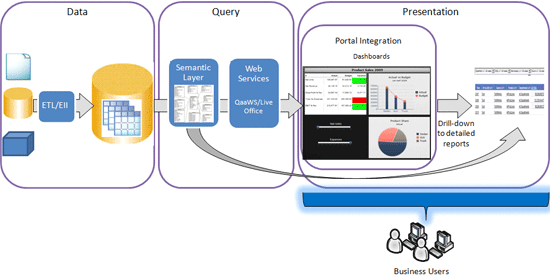
Figure 2
End-to-end data flow for sourcing Xcelsius dashboards from heterogeneous systems
Lorelle Gibson
Lorelle Gibson is a senior consultant at Column5 Consulting. She is experienced in delivering business intelligence solutions, including analysis, design, development, testing and user training. She specializes in SAP BusinessObjects product suites, including SAP BusinessObjects Enterprise installation and administration and development of reporting and dashboard solutions. Since joining Column5, she has been implementing integration solutions between SAP BusinessObjects Business Intelligence and Enterprise Performance Management products.
You may contact the author at lgibson@column5.com.
If you have comments about this article or publication, or would like to submit an article idea, please contact the editor.



 Premium
