Instead of using ABAP code to write a report in FI and CO, many users build a Report Painter/ Report Writer library using transaction MC27. However, this workaround has some drawbacks. Little known transaction GRCT solves these problems in most cases, and eliminates the need to use transaction MC27.
Key Concept
Super users and end users can use Report Painter/Report Writer tools to write their own reports. Giving them the
ability to report on additional fields at their discretion shifts the report maintenance burden to them, saving SAP support groups time and effort normally spent creating and maintaining the reports.
Say a reporting requirement comes to you for a trial balance report by the Accounting Clerk field, which is maintained on the G/L account company code data. You cannot use standard reports or build a report using available Report Painter/Report Writer libraries, because it is not a characteristic on which it is standard to report. You must seek a solution elsewhere. You could resort to a custom ABAP report or a quick and easy SAP query, but these might not be cost-effective or efficient ways to handle the variants of that requirement.
Those familiar with logistics reporting transaction MC27 (create evaluation structure) could use it to create a new library based on the desired table or table view. Transaction MC27 is part of the flexible analysis capability of the Logistics Information System (LIS), which allows you to create a Report Painter/Report Writer library based upon any Data Dictionary (DDIC) table, several DDIC tables, or existing evaluation structures for logistics reporting. With MC27, you can use any other table that includes financial tables for reporting, so you are not limited to logistics tables.
However, creating a report library from MC27 and then building reports from it may not meet all of the requirements of the FI and CO modules. Soon you may come across some problems, such as:
-
You no longer get descriptions of certain characteristics that include the G/L account or profit center.
-
Many variables are created for the new library that will never be used, which makes selection of other variables difficult.
-
The Report Painter/Report Writer library is automatically created with a system-assigned name, which does not follow the desired naming convention.
-
The biggest problem is that transaction MC27 creates a basic key figure for each of the amount or quantity fields it comes across in the table used for defining a library. If you are using a totals table in your new library that accumulates key figures in various fields identified by each period, the issue you come across is, "How am I going to build a report when I don't have a combined key figure available to slice using period as my selection criteria?"
I'm going to describe how Company X built custom report libraries using transaction MC27 and came across the issues described above. It then started using the lesser-known transaction GRCT, which could combine various amount/quantity fields into one basic key figure.
Background
Company X uses the Special Purpose Ledger for all of its financial reporting, and therefore relies heavily on the Report Painter/Report Writer tools for writing reports. With a few thousand G/L accounts in its chart of accounts and more than 100 company codes, it uses the field BUSAB (accounting clerk) in the company code master data view of the G/L account to assign the responsible area that manages that particular G/L account.
A user submitted a reporting requirement for a trial balance report by accounting clerk with the profit center as a selection criterion in the same report. The company anticipated that the user community would have more reporting requirements on the field BUSAB after seeing this report. Therefore, the company wanted a reporting solution that would be flexible enough to cater to all future reporting requirements, so that the time and effort spent creating such reports would be minimized. One solution was to deliver a new reporting library for Report Painter/Report Writer reports with all the desired characteristics and key figures available in Special Purpose Ledger reports along with the field BUSAB. A super user of each user area could use the new library to create reports for his or her own area.
With its knowledge of transaction MC27, the company decided to build a report library based on the database view of DDIC tables ZZXYZT (Special Purpose Ledger totals table) and SKB1 (G/L company code master data table). It decided to use all the fields from ZZXYZT, but only BUSAB from SKB1 in the database view. The view was named ZZXYZT_SKB1. Refer to the sidebar, "How to Create a Database View" for details. The library was created using transaction MC27 in a test system, but it left the company with a few questions regarding its usefulness:
-
The name of the new library began with the number 2 and not with the letter X, which the company used for all custom libraries based on Special Purpose Ledger totals tables.
-
Many of the new variables were created automatically, of which only a handful could be used. Also, they did not quite follow the naming convention that the company had for other variables from its library.
-
If characteristics such as the G/L account or profit centers were used, then the report would not show their descriptions.
-
The standard library from the Special Purpose Ledger table had one field for local currency, one for transaction currency, and one for group currency, while the new library had 17 for each currency (one for each of the 16 periods plus one for the carry-forward amount).
Transaction Code GRCT
While trying to work through these problems, the company came across a lesser-known and relatively undocumentedtransaction code, GRCT (Figure 1). It maintains the cluster table T804, which contains the control data of all Report Painter/Report Writer tables.
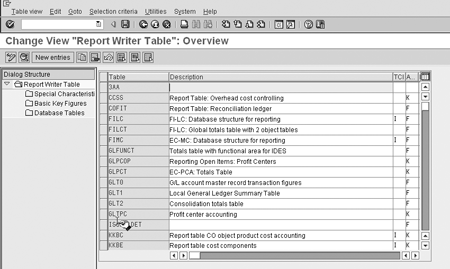
Figure 1
The initial screen when you enter the transaction code GRCT
All the library tables (Report Writer tables) displayed in this transaction under the field Table in Figure 1 are available for creating Report Painter/Report Writer libraries in transaction GR21. It is possible in transaction GRCT to maintain a new library table and then go over to transaction GR21 to create the library based on that new library table. Since the library is created manually and not automatically (as with transaction MC27), you can create the report library with a desired name in the user name range. Also, when you create the library manually in transaction GR21, no variables are generated automatically. Only the desired variables with a custom name can be created manually in transaction GS11.
In my example, you first create a database view ZZXYZT_SKB1 consisting of Special Purpose Ledger totals table ZZXYZT and G/L master data table SKB1. Then, in transaction GRCT, you create a new entry for a library table with the same name as my database view ZZXYZT_SKB1 (Figure 2).
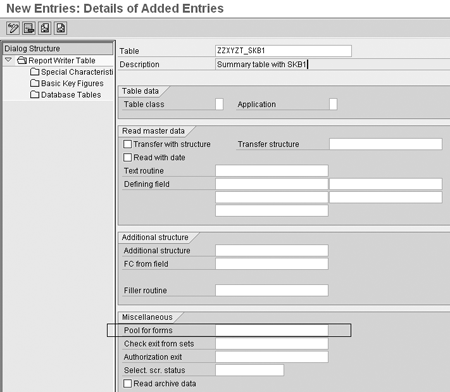
Figure 2
New library table entry ZZXYZT_SKB1 in GRCT corresponding to database view ZZXYZT_SKB1
Now comes the question about what other fields need to be maintained under the new library table ZZXYZT_SKB1 to make it work. The most important field to be maintained is Pool for forms (or form pool), as shown in Figure 2. Form pool is an ABAP program that contains the various control routines for the building of the library table. An example of a control routine is a routine that would determine the text for characteristics in your reports, such as a company code name for a company code used in the report.
You can either build a custom form pool from scratch, keeping a standard one as a reference, or use one of the SAP-delivered programs. A few of the SAP-delivered form pools are RMCSTEXT (used in logistics library tables like 3AA, S001, and S002 and in library tables generated through MC27), SAPFGRWG (used in library tables including GLPCT and GLT0 and in library tables for the Special Purpose Ledger information system), SAPFK21R (used in library table CCSS), and SAPFKKAL (used in library table COFIT).
Due to the limited availability of resources, Company X decided not to explore the possibility of using its own custom form pool, instead opting to use one of the standard ones, but which one to use was the question. It zeroed in on two programs: SAPFGRWG and RMCSTEXT. It tried SAPFGRWG first, but was unsuccessful in executing any report due to many checks in the program. Program RMCSTEXT, on the other hand, is a very simple program with a few routines to determine characteristic texts. However, it lacks a few routines like the ones used for determining the local and group currency units. Moreover, it has user exit EXIT_RMCSTEXT_001 for text determination, which can be custom coded if the standard text determination routine is not sufficient. The company decided to use RMCSTEXT because of its simplicity.
Since the company chose RMCSTEXT, it used the routine TEXT_SEARCH from the program in the field Text routine in GRCT. The company also needed to maintain the Transfer structure field with its database view name ZZXYZT_SKB1. The text routine determines the text of characteristics and the transfer structure is used for supplying texts from master data interface. The configuration of library table ZZXYZT_SKB1 is shown in Figure 3.
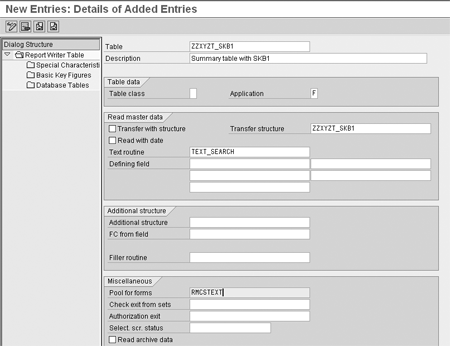
Figure 3
Configure library table ZZXYZT_SKB1
The next step is to define basic key figures similar to those in the standard Report Painter/Report Writer library table (ZZXYZT). As discussed above, the basic key figures the company wanted to define are not available in the Special Purpose Ledger totals table ZZXYZT or in the view ZZXYZT_SKB1. Rather, they are broken down by each period in the table, as shown in Figure 4.
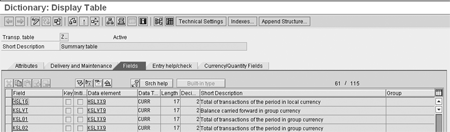
Figure 4
Define fields for table ZZXYZT
All the value fields that have the name prefix KSL make up the basic key figure KSL. Define your desired basic key figure, for example KSL, as follows. Under the library table ZZXYZT_SKB1, choose Basic key figure in the left pane and then click on New Entries button. Enter the basic key figure name KSL (Figure 5). The Key Figure Category would be 1 (field group with period counter) as all the fields except Balance carried forward have the suffix as period number. The field description for KSL happens to be Group Currency. Next, under Table for Group 1, enter the table or view name from where you would get the key figure. In my example, it is ZZXYZT_SKB1. Since the basic key figure KSL is a field group of fields with the prefix KSL, the Value Field would be KSL++ where the symbol ++ indicates the period counter.
For a basic key figure, you have to fill in the Field with unit field that contains the unit of measure for that key figure. The company decided to use form pool RMCSTEXT, which does not have a routine to determine the Group Currency unit or a Local Currency unit. Also, the table view ZZXYZT_SKB1 has only one currency unit field RTCUR (transaction currency unit). Therefore, the company decided to use RTCUR for each of the amount-related key figures KSL, HSL, and TSL. For Company X, the table ZZXYZT does store amounts in various currencies (local, transaction, and group) but it does not have unit of measure for two of those. Update the other fields for key figure KSL as shown in Figure 5.
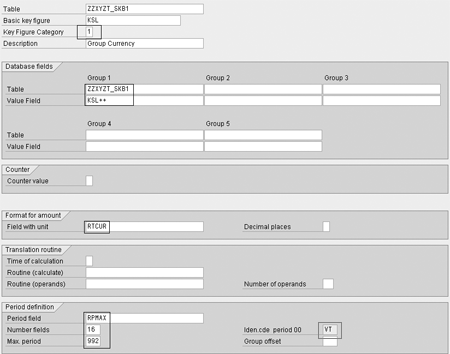
Figure 5
Define Basic key figure KSL in table ZZXYZT_SKB1 with RTCUR as the Field with unit of measure
Note
If you have used your own form pool, some of the workarounds like using RTCUR for field unit or determining text for compound characteristics using the user exit RMCSTEXT may be replaced by your own routines in GRCT.
After defining the desired basic key figures with field groups, you may want to hide the individual fields for these basic key figures, so that these are not available when you create your library. You can do this via the Special Characteristics screen for the table (Figure 6). To hide a field from usage in reports or library, set the Field type to 3. Set it to 1 or 2 for required or recommended use in the library. These fields are selected automatically. Again, you can use wild cards here. Figure 6 shows all the fields with prefix ASL (ASL* in the field name) set to hidden.
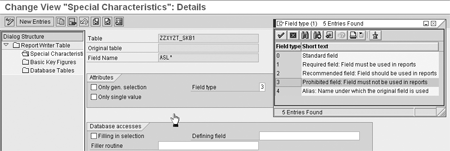
Figure 6
All fields with prefix ASL (ASL*) set with Field type 3 (Prohibited field)
As far as the database tables under the Report Writer table are concerned, pick up the database view you created, as shown in Figure 7, against the library table. The indicator Field catalog is checked, indicating that the fields from the table, view, or structure would be included in the field catalog.
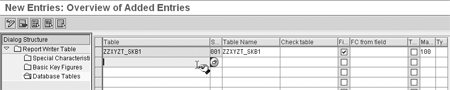
Figure 7
Underlying database tables for table ZZXYZT_SKB1
With this, the configuration needed for library table ZZXYZT_SKB1 in transaction GRCT is complete. One last task remains after this configuration: getting the description of characteristics that depend on the characteristic value of another characteristic (compound characteristic). The routine TEXT_SEARCH in form pool RMCSTEXT cannot determine the characteristic text for such characteristics. For example, the account description varies with the chart of accounts selected. Do this via user exit RMCSTEXT (function module for the user exit is EXIT_RMCSTEXT_001). Define your own logic here.
With this configuration and development, the new Report Painter/Report Writer library X02 is created using library table ZZXYZT_SKB1. Figure 8 shows the library X02 with new characteristic BUSAB along with various characteristics.
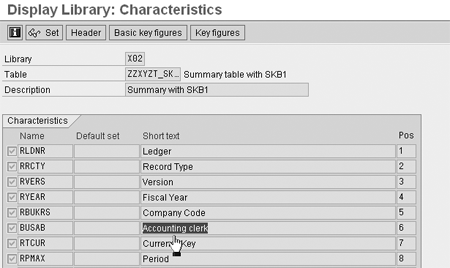
Figure 8
Library X02 with new characteristic BUSAB along with other characteristics
Figure 9 shows the Basic key figures for library X02 in transaction GR21. Since the library now has all the characteristics that the user community wanted, it has been released to the users for use in writing their own reports.
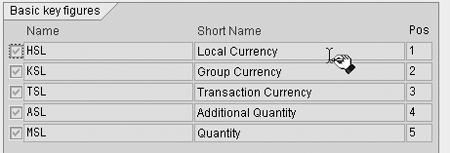
Figure 9
Basic key figures for library X02
Figure 10 shows the report, trial balance with accounting clerk, as desired by the user community. It was written using the characteristics from library X02. The accounting clerk characteristic is in the rows, along with the G/L account (trial balance with accounting clerk).
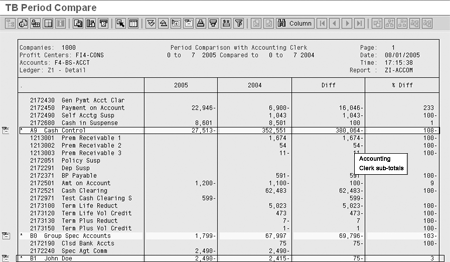
Figure 10
First report written using characteristic BUSAB (accounting clerk) in the new library X02
Figure 11 shows the variant of the trial balance report, which uses BUSAB (accounting clerk) in report columns. Company X has defined the ranges of accounting clerks for each of its divisions for reporting purposes.
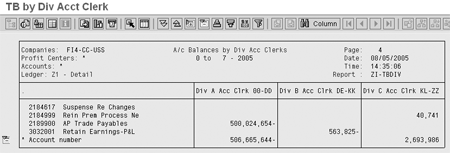
Figure 11
Variant of trial balance report that uses BUSAB (accounting clerk) in report columns
Sidebar: How to Create a Database View
Database views are ABAP dictionary objects generally used for reading multiple database tables. Each one contains a selection of fields from a single, very large table or fields from several different tables that have been joined with certain conditions. Figure 1 shows a view ZZXYZT_SKB1 based on fields from two tables.
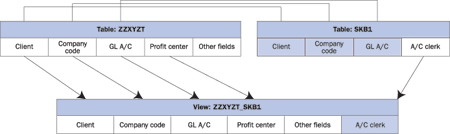
Figure 1
View ZZXYZT_SKB1 formed by joining tables ZZXYZT and SKB1
Since a database view is a data dictionary object, developer's access is required to create it. Those who do not have such access should seek help from colleagues with access.
Step 1. Access the database view. Use the menu path Tools>ABAP Workbench>Development>Data Dictionary or transaction SE11.
Choose the option View and a name for the view (ZZXYZT_SKB1 in my example) and click on the Create button. On the resulting dialog box, choose the option Database view.
Step 2. Join tables. On the following screen (Figure 2), enter a short description of the view. Enter the tables you wish to join under the section Tables and under the Join Conditions, enter the field names with which you wish to join the selected tables. In my example, I joined tables ZZXYZT and SKB1 on three fields: client (ZZXYZT-RCLNT and SKB1-MANDT), company code (ZZXYZT-RBUKRS and SKB1- BUKRS), and G/L account (ZZXYZT-RACCT and SKB1-SAKNR).
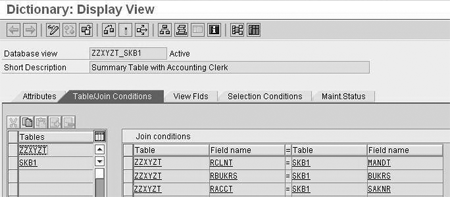
Figure 2
Tables for database view ZZXYZT_SKB1 with their Join conditions
Step 3. Choose the fields to be included in the new view. This is done under the tab View Flds. Select all the desired fields from the various tables of the view as shown in Figure 3, then save and activate the view. You can now use the database view you have just created.
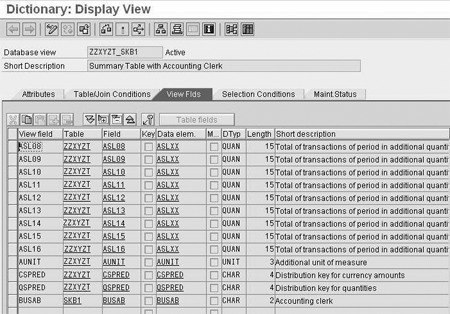
Figure 3
Select the desired fields and save the view before activating
Jayesh Narwaney
Jayesh Narwaney works for a financial services organization as a senior SAP support specialist in the SAP production support department. He has an MBA in finance and more than nine years of SAP experience, including six as a consultant in the FI and CO modules. He now works on the FS-CD module, the industry solution for financial services in SAP.
You may contact the author at jayeshrn@yahoo.com.
If you have comments about this article or publication, or would like to submit an article idea, please contact the editor.

 Premium