Discover how you can streamline planning in SAP Advanced Planning and Optimization by using a Business Add-In that minimizes the amount of Characteristic Value Combinations uploaded into Demand Planning.
Key Concept
Characteristic Value Combination (CVC) represents the master data for demand planning. You can use a Business Add-In to reduce the number of CVCs while loading historical data into a planning area. This makes planning more efficient and reduces data redundancy in your Advanced Planning and Optimization system.
Planning for products with small sale numbers and low margins is not productive. It adds to the planning
process effort, piles up redundant data in the planning system, and can lead to forecasting for old and obsolete
objects when changes in the business occur.
You may need to modify historical data to make the planning process efficient by reducing planning to the least
possible values as well as to avoid redundancy of data. We will use a business scenario to showcase modification of
historical data to reduce Characteristic Value Combination (CVC). The method uses a Business Add-In (BAdI) to source
data from an InfoCube using custom code.
In our example scenario, a large share of the sales quantity — almost 80% — is sold by only 20% of
the selling agents. We therefore can plan for 80% of the business by planning for a few selling agents. The balance of
the selling agents, although large in number, contribute a low sales quantity. Therefore, planning for each one of them
would only add to the bulk of planning efforts without adding value to the planning accuracy. This supports the 80:20
rule or law of the “trivial many and the critical few.” We therefore decided to plan on each selling agent
contributing to 80% of the sales and plan for all other “small and sundry” selling agents using a
“dummy” selling agent code.
We achieved the requirement of representing the “small and sundry” selling agents through use of the
dummy code and then a custom code to reduce the number of selling agents. We’ll provide a comprehensive look at
the process by breaking it down into five sections:
1. Characteristics Value Combination (CVC)
2. Extracting historical data
3. Finding a BAdI for modifying data
4. Implementing the BAdI
5. Sample code logic
1. Characteristics Value Combination (CVC)
In SAP Advanced Planning and Optimization (APO), each planning level is represented by a characteristic
and planning is done for a combination of characteristics represented by a CVC. Selling agent, distribution channel,
and product are examples of characteristics. A combination of a specific selling agent (Agent Code: 100023), a specific
distribution channel (Distribution Channel: Retail) and a specific product (Product: Laptop) represented by 100023-
RETAIL-LAPTOP is an example of CVC.
2. Extracting Historical Data
Historical data forms the basis for planning. For example, a forecast in the planning process is
generated from the historical data, which is sourced from systems such as SAP R/3 into an InfoCube in an APO system.
The InfoCube stores the historical data in the form of characteristics (e.g., product and selling agent) and key
figures (e.g., quantity sold, revenue, and profit). An APO system uses this data in an InfoCube for planning by loading
it into a planning area.
When you use historical data in an “as is” form, the data from the InfoCube is directly
loaded into the planning area. Our sample scenario needs the application of a BAdI to modify data while loading it into
the planning area. Figure 1 provides a quick overview of a typical data flow process. The data from
source system A and B is extracted to an InfoCube in APO. Aggregated data from the InfoCube is then copied to the
planning area. The BAdI helps manipulate the data being copied into the planning area by reducing the number of CVCs
uploaded to the planning area.
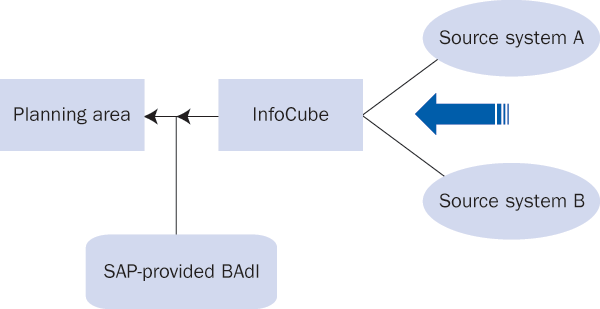
Figure 1
Overview of data flow
3. Find a BAdI to Modify Data
Here are the steps to take to apply a BAdI to reduce the CVC.
Start the repository information system with transaction SE84. Choose
Enhancements>Business Add-Ins to select the BAdI relevant to the scenario. In our example, we need to apply
the BAdI that modifies the data being copied from an InfoCube to the planning area.
Step 1. Use the entries in the relevant component of the IMG (transaction SPRO). Follow
IMG menu path SAP Reference IMG>SAP SCM Implementation Guide>Advanced Planning and Optimization>Supply
Chain Planning>Demand Planning (DP)>Business Add-Ins (BAdIs)>Data Administration>Load Data from
InfoCube. For our example, we need to use the BAdI /SAPAPO/ SDP_IC_LOAD.
Step 2. View the BAdI definition. You can view the BAdI definition supplied by SAP
using transaction code SE18 as shown in Figure 2. Click on the
Display button to view the definition of the BAdI.
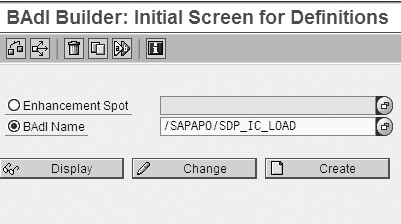
Figure 2
SAP-supplied BAdI definition
A BAdI definition can have several implementations, which are sets of methods that the SAP code accesses
when you invoke the BAdI. Although one definition can have several implementations, only one implementation can be
active at any given time.
Step 3. View the SAP methods. From the BAdI builder screen in Figure 2, click on the
Display button to display the screen shown in Figure 3. Select the
Interface tab to see the methods provided by SAP and the purpose of each. Click on the
Documentation button to view more details about each method.
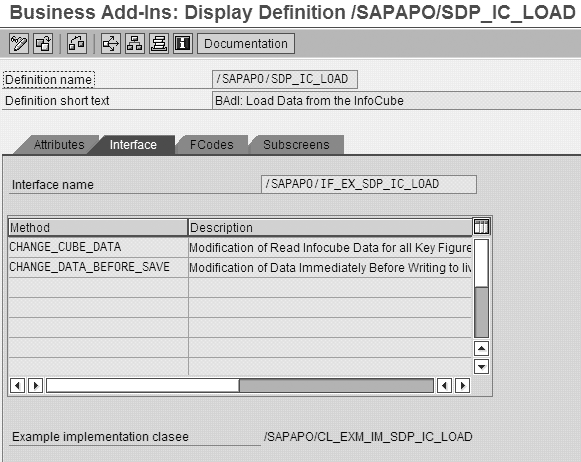
Figure 3
View of methods provided by the SAP system
A method is a piece of coding that uses the input/output parameters of its implementation to perform
certain actions. An implementation can have several methods, which you can activate independently. For realizing our
scenario, the method CHANGE_CUBE_DATA shown in Figure 3 is relevant. You can implement the method
CHANGE_CUBE_DATA by customizing it to meet your requirements.
The method is a link that passes data to the ABAP code that is used for your custom requirement. This
data can be included in the BAdI code as an input parameter so that data transferred to the SAP program is the output
parameter. For example, our relevant method CHANGE_CUBE_DATA records InfoCube data as one of the input
parameters and then modifies the record as an output parameter. Method CHANGE_CUBE_DATA is discussed
in more detail in the next section.
4. Implement the BAdI
Now you implement the BAdI and use custom code to change the InfoCube data before it is loaded to the
planning area. Follow this step-by-step process.
Step 1. Define the implementation BAdI. Use transaction code SE19 to
edit the initial BAdI implementation settings, as shown in Figure 4. Enter the name of the BAdI and
click on the Create Impl. button.
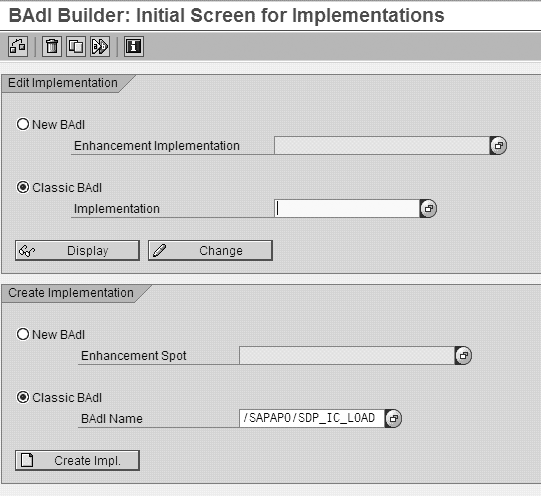
Figure 4
First screen for implementing the BAdI
Step 2. Enter the implementation name. In the screen that appears, provide any name
that complies with the namespace allowed in the system (Figure 5). We recommend that you use some part
of the definition in the name. This type of naming helps anyone to understand relationship between the BAdI definition
and its implementation. We are using the name ZSDP_IC_LOAD1.
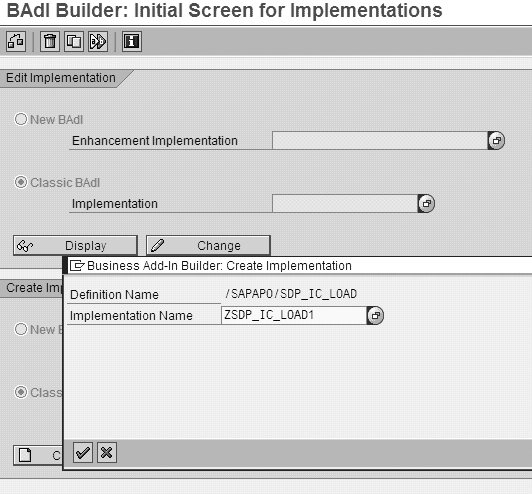
Figure 5
Name the implementation
Click on the continue icon  and
select the Interface tab shown in Figure 6. Enter the Implementation Short
Text and Definition name of the implementing class. While giving the name of the implementing
class, you can give any name that complies with your system namespace. We recommend that you add
ZCL_IM_ to your definition name as shown in Figure 6. This naming convention helps you identify the
BAdI definition class. In our example, the class is IM.
and
select the Interface tab shown in Figure 6. Enter the Implementation Short
Text and Definition name of the implementing class. While giving the name of the implementing
class, you can give any name that complies with your system namespace. We recommend that you add
ZCL_IM_ to your definition name as shown in Figure 6. This naming convention helps you identify the
BAdI definition class. In our example, the class is IM.
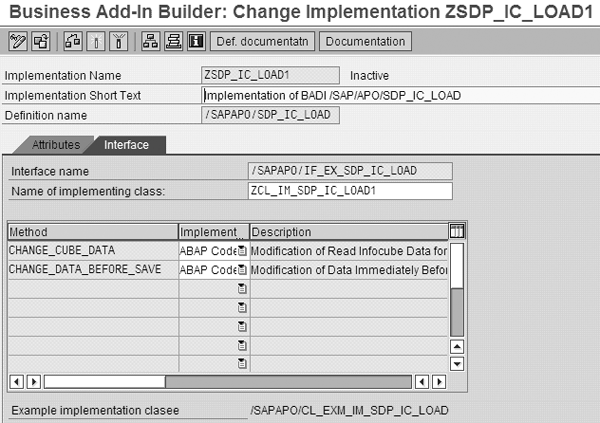
Figure 6
Select the method and implement type for the BAdI class
In Figure 6, you can see that two methods are provided by the system for changing the data. They meet
two different application scenarios.
Method 1: CHANGE_CUBE_DATA: Changes the CVC and meets our needs for changing the value
of the characteristics. In some scenarios you may want to check the value of the key figure and if it is below a
certain threshold value, then you want to change it to the threshold value. With this method, you can create a new
record which is not available in the InfoCube but that you want to insert in the planning area. In some conditions, you
do not want to load a record into the planning area so you can delete it using a BAdI. It also allows you to convert
the quantity unit. You can convert the unit attached to your InfoCube key figure if it is not in the planning area unit.
Method 2: CHANGE_DATA_BEFORE_SAVE: Only allows you to change the key figure values
before they are saved in the planning area.
Method 1 meets the needs of our scenario, so double-click on the first method and the system opens the
ABAP editor for writing the code.
Note
Refer to SAP Note 355522 for activation of BAdI methods in SAP R/3 4.6B and beyond. Keep in mind that BAdIs are typically system specific and might not be available in both SAP APO and SAP ECC, for example.
5. Sample Code Logic
Our scenario needed logic in the custom code whereby on fulfillment of certain conditions the system
modifies the content (e.g., changes the value of the field ZSHIP to DUMMY). The
system then identifies specific selling agent code and converts it to dummy selling agent code.
We identified “small & sundry” selling agents by storing these selling agents’
code in a custom table (the table name in the code is ZHIST_SHIPTO). Note that storing
specific values in a custom table is not mandatory for applying this BAdI. Our scenario additionally needed to evaluate
the selling agent code in the ZHIST_SHIPTO table only if the distribution channel code is 20 and material code is 1234.
The logic therefore is as follows: If the Distribution Channel is 20 and Material Code is 1234, go and
check the value of Selling agent in the current record in the table ZHIST_SHIPTO. If it is found, do
the planning at this agent level. Otherwise, change the selling agent value to DUMMY so that the system can collect all
the selling agent data that is not required at the individual level, thus reducing the CVC in the planning area.
Shreekant W. Shiralkar
Shreekant W. Shiralkar is a senior management professional with experience on leading and managing business functions as well as technology consulting. He has authored best selling books and published many white papers on technology. He also holds patents for innovations. Presently he is global head of the SAP Analytics Centre of Excellence at Tata Consultancy.
You may contact the author at s-shiralkar@yahoo.com.
If you have comments about this article or publication, or would like to submit an article idea, please contact the editor.
Bharat Patel
Bharat Patel is experienced in managing data warehouse technology for the petroleum industry. He is an SAP-certified BW and ABAP consultant, has authored a book on SAP BW, and teaches courses on BW and ABAP at the Sapient Academy and SAP Labs India. Bharat has presented papers about BW at Business Intelligence India Group (BIIG) conferences. He presently manages the SAP BW system at Bharat Petroleum, India.
You may contact the author at patelb@bharatpetroleum.com.
If you have comments about this article or publication, or would like to submit an article idea, please contact the editor.






 Premium