Manager Self-Service (MSS) is delivered with Web forms that allow users to request services such as master data change requests from central departments. These HTML forms are built with SAP's Internal Service Request (ISR) functionality.
Manager Self-Service (MSS) is delivered with Web forms that allow users to request services such as master data change requests from central departments. These HTML forms are built with SAP’s Internal Service Request (ISR) functionality. ISR allows any user to initiate paperless requests at any time, and it allows your company to:
- Create freely designed forms that are fully integrated with R/3.
- Connect forms to workflow processes based on data entered in the forms.
- Process requests without manually retyping data.
- Include your own business logic or special checks in your forms.
- Charge for service requests.
In this final article in my four-part series on MSS, I will explain ISR forms in more detail. First, let’s look at a request for an adjustment posting made by Sally, a cost center manager.
You may recall from my first article (FI/CO Expert, March 2003) that Sally found a posting in one of her monitors that did not belong to her cost center. Using a form called “Request for an Adjustment Posting,” she transferred information such as the line-item number to the accounting department. Charlie, the cost accountant, received the notification via workflow. He displayed the line item and entered an adjustment posting directly from Sally’s message without retyping the information.
This illustrates one of the forms built using the ISR framework in R/3 and delivered with MSS. Other delivered forms include requests for master data changes, budget changes on internal orders or projects, new internal orders, or asset retirement.
Note
MSS is a Business Package for the SAP Enterprise Portal 5.0. In combination with ISR, it requires R/3 release 4.6C or higher.See www.iViewStudio.com for more information on MSS. For more information on ISR, go to SAP’s Service Marketplace (https://service.sap.com/ISR). The “Overview Presentation” gives an outline of the topic and the “Cookbook” includes detailed information.
Besides these, customers can create additional ISR forms. Hundreds of paper-based or electronic forms that could benefit from ISR might exist in your company today, including requests for a credit limit increase, a shuttle to the airport, new office equipment, a new G/L account, new vendor creation, or a non-purchase order invoice process.
Let’s assume Sally’s boss, Steve, has asked her to carry out a special project. She needs additional budget to do so. This budget should be available on an internal order. Sally accesses an ISR Web form called “Request for New Internal Order” in her portal. She fills in the data and submits the form. The request is forwarded to her boss via workflow. Steve approves the request and it is routed to Charlie’s workflow inbox. Charlie processes the request for a new order. He has all information at hand to do so. (See Figure 1 for an overview.)
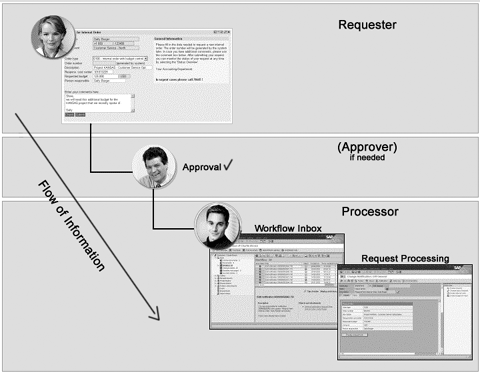
Figure 1
Data flow and process flow from sender via approver to processor
Step 1: The sender submits the form.
From within her MSS portal, Sally chooses “Request for new Internal Order” (Figure 2). When she calls up the form, some data, such as the requester’s name, phone number, or department, has already been filled in by the system. Sally picks an order type from a list that has only the types Sally is allowed to use. She enters the other information — such as the amount of money she wants to be budgeted — and submits the form. The system checks the data for completeness and integrity against R/3 customizing. After all checks have been passed, Sally receives a system confirmation that her request has been submitted.
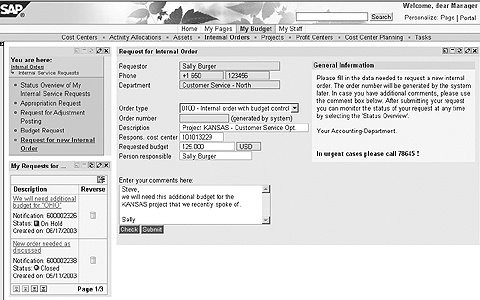
Figure 2
Sally submits the request by filling in the ISR Web form
Step 2: The approver approves request and adds information.
Steve finds a workflow item in his inbox telling him that Sally has requested a new internal order. He displays the form with the information that Sally filled in by opening the workflow item. As he himself had asked Sally to start this project, he approves the request. Steve could also change information in the form and add information or personal comments.
Whenever you create a form template for a new type of request in ISR customizing, you can choose who should provide which information in the form (sender, approver, or processor) and who is allowed to change or add information to the information already in the form. You can include your own business logic using Business Add-Ins (BAdIs).
Step 3: The sender gets a status overview per request.
At any time, Sally can take a look at the status of her requests. She chooses Status Overview of My Service Requests from her portal and sees a list of all her requests (Figure 3). Her request for the internal order shows the status In Process/ Approved. She notices that other requests have already been processed and closed or are still open for approval. Sally could decide to reverse any of her requests that have not yet been processed, display the request’s form to review details, or even change data on forms that have not been processed or approved.
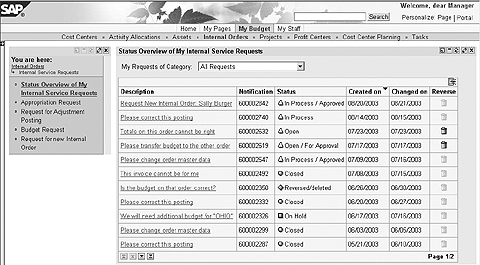
Figure 3
Sally checks the status of her request, which now is approved
Step 4: Requests can be processed from within the workflow inbox.
Charlie looks at his workflow inbox and sees Sally’s request for an internal order, which has already been approved by Steve. He executes the workflow item and starts the processing of the request (Figure 4). Charlie finds the form containing the data he needs to create and budget a new order. He also can access the necessary transactions directly from where he is now.
The Action box on the top right lists actions such as Display request or Create internal order. When Charlie clicks on the latter option, the data from the form is automatically transferred to the transaction KO01 (Create Internal Order). Charlie does not have to read the information from any piece of paper or email and retype it into the system. Keep in mind that no internal order was created when Sally submitted the form. Only Charlie and his colleagues are allowed to do this in the R/3 system.

Figure 4
Charlie processes the request with all follow-up actions at hand
Step 5: While processing a request, information can be added to the form.
The data flow is not only from the form into R/3 transactions, but also vice versa. After Charlie creates the internal order, the order number is automatically transferred to the form and stored there. See Figure 5, where Charlie selected the Form tab to display a table with the data of the form.
If Charlie decides to create a budget for the order, he does not have to write down the number of the newly created order. Instead, when he calls up Create budget on order, the order number is automatically filled in.
You might think that a SET/GET parameter would help Charlie as much as that. This is not quite true, as the parameter would only keep the order number if Charlie did one transaction directly after the other. The approach I’m describing allows Charlie to do one action at one time and other actions at any other time convenient to him.
After finishing his tasks, Charlie sets the status of the request to Closed. Sally sees that immediately in her status overview. She also can find the number of the new order in the form, if she needs it. If you want Sally to get a notification that her request was processed, you could set up the workflow to send one.
Tip!
As you saw in Figure 4, the Action box includes actions that the user would most probably take. The actions and their sequence can be customized for every ISR form. You can also determine a mandatory sequence of the actions or specify that an action may only be processed once, to help users avoid mistakes.
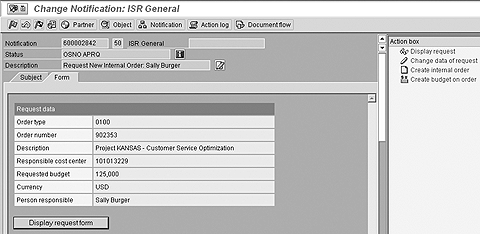
Figure 5
Order number automatically stored in the form
Tip!
The technical vehicle to store the data, which the requester and others fill into the form, is a notification from the Quality Management module in R/3. Whenever an ISR request is submitted, a notification is connected to that request, and the data in the notification is used when requests are processed.
Internal Service Request
Now that you’ve seen how this works, I’m going to go into more detail on what you can do with ISR functionality:
Freely Designed Forms with Benefits from R/3
Using ISR, you can create virtually every form you could think of. It is possible to include any type of data entry fields or display-only fields. These fields can refer to R/3 ABAP Dictionary (DDIC), if you want them to. In that case:
- Fields automatically consider the field length of the ABAP Dictionary data type.
- You can reuse the output conversion defined in R/3 (e.g., for currency amounts or calendar dates).
- Field labels can be taken from ABAP Dictionary and, for example, can be automatically displayed in the correct language for all users of the form.
The ISR forms are defined using Java Server Pages (JSPs). This means they consist of HTML pages with JavaScripting. These JSPs are generated after you define a new form in R/3 Customizing. You can then modify the JSPs with any HTML editor, giving you freedom of layout and branding for your forms. JavaBeans take care of the data transfer between the form and R/3, where the data of the filled forms is stored in notifications.
You could use ISR with R/3 4.6C or higher without using the Business Package for MSS. If you decide to do so, you use SAP’s Internet Transaction Server (ITS) for HTML generation at runtime, instead of JSPs using JavaBeans. ITS technology handles the communication between the form and R/3. SAP recommends using ISR forms within SAP’s Enterprise Portal, which takes care of single sign-on of the user to the R/3 system. This sign-on is needed as the R/3 system communicates with the form, stores the data entered by the user, checks the data, and initiates the workflow process.
Starting Workflows Based on the Data in the Form
Each form can be connected to an SAP Business Workflow template. Whenever a user submits such a form, a new workflow process starts. This process can use data from the form or data derived from the sender’s user ID to determine the approvers and the receivers of the form. For example, you could define that budget requests above a certain amount need additional approval, or that the receiver of a request is calculated based on the sender’s office location. (A dispatcher could also dispatch the workflow to the respective processor on a case-by-case basis.)
Using Business Add-Ins for Additional Business Logic
You can use BAdI technology to include your own ABAP code in the processing of forms. Some examples:
- There could be initial values already filled into fields of the form, and these values could be chosen differently per user at runtime.
- You could include your own value help by field or do data integrity checks based on the data in the form, before allowing the user to submit the form.
- You could include buttons on the form that initiate logic, calculate additional values, or derive field values from given data.
- The form could show a different appearance depending upon who looks at it: sender, approver, or processor.
Service Charges for Form-Based Service Requests
Service requests built with the ISR functionality enable you to collect and distribute costs caused by requesting a certain service. This allows you to establish shared service centers that distribute their costs to the requesters. You are able to distinguish between two types of costs:
- Direct costs incurred during the execution of the requested service (e.g., the cost of a requested shuttle to the airport).
- Indirect or administrative costs, such as dealing with the service requests (e.g., the costs of the working hours of the processor).
The direct costs can be assigned to the request by the processor using a specific activity within the Action box. The indirect costs could either be estimated when designing a new form (and would then be the same for all requests), or they could be automatically calculated for each request based on data in the form. For example, the costs for requesting business cards could be calculated based on the number of cards requested.
You can define which service provider is credited when creating a new form. The costs per request could either be posted to the cost center of the requester or to a chosen account. A user exit even lets your own ABAP code derive the receiver of the costs, if you like.
Markus Kuppe
Markus Kuppe joined SAP AG in 1997 and has since headed various development projects for cost management applications and enterprise portals. He is now Director of Product Management for the mySAP Financials Portal Solutions, creating new collaborative financial applications with and for customers. Markus holds a graduate degree in mathematics from the University of Darmstadt, Germany.
You may contact the author at Markus.Kuppe@sap.com.
If you have comments about this article or publication, or would like to submit an article idea, please contact the editor.



 Premium