Learn all the customizing settings needed to implement the billing before issuing solution using standard SAP tools.
Key Concept
Billing before issuing occurs when a customer wants to buy goods in a large quantity to get the appropriate discounts but doesn’t have enough space in its warehouse to store them. In this case, you need to bill the customer, but hold on to the merchandise until the customer is ready to receive it.
A company I once helped had a customer who purchased a specific quantity of finished products to take advantage of appropriate discounts as well as guarantee that it had sufficient stock of the items needed. The trouble was, the customer didn’t have enough space in its warehouse. Furthermore, it didn’t need all the quantity shipped in one delivery. Therefore, my client needed to devise a way to bill the customer before actually shipping a partial delivery of the goods.
Billing before issuing the goods is not that uncommon. Many companies try to address this need by modifying standard SAP objects and reducing the amount of customizing work. However, this is not recommended by SAP, nor is it really a good practice. Instead, I propose that you create custom objects by copying the standard ones. Then, based on your customers’ needs, you can have subsequent deliveries and good issues posted in your SAP system.
My solution can help you:
- Improve customer relationships
- Increase your company’s revenues (by allowing customers to pay in advance for their orders)
- Provide full visibility of the deliveries
- Provide additional services (i.e., granting warehouse space)
- Meet sales targets
- Reduce administrative work
I will explain the customizing steps to be done to meet an example I created. Based on my experience, I’ll provide solutions already implemented in production environments for Sales and Distribution (SD) and Logistics Execution Shipping (SHP) in SAP ERP Central Component (SAP ECC) 6.0. However, the process I describe also applies to all previous versions of SAP SD and SHP.
Before I begin my method, I would like to go over some financial logistics involved. When you send out the invoice and receive cash, the usual accounts that are hit in the normal sales cycle are affected. No changes are required for account determination. The company receives money and has an obligation to deliver goods of a certain value. To report on the sales that still need to be delivered, you can use standard reports available for Open Sales Orders/Outbound Deliveries (using the custom document types listed in the article). Basically, paying before issuing in SAP SD is the equivalent of the standard process you have in SAP materials Management (MM). Before implementing this solution, the logistic department should have a sign-off from the finance department. Additionally, in this specific case, the normal G/L accounts are hit.
SAP Customizing Details
My billing before issuing solution has 10 simple steps:
Step 1. Create a custom delivery type
Step 2. Create the delivery item category
Step 3. Define delivery item category determination
Step 4. Create a billing type
Step 5. Create a dependency between the custom delivery type and the custom billing type
Step 6. Create a custom sales order type
Step 7. Create a custom item category
Step 8. Create the item category assignment
Step 9. Create a dependency between the custom delivery type and custom sales order type
Step 10. Create a dependency between the billing document and the sales order document
These steps are the customizing parameters that create the appropriate documents to help you perform the entire sales and distribution cycle to cover this business case from end to end.
Step 1. Create a custom delivery type. Go to the main SAP screen and follow menu path Tools > Customizing > IMG > Execute Project > SAP Reference IMG Logistics Execution > Shipping > Deliveries > Define Delivery Types. You can also use transaction OVLK. Then, create a name for your delivery type. If you want to define your own delivery type, SAP suggests that you begin your name with the letter Z. Enter a suitable custom code for the new delivery type (e.g., ZF ). Then enter a suitable description ¾ I have just used the standard one ¾ and complete the rest of the fields as shown in Figure 1.
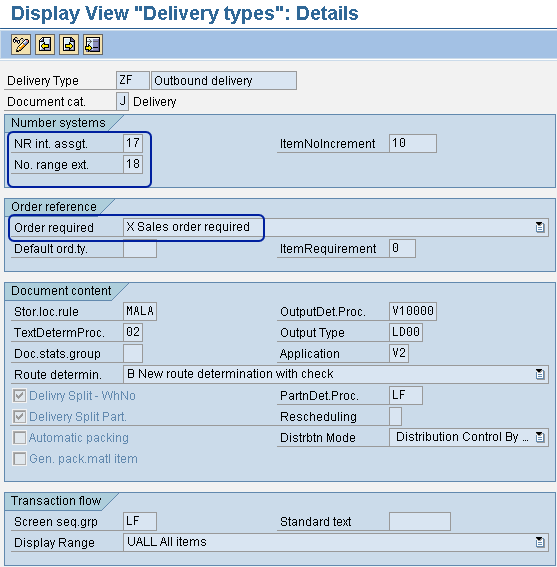
Figure 1
Outbound delivery document type details
Note the following in Figure 1:
- The system created the custom order type by copying the standard outbound delivery type LF
- I have maintained the standard description Outbound delivery, but you can change it to meet your users’ requirements
- The internal and external number ranges assigned to this Outbound delivery are the same as the ranges for the standard document type LF unless the Outbound delivery is created by the SAP system or by an outside system interfaced with the SAP system
- The user marks the Order required field as X Sales order required, which means that the delivery order type ZF can be used only with reference to the sales order
- The Default ord.ty. (order type) and ItemRequirement field details have been removed because those are relevant only in the case of an outbound delivery created without any order reference. You’ll notice that in Figure 1, there is a 0 in the box. A 0 just means that that nothing has been entered.
- The rest of the fields have been maintained as they were copied from LF
You can use this custom delivery type to differentiate between normal deliveries against the deliveries used exclusively for billing before issuing. You can also use this code as filtering in all the main logistics reports.
Step 2. Create the delivery item category. To create a custom delivery item category, start at the main SAP screen and follow menu path Tools > Customizing > IMG > Execute Project > SAP Reference IMG Logistics Execution > Shipping > Deliveries > Define Item Categories for Deliveries Define. Alternately, you can use transaction 0VLP. Enter the new delivery item category ZAN and a suitable description. Then complete the rest of the fields (Figure 2).
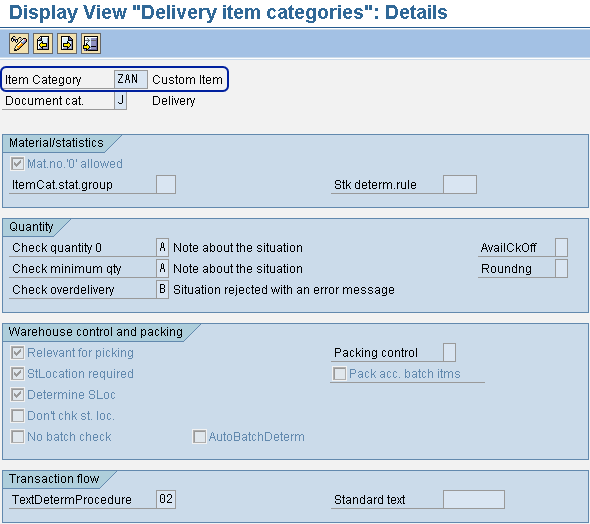
Figure 2
Delivery item category details
Note the following for Figure 2:
- The system created the custom delivery item category ZAN by copying the delivery item category TAN. ZAN is a technical code that identifies all the details you can see in Figure 2.
- The rest of the fields have been maintained as they were copied from TAN
The delivery item category determines how the system processes an item (i.e., item free of charge or relevant for picking). You can use the custom item category to differentiate between normal deliveries and the deliveries used exclusively for billing before issuing. You can also use this code as filtering in all the main logistics reports.
Step 3. Define delivery item category determination. To locate materials subject to the billing before issuing case, you need to link the item category defined in the sales organization view-2 of the material master with the custom delivery document and custom item category relevant for the solution. To make the link, you need to create a rule to determine an item category in an outbound delivery. Start at the main SAP screen and then follow menu path Tools > Customizing > IMG > Execute Project > SAP Reference IMG Logistics Execution > Shipping > Deliveries > Define Item Category Determination in Deliveries. You can also use transaction 0184. Enter the new key delivery type ZF and item category group NORM and assign this combination to the item category ZAN (Figure 3).

Figure 3
Delivery document ZF and item category NORM determines item category ZAN
The item category determination for deliveries decides which item category to use as a default during the creation of a delivery. In my example, the item category ZAN uses document type ZF and item category NORM as the defaults. If a delivery is created with reference to a sales order then the sales order item category is copied into the delivery document line. For items independent of orders in the delivery (e.g., packaging material entered in the delivery) or deliveries without reference to an order, the system determines the item category. It does this by allocating the item category group (defined in the sales order view-2 of the material master) to a delivery type.
Step 4. Create a billing type. According to SAP best practices, you should create a custom billing type to differentiate the standard billing document types from those used for a specific user’s solution (even if there are no significant changes). To create a custom billing type, go to the main SAP screen and follow menu path Tools > Customizing > IMG > Execute Project > SAP Reference IMG Sales and Distribution > Billing > Billing Documents > Define Billing Types. Alternately, you can use transaction VOFA. Enter the new billing type Z1 and a suitable description. Then complete the rest of the fields as shown in Figure 4.
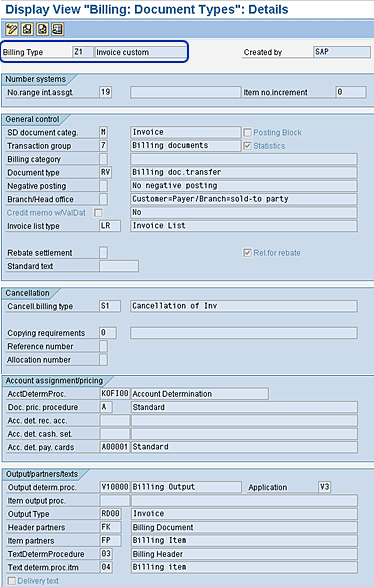
Figure 4
Billing type details
Note the following for Figure 4:
- This newly created custom billing type copies the standard billing type F1. I have changed the description of the Billing Type to Invoice custom by overwriting the defaulted value coming from F1 to differentiate the custom object from the standard one. It is an SAP-recommended practice. You can change it to meet your users’ requirements.
- The internal number range assigned to this billing type is the same as for the standard document type F1, but in this case this should be driven by a business decision or legal requirements
- The rest of the fields have been maintained as they were copied from F1
You can also use the customizing transaction to check the consistency of the settings done for the billing document type using the transaction VCHECKVOFA.
Step 5. Create a dependency between the custom delivery type and the custom billing type. You need to create this dependency; otherwise, you cannot create a billing with reference to the delivery. Go to the main SAP screen and follow menu path Tools > Customizing > IMG > Execute Project > SAP Reference IMG Sales and Distribution > Billing > Billing Documents > Maintain Copying Control for Billing Documents > Copying control: Delivery document to billing document. You can also use transaction VTFL. Enter Z1 as the Target Bill. Type and ZF as the source From Delivery Type. Then complete the rest of the fields as shown in Figures 5 and 6.
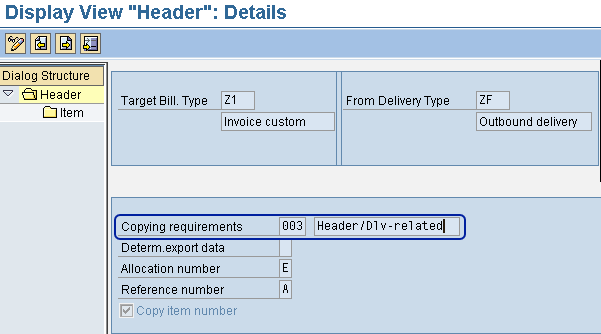
Figure 5
Assign copy requirements and conditions of header fields’ delivery document type ZF to billing document type Z1
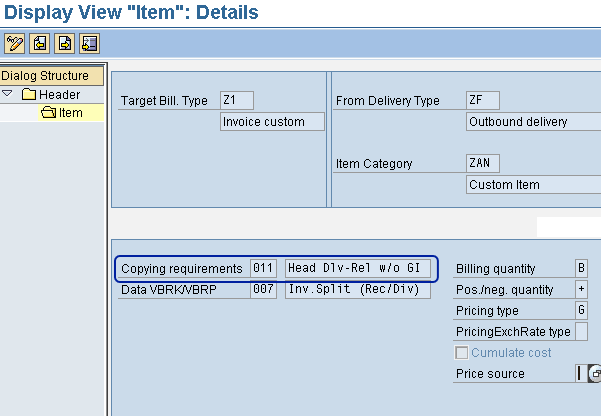
Figure 6
Assign copy requirements and conditions of item fields’ delivery document type ZF and item category ZAN to billing document type Z1
One of the most important fields to be populated is Copying requirements (Figure 6). Copying requirements are FORM routines that check certain requirements as a precondition for the copying process. This validates the header of the delivery document prior to permitting the copy of the outbound delivery into the billing document. The value 007 contains ABAP code that checks the following attributes of the delivery document header: Delivery header billing block, billing status, goods movement status (completely processed), and the incompletion status of the billing document. If any blocks are present or status checks reveal an incompatible entry, the system doesn’t permit copying.
Entering 011 in the Copying requirements field creates a billing document based on deliveries that have not yet had the goods issue posted. 011 checks that the delivery does not contain any billing blocks and that the billing status indicates that the document is relevant for billing. Additionally, due to the fact that the actual cost of the goods being shipped is determined at goods issue time, an invoice created prior to goods issue can contain only the material cost. If any blocks are present or status checks reveal an incompatible entry, the system does not permit copying.
Step 6. Create a custom sales order type. Creating a custom sales order type allows you to do two things. First, it helps you to identify billing before issuing orders immediately. Second, when you create a custom sales order type you can link it to the shipping and billing custom document types without changing the standards. From the main SAP screen follow menu path Tools > Customizing > IMG > Execute Project > SAP Reference IMG Sales and Distribution > Sales > Sales Documents > Sales Document Header > Define Sales Document Types. You can also use transaction VOV8.
In Figure 7, note that:
- This custom order type Z001 has been created copying the standard order type OR. I have specified the description as Custom Order, but you can change it to meet your users’ requirements.
- The internal and external number ranges assigned to this order type are the same as for the standard document type OR, but you can change them to meet the business or legal requirements
- The delivery type is ZF, as defined in Figure 1
- Use immediate delivery A if you want to create a delivery upon the sales order creation
- The billing type Dlv-rel.billing type for a delivery-related billing document is Z1, as defined in Figure 4
- The billing type Order-rel.bill.type for an order-related billing document is also Z1, as defined in Figure 4
- The rest of the fields have been maintained as they were copied from OR
I used this custom order type to exclusively manage billing before issuing business cases. Many standard reports are available to track the status of the orders based on the order type.
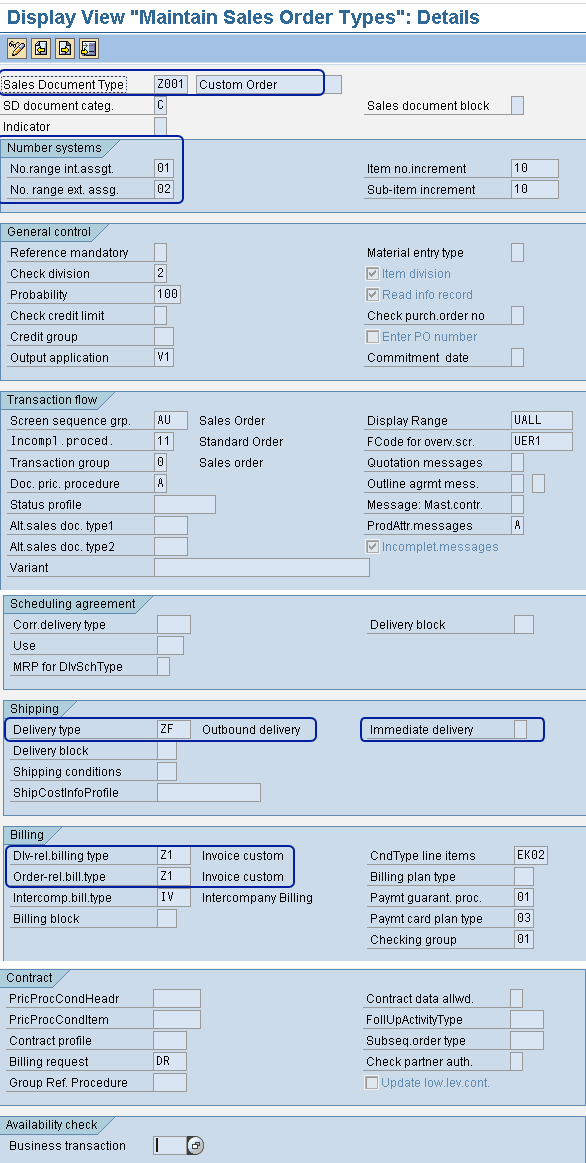
Figure 7
Step 7. Create a custom item category. When you create a custom item category, the system uses it to determine how to process a particular line item. Follow menu path Tools > Customizing > IMG > Execute Project > SAP Reference IMG Sales and Distribution > Sales > Sales Documents > Sales Document Item > Define Item Categories. Enter the Item category ZAN , a suitable description, and then complete the rest of the fields as shown in Figure 8. Note that the item category ZAN has been copied from the standard item category TAN.
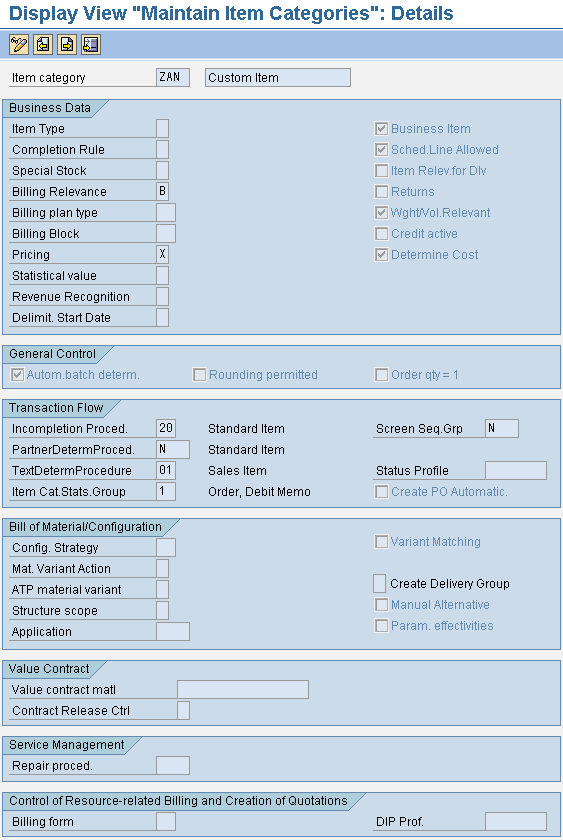
Figure 8
Details of the item category ZAN to be assigned to the sales order document Z001
Step 8. Create the item category assignment. This is the item category that the system automatically proposes when you create a document or create a new item within an existing document. To assign the custom item category created in the previous step, go to the main SAP screen and follow menu path Tools > Customizing > IMG > Execute Project > SAP Reference IMG Sales and Distribution > Sales > Sales Documents > Sales Document Item > Assign Item Categories. You can also use transaction SPRO. Enter the Item category ZAN in the first field of the table (Figure 9).
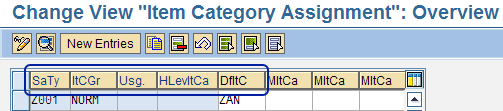
Figure 9
Assign item category ZAN to sales document type Z001
Step 9. Create a dependency between the custom delivery type and custom sales order type. The dependency helps you to control the transfer of data from the sales document type Z001 to the delivery document type ZF. Go to the main SAP screen and follow menu path Tools > Customizing > IMG > Execute Project > SAP Reference IMG Logistics Execution > Shipping > Copying Control > Specify Copy Control for Deliveries. Alternately, you can use transaction VTLA. Enter the Target delivery type ZF and the Source sls doc. type Z001. Then enter the data as specified in Figures 10 and 11.
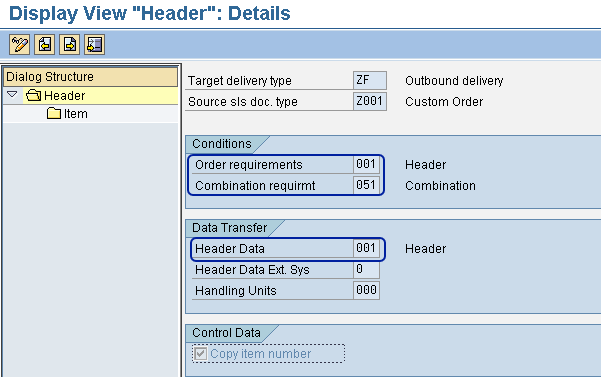
Figure 10
Assign copy requirements and conditions of header fields of sales document type Z001 to delivery document type ZF
Before providing details about the routines defined in Figure 10, let me provide a general description of what routines are. Routines are short subprograms that carry out various checks during document processing. In SD you can create and process routines for copying requirements, data transfer, requirements, and formulas using transaction VOFM.
Figure 10 shows the following three routines:
- Routine 001 specified in the Order requirements field. This checks that the following requirements are met when you copy a sales document into a delivery: credit block, user status, and global delivery flag. If there are any blocks or if the status check reveals an incompatible entry, the system doesn’t permit copying.
- Routine 051 specified in the Combination requirmt field. This checks that certain requirements are met before you can combine a number of sales orders into one delivery.
In particular, the routine 051 ensures that the following attributes of the sales document must be identical: delivery type, sales organization, full delivery rules, and billing type. If any of these entries are not identical, then the system doesn’t permit combination.
- Routine 001 specified in the Header Data field. This allows you to fine-tune the transferred fields during the copying process. In particular, the routine 001 is the standard routine to transfer data from sales documents into the delivery document. Most fields transfer exactly as they appear in the reference document. Note that you can use the ZUKRL field in the routine 001 to define combination rules. This field is embedded in routine 001.
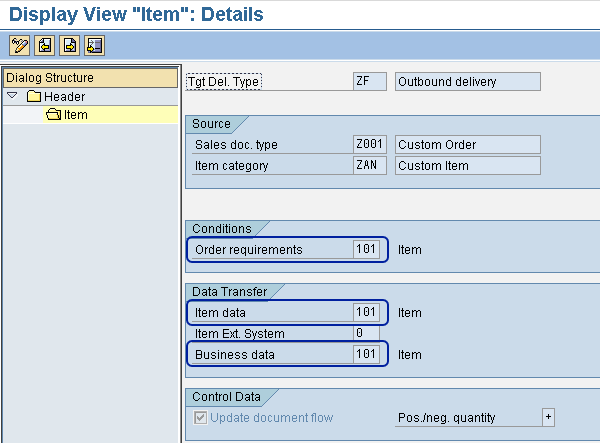
Figure 11
Assign copy requirements and conditions of item fields’ sales document type Z001 and item category ZAN to delivery document type Z1
Figure 11 shows the following three routines:
- Routine 101 specified in the Order requirements field. This checks that the following requirements are met when you copy a sales document into a delivery: credit block, user status, and global delivery flag. If there are any blocks or the status check reveals incompatible entries, the system doesn’t permit copying.
- Routine 101 specified in the Item data field. This checks that the standard requirements are met when you copy a sales document item into a delivery item data.
- Routine 101 specified in the Business data field. This checks that certain requirements are met during the transfer of data from business data fields during copying. In particular, routine 101 is the standard delivery routine for the fields to be transferred from the order document into the delivery items. Most fields are transferred exactly as they appear in the reference document.
Step 10. Create a dependency between the billing document and the sales order document. Go to the main SAP screen and follow menu path Tools > Customizing > IMG > Execute Project > SAP Reference IMG Sales and Distribution > Billing > Billing Documents > Maintain Copying Control for Billing Documents > copying control: Sales document to billing document. You can also use transaction VTFA. Enter Z1 as the Target Bill. Type and Z001 as the source From SalesDoc Type. Then enter the data as shown in Figures 12 and 13 .
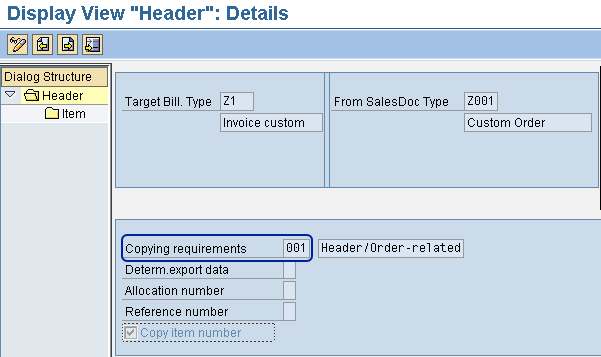
Figure 12
Assign copy requirements and conditions of header fields’ sales document type Z001 to billing document type Z1
Figure 12 shows that I have specified the value 001 as Copying requirements. This means that to transfer the header information from sales orders with document type Z001 into billing document types Z1, the system performs the consistency checks on the following attributes of the order header: billing block, billing status, pricing incompletion indicator, incompletion status of the billing header, incompletion status of the billing document, credit limit check, and the user status. If any blocks are present or if the status checks reveal an incompatible entry, the system doesn’t permit copying.
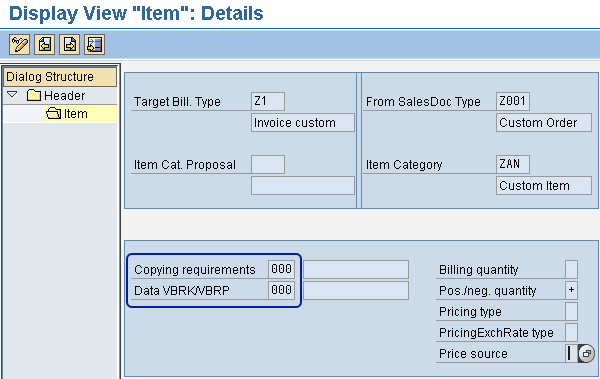
Figure 13
Assign copy requirements and conditions of item fields’ sales document type Z001 and item category ZAN to billing document type Z1
As shown in Figure 13, you don’t need to specify any copying requirements to transfer line items of sales orders with document type Z001 and item category ZAN into billing document type Z1. Additionally, note that you can use the customizing transaction VCHECKTVCPF to check the settings done for the dependency.
Figure 13 also shows how you have directly linked the billing document type Z1 with the sales order document type Z001 and the item category ZAN and do not specify any requirements. This means that the billing can be created directly with reference to that sales order without having the delivery or goods issue posted. Once you’ve performed all the customizing steps, you can then test the solution by using the transactions in Table 1.
|
01
|
Sales order creation
|
VA01
|
|
02
|
Billing creation
|
VF01
|
|
03
|
Delivery creation
|
VL01N
|
|
04
|
Picking creation
|
VL02N
|
|
05
|
Goods issue posting
|
VL02N
|
|
| Table 1 |
Steps to be done to test the solution |

Gaetano Altavilla
Dr. Gaetano Altavilla is a senior SAP practice manager. His focus is on pre-sales, delivery of SAP application solutions for large international corporations, and SAP knowledge management in Europe, the Middle East, and Africa (EMEA).
In his 18 years of SAP application experience working for many multinational companies, such as Procter & Gamble and Hewlett-Packard, he has covered a wide range of ERP logistic areas, focusing on the MM, WM, SD, LES, PP, PP-PI, PLM (QM, PM, PS) modules, as welll as CRM (TFM), SRM (EBP), SCM (SAP APO), and MES (ME) components.
Dr. Altavilla holds a degree with first-class honors in mathematics from the University of Naples and is certified in many SAP modules: SAP Logistics Bootcamp, SAP MM, SD, LE (SHP/WM/LE), PP, PLM (PM, QM, PS), SRM, CRM, SCM (APO), SCM (TM), FI, CO, and Solution Manager. He also has experience in ABAP/4 and application link enabling (ALE) and IDocs. He has participated in numerous industry conferences, such as the SAP Skills Conference in Walldorf at SAP SE.
You may contact the author at Gaetano_altavilla@hotmail.com.
If you have comments about this article or publication, or would like to submit an article idea, please contact the editor.


 Premium