Many companies store their user-related data in a central repository rather than in multiple locations. Applications used by employees access this data in order to prevent redundant data storage and additional data maintenance activities. See how to set up a connection to an Active Directory in SAP CRM, how to access it with Lightweight Directory Access Protocol (LDAP), and how to execute queries. Two examples show how to configure the necessary steps in SAP CRM and process the data that is returned by an LDAP query.
Key Concept
| Lightweight Directory Access Protocol (LDAP) allows you to access an Active Directory (e.g. a company’s corporate address book, phone book, etc). Depending on the user’s access, the user can search, create, or manipulate existing and new data. LDAP specifies the communication between an LDAP server and its clients. The LDAP directory is a hierarchical, tree-like structure with roots as the top node and multiple entries that have a name and one or more attributes. The attributes are described in a schema. The protocol provides different methods to establish a connection (bind) to an LDAP server, to end a connection (unbind), as well as to search, read, create, and change entries in a directory. |
The majority of queries on an Active Directory are most likely to be determined during runtime and therefore created dynamically by some sort of code. A Lightweight Directory Access Protocol (LDAP) browser can be helpful to test or verify that a query returns the required information. It is also very convenient to browse the directory’s structure as you can see how the organizational units (the entities within an Active Directory, not SAP CRM’s organizational model) and the respective entities (e.g. users, computers, printers) fit together. An organizational unit in the LDAP sense reflects a logical grouping of entities (e.g., a group of users of different locations within an enterprise). The Softerra LDAP Browser, which is well-known for browsing and analyzing LDAP directories, is available for free downloading at https://www.ldapbrowser.com/download.htm.
Use Cases
As I mentioned earlier, the purpose of a directory within an organization is to store phone numbers, address information, etc., in a central place that can be accessed by different tools (e.g., a mail program). The use cases below show how LDAP can integrate into SAP CRM:
Use Case 1
When setting up a new installation (e.g., SAP CRM) you are most likely to migrate or create user records and other entities (e.g., business partners) with address or contact-related information or by linking business partners with their respective users. Instead of extracting the data from one system and uploading it to SAP CRM, you can simply access the Active Directory and pull the required information from there. You can perform delta loads and therefore ensure your user records are up to date by scheduling periodic jobs to access the corporate address book and update the respective objects in SAP CRM.
Use Case 2
Imagine you are sending emails from SAP CRM and you want to achieve Microsoft Outlook check name functionality to verify or complete an email address based on a name or part of a name. Instead of manually looking up the email address of your colleague in your corporate address book and then copying and pasting the address into the email form in SAP CRM, you can simply query the Active Directory to get the correct email address. To make a user’s life even more convenient, you can provide a selection list based on matching entities. Then you could allow the user to select one or multiple email addresses from the result list and automatically put it into the respective recipient fields.
Customizing Steps and Development
To achieve the necessary configuration in SAP CRM, use transaction LDAP or follow SPRO menu path IMG > SAP NetWeaver > Application Server > System Administration > Directory Integration. You have the following choices:
- Configure the LDAP Connector, which is a remote function call (RFC) connection used to contact the LDAP server
- Define an LDAP user and password that lets you log on to the server
- Configure and define the LDAP servers
Figure 1 shows a sample LDAP Connector configuration. To configure the LDAP Connector take the following steps in transaction SM59 in order to define the RFC connection. When done, assign it to your LDAP Connector:
- Provide a name for the connection and specify the Connection Type as T – TCP/IP Connection
- Provide the Gateway Host and Gateway service
- Define other settings as well (if needed) such as Timeout, Activation Type, or trace parameters

Figure 1
Set up an RFC connection for the LDAP Connector
Figure 2 offers a sample LDAP user setup. Provide the User ID, the Authentication Mechanism (only simple bind is supported by SAP), and Credential storage. You can define multiple LDAP users, but you can only assign one at a time to an LDAP server (see next step). For functionality that is executed in the background, make sure you provide the password by clicking the pen icon next to the Credentials check box.

Figure 2
Define an LDAP user
Figure 3 shows a sample LDAP server configuration. To configure the LDAP service, take the following steps:
- Provide the LDAP Server name, Host name, and Port Number. The default port for LDAP is 389.
- Specify the LDAP Product name, the Protocol Version (dialect), and the LDAP Application (normally, this is ROOT).
- Specify the user name that has been defined.
| Figure 3 |
Configure the LDAP Server |
Note
The subnodes Mapping and Synchronization directly map LDAP attributes to SAP standard structures (e.g., for each LDAP server defined, you can choose which attributes are read from an LDAP directory and automatically mapped to SAP field names). Here, you can synchronize SAP user master records against a respective LDAP directory.
Now, all necessary steps in order to use the LDAP service are complete. You can log on to the server directly from the AP GUI for testing purposes. Use the main transaction LDAP (Figure 4). By clicking the Log On button, the system performs a bind operation and authenticates against the specified LDAP server. After a successful log on, the other buttons become available. You can now perform different actions (e.g. search the directory) by clicking the Find button, specifying your query in the filter, and retrieving the desired information from the server.
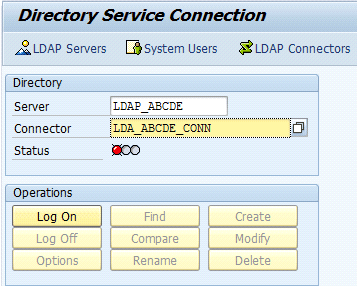
Figure 4
Log on to the LDAP server
Based on the user settings, you can now query the Active Directory or create and modify entities. When you click the Log On and Log Off buttons, the system binds and unbinds the connection to the LDAP service, respectively.
If you want to query the LDAP server in an ABAP program, you can use the following ABAP function modules in order to log on (i.e., establish the connection) and log off (i.e., terminate the connections) to the specified LDAP server:
- LDAP_SYSTEMBIND
- LDAP_UNBIND
When binding an LDAP service, check for available RFC connections to your LDAP server. SAP delivers the following function modules for this functionality:
- LDAP_CHOOSERFC_LOCAL
- LDAP_CHECKIN_RFCDEST
However, in a productive environment, SAP recommends not to use these function modules. By calling the bind operation directly, the system automatically selects an LDAP connector to allow load distribution.
For searching within an Active Directory, SAP provides function module LDAP_SEARCH, which fires an LDAP query and returns the results. The code snippet in Figure 5 shows how to use the function module. First, specify the attributes that you want to retrieve from the LDAP directory and specify your filter — which is your search string, such as (&(objectclass=*)(cn=Sebastian Jungels) — to retrieve the attributes belonging to the entry with name Sebastian Jungels.
* request attributes.
lv_attribute-text = 'sn'.
APPEND lv_attribute TO lt_attrs_io.
lv_attribute-text = 'givenName'.
APPEND lv_attribute TO lt_attrs_io.
lv_attribute-text = 'sAMAccountName'.
APPEND lv_attribute TO lt_attrs_io. * fire query.
CALL FUNCTION 'LDAP_SEARCH'
EXPORTING
base = lv_base
scope = lv_scope
mode = lv_mode
filter = lv_filter
timeout = lv_timeout
TABLES
dns_out = lt_dns_out
attrs_io = lt_attrs_io
values_out = lt_vals_out
EXCEPTIONS
no_authoriz = 1
conn_outdate = 2
ldap_failure = 3
not_alive = 4
other_error = 5
OTHERS = 6.
|
| Figure 5 |
Code snippet for LDAP_SEARCH |
The table parameters dns_out and values_out help map the results into your preferred format in order to process the data in your ABAP code. In order to map the attributes, take a look at the example code in Figure 6. The code can be used in a program that updates business partners, for example, or to validate email addresses when writing an email in SAP CRM.
* now, map the result.
  IF sy-subrc = 0.
    lv_ai = 1.     lv_vi = 1.
    LOOP AT lt_dns_out INTO lv_distname.
      DO lv_distname-num2 TIMES.
        READ TABLE lt_attrs_io INDEX lv_ai INTO lv_attributes.   ADD 1 TO lv_ai.
        READ TABLE lt_vals_out INDEX lv_vi INTO lv_values.   ADD 1 TO lv_vi.
        CASE lv_attributes-text.
          WHEN 'sn'.
            ls_user-lastname   = lv_values-text.
          WHEN 'givenName'.
            ls_user-firstname  = lv_values-text.
          WHEN 'sAMAccountName'.
            ls_user-username   = lv_values-text.
        ENDCASE.
      ENDDO.
    ENDIF.
  ENDIF.
|
| Figure 6 |
Code snippet to map results to the structure |
Sebastian Jungels
Sebastian Jungels is a senior consultant with ecenta AG and has several years of experience in international SAP projects focusing on SAP CRM implementations. He has a both a technical and functional background, and his project roles include team lead and project manager.
You may contact the author at sebastian.jungels@ecenta.com.
If you have comments about this article or publication, or would like to submit an article idea, please contact the editor.




 Premium